

Postfix / Dovecot Logs
Where this lives now: this screen is part of Logs on the postfix dovecot tab. Its address is
/admin/logs?area=system&tab=postfix-dovecot, and the old one redirects there.
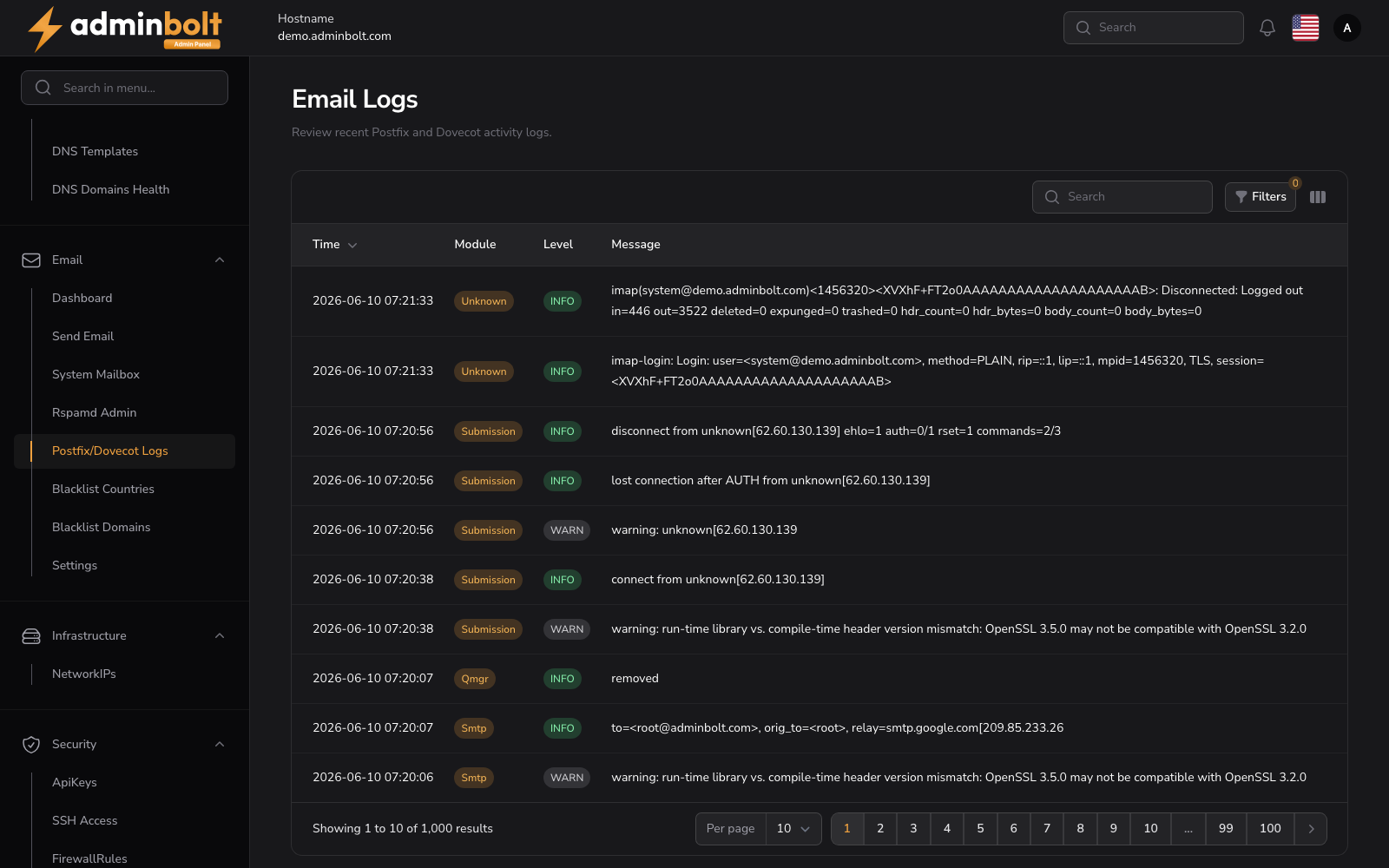
The Postfix / Dovecot Logs page provides detailed real-time logging for all email activity processed through the Postfix (SMTP) and Dovecot (IMAP/POP3) services. This page is essential for monitoring, debugging, and tracking mail flow on the server.
Overview
URL: /admin/logs?area=system&tab=postfix-dovecot
This page shows a paginated table of log entries pulled from system-level email logs.
Each entry includes the following fields:
- Time - Timestamp when the log was recorded.
- Module - The service that generated the log (e.g.,
Postfix,Dovecot, or a specific IP address). - Level - The severity level of the log (e.g.,
INFO,WARNING,ERROR). - Message - The full log message string.
Filtering and Search
At the top of the log table, there are two dropdown filters and a search bar:
Filters
Module Filter
Allows users to filter logs by the module (e.g., specific IPs, Postfix, or Dovecot).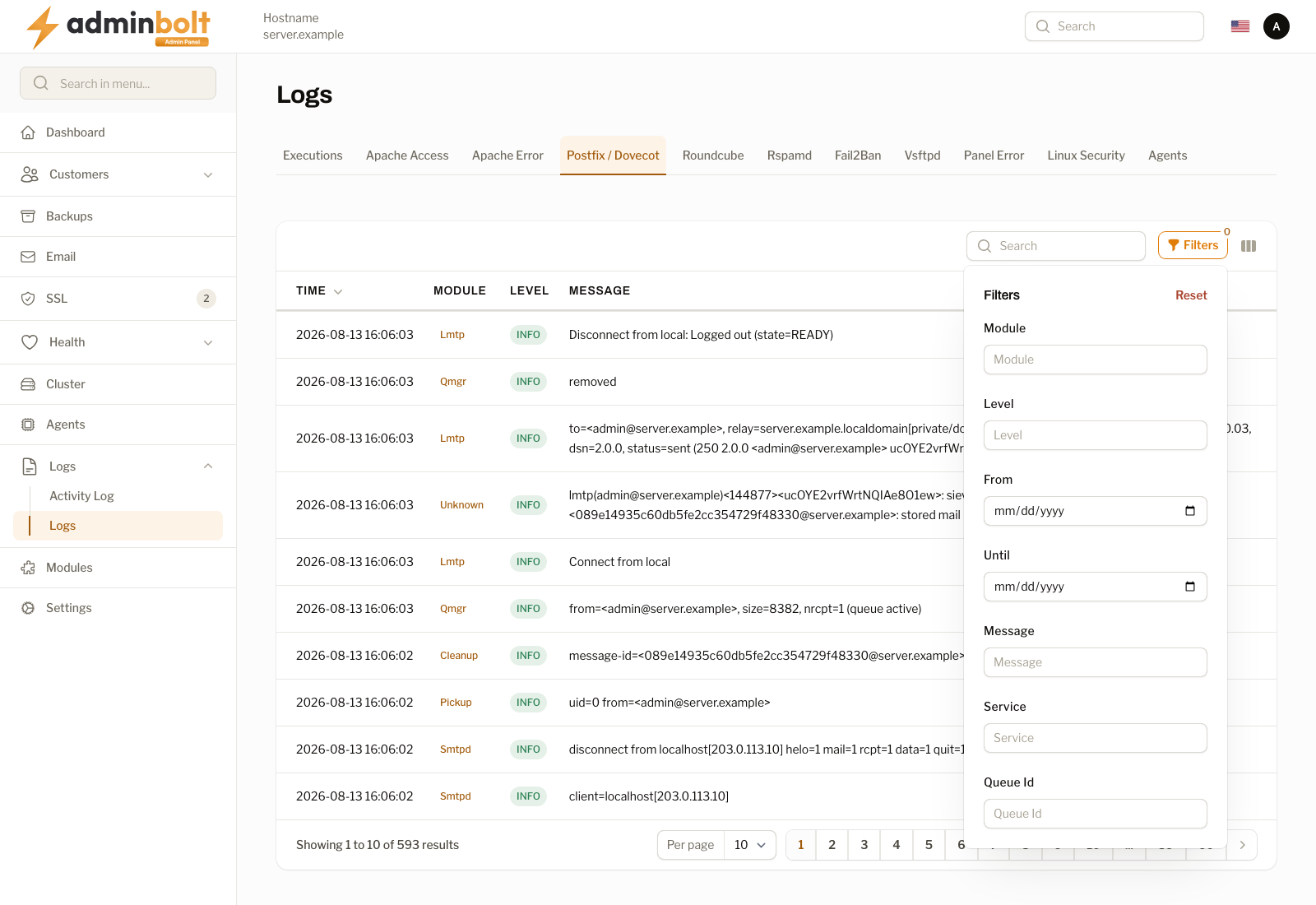
Level Filter
Enables filtering by severity level:INFO,WARNING,ERROR.Date Filter
A date range picker is available to filter logs by specific days or time ranges.Message Filter
Filters logs by message content.Service Filter
Filters logs by the originating service.Queue Id Filter
Filters logs by the mail queue ID.
Search
The search bar allows users to search through logs by Time, Module, and Level.
Toggle Columns
Click the Toggle columns button to show or hide table columns, including Service and Queue Id.
Pagination
Log entries are paginated for performance. Users can select how many results to display per page (e.g., 5, 10, 25, 50, All) using the Per Page dropdown, and navigate between pages using the paginator at the bottom.
- Example:
“Showing 1 to 10 of 7,124 results” with controls:1 2 3 ... 7124
View Log Details (Modal)
Clicking the View button (eye icon) next to any log entry opens a modal window with full details of the selected log.
The modal includes:
- Created at - Exact timestamp.
- Module - Service that generated the log.
- Level - Log severity.
- Full message - Complete raw log message, including protocol session details and system information.
Use Case
This log interface is helpful for:
- Troubleshooting email delivery issues.
- Detecting failed logins or authentication problems.
- Monitoring system performance or anomalies.
- Verifying successful email transmissions.