

bolt-migrate: from cPanel or DirectAdmin to AdminBolt
bolt-migrate moves a complete cPanel or DirectAdmin server to AdminBolt: accounts, websites, databases, email, DNS, and SSL. It is a single, self-contained Linux binary with no installer and no dependencies. You download one file onto the server you are migrating away from, run it as root, and drive the whole migration through a guided process, in your browser or in the console, whichever you prefer.
You migrate on your own terms. The tool previews every change before it happens, asks before anything irreversible, and keeps a way back until you decide you no longer need one. A dry-run mode lets you rehearse the whole process without touching a single file.
This page is the complete guide: getting the tool, the two paths step by step, the web interface, and the command reference.
This is migration into AdminBolt, from another control panel
Everything on this page is about a cPanel or DirectAdmin server becoming an AdminBolt server. It runs outside the panel, needs no Hub Mode, and moves your data as well as your configuration.
Moving a hosting account between two AdminBolt nodes is a different feature, driven from a hub - see Cluster Accounts. If you are not sure which one you need, start at Migration: which one do you need?
Two ways to migrate
There are two paths. The tool detects your source panel automatically and offers the paths that apply to it.
| Migrate to a new server | Convert this server in place | |
|---|---|---|
| Command | bolt-migrate migrate | bolt-migrate convert |
| Hardware | Moves to a fresh server | Keeps your current server |
| Your current panel | Left completely untouched | Replaced after you confirm (reversible until then) |
| Best for | Upgrading hardware or provider while you switch panels | Staying on hardware you like, with no second server needed |
| Fallback | The old server itself, still intact | Built-in rollback to your current panel |
| Source panels | cPanel and DirectAdmin | cPanel |
Migrating to a new server is the recommended path. Your current server stays online and unchanged, so you can verify the target thoroughly and cut DNS over only when you are happy. Converting in place is for when there is no second server: it hands the live services over to AdminBolt and removes the old panel only after you confirm, with a rollback safety net throughout.
- Step-by-step walkthrough: Migrate to a new server
- Step-by-step walkthrough: Convert a server in place
DirectAdmin
DirectAdmin servers use the migrate-to-a-new-server path. In-place conversion is available for cPanel.
Driving a migration from the panel instead
Both paths above run from a terminal on the source server and move the whole server in one pass. If you want to bring selected accounts across, or you would rather the receiving panel held the run's state so a closed browser cannot disturb it, use External Migrations in the admin panel of the target server. It uses this same tool underneath, started for you and supervised by the panel, and it never converts the source.
What moves with you
Everything that defines an account comes across, verified end to end:
- Websites - every domain, sub-domain, addon domain, and parked or alias domain, with your website files.
- PHP - each domain keeps its own PHP version.
- Databases - schema and data, with MySQL users, passwords, and privileges preserved, so applications reconnect with the same credentials.
- Email - mailboxes with their original passwords, all stored messages, forwarders, catch-alls, autoresponders, and mailing lists (including their subscribers).
- SSL - existing certificates come along, so HTTPS keeps working from the first request.
- DNS - the full zone for each domain.
- The rest - cron jobs, FTP accounts, redirects, IP blocking, hotlink protection, per-site PHP settings, hosting plans, feature lists, and resellers.
Passwords your customers already use
Mailbox and database passwords are preserved exactly, so your customers log in and their applications reconnect without noticing anything happened. FTP and reseller-panel passwords are the exception: they are regenerated, and every new one is listed in the final report for you to hand over.
Familiar login URLs
After migrating to AdminBolt, your account domains keep the entry points your users already know from cPanel:
https://yourdomain.com/cpanelopens the AdminBolt panel login.https://yourdomain.com/panelopens the same login.https://yourdomain.com/webmailopens webmail.
Existing bookmarks keep working, so there is nothing new for your end users to learn after the switch.
The shortcuts are on by default and apply to every hosted domain, whether or not the account arrived through a migration. To add your own paths, change where one points, or turn the feature off, see Login Shortcut URLs in MyApache Settings.
Requirements
Source server (the one you are migrating from)
- A cPanel server (CentOS 7 or 8, AlmaLinux or CloudLinux 8 or 9) or a DirectAdmin server.
- Run the tool as root.
Target for "migrate to a new server"
- A server reachable over SSH. AdminBolt is installed for you if it is not there yet.
- The first connection can use the root password once to set up secure key-based access; after that, access is key-only.
Target for "convert in place"
- AlmaLinux 9 (the same server you are converting).
Get the tool
Download the latest binary on the server you are migrating from, and make it executable:
curl -fsSL https://get.adminbolt.com/bolt-migrate -o bolt-migrate
chmod +x bolt-migrate
The download is a single file of a few megabytes, built for 64-bit x86 Linux (amd64), the architecture cPanel and DirectAdmin servers run on. It works from any directory; if you prefer to have it on your PATH, save it to /usr/local/bin/bolt-migrate instead and drop the ./ prefix from the commands below.
Verify the checksum
The published SHA-256 checksum lives next to the binary. Compare it with the checksum of your download:
curl -fsSL https://get.adminbolt.com/bolt-migrate.sha256
sha256sum bolt-migrate
Both commands must print the same hash. If they differ, the download is corrupted or incomplete: delete the file and download it again.
Check the version
Your copy reports its build number with the version command:
./bolt-migrate versionTo see what is currently published, ask the download server:
curl -fsS https://get.adminbolt.com/bolt-migrate.versionIt lists the release tag, build number, SHA-256 checksum, and publication date of the binary being served. If the published build is newer than yours, download again: the tool does not update itself.
Pinning an exact version
https://get.adminbolt.com/bolt-migrate always serves the latest release. Every release also stays available at a versioned URL, useful when support asks you to run a specific build:
https://get.adminbolt.com/downloads/bolt-migrate/<tag>/bolt-migrate-linux-amd64
where <tag> is a release tag as shown in bolt-migrate.version.
Before you begin
- Take a full backup. For an in-place conversion the tool requires you to confirm, in writing, that you have a restorable backup before it changes anything. A complete backup is your surest way back.
- Rehearse with a dry run. Add
--dry-runto export your server and review the summary without changing anything:bolt-migrate migrate --dry-runorbolt-migrate convert --dry-run.
Running the tool
Run the binary as root with no arguments to open the interactive menu:
./bolt-migrateThe tool asks a short series of questions before it does anything.
1. Share anonymous debug info?
The first prompt asks whether you want to share anonymous diagnostics with AdminBolt support. This is optional and defaults to yes. It sends only a step-by-step status log and read-only facts about the host (packages, network, firewall, and running processes) so support can help quickly if something goes wrong. It never sends passwords, the credentials report, or your data. You can decline here, or disable it entirely with --private.
2. How would you like to run it?
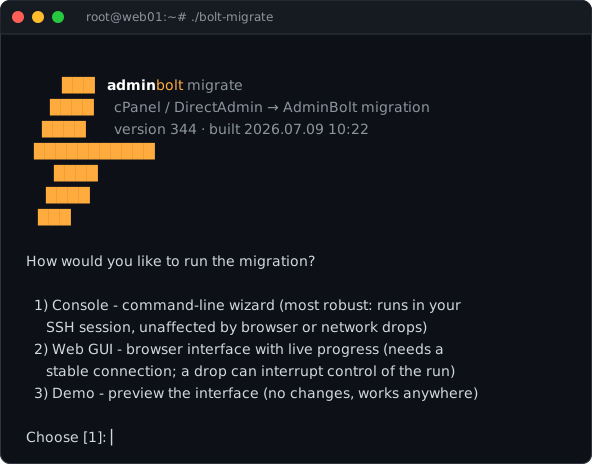
- Console - a command-line wizard. This is the most robust option: it runs inside your SSH session and is unaffected by a browser or network drop.
- Web GUI - a browser interface that streams live progress, explains each step, and asks for confirmations inline. It needs a stable connection. See the web interface for a full tour.
- Demo - an offline preview of the interface that changes nothing and runs anywhere. Use it to see exactly what a real run looks like first.
3. Which path?
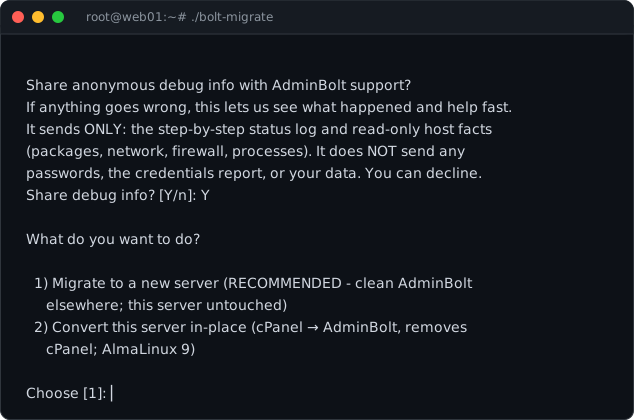
Choose whether to migrate to a new server (recommended) or convert this server in place. From here the run follows the path you picked - both are walked through below. Each path is also a plain subcommand you can run without the menu; see the command reference.
Migrate to a new server, step by step
Migrating to a new server moves everything to fresh hardware while your current server stays online and completely untouched. It is the recommended path: you can verify the new server thoroughly and switch DNS over only when you are happy, and because the source is never modified, your old setup doubles as a fallback for as long as you want to keep it.
This path works for both cPanel and DirectAdmin source servers.
Start it from the interactive menu (choose Migrate to a new server) or run it directly:
./bolt-migrate migrate --target-host 203.0.113.20 --ssh-port 221. Connect the two servers
You give the tool the address of the new server. It establishes a secure connection, and that is the last piece of setup you do by hand. If the new server does not have AdminBolt yet, it is installed for you; if AdminBolt is already running there, the tool connects to it.
The first connection can use the new server's root password once to set up key-based access. After that, access is key-only.
2. Scan and review
Everything on the source server is read and summarized for your review before a single byte moves. This step is read-only. If the target already hosts accounts (for example when you are merging several servers into one AdminBolt), the tool warns you up front about any account or database name clashes.
The summary spells out what is preserved and what changes. Review it, then confirm to continue.
3. Accounts recreated on the target
Hosting plans, feature lists, accounts, resellers, domains, and per-domain settings are rebuilt on the new server to match the source. Each account is provisioned with its full stack, so it is ready to receive its content.
If any account cannot be provisioned, the tool pauses before the transfer so you can proceed with the rest or stop to investigate first. Nothing is ever removed from your source server.
4. Content transfer with live progress
Website files, databases, and every stored email message copy across to the new server, and you watch the progress as it happens. Mailbox and database passwords carry over unchanged, so applications reconnect and users log in exactly as before. Your current server keeps serving traffic the entire time.
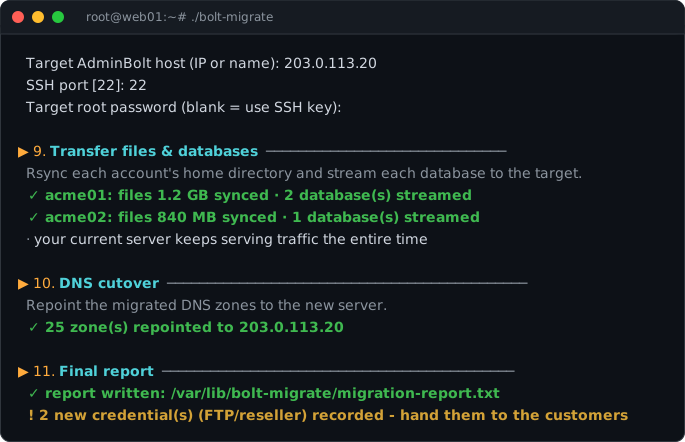
5. DNS cutover, on your terms
When the new server is ready, the migrated DNS zones are repointed to it. If you manage DNS elsewhere, or you want to control the exact moment of the switch, use --keep-dns-ips to keep your records as they are and cut over whenever it suits you.
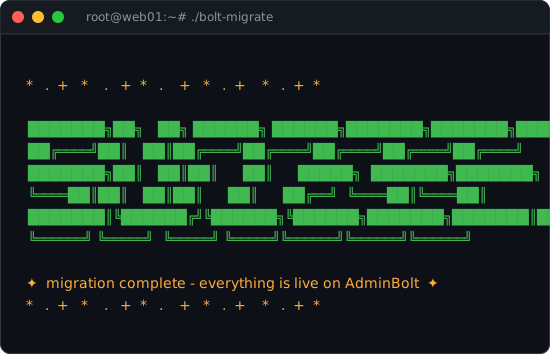
6. Done
The tool shows a success screen and writes the final report, including any FTP and reseller passwords that were regenerated. Because the source server was never modified, your complete original setup is still there, intact, as a fallback.
Moving files or databases yourself
By default the tool copies everything. If you would rather move the largest content yourself (for example over a faster private link), you can tell the tool to skip it:
--skip-files- skips website files and email content. Mailboxes are still created, and the report lists exactly what to copy and where.--skip-databases- skips database contents. Users and privileges are still created, and the report lists which databases to copy.
The accounts, domains, mailboxes, and settings are created on the target either way; only the content you chose to skip is left for you to move, with precise instructions in the report.
Convert a server in place, step by step
An in-place conversion swaps the panel on the hardware you already have: cPanel becomes AdminBolt on the same server, same IP, with a rollback safety net the whole way. This path is for cPanel servers running AlmaLinux 9.
AdminBolt installs alongside cPanel first, so both panels coexist while you review. cPanel keeps serving your sites until the moment you approve the cutover, and cPanel is removed only at the very end, after everything is running on AdminBolt and you confirm.
Take a full backup first
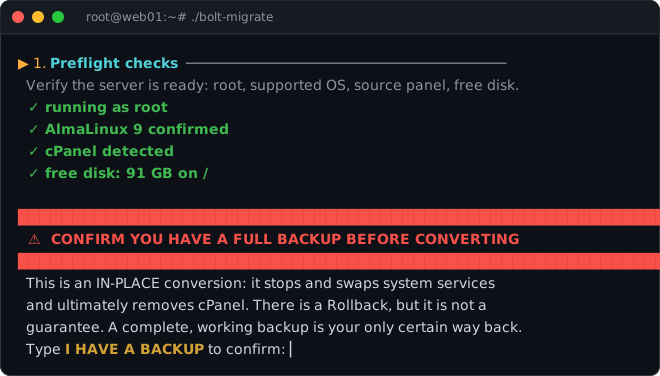
An in-place conversion stops and swaps live services and ultimately removes cPanel. Rollback exists, but a complete, restorable backup is your only certain way back. The tool asks you to confirm you have one before it changes anything.
Start the conversion from the interactive menu (choose Convert this server in-place) or run it directly:
./bolt-migrate convert1. Preflight checks and backup confirmation
The tool first verifies that the server is ready: it is running as root, the operating system is supported, cPanel is present, and there is enough free disk space. Nothing is changed yet.
It then asks you to confirm you have a full backup by typing the confirmation out. This is a deliberate act, not a checkbox.
2. Scan and review
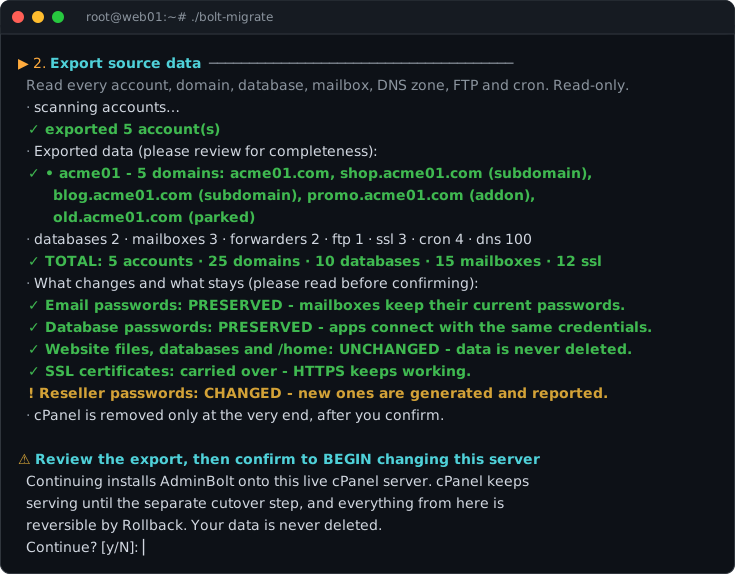
Every account, domain, database, mailbox, DNS zone, FTP account, and cron job is read from cPanel and laid out in a summary. This step is read-only: nothing on the server has changed.
The summary also spells out what is preserved and what changes, so there are no surprises. Review it, then confirm to begin. This is the point where the server starts being modified, and everything from here is reversible by rollback until cPanel is removed.
3. Third-party modules
If the tool detects supported add-ons on your server (for example Imunify360 or JetBackup), it asks what to do with each one. The defaults are safe. For add-ons that AdminBolt integrates, the default reconnects the existing installation to the new panel.
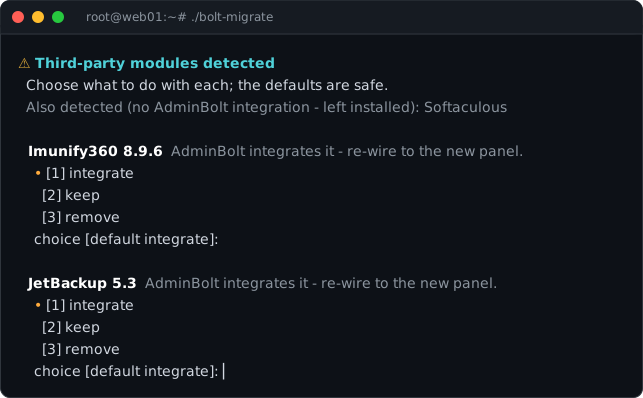
For each add-on you can choose to:
- integrate - reconnect it to AdminBolt so it keeps working under the new panel;
- keep - leave it installed and untouched;
- remove - uninstall it.
4. AdminBolt installs alongside cPanel
AdminBolt installs next to cPanel without a port conflict, so both panels run side by side. cPanel keeps serving your sites while AdminBolt gets ready. Your hosting plans, feature lists, and resellers are recreated in AdminBolt first, ready for the accounts that reference them.
5. The cutover
The switchover never starts on its own. The tool waits for you to approve it, then hands the live services over from cPanel to AdminBolt. Your accounts are provisioned one by one, and their content is placed into AdminBolt so sites, mail, and databases keep working. Mailbox and database passwords carry over unchanged, and existing SSL certificates come along, so HTTPS never blinks.
Because the conversion happens on the same machine, AdminBolt adopts each account's existing system user instead of creating a new one. The account keeps its uid, its files stay where they are with the ownership they already had, and its passwords are unchanged. Nothing has to be copied or re-owned, which is why converting a large server in place is much quicker than moving it.
This cutover is reversible: right up until cPanel is removed, you can still roll back.
Note: Adopting an existing system user is specific to an in-place conversion, where the account on the server is the account being imported. A plain backup restore still refuses a username that already exists on the target, so a restore can never take over an unrelated account.
6. Health check and the final decision
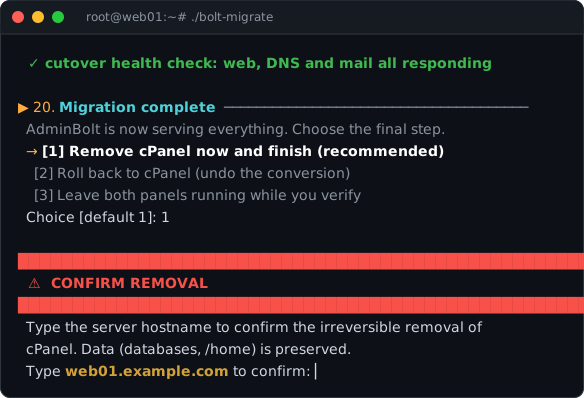
Once everything is running, the tool checks that the AdminBolt stack is actually serving (web, DNS, and mail) before offering to remove cPanel, so cPanel is never removed over a broken setup.
With everything live on AdminBolt, you choose how to finish:
- Remove cPanel now (recommended) - finish the conversion.
- Roll back to cPanel - undo the conversion and remove what was installed.
- Leave both panels running - keep cPanel in place while you verify at your own pace, and finish later.
Removing cPanel is guarded by one more typed confirmation, because there is no undo after it. Your data (databases and home directories) is never deleted.
7. Done
When the conversion completes, the tool shows a success screen and writes the final report, including any FTP and reseller passwords that were regenerated.
The web interface
bolt-migrate can run entirely in your browser. The web interface does everything the console wizard does, and it streams progress live: a step timeline, per-step logs, inline confirmations, and a summary at the end. It is a good fit if you prefer a graphical interface to a terminal session.
Console vs. web
The web interface needs a stable connection to the server for the duration of the run. If your connection to the server is unreliable, the console wizard is more robust, because it runs inside your SSH session. Both drive the exact same process.
Opening it
Choose Web GUI from the interactive menu, or start it directly:
./bolt-migrate web --listen :8088Launching the Web GUI prints a private link with an access token and opens the firewall port for you:
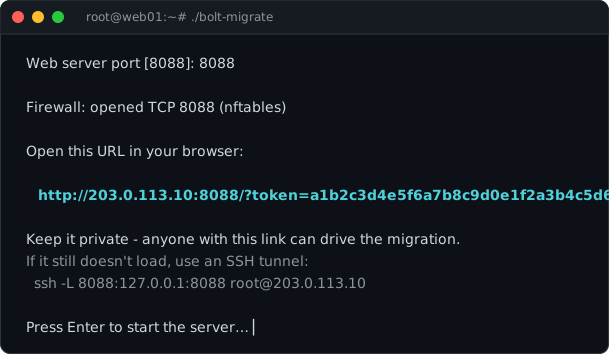
Open the link in your browser to drive the migration with live progress. Anyone with the link can control the run, so keep it private. If the page does not load directly, the tool prints an SSH-tunnel command you can use instead.
The start screen
The start screen mirrors the console's opening questions. You confirm the anonymous-diagnostics choice at the top, then pick a path: migrate to a new server (recommended), convert in place, or run the demo.
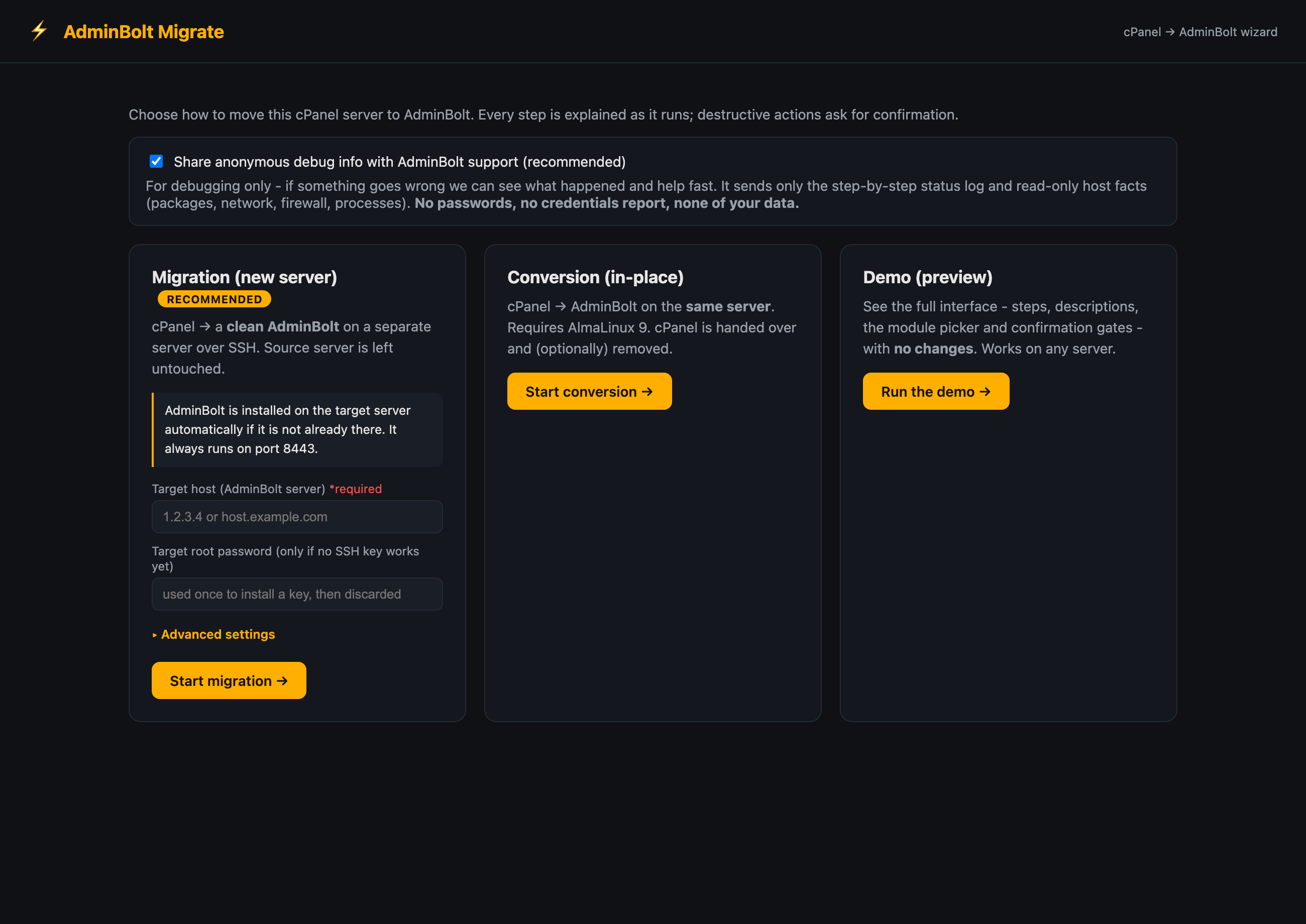
See it before you run it
The Demo card runs the full interface start to finish with sample data and changes nothing, on any machine. It is the fastest way to see exactly what a real run looks like. The screenshots in this section are from that demo.
Live progress
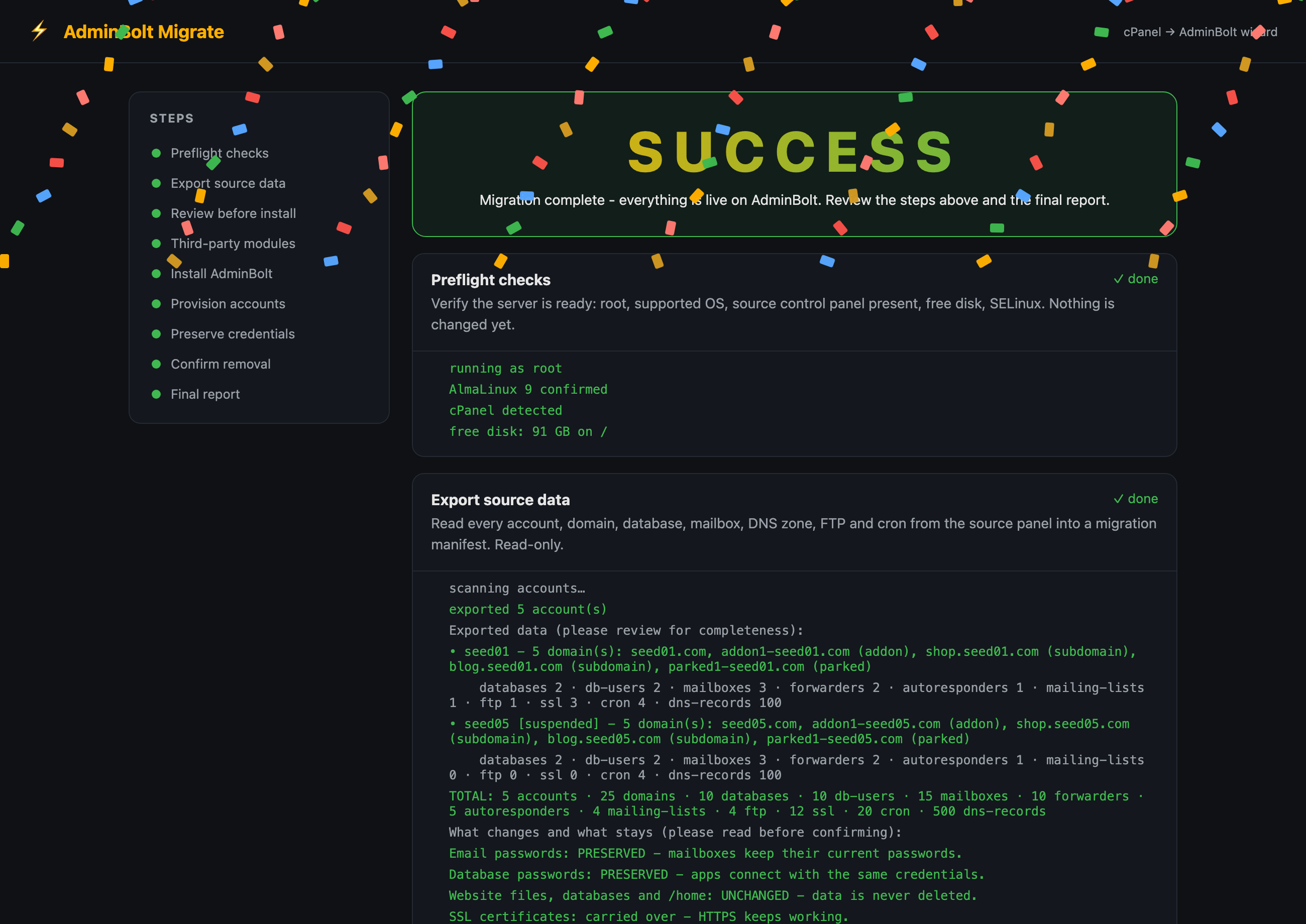
Once a run starts, the left column is a timeline of steps and the main column streams each step as it happens. Every step shows a plain-language description of what it does, and its log lines are colored: green for success, amber for a caution, red for a problem. Read-only steps (like the export) let you review everything before you commit to any change.
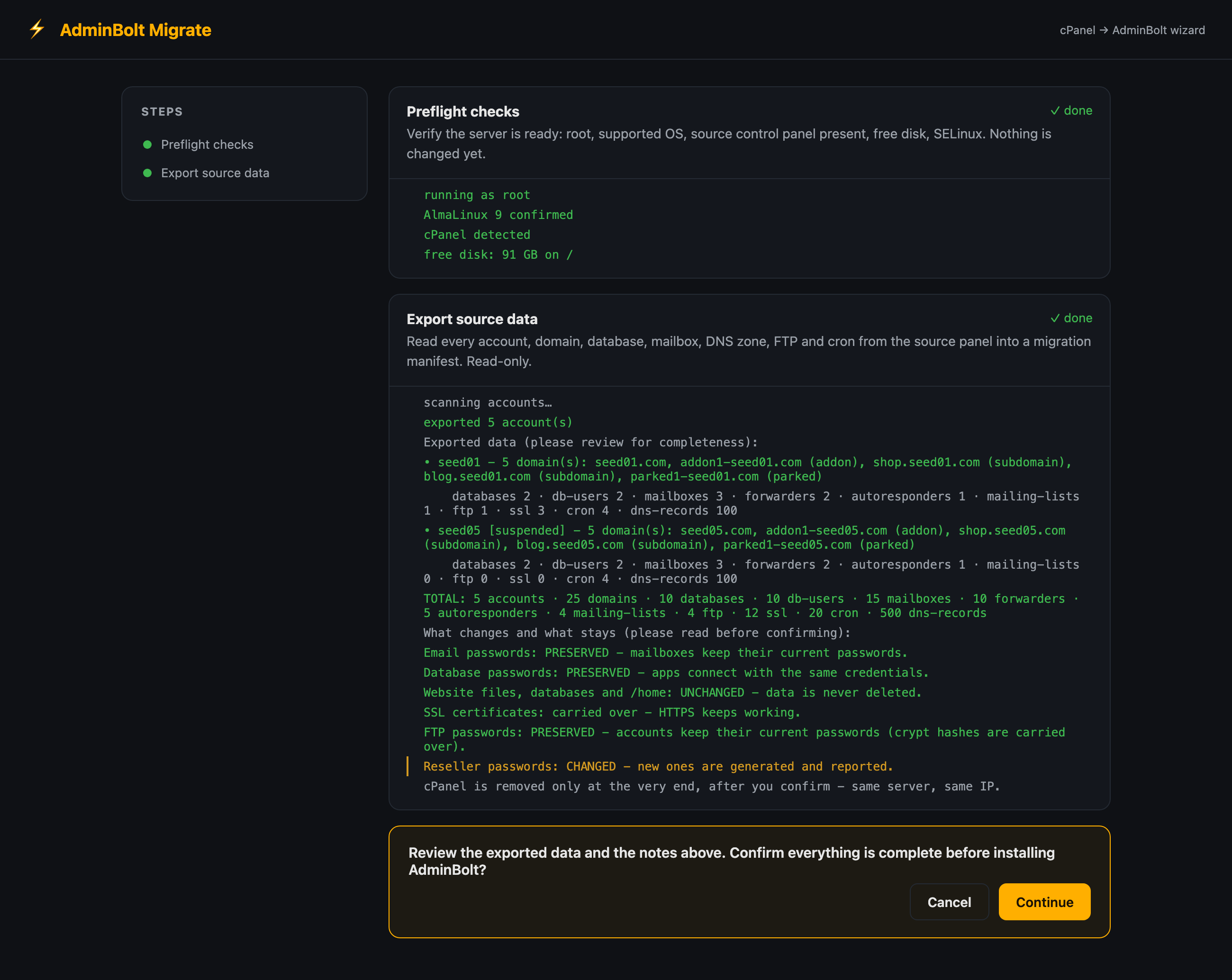
Steps that read your server (such as the export) finish with a review gate at the bottom of the stream, so the summary above stays on screen while you decide whether to continue.
Choices along the way
When the tool finds supported third-party add-ons, it asks what to do with each one. Pick integrate, keep, or remove per add-on; the defaults are safe.
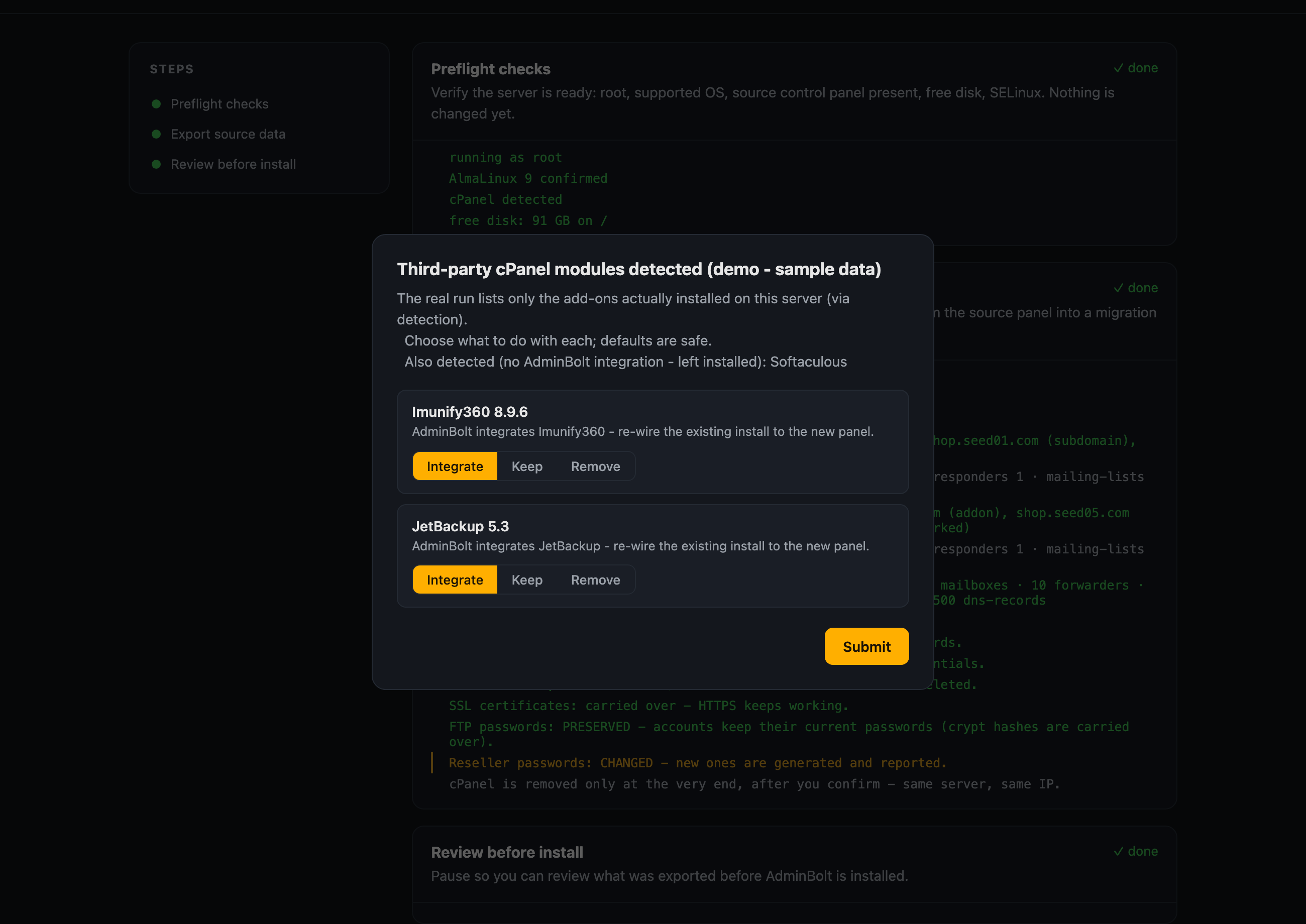
Confirmation gates
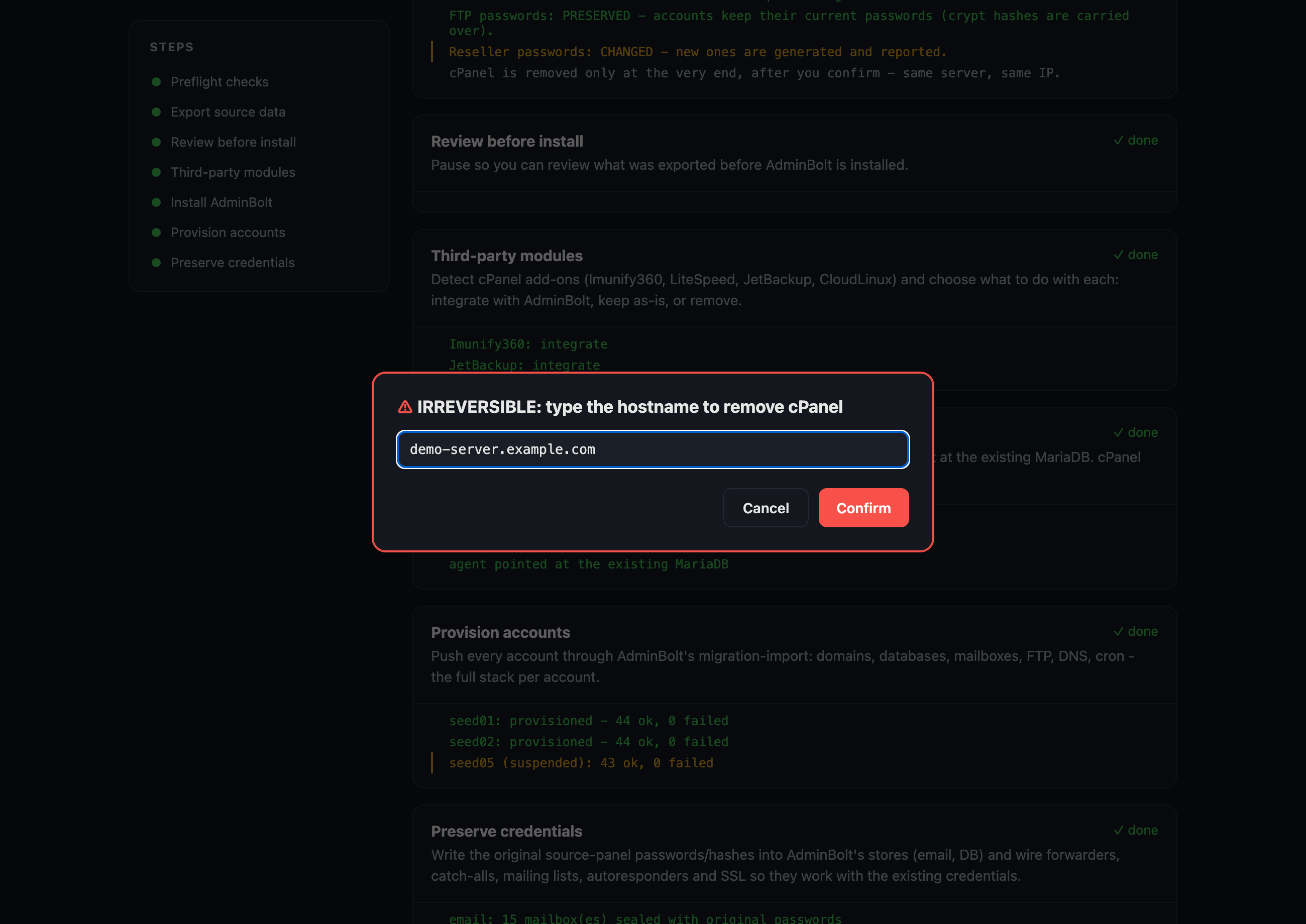
Every irreversible action pauses for your explicit confirmation. The most significant ones require you to type the confirmation out: for example, removing cPanel at the end of an in-place conversion asks you to type the server's hostname, and the button stays disabled until it matches.
The finish
When the run completes, the interface celebrates the finish and points you to the final report. Everything is now live on AdminBolt.
Command reference
Both paths are plain subcommands, so you can run them without the menu:
# Migrate to a new server
./bolt-migrate migrate --target-host 203.0.113.20 --ssh-port 22

# Convert this server in place
./bolt-migrate convert
Commands
| Command | What it does |
|---|---|
./bolt-migrate | Opens the interactive menu. |
./bolt-migrate migrate | Migrates to a new AdminBolt server (walkthrough). |
./bolt-migrate convert | Converts this server to AdminBolt in place (walkthrough). |
./bolt-migrate web | Starts the web interface directly. |
./bolt-migrate demo | Runs the offline demo: the full interface with sample data, changing nothing. |
./bolt-migrate version | Prints the build version. |
Options for migrate and convert
| Option | What it does |
|---|---|
--dry-run | Export and review only. Makes no changes. |
--target-host | The new AdminBolt server's address (migrate). convert targets the server it runs on. |
--ssh-port | SSH port on the new server (migrate; default 22). |
--ssh-key | SSH identity file for connecting to the new server (migrate). Picked automatically when omitted. |
--adminbolt-port | HTTPS port of the AdminBolt panel on the target (default 8443). |
--api-key, --api-secret | API credentials for the target panel. Discovered automatically when omitted. |
--skip-install | Assume AdminBolt is already installed on the target. |
--skip-files | Do not copy website files and email content. Mailboxes are still created, and the final report lists what to copy yourself. |
--skip-databases | Do not copy databases. The report lists what to copy yourself. |
--keep-dns-ips | Keep the original IPs in migrated DNS zones instead of repointing them to the target. |
Options for web
| Option | What it does |
|---|---|
--listen | Address and port to serve the web interface on (default 127.0.0.1:8088). Pass --listen :8088 to accept connections from outside the server; the tool prints a private access link either way. |
Global options
These work with every command:
| Option | What it does |
|---|---|
--work-dir | Where the tool keeps its working files and the report (default /var/lib/bolt-migrate). |
--log-file | Where to write the run log (default /var/log/bolt-migrate.log). |
--private | Disable all diagnostics. Nothing is sent to AdminBolt. |
--telemetry | Opt into anonymous diagnostics up front, skipping the startup question. Useful for scripted runs. |
What the tool writes on disk
- The working directory (
/var/lib/bolt-migrateunless you change it with--work-dir) holds the run's state and the exported per-account packages. The state is what makes an interrupted run safe to start again, and the final report is written here asmigration-report.txt. - The log file (
/var/log/bolt-migrate.logunless you change it with--log-file) records everything the run did.
The tool installs no background service and registers nothing with the package manager. Removing the binary, the working directory, and the log file removes it completely.
Safety by design
- Dry run first. Rehearse the entire process without changing anything, review the summary, and walk away if you want.
- Review gates. Every irreversible step waits for an explicit confirmation, and the most significant ones require you to type the confirmation out.
- Rollback. During an in-place conversion, the tool records every change it makes and can reverse them to return the server to your previous panel.
- Safe to re-run. If a run is interrupted, run it again: accounts that already moved are recognized and skipped, and the rest continue. You can merge several source servers into one AdminBolt server the same way, and the tool warns you up front about any name clashes.
- No silent failures. Every account reports its own result. If one resource on one account has a problem, you see it in the summary, and the rest of the run carries on.
- Private by default. Diagnostics are shared only if you opt in, and they never include passwords or customer data.
The final report
At the end of every run, the tool writes a summary report (migration-report.txt in its working directory) that lists:
- every account and whether it was provisioned, along with anything that needs attention;
- the new FTP and reseller passwords that had to be regenerated, ready to hand to the people who need them;
- if you chose to move website files or databases yourself, the exact content to copy and where it goes on the target.
Related
- Migration: which one do you need? - how migrating to AdminBolt differs from the other features called "migration".
- External Migrations - the same move driven from the target panel, for selected accounts rather than a whole server.
- Cluster Accounts - account migration between AdminBolt nodes, for servers that already run AdminBolt.
- Installation - install AdminBolt on a fresh server without migrating anything.
- Equivalents from other panels - the cPanel, WHM, and DirectAdmin command or screen you know, and what it is called here.