

Acronis Backup
Acronis Backup backs up the whole server into Acronis Cyber Protect Cloud and brings data back from it. From one page you connect the server to your Acronis account, enroll it, choose its protection plan, and then recover or download anything from a recovery point: account files, databases, mailboxes, domains, a whole account, a terminated account, server files, or the entire server. Resellers and clients can restore their own accounts from the same backups. Available since panel 1.9.3.
Acronis backups are separate from the panel's own per-account backups. A server can use both; see Acronis and the other backups.
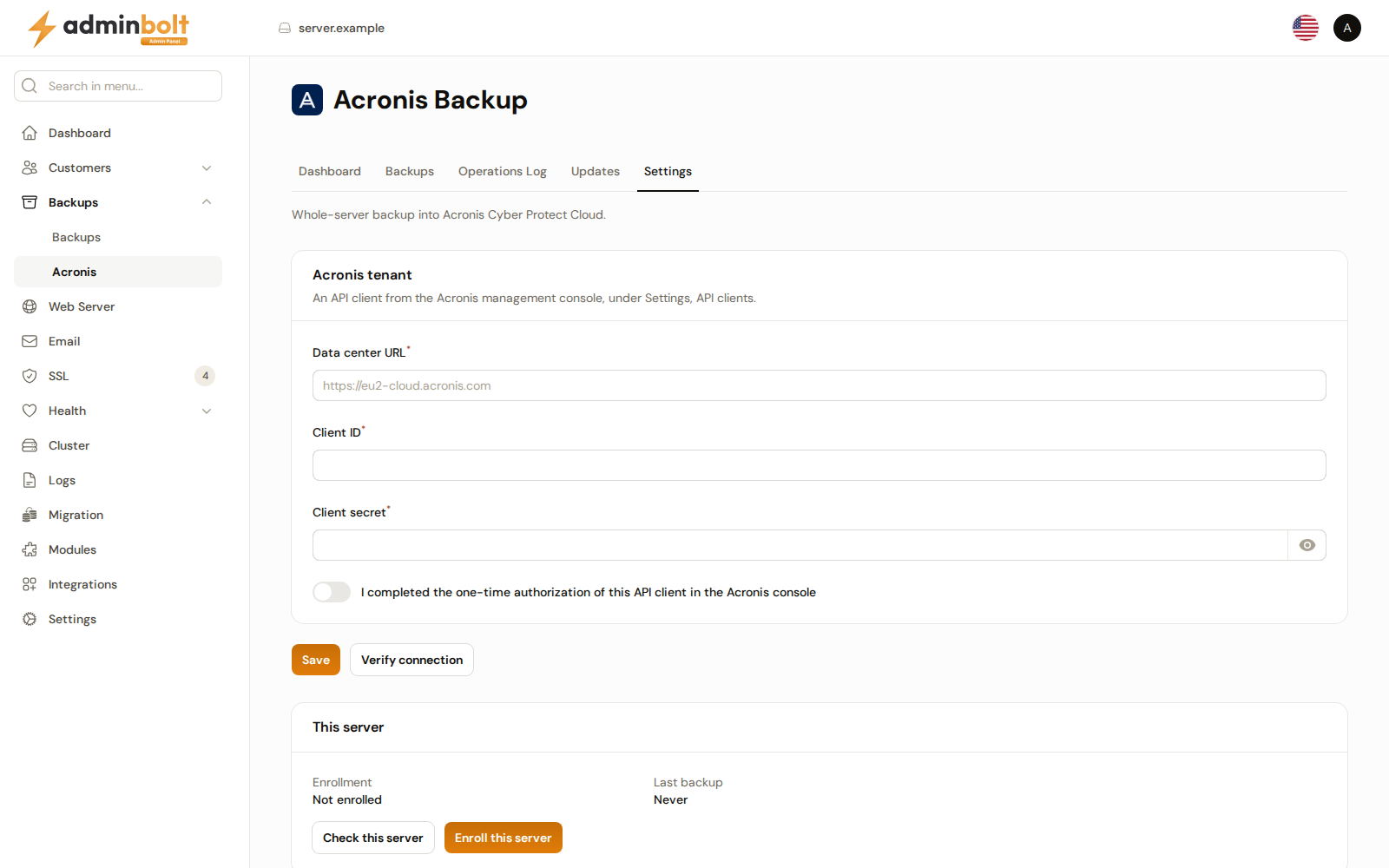
Overview
URL: /admin/backups/acronis
Open it from Backups > Acronis in the sidebar. The page heading reads Acronis Backup, with the subheading "Whole-server backup into Acronis Cyber Protect Cloud."
The page has five tabs, each with its own address so it can be bookmarked:
| Tab | URL | What it holds |
|---|---|---|
| Dashboard | /admin/backups/acronis?tab=dashboard | Whether the server is protected, the last and next backup, storage, the plan, and recent activity. |
| Backups | /admin/backups/acronis?tab=backups | The recovery points, and recovering or downloading from them. |
| Operations Log | /admin/backups/acronis?tab=operations | Every backup, restore, download, and agent operation. |
| Updates | /admin/backups/acronis?tab=updates | Versions of the AdminBolt Acronis tools and of the Acronis agent. |
| Settings | /admin/backups/acronis?tab=settings | The connection, enrollment, protection plans, self-service, and notifications. |
Until the server is enrolled, the page opens on Settings, and Dashboard and Backups say "Enroll this server on the Settings tab first."
While Acronis operations are running, the top bar of the admin panel shows Acronis: N running. It links to the Operations Log, filtered to what is running or waiting.
Before you start
You need:
- An Acronis Cyber Protect Cloud account with server protection available to the customer the server is backed up under. The preflight check says when the customer has no server or virtual machine protection enabled, or has used up its quota.
- An API client from the Acronis management console, under Settings > API clients. Note its client ID, its client secret, and the data center URL of your account, such as
https://eu2-cloud.acronis.com. Complete the one-time authorization of the API client in the Acronis console. - The Acronis Backup module. Install it from Modules. Installing the module adds Backups > Acronis to the sidebar and the Acronis Backup history field to hosting plans and resellers. It does not install the Acronis agent and does not connect to Acronis; you do both on this page. Without the module the page and its API answer
404.
The server must not be an OpenVZ container: install the Acronis agent on the host node instead, which then backs up the container. The preflight check reports this, and any port the server cannot reach Acronis on.
Connect and enroll the server
Everything in this section happens on the Settings tab, in this order.
1. Enter the API client
The Acronis tenant section holds the connection:
| Field | What to enter |
|---|---|
| Data center URL (required) | The address of your Acronis data center, as in the placeholder https://eu2-cloud.acronis.com. |
| Client ID (required) | The client ID of the API client. |
| Client secret | The client secret. Required the first time. Once a secret is stored, the field says "Leave blank to keep the stored secret."; the stored secret is never shown again. When you change the data center URL or the client ID, enter the secret again. |
| I completed the one-time authorization of this API client in the Acronis console | A switch to record that you completed that step in the console. |
| Customer | Shown only for an API client that belongs to a partner with more than one customer: choose the customer this server is backed up under. A partner with a single customer has it chosen for you. |
Save stores the connection and reads "Acronis settings saved."
2. Verify the connection
Verify connection asks Acronis to accept the API client. Next to the button the page then says "Connected to tenant, checked time", or the reason Acronis gave. For a partner's API client, the tenant reads as the partner followed by the chosen customer.
When the partner has more than one customer, the Customer field appears after the first verification. Choose the customer and Save again. A partner with no customer at all is reported: create one in the Acronis console first.
3. Check the server
The This server section shows the Enrollment state and the Last backup. Check this server runs a preflight and lists one line per check, each marked OK, Note, or Blocked:
- the connection to Acronis, and the customer user the server registers under,
- whether the Acronis agent is installed already, and how large the installation is,
- the Acronis quota of the customer,
- the operating system, and whether it is one AdminBolt has tested the agent on,
- whether the server reaches Acronis on every port the agent needs, naming the host and port it cannot reach,
- the packages the agent needs, and which ones enrolling installs.
Fix every Blocked line before you enroll. A Note does not stop enrollment.
4. Enroll
Enroll this server asks "Install the Acronis agent on this server and register it with Acronis?" and starts the enrollment. Installing the agent takes a few minutes. The Enrollment state follows it without a reload: Starting, Installing the Acronis agent, Registering with Acronis, Checking the agent, and finally Enrolled. When it does not finish, the state reads Failed or Stopped before finishing, with the reason underneath; correct it and enroll again.
When the agent is already installed and registered, enrolling adopts it instead of installing it again.
When the agent holds a registration this connection does not know, because the server was deleted in the Acronis console or is registered in another tenant, enrollment stops and offers Register the agent again. It registers the agent in the connected tenant and removes it from the tenant it is in now, together with its plans there, so it asks for confirmation first.
Once enrolled, This server also shows Acronis agent: Running or Not running, with a SnapAPI not loaded badge when the agent cannot take snapshots.
5. Create the protection plan
Enrolling alone backs up nothing. The Protection plans section, shown once the server is enrolled, says "No protection plan is applied to this server, so nothing is being backed up." until a plan protects it. You have two ways to protect it:
- Create the default plan creates a daily whole-server backup plan, AdminBolt daily server backup, and applies it to this server. Choose its encryption first; see Encryption.
- Apply to this server on a plan already in your Acronis account protects the server with that plan instead. It is offered while no plan protects the server.
When the server is protected, the section reads "This server is protected." and lists every plan with Applied or Not applied. A plan made outside the panel is marked Managed in the Acronis console; change it there. Remove from this server takes a plan off the server after a confirmation: its backups stop until a plan is applied again, while the plan and the backups already made stay in Acronis.
The protection plan
Schedule and retention
For a plan the panel made, Schedule and retention of plan holds five fields:
| Field | Meaning |
|---|---|
| Hour and Minute | When the daily backup starts, in server time. |
| Daily backups, days | How many days daily backups are kept. From 1 to 365. |
| Weekly backups, weeks | How many weeks weekly backups are kept. From 0 to 104. |
| Monthly backups, months | How many months monthly backups are kept. From 0 to 120. |
Save the schedule writes them to the plan in Acronis. Acronis may start a backup up to 30 minutes after the set time, so that many servers do not start at once. Saving also makes the plan lock MySQL for the length of each snapshot, so databases are consistent in the backup.
Encryption
Encryption is chosen when the plan is created and cannot be added or changed later. Before Create the default plan, pick Encryption: None, AES-128, AES-192, or AES-256. With an algorithm chosen, enter the Encryption password and Repeat the password.
Keep the password safe: without it these backups cannot be restored, and Acronis cannot recover it. The panel keeps a copy for restores.
Archive password
Restoring from an encrypted backup needs its password. The Archive password section shows Set, Not set, or Unreadable:
- A plan created here with encryption sets it.
- For a plan encrypted in the Acronis console, enter the password here and Save.
- Unreadable means the stored password cannot be read. Enter it again, or encrypted backups cannot be restored.
Remove deletes the stored password after a confirmation. Encrypted backups cannot be restored until it is entered again.
Plan warnings
The plan's panel on the Dashboard and the Protection plans section warn when:
- the plan does not back up the whole server, so restores of what it lacks find nothing. Back up the entire machine in the plan.
- the plan runs without locking MySQL for the snapshot. For a plan made here, save its schedule once. For a plan managed in the console, the warning says what to add to it there.
Ignore hides a warning for that plan.
Dashboard
The top of the tab says how protected the server is: This server is protected, Backup in progress with its progress in percent, Backups are off, The last backup failed, No backup has been taken yet, or This server is not protected. Under it are the plan's name and schedule.
The buttons next to it:
- Run a backup now starts a backup of the server with its plan. It is unavailable while no plan protects the server or a backup runs.
- Turn backups off and Turn backups on switch the plan's schedule, after a confirmation. Turning backups off keeps the plan and its backups. Offered for a plan the panel made.
- Acronis console opens your Acronis data center in a new tab.
Four cards follow:
| Card | What it shows |
|---|---|
| Last backup | When the last backup finished, Succeeded or Failed, and its date in server time. |
| Next backup | When the next scheduled backup is due, or Not scheduled. |
| Cloud storage | The storage used, the share of the quota, and how much of it is This server, Other servers, and Free. Until Acronis reports usage, the card shows a dash. |
| Last 7 days | Operations that succeeded and failed in the last seven days, and how many are running or waiting now. Each number opens the Operations Log filtered to those operations. |
Protection plan lists the plan's Schedule, Retention, Encryption, Consistent databases (MySQL locked or Not locked), and Missed backups when the plan runs them at startup. It also warns when the Acronis agent does not answer Acronis, so no backup runs, or when a newer agent is available and automatic updates are off.
Recent activity lists the latest operations, with a link to the Operations log.
Recovering and downloading
The Backups tab lists the recovery points by Date and time and Type (Full or Incremental). Open one to see what it holds; the breadcrumb at the top leads back.
In a recovery point, choose the Hosting account first. The point then offers:
- Download the account - the whole account as it was in the recovery point, as one archive. See Downloads.
- Recover the account - the whole account; see The whole account.
- Recover entire server - the whole server; see The entire server.
and, under Types: Files, Domains, Databases, Mailboxes, and Server files.
A recovery point older than the chosen account holds what an earlier account of that name had, so nothing in it is offered for this account. The page says so; the earlier account's files are under Server files.
Each restore, download, and recreation runs in the background and appears in the Operations Log. One restore or download from Acronis runs at a time for an account, and the server runs only as many restores at once as Limits on the Backups page allows; a start refused for either reason says why. The waiting time between restores set there holds back clients only, so your own restores do not wait for it.
Files
Files lists the account's home directory as it was. Open folders by name, go back with the path or Parent folder, tick files and folders, then choose Recover or Download. Mail is not listed here: mailboxes are recovered from Mailboxes.
Before recovering, choose how the files come back:
- Delete files created after the backup makes each recovered folder exactly as it was in the backup, which cleans files a hacked site gained since.
- Recover into folder puts the files in another folder of the home directory and leaves the live files alone. Leave it empty to recover in place.
The two options exclude each other. The confirmation says what is replaced.
Domains
Domains lists the account's domains, subdomains, and parked domains in the recovery point, with the folder of each. A domain the account no longer has is marked No longer on the account. Tick domains, then Recover or Download:
- With their subdomains includes the subdomains of the ticked domains.
- Delete files created after the backup removes files the backup does not have.
Recovering replaces the current copies of the domains' files. A domain the account no longer has is created again first; any domain that could not be created is listed in the result.
Databases
Databases lists the account's databases in the recovery point. Tick them, then Recover or Download.
- Recover as new databases named name_suffix recovers each one beside the live database, which stays as it is. Without it, the live databases are replaced and changes made since the backup are lost.
- Bring back their users and grants restores the database users with the passwords they had. A user the account still has only gets its grant.
A database the account no longer has is created again.
Mailboxes
Mailboxes lists the account's mailboxes in the recovery point. Tick them, then Recover or Download, and choose how the mail comes back:
- Keep newer mail: bring back only what the mailbox no longer has keeps the mail received since the backup.
- Overwrite: make the mailbox exactly as it was, deleting mail received since.
- With its filters and With its forwarders bring those back too.
A mailbox the account no longer has is created again. When it gets a new password, the operation's details say so; set one under Email Accounts.
The whole account
Recover the account offers what to bring back:
- Home directory (without mail, which is restored mailbox by mailbox)
- Databases
- Mailboxes
- Replace files that exist in the home directory (otherwise only missing files come back)
Review what is restored lists the Databases replaced, the Mailboxes merged, and what is Not restored because the account no longer has it. Recover the whole account then starts the restore after a confirmation that repeats this. Mailboxes are merged, so mail received since the backup stays.
Terminated accounts
Under a recovery point, Terminated accounts lists accounts the recovery point has that the panel no longer has, once you choose Show terminated accounts in this recovery point. Recreate creates the account again with its plan, domains, databases, mailboxes, and settings as they were, then restores its files, databases, and mail. It is unavailable while one of its domains is served by another account; the row names the domain. Only administrators can recreate accounts.
Server files
Server files lists the whole server from /. Tick files and folders, then Recover or Download. Files come back as root, with the owners and permissions they had in the backup. In Recover into folder, name a folder by its full path, such as /root/restored, to leave the live files alone; empty recovers in place and replaces the current copies.
The entire server
Recover entire server reverts the server to the recovery point. Every disk is overwritten with the recovery point and the server reboots to finish. Everything written after the recovery point is lost: websites, databases, mail, accounts, and the panel's own settings and logs, including the record of this operation. The server is offline until Acronis finishes; follow the progress in the Acronis console.
The page lists each Disk in the backup, the disk it is Written onto, and its Disk GUID. When the disks cannot be matched to this server, recover it from the Acronis console instead. To start, type the server's hostname where the page asks, then choose Recover entire server.
Downloads
A download writes an archive instead of restoring:
- A download for an account, including Download the account, is saved in the
acronis-restoresfolder of the account's home directory. Download the account holds the home directory with mail, the databases, and, when the recovery point holds them, the account's settings, without passwords. The operation's Details say under Account settings (output.json) whether they are Included, without passwords or Not included, and why not. - A download of server files is kept on the server.
When it has finished, Download in the Operations Log saves the file. A file too large to download through the panel stays in the account's home directory, and the message names it. Delete downloads after in Downloads and notifications removes old downloads.
Operations Log
The Operations Log tab lists every operation: the backups Acronis took, and every restore, download, recreation, and agent operation.
| Column | What it shows |
|---|---|
| ID | The operation's number. |
| Operation type | For example Backup, Restore files, Download database, Restore mailbox, Restore account, Recreate account, Download account, Restore server files, Recover entire server, Install agent, Update agent, or Uninstall agent. |
| Status | In queue, In progress, Succeeded, Failed, or Canceled. |
| Account | The hosting account, marked (terminated) when it no longer exists. |
| Items | What the operation covered. |
| Recovery point | The recovery point it used. |
| Start time, Finish time, Elapsed time | When it ran and for how long. |
| Started by | Schedule, Run now, an administrator, a reseller or a customer by name, or an API key. The column can be hidden. |
Filter by Status, Operation type, Account, and Last 7 days. The table refreshes itself while something runs.
Row actions:
- Details shows the operation's fields, where a recovery or download was saved, what was created again, and for a failure the Summary of why, with its log.
- Download saves the file of a finished download.
- Cancel stops an operation that has not started yet, or a running download, after a confirmation. A started download's partial file is removed.
- Dismiss marks a restore that is listed as running, but no longer runs on the server, as failed. Use it only then: until it is gone, it holds its account under the restore limits.
Download logs above the table saves the Acronis logs of this server as one archive.
Updates
The Updates tab shows two parts, each with its Version and the Newest build. The panel checks for newer builds by itself; Check for updates checks now.
- AdminBolt Acronis tools is the
bolt-acronispackage. When a newer build is available, Upgrade installs it after a confirmation; backups and restores keep running. The last upgrade's result and log are shown underneath. System Updates upgrades it too. - Acronis agent is the agent Acronis installs on the server to take its backups. The tab shows its Connection to Acronis (Online, Offline, or Unknown) and Automatic updates with their window. Acronis updates the agent itself while automatic updates are on. When a newer agent is available, Update now installs it after a confirmation; backups and restores wait until it is done, and recovery points open for restores are released. Agent updates are listed in the Operations Log.
Other settings
Self-service
Self-service decides who besides you may restore from these backups:
| Switch | Effect |
|---|---|
| Let customers restore their own files, databases and mailboxes | Clients get Files > Acronis Backup, when their hosting plan's feature list also has Acronis Backup. See Acronis Backup for clients. |
| Let resellers restore the accounts they own | Resellers get Hosting Management > Acronis Backup. See Acronis Backup for resellers. |
| Show restoring the whole account to customers | Clients also get Recover the account. Resellers can always recover a whole account of their own. |
Save applies the switches. Self-service pages exist only while the server is enrolled.
How far back resellers and clients may go is set with Acronis Backup history, in days, on the hosting plan and on the reseller. 0 or empty is no limit. A client gets the stricter of the plan's limit and the reseller's. Administrators always see every recovery point. A client sees only the recovery points taken since the account was created. Neither resellers nor clients reach server files, the entire server, or terminated accounts.
Downloads and notifications
| Field | Meaning |
|---|---|
| Delete downloads after (days, 0 keeps them) | Downloads older than this are deleted. |
| Tell me when the storage is this full (%, 0 never) | When the Acronis storage reaches this share of its quota, you are notified. |
| Also tell me when a backup finishes | Sends a notification for every finished backup too. Failed and missing backups are always reported. |
Alerts
Alerts lists the active alerts Acronis raised for this server, critical first, with their type and when they were raised, or "No active alerts."
Remove the Acronis agent
Uninstall the agent removes the Acronis agent from this server after a confirmation. The uninstaller unregisters the server from Acronis, which removes it from the console and from its protection plan, so backups stop. The backups already made stay in Acronis. You can enroll the server again later; it is then registered anew.
Notifications
The Acronis events are listed in System Notifications, where each can be switched off and its template edited:
- the server finished enrolling, or enrolling failed,
- a backup failed, or no backup has succeeded for longer than expected while Acronis reports no failure,
- the agent is not running, and when it runs again,
- the agent cannot take snapshots, which usually follows a kernel update,
- the backup storage is almost full, at the share set in Downloads and notifications,
- a backup finished, when Also tell me when a backup finishes is on,
- Acronis rejected the API client. Backup monitoring stops until you enter new credentials; the protection plan itself keeps running.
Acronis and the other backups
When the server is also backed up by JetBackup or by the panel's own backups, the Settings tab says so: both read the same data and compete for disk I/O, so check that their schedules do not overlap.
Removing the Acronis Backup module from Modules does not touch the Acronis agent and does not delete anything stored in Acronis; the server stays enrolled and its plan keeps running. To take the server out of Acronis, use Uninstall the agent before you remove the module.
The administrator API
Everything on this page is also on the administrator REST API under /api/admin/acronis. The endpoints need an administrator API key; authentication is the same as for the rest of the API. While the Acronis Backup module is not installed, every endpoint answers 404.
| Method and path | What it does |
|---|---|
GET /api/admin/acronis | The connection, the server's enrollment, the protecting plan, and the operations of the last seven days. For a partner's API client it also lists the customers to choose from after a verification. |
PUT /api/admin/acronis/connection | Save the connection: console_url, client_id, client_secret, console_authorized, and customer_tenant_id. |
POST /api/admin/acronis/connection/verify | Verify the connection. |
GET /api/admin/acronis/enrollment/preflight | Run the preflight checks. |
POST /api/admin/acronis/enrollment | Enroll the server. Send "reregister": true to register the agent again. |
GET /api/admin/acronis/agent, POST .../agent/update, POST .../agent/uninstall | The agent's state, updating it, and uninstalling it. |
GET /api/admin/acronis/updates, POST .../updates/check, POST .../updates/tool | The Updates tab: versions, checking now, and upgrading bolt-acronis. |
GET /api/admin/acronis/plans, POST .../plans/default | The plans, and creating the default plan, optionally with encryption_algorithm and encryption_password. |
POST /api/admin/acronis/plans/{id}/apply, POST .../plans/{id}/revoke | Apply a plan to the server, or take it off. |
GET, PUT /api/admin/acronis/plan, PUT .../plan/enabled | The protecting plan; its hour, minute, days, weeks, and months; turning backups on or off with enabled. |
POST /api/admin/acronis/plan/warnings/ignore | Hide a plan warning. |
GET, PUT, DELETE /api/admin/acronis/archive-password | Whether the archive password is set, setting it with password, and removing it. |
POST /api/admin/acronis/backups/run | Run a backup now. |
GET /api/admin/acronis/alerts | The active alerts. |
GET /api/admin/acronis/recovery-points | The recovery points. |
GET /api/admin/acronis/recovery-points/{backup}/files, .../databases, .../domains, .../mailboxes, .../server-files | What a recovery point holds for an account, or of the server. |
POST /api/admin/acronis/restores | Recover or download files (paths), a database, or a mailbox of an account; kind is restore or download. |
POST /api/admin/acronis/domain-restores | Recover or download domains. |
GET .../recovery-points/{backup}/account-restore, POST /api/admin/acronis/account-restores | Review and start a whole account restore. |
GET .../recovery-points/{backup}/terminated-accounts, POST /api/admin/acronis/account-recreations | List and recreate terminated accounts. |
POST /api/admin/acronis/account-exports | Download an account. |
POST /api/admin/acronis/server-file-restores | Recover or download server files. |
GET .../recovery-points/{backup}/server-recovery, POST /api/admin/acronis/server-recoveries | Review and start recovering the entire server. confirm carries the server's hostname. |
GET /api/admin/acronis/operations, GET .../operations/{id}, POST .../operations/{id}/cancel, GET .../operations/{id}/download | The Operations Log, one operation, cancelling it, and its download. |
GET /api/admin/acronis/logs | The Acronis logs of this server as one archive. |
GET, PUT /api/admin/acronis/maintenance | The Downloads and notifications settings. |
GET, PUT /api/admin/acronis/self-service | The self-service switches: customers, resellers, and customer_account_restore. |
Restores, downloads, and recoveries answer 202 with the operation to follow, or 422 with the reason when one cannot start, for example while another restore or download from Acronis runs for the same account. The administrator API is not held back by the waiting time between client restores.
Clients restore over the client API under /api/client/acronis; see Acronis Backup for clients.
Related pages
- Modules - installing the Acronis Backup module.
- Backups - the panel's own per-account backups.
- Hosting Plans and Feature Lists - the Acronis Backup history field and the Acronis Backup feature.
- Acronis Backup for clients and for resellers.