

Admin Management
Admin Management holds the administrator accounts for this panel: who can sign in as an admin, and what their credentials are.
Overview
URL: /admin/settings/admin-management
Open it from Settings > System > Admin Management in the sidebar. The entry carries a counter showing how many admins exist. The page subheading reads "Manage system administrators and their accounts."
The admin list
| Column | Meaning |
|---|---|
| Username | The sign-in name. |
| Name | The administrator's full name, or No name if none was given. |
| The contact address, or No email if none was given. |
Row actions are Edit, Change Password, and Delete. Delete is not offered for the last remaining admin, since nobody could sign in afterwards.
The search box covers all three columns, and the page size can be set to 5, 10, 25, 50, or All.
Panel-owned admin credentials
Admin accounts are owned by the panel and have their own passwords, kept separate from the server's system accounts. Changing an admin password here changes the panel credential only, and does not touch any Linux account.
What this means in practice:
- On an existing install, everyone keeps signing in with the password they use today. The
rootadmin, whose password used to mirror the Linux root account, is additionally asked to set a panel password on its next sign-in, so the panel credential stops being the operating system password. Other admin accounts are not prompted. After the switch the panel credential and the operating system credential are independent, and rotating one does not rotate the other. - On a fresh install, the first sign-in goes through the single-use link the installer prints, which forces a password to be set. See First run.
- No username is special. Any admin row can have its password changed and can be deleted, apart from the last remaining one.
Creating an admin
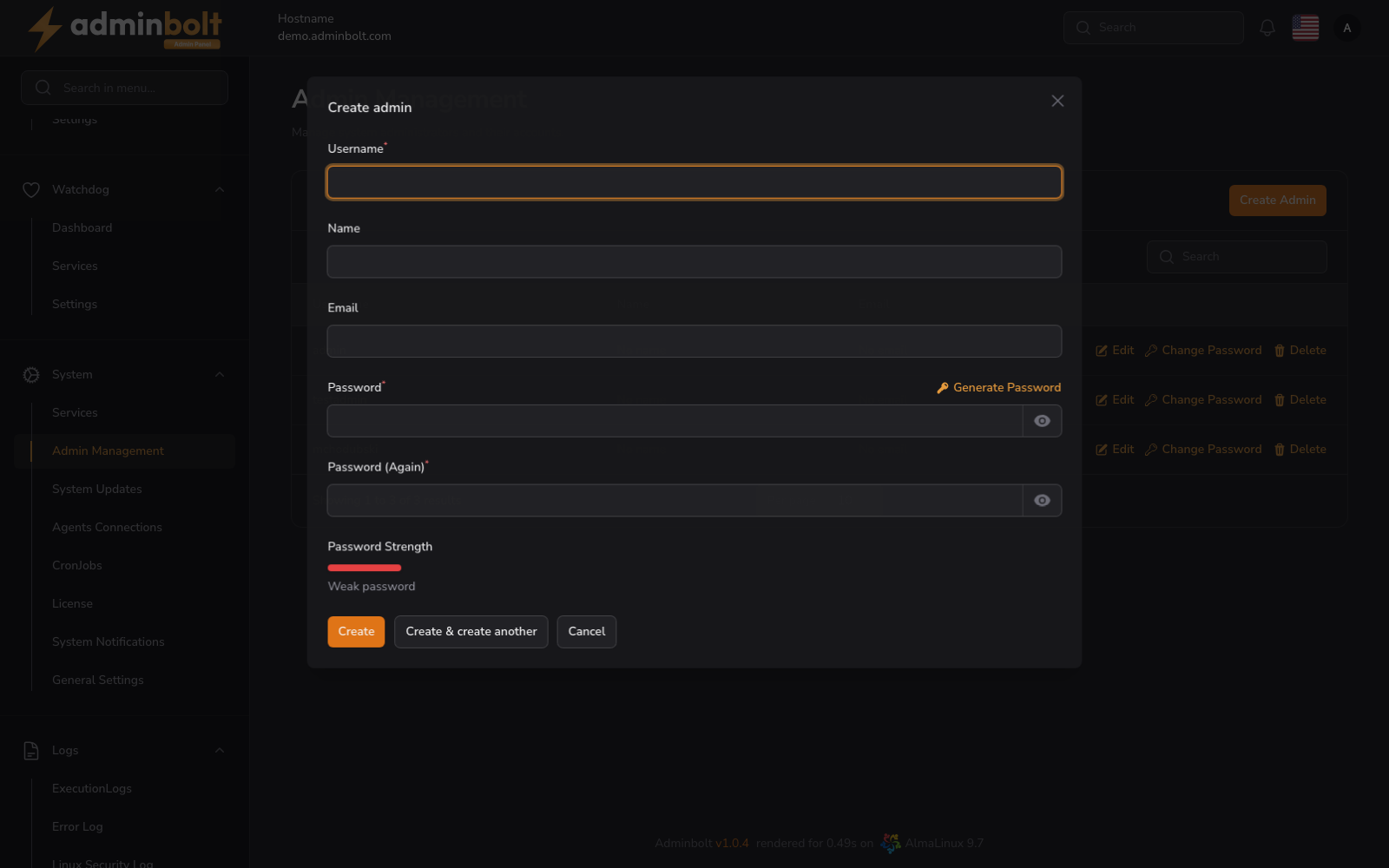
Create Admin opens a form.
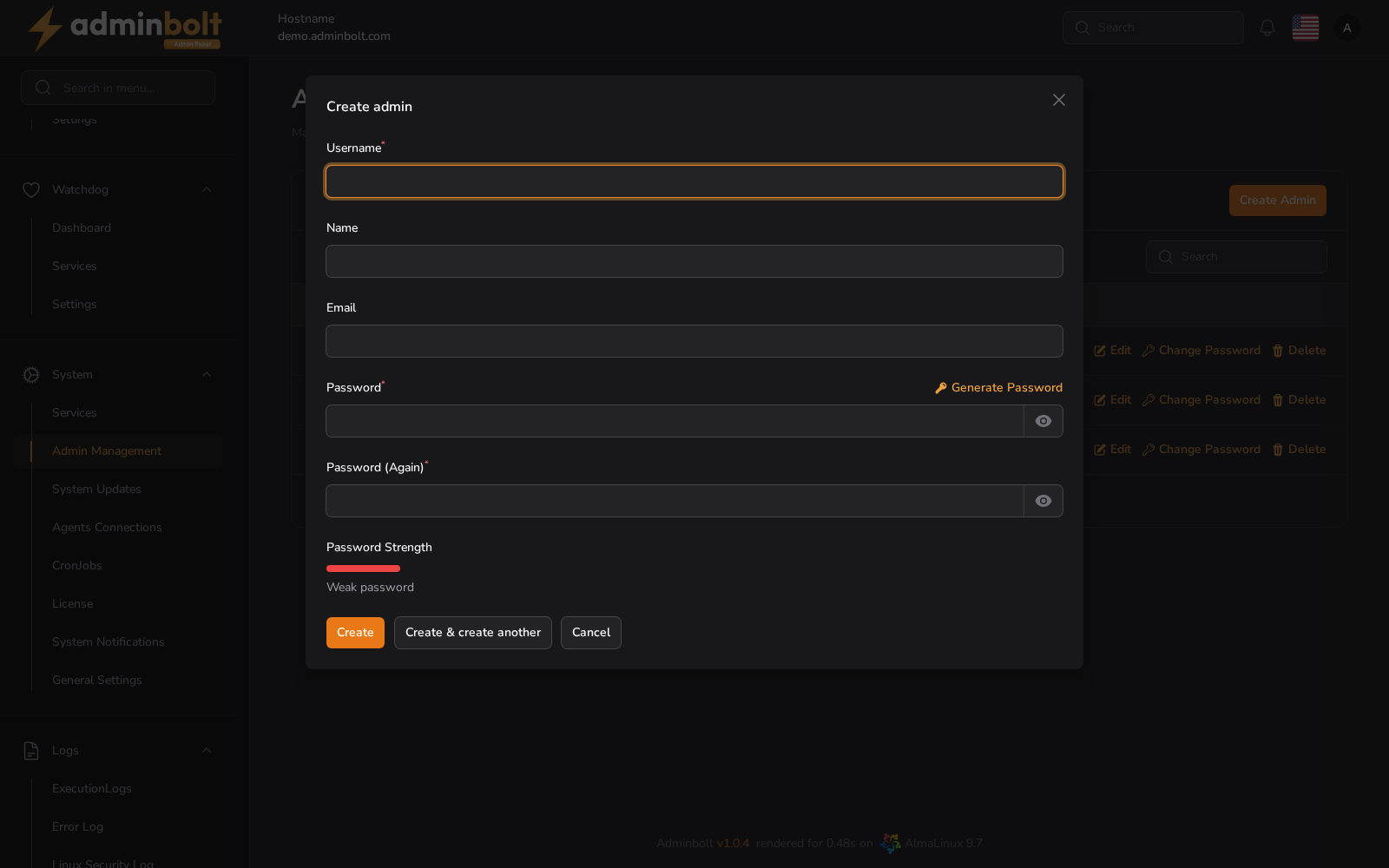
| Field | Description |
|---|---|
| Username (required) | The sign-in name. It has to be unique among the admins and, since panel 1.9.3, free on the server: see below. |
| Name | The administrator's full name. |
| A contact address. | |
| Password (required) | The panel password. Generate Password fills in a strong one. |
| Password (Again) (required) | The same password again. |
A Password Strength meter under the fields rates what you typed while you type it, so a weak password is visible before you save.
Create saves the account, Create & create another reopens an empty form, and Cancel closes without saving.
A new admin's username must be free on the server
Since panel 1.9.3, Create refuses a username that is already taken on the server, not only by another admin. The message under Username says why:
- This name is reserved for the system. - the name is one of the system names the panel keeps reserved.
- A hosting account on this server already uses this name.
- A system user on this server already uses this name. - a Linux user of that name already exists on the server.
- Could not check whether this name is free on the server. Try again. - the panel could not ask the server, so it refuses the name rather than risk a clash.
Editing an existing admin is not checked this way.
Editing an admin
Edit reopens Username, Name, and Email. Passwords are not part of this form.
Changing a password
Change Password on a row opens a form with New Password and its confirmation, and the same Generate Password control. It changes the panel credential for that admin only.
Your own sessions and login history
Your own active sessions and recent login attempts are on the Edit Profile page (/admin/edit-profile), not here: those sections are per signed-in user rather than per admin row.
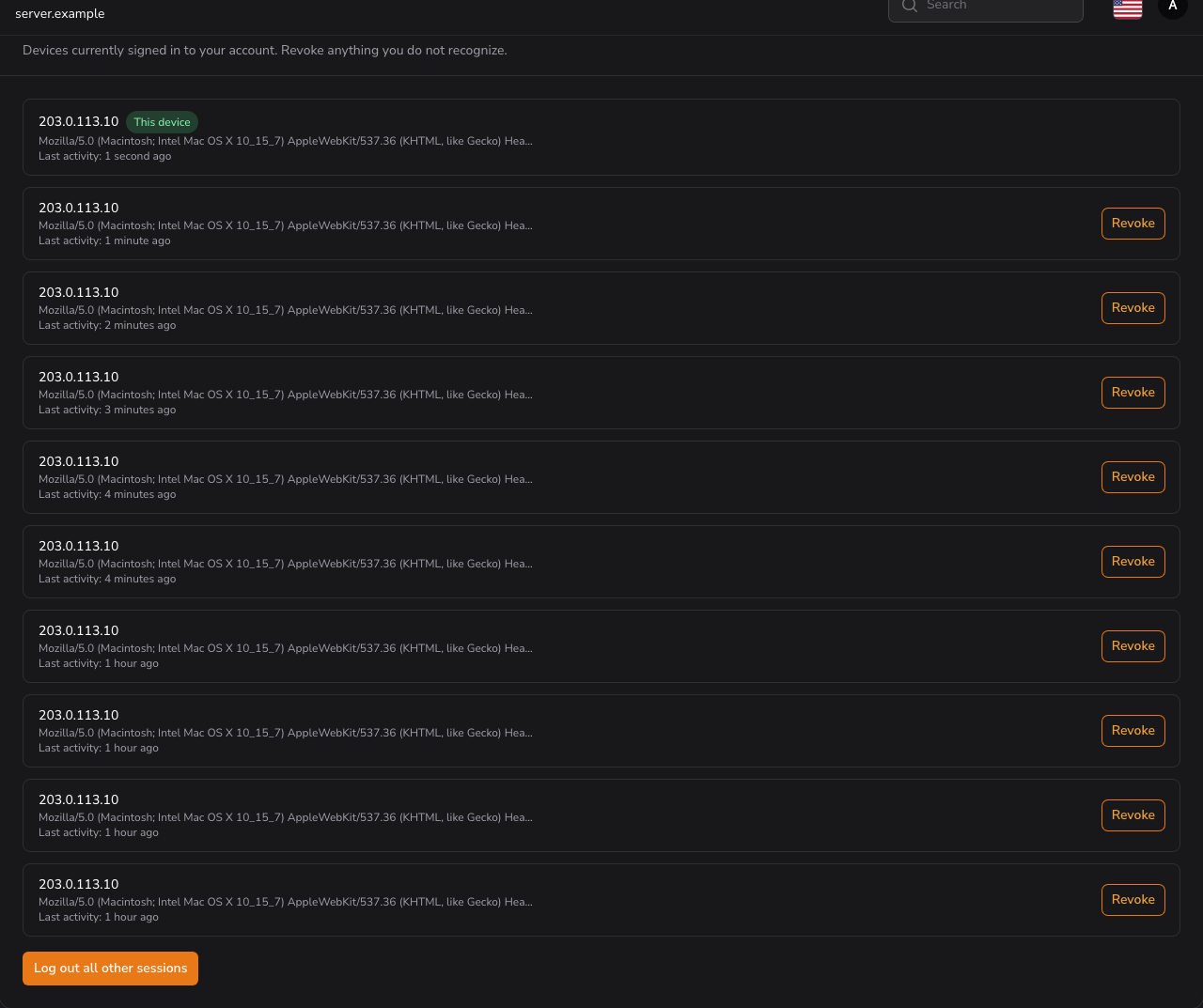
- Active Sessions lists each signed-in device with its address, browser, and last activity, marking the one you are using as This device. Revoke ends one; Log out all other sessions ends every other one, including remembered logins.
- Login History lists the 20 most recent attempts with date, address, device, and whether they succeeded.
How long attempts are kept at all is set in Panel Settings under Security, and defaults to 90 days. That setting governs what is stored, not how many rows the page shows.