

Security
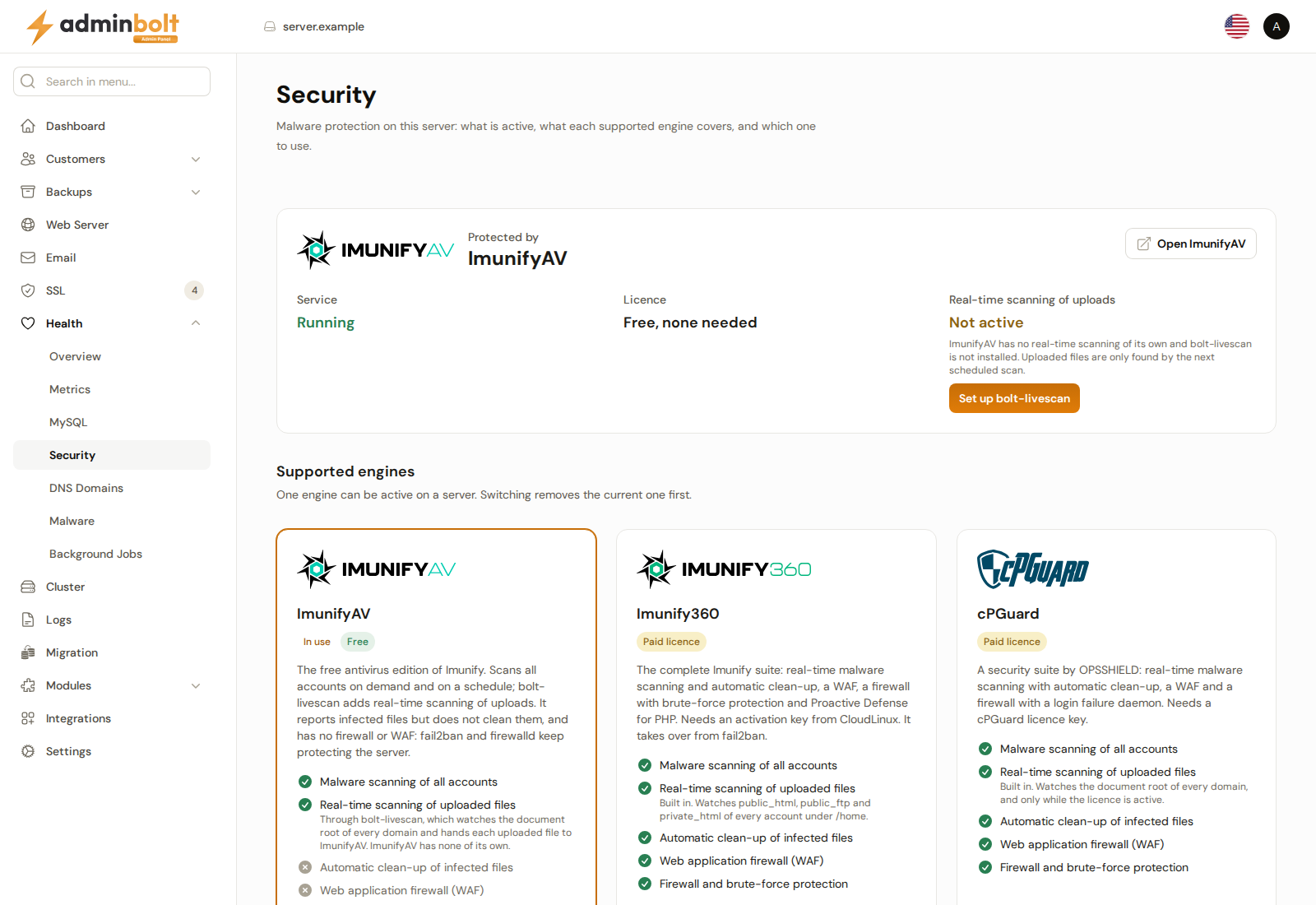
Security answers one question: is this server protected against malware, and by what. It shows the malware protection engine that is installed, whether it runs, its licence, and whether uploaded files are scanned in real time. Below that it compares the three engines AdminBolt supports, ImunifyAV, Imunify360, and cPGuard, and installs or switches the engine for you. Available since panel 1.9.3.
Overview
URL: /admin/health/security
Open it from Health > Security in the sidebar. The page subheading reads "Malware protection on this server: what is active, what each supported engine covers, and which one to use."
The page covers the server you are signed in to. Only one engine can be active on a server, so the page shows one installed engine or none.
What protects this server
The block at the top of the page has one of three states.
An engine is installed. The block reads Protected by with the engine's name and logo, and Open followed by the engine's name takes you to its own page. Three readings follow:
| Reading | What it shows |
|---|---|
| Service | Running or Not running. |
| Licence | Free, none needed for ImunifyAV. Active or Not active for an engine with a licence. A pointer to the engine's own page when the panel has no licence reading to show. |
| Real-time scanning of uploads | Active or Not active, with a line that says why. |
Real-time scanning means a file is checked as soon as it is uploaded, not only at the next scheduled scan. Imunify360 and cPGuard do this themselves, and the line reads Built into followed by the engine's name. When the engine is not running, the reading is Not active and the line says that nothing scans uploaded files. ImunifyAV has no real-time scanning of its own, so on an ImunifyAV server it depends on bolt-livescan, see Real-time scanning with ImunifyAV.
No engine is installed. The block reads No malware protection is installed: nothing scans the files your customers upload, so an infected plugin or a web shell stays on the server until someone notices. Choose an engine below. ImunifyAV is free. When bolt-livescan is still on the server, for example after ImunifyAV was removed, a line under the heading says that it runs, or is installed but not running, and that nothing scans uploaded files until a malware scanner is installed.
An engine is marked installed but is not on the server. The block names the engine and says nothing of it was found on the server, so nothing scans uploads. Clear the mark removes the mark after a confirmation. It removes nothing from the server; it only lets you install an engine again. Choosing an engine below clears the mark first, as there is nothing left to remove.
Real-time scanning with ImunifyAV
On an ImunifyAV server, bolt-livescan watches the document root of every website and hands each file written there to ImunifyAV within seconds. Since panel 1.9.3, installing ImunifyAV sets up bolt-livescan too, and updating to 1.9.3 sets it up where ImunifyAV is already installed. The list of websites it watches follows domains and accounts as they are created, renamed, moved to another web server, or removed.
The Real-time scanning of uploads reading then shows one of these:
| Reading | Line under it | What to do |
|---|---|---|
| Active | bolt-livescan hands every uploaded file to ImunifyAV within seconds, followed by Watching N websites. and N files waiting. | Nothing. Files waiting are uploads that are not handed to ImunifyAV yet. |
| Not active | bolt-livescan runs but does not scan, with the reason: it has no scanner to hand uploaded files to, it is set to a scanner it does not know, or it does not scan yet. Uploaded files are only found by the next scheduled scan. | Check that ImunifyAV runs. The reading turns Active once bolt-livescan scans. |
| Not active | bolt-livescan is installed but not running. Uploaded files are only found by the next scheduled scan. | Set up bolt-livescan. |
| Not active | ImunifyAV has no real-time scanning of its own and bolt-livescan is not installed. Uploaded files are only found by the next scheduled scan. | Set up bolt-livescan. |
| Not active | ImunifyAV is not running, so nothing scans uploaded files. | Check ImunifyAV on its page. |
Set up bolt-livescan installs bolt-livescan, or starts it again, and gives it the list of websites, after a confirmation. A message reports the result, with the number of websites bolt-livescan watches. When bolt-agent on the server is too old for bolt-livescan, the message says so: update bolt-agent, then click Set up bolt-livescan again.
bolt-livescan next to Imunify360 or cPGuard
Imunify360 and cPGuard scan uploads themselves, so bolt-livescan stands aside while either one is installed. When bolt-livescan is on such a server, a line under the reading says what it does: it stands aside while the engine scans uploads itself, it runs but does not scan, or it is installed but not running. None of these needs anything done about bolt-livescan, since uploads are the engine's job there. Whether the engine does that job is the reading above the line: while it is Active, there is nothing to do. When it is Not active, the engine is not running and nothing scans uploaded files: check the engine on its own page, CPGuard or Imunify360. Nothing is shown when bolt-livescan is not installed.
Supported engines
Under Supported engines there is one card per engine. Each card shows the engine's logo and name, an In use badge on the engine that protects the server, and Free or Paid licence. A short summary follows, then the same five capabilities on every card, ticked or not, so the engines can be compared side by side:
| Capability | ImunifyAV | Imunify360 | cPGuard |
|---|---|---|---|
| Malware scanning of all accounts | Yes | Yes | Yes |
| Real-time scanning of uploaded files | Yes, through bolt-livescan | Yes, built in | Yes, built in, while its licence is active |
| Automatic clean-up of infected files | No | Yes | Yes |
| Web application firewall (WAF) | No | Yes | Yes |
| Firewall and brute-force protection | No | Yes | Yes |
| Licence | Free | Activation key from CloudLinux | cPGuard licence key |
Under the real-time line, each card says what that engine watches.
The button at the bottom of a card depends on the server:
- Manage on the engine in use opens its page: ImunifyAV, Imunify360, or CPGuard.
- Install when no engine is installed opens the engine's installer, where you enter its licence key if it needs one.
- Switch to this engine when another engine is installed starts a guided switch.
Switching engines
Only one engine can be active on a server, so a switch removes the current engine first:
- Switch to this engine opens Switch to followed by the engine's name. The confirmation says what is lost: the current engine is removed with its scan history and settings, so restore any file you still need from its quarantine before you continue. Until the new engine is installed, the server has no malware protection. Files moved to quarantine from Health > Malware are in the panel's own quarantine and stay through the switch. Only files listed there as In followed by the engine's name and quarantine are in the engine's quarantine and are removed with it.
- Remove and continue starts the removal and shows its log live, under Removing followed by the engine's name.
- Once the current engine is verified gone, the page says it continues with the installation and opens the chosen engine's installer.
If the removal does not finish, the switch stops in the log and installs nothing else. The message says what the removal reported; correct the step that failed and switch again.
From ImunifyAV to Imunify360
With ImunifyAV installed, Switch to this engine on the Imunify360 card opens Upgrade to Imunify360 instead, the same upgrade the ImunifyAV page offers. ImunifyAV is removed first, then Imunify360 is installed with the same integration. Fail2Ban keeps running next to Imunify360, because Imunify360 does not protect mail, webmail, and panel logins.
Enter the Activation Key. Leave it empty only when this server is already licensed in CLN by its IP address. When Imunify360 does not install, or reports that its licence is not valid for this server, the panel undoes the upgrade: it removes Imunify360 and installs ImunifyAV again. If either of those steps fails, the result says so and names what to do next.
One operation at a time
One install, removal, or upgrade of an engine runs at a time. While one runs, a banner on the page names it, and the page follows it to the end without a reload. Starting another one, from a second tab or by another administrator, is refused with An engine operation is already running; wait until it has finished, then try again.
Threat notifications to clients
Since panel 1.9.3, when the installed engine flags files in a hosting account as malicious or suspicious, the account's client is told:
- a notification in the client panel's bell, titled Security threat detected in your hosting account, and
- an email with the same text to the account's Contact email, when one is set.
The message names the engine, lists the flagged files with what was found and what has become of each one by the time the message is sent: moved to quarantine, deleted, or left in place. It tells the client to clean anything they did not put there and to change the passwords of the account, its FTP users, and their website administrators. The first detection is sent at once. Further detections in the same account shortly after are gathered into one digest, and the same file is reported again only after a set period. The exception is a file that comes back: one that was moved to quarantine or deleted and is then found in the website again is reported again, even within that period. A long list names the first files and counts the rest.
Every file reported in a hosting account is also recorded on Health > Malware, where you move it to quarantine, restore it, or delete it, and on the client's own Security > Malware page.
Files flagged outside any hosting account go to the administrators instead, as Security threat outside any hosting account, with an example path and its owner, so you can review them on the server.
An account without a contact email still gets the bell notification. Ask clients to keep their address current under Password & Security.
Accounts cPGuard suspends
When cPGuard decides to suspend an account, the panel suspends that hosting account the way an administrator does. Every administrator gets a notification that cPGuard suspended the account, with cPGuard's reason; unsuspend the account under Customers once the cause is dealt with. The client is told in the bell, and by email when the account has a contact email, that the account was suspended, with the reason. That email also goes to any address cPGuard names for the account, with or without a contact email. An account that is already suspended is left as it is.
When cPGuard asks to suspend a user the panel has no hosting account for, or the suspension fails, the administrators are told that cPGuard could not suspend it, with the reason.
The administrator API
Everything on this page, and the controls of the CPGuard page, is also on the administrator REST API under /api/admin/security. The API uses the same checks as the page, so it refuses what the page refuses. The endpoints need an administrator API key; authentication is the same as for the rest of the API.
| Method and path | What it does |
|---|---|
GET /api/admin/security | The installed engine, whether it runs, its licence, real-time coverage, the running operation, and every engine with the reason it cannot be installed now, if any. livescan_detail gives bolt-livescan's own state, whatever the engine, see below. |
POST /api/admin/security/engine | Install an engine on a server that has none. Send engine (imunifyav, imunify360, or cpguard) and, for Imunify360 or cPGuard, licence_key. |
DELETE /api/admin/security/engine | Remove the installed engine. Send "confirm": true, because its quarantine, scan history, and settings are removed with it. |
POST /api/admin/security/engine/upgrade | Upgrade ImunifyAV to Imunify360. Send "confirm": true and, optionally, activation_key. |
GET /api/admin/security/operations/{id} | The step log and outcome of an install, removal, or upgrade. |
GET /api/admin/security/imunifyav | ImunifyAV's last scan and infected files, optionally for one account with user. |
GET /api/admin/security/cpguard | cPGuard's scanner, licence, and WAF state. |
GET, POST /api/admin/security/cpguard/scans | List manual scans, or start one for an account (username) or the whole server (whole_server). |
GET /api/admin/security/cpguard/scans/{id} | One scan with its detections. |
POST /api/admin/security/cpguard/scans/{id}/stop | Stop a running scan. |
DELETE /api/admin/security/cpguard/scans/{id} | Delete a finished scan. |
PUT /api/admin/security/cpguard/waf | Choose the rules that enforce the WAF: engine is cpguard or crs4. |
GET, PUT /api/admin/security/cpguard/client-plugin | Read or set the cPGuard client plugin (enabled). |
POST /api/admin/security/cpguard/portal-login | Create a sign-in link to this server's cPGuard App Portal. |
POST /api/admin/security/cpguard/restart | Restart the cPGuard scanner service. |
PUT /api/admin/security/cpguard/license | Add or change the cPGuard licence key (key). |
POST /api/admin/security/cpguard/license/refresh | Fetch the licence data again. |
Install, removal, and upgrade run in the background: they answer 202 with an operation_id to follow with GET /api/admin/security/operations/{id}. The exception is an engine that is marked installed but is not on the server: DELETE /api/admin/security/engine then only clears the mark, as Clear the mark does, and answers 200 with flag_cleared: true. A change of engine is a DELETE followed by a POST, as on the page. While an operation runs, another install, removal, or upgrade answers 409 with the running operation's id. Installing Imunify360 while ImunifyAV is installed answers 409 and points at the upgrade.
The cPGuard licence endpoints answer only whether cPGuard runs and is licensed, never the key.
livescan_detail is null when the server cannot tell bolt-livescan's state, for example with a bolt-agent that is too old. Otherwise it is an object with, among others, state (scanning, idle, standing_aside, stopped, or not_installed), reason (why it does not scan, in bolt-livescan's own words), engine (the scanner it hands files to), docroots (the number of websites it watches), pending (files waiting), and last_detection.
The malware history on Health > Malware has no API endpoint.
Related pages
- ImunifyAV, Imunify360, and CPGuard - the engines and their own pages.
- Malware - every malicious file found in the hosting accounts, with quarantine, restore, and delete.
- Health - everything else that is broken or at risk on the server.
- Fail2Ban Jails - the login protection that runs next to every engine.