

Mail Delivery
The Mail Delivery page shows the recent delivery status of mail sent to and from your domains, so you can tell whether a message actually arrived without asking your hosting provider.
Overview
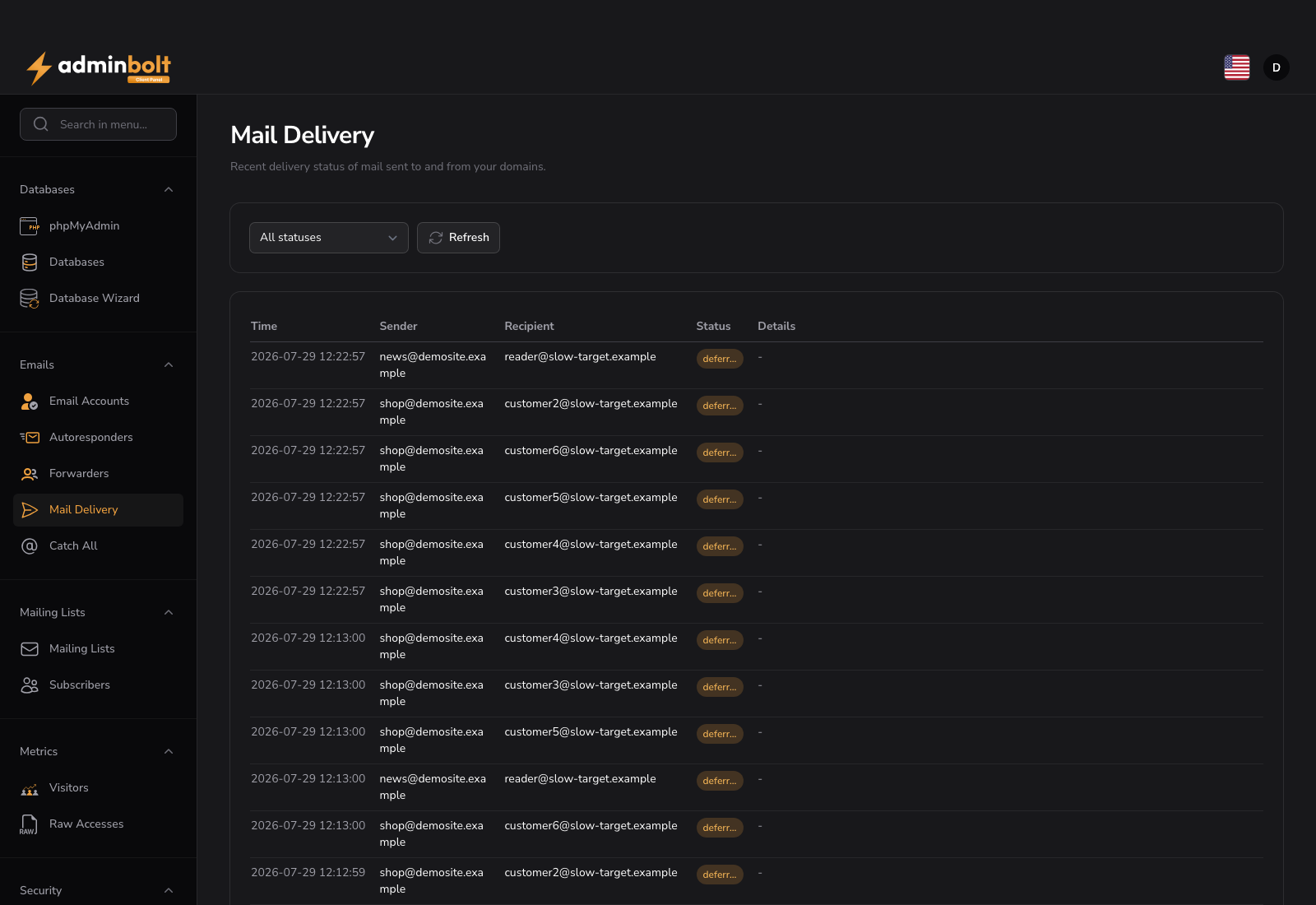
URL: /client/mail-delivery-page - under Emails.
The page lists delivery events recorded by the mail server for the domains on your own hosting account. Events from other accounts on the server are never shown.
Event table
| Column | Description |
|---|---|
| Time | When the delivery attempt was recorded. |
| Sender | The address the message was sent from. |
| Recipient | The address the message was addressed to. When an alias or forwarder expanded, the original recipient is shown as well, so you can see where the message was redirected. |
| Status | Sent, Deferred, or Bounced. |
| Details | The reason reported by the receiving server, when the mail server recorded one. A dash means no reason was captured for that event. |
A value the mail server did not record appears as (unknown).
Statuses
- Sent - the receiving server accepted the message. This is the strongest confirmation available from your side; what the recipient's provider does with the message afterwards, for example filing it as spam, is not visible here.
- Deferred - delivery failed with a temporary error and will be retried automatically. Common causes are greylisting and a receiving server that is busy or briefly unreachable. No action is usually needed.
- Bounced - delivery failed permanently and will not be retried. The Details column carries the reason, for example an unknown mailbox, a full mailbox, or a rejection by the recipient's spam filter.
Filtering and refreshing
- Use the status filter to show only Sent, Deferred or Bounced events, or All statuses.
- Refresh re-reads the latest events.
When no events match the selected status, the page shows "No recent events with this status."; on a new account with no mail activity it shows "No recent delivery events for your domains. New events appear here as mail is sent and received."
Reading a bounce
- Filter to Bounced.
- Find the recipient you expected to reach.
- Read the Details column. The text comes from the receiving server, not from AdminBolt. When it shows a dash, no reason was recorded for that event.
- Act on the reason: correct a mistyped address, ask the recipient to free up mailbox space, or review your sending domain's SPF, DKIM and DMARC records if the message was rejected as spam.
Delivery problems that start on your side
If your own outgoing mail is consistently rejected, check that the domain's authentication records are in place in the Zone Editor. Your provider can also inspect the server-wide mail queue.
Related pages
- Email Accounts - create and manage mailboxes.
- Forwarders - where an expanded original recipient comes from.
- Zone Editor - SPF, DKIM and DMARC records for your domains.