

Landing Pages
Where to find it: this is the Landing Pages tab of the Web Server area, at
/admin/web-server/landing-templates.
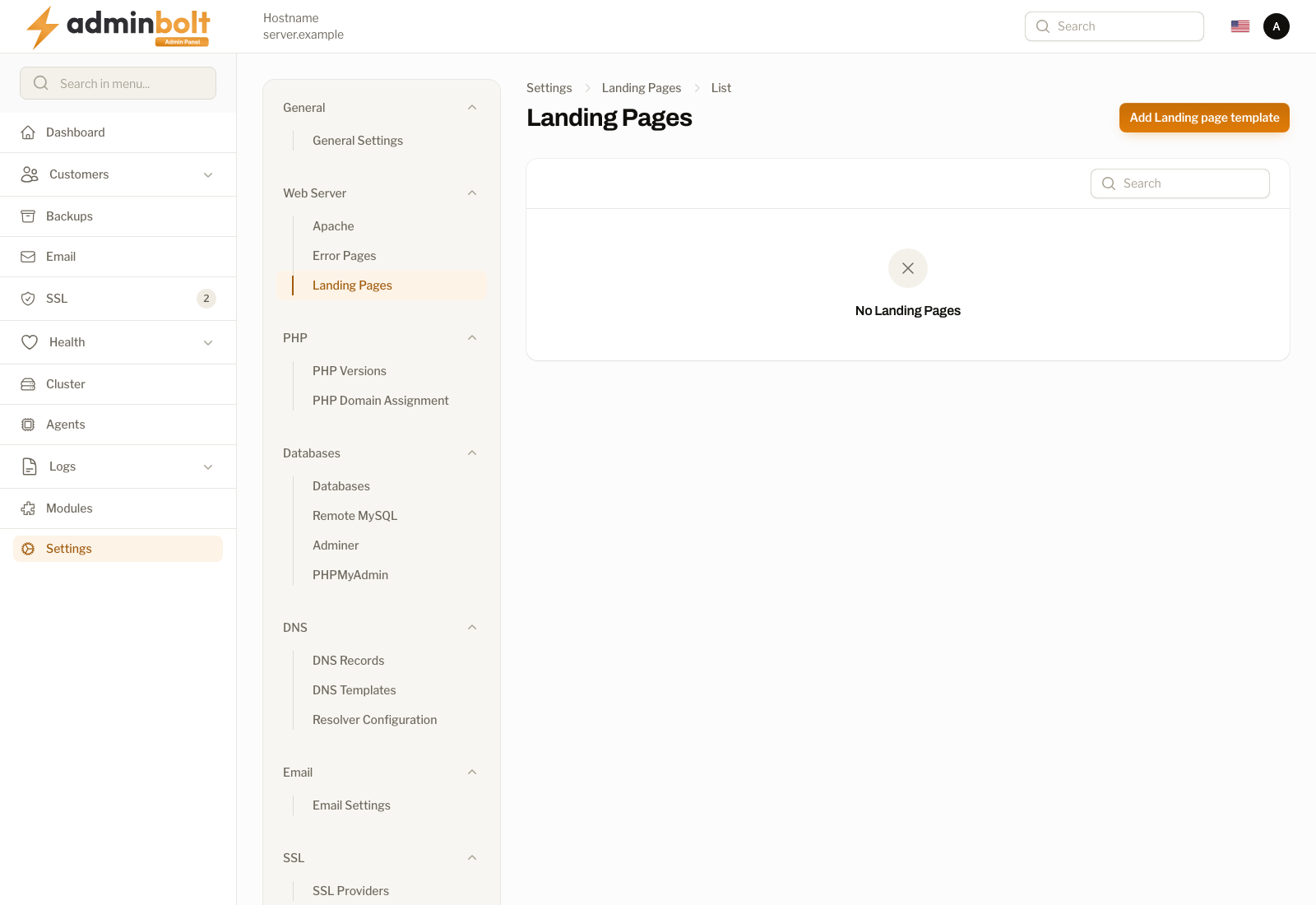
The Landing Pages page manages the placeholder page a newly provisioned domain shows before its owner publishes a real site. Assign a template to a hosting plan, and every account created on that plan is provisioned with it.
Overview
URL: /admin/web-server/landing-templates
Open Web Server in the sidebar and choose the Landing Pages tab, next to Error Pages.
Every template you create here belongs to you. Resellers manage their own templates in the reseller panel and never see yours.
Template table
| Column | Description |
|---|---|
| Name | The template name, used when you pick a template on a hosting plan. |
| Created | When the template was created. |
Each row has Edit and Delete actions. Add Landing page template creates a template.
Template fields
| Field | Required | Description |
|---|---|---|
| Name | Yes | Identifies the template in the plan selector. Not shown to visitors. |
| Company name | No | Shown on the landing page. Leave empty to use the brand name from Branding settings. |
| Logo URL | No | A link to the logo image shown on the page, for example https://example.com/logo.png. Leave empty to use the branding logo, or the AdminBolt logo when no branding logo is set. |
| Content | No | The page body, edited in a rich text editor. Leave empty to use the standard "Your website is being set up" message. |
Every field except the name is optional, and each one falls back independently. A template that only sets Content still picks up your branding logo and brand name.
Assigning a template to a plan
- Open Hosting Plans (
/admin/customers/hosting-packages/hosting-plans) and edit a plan. - Set Landing page template.
- Save the plan.
Accounts provisioned on that plan afterwards get the template's landing page. Leave the field empty to use the branding-based default.
Note: The template is applied when a domain is provisioned. Changing a plan's template does not rewrite the landing pages of accounts that already exist, and it never touches a site whose owner has published their own content.
Related pages
- Hosting Plans - where a template is assigned to a plan.
- General Settings - the brand name and logo used as the fallback.
- Reseller Plans - the same assignment inside a reseller's own plans.