

Dashboard
Overview
URL: /client/client-dashboard
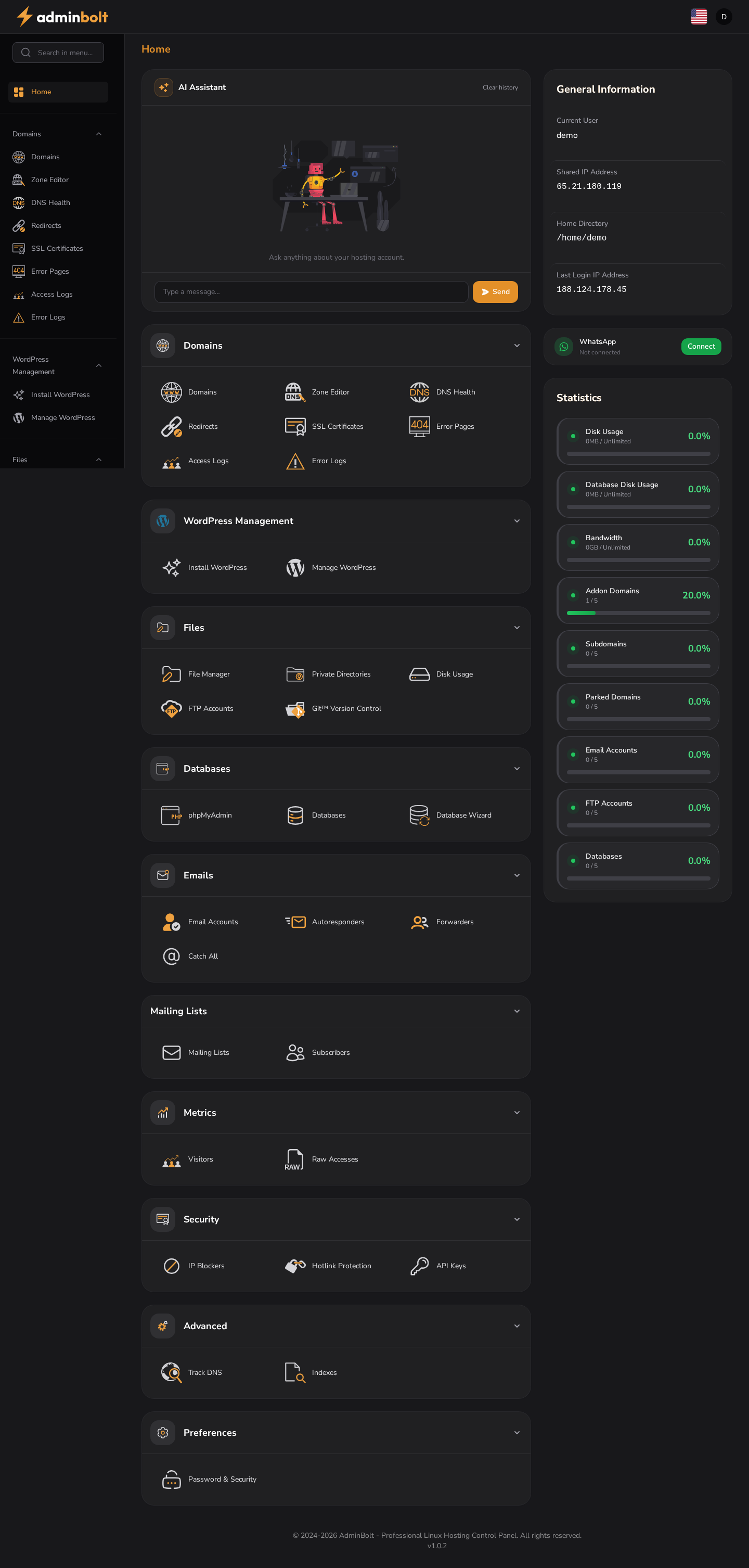
The dashboard is the main entry point for your AdminBolt hosting account. It displays an overview of your hosting resources and quick-access links to all major hosting features.
AI Assistant
A chat box is pinned at the top of the dashboard. It lets you talk to the panel's AI Assistant in natural language - ask about your account, create or modify resources, run common operations.
- Input box - type any question or instruction about your hosting account.
- Send - submits the message and streams the response.
- Clear history - wipes the current conversation context.
The AI Assistant is powered through the panel's AI Agent Hub integration. Irreversible operations, such as deleting a domain, mailbox, or database, are confirmed first: in this chat box the assistant asks whether you are sure, while over WhatsApp it asks for the confirmation word you set in the WhatsApp section below.
See AI Assistant for what the assistant can and cannot do, and for the limits that apply to it.
Home Page Layout
The dashboard is divided into two sections: a Main Area with category tiles and a Right Sidebar with account information and statistics.
Main Area
Ten category sections provide quick links to core hosting functions:
- Domains - Domains, Zone Editor, DNS Health, Redirects, SSL Certificates, Error Pages, Access Logs, Error Logs.
- WordPress Management - Install WordPress and Manage WordPress.
- Files - File Manager, Private Directories, Disk Usage, FTP Accounts, Git Version Control.
- Databases - phpMyAdmin, Databases, Database Wizard.
- Emails - Email Accounts, Autoresponders, Forwarders, Catch All.
- Mailing Lists - Mailing Lists, Subscribers.
- Metrics - Visitors, Raw Accesses.
- Security - IP Blockers, Hotlink Protection, API Keys.
- Advanced - Track DNS, Indexes.
- Preferences - Password & Security.
Each tile links to its respective management interface.
Right Sidebar
The sidebar displays two information panels.
General Information shows:
- Current User - your hosting account username.
- Shared IP Address - the server's shared IP.
- Home Directory - your account's home path.
- Last Login IP Address - last successful login origin.
- WhatsApp - pairing status with the AI Agent Hub. Shows
Not connectedwith a Connect button, orConnectedonce paired. Click Connect to reveal the WhatsApp pairing form below.
Statistics shows current usage and limits for:
- Disk Usage
- Database Disk Usage
- Bandwidth (This Month)
- Addon Domains
- Subdomains
- Parked Domains
- Email Accounts
- FTP Accounts
- Databases
Each statistic displays current usage, limit, and percentage used.
Note: Bandwidth (This Month) shows the data transfer used during the current calendar month, not the lifetime total for your account. The counter resets to zero at the start of each month. Usage is reported in MB, matching the figures shown in the admin panel.
WhatsApp pairing
Clicking Connect in General Information expands a form that lets you pair your WhatsApp number with the panel's AI Assistant. After pairing, you can talk to the assistant directly from WhatsApp.
- Session duration (optional) - choose how long the pairing stays valid:
Never expire,1 day,7 days,30 days. - Generate pairing code - produces the code you enter on WhatsApp to complete pairing.
- Confirmation word for destructive operations - required to delete domains, emails or databases via the AI Assistant. The word is sent to the AI Agent Hub and is not stored in the panel.
- Save - persists the confirmation word and session settings.
TIP
The AI Agent Hub is configured by your hosting provider in the admin panel (see Agents - AI Agent Hub). If the Connect button is missing or does nothing, the hub is not registered on this server - contact the administrator.