

Accounts
The Accounts page allows resellers to create, view, and manage hosting accounts.
Overview
URL: /reseller/hosting-accounts
The page header reads: "Create and manage individual hosting accounts."
A Create Hosting Account button opens the account creation modal.
Accounts Table
The table displays all hosting accounts under the reseller. Default columns:
- Username - The system username assigned to the account (sortable).
- Setup Date - The date the account was created (sortable).
- Quota - Maximum disk space allocation (sortable).
- Disk Used - Current disk space usage (sortable).
- Package - The assigned hosting plan name (sortable).
- Reseller/Owner - The reseller who owns this account (sortable).
- Suspended - Whether the account is suspended (sortable).
- Actions - Login button and three-dot context menu.
Toggle Columns
Click the Toggle columns button to show or hide optional columns: Domain, Feature List, Status, Provision State, Disk Usage, Disk Warning, DB Disk Usage, Bandwidth, Addon Domains, Subdomains, Alias Domains, FTP Accounts, Databases, Email Accounts, Email Forwarders, Email Autoresponders.
Search and Filter
A search bar filters results. Click the Filter button to apply advanced filters:
- Hosting Plan - Filter by hosting plan (dropdown).
- Reseller - Filter by reseller (dropdown).
- Feature List - Filter by feature list (dropdown).
A Reset button clears all filters.
Empty State
When no accounts exist, the page shows "No Accounts".
Creating a Hosting Account
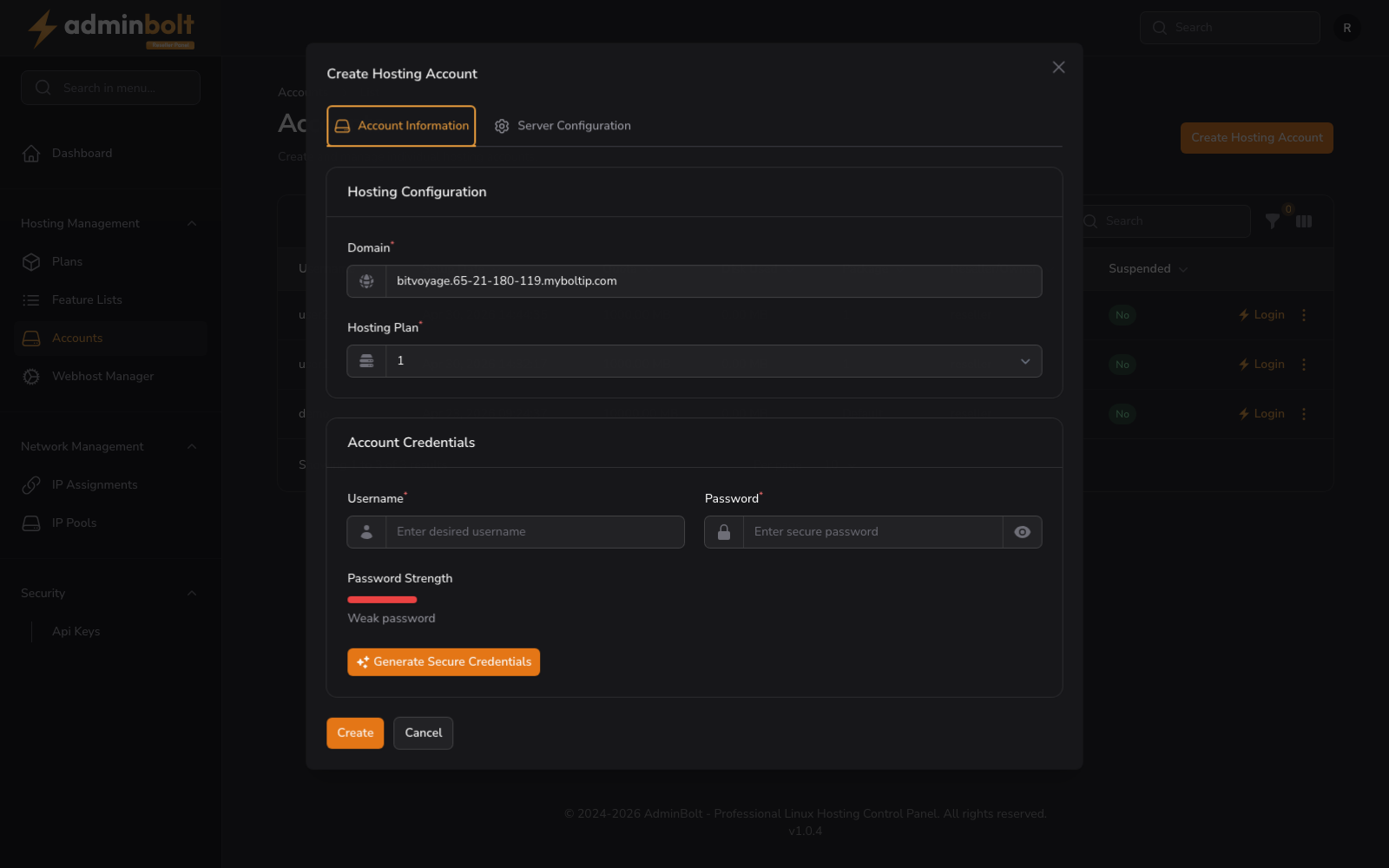
Clicking Create Hosting Account opens a modal with the following fields:
- Domain (required) - The main domain for the new account.
- Hosting Plan (required) - Choose from available hosting plans.
- Username (required) - A unique system username.
- Password (required) - A secure password with strength meter.
- Password Strength - A visual indicator showing your password strength.
- Generate Secure Credentials - Button to auto-generate a strong username and password.
- Enable SSH Access (toggle) - Allow SSH access for this hosting account.
Form Actions
- Create - Submit and create the new account.
- Cancel - Close the modal without saving.
Row Actions
Clicking the three-dot menu on any row opens a context menu with the following options:
- View - Open the account details page.
- Usage Details - View resource usage in a modal (see below).
- Edit Account - Change hosting plan and reseller assignment (see below).
- Change Password - Set a new password for the account (see below).
- Suspend - Temporarily suspend the account.
- Delete - Permanently remove the account.
Usage Details
The Usage Details modal displays a table of resource usage with columns: Resource, Used, Total, Usage (percentage). Resources shown include: Disk Space, Database Disk Space, Bandwidth, Addon Domains, Subdomains, Parked Domains, FTP Accounts, Databases, Email Accounts, Email Forwarders, Email Autoresponders. A Refresh Data button updates the usage statistics.
Edit Account
The Edit Account modal contains:
- Hosting Plan (required) - Change the hosting plan assigned to this account (dropdown).
- Reseller - Change the reseller who owns this account (dropdown).
Form buttons: Submit, Cancel
Change Password
The Change Password modal contains:
- Password (required) - Enter a new secure password (placeholder: "Enter secure password"). Includes a visibility toggle.
- Confirm Password (required) - Re-enter the password to confirm (placeholder: "Confirm password"). Help text: "Must match the password above".
- Password Strength - A visual indicator showing the strength of the chosen password.
- Generate Secure Credentials - Button to auto-generate a strong password.
Form buttons: Submit, Cancel
Pagination
Results per page can be set to: 5, 10, 25, 50, or All.