

File Manager
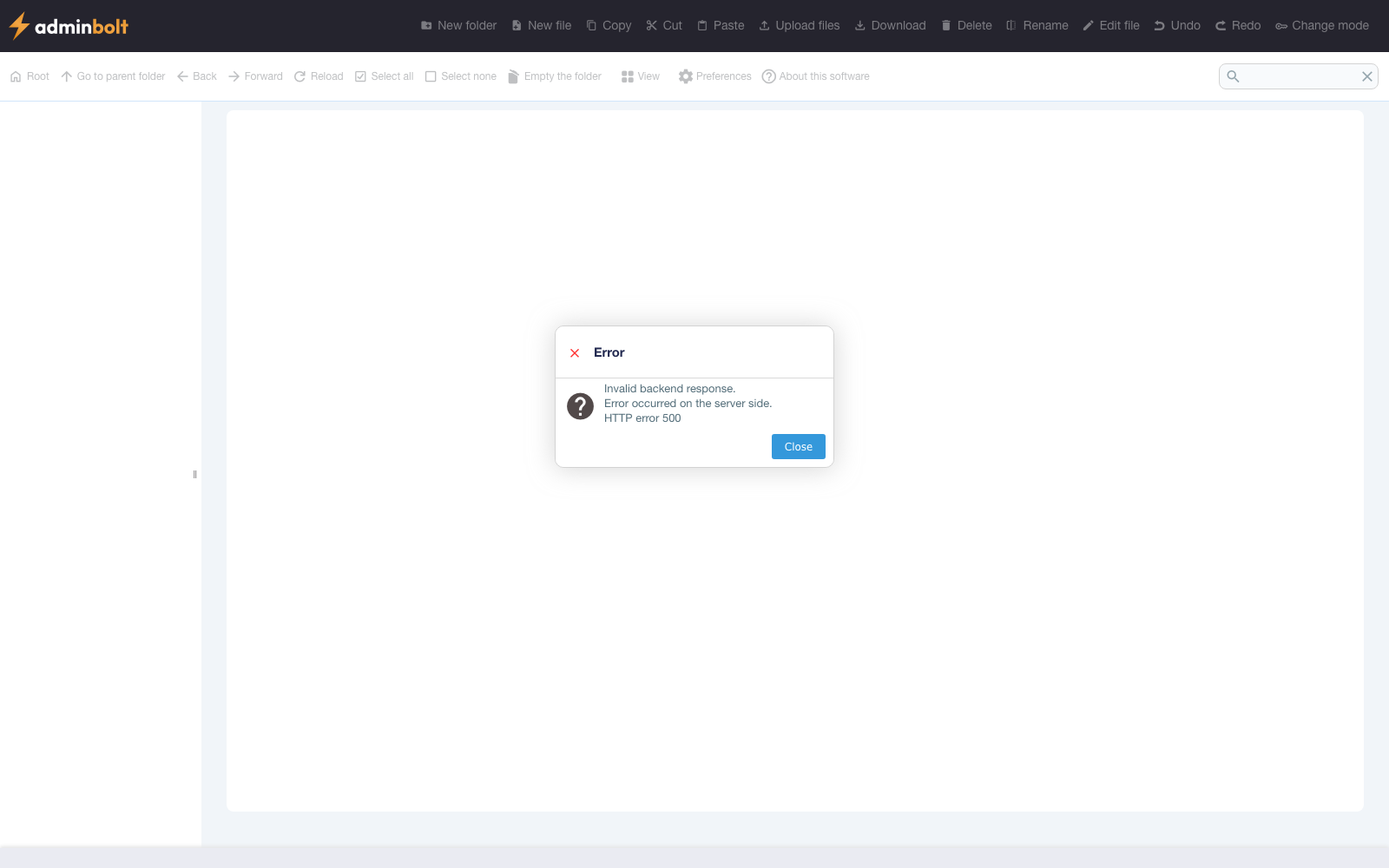
URL: /client/apps/file-manager
Embedded web-based file manager for managing files and directories across your hosting account.
The file manager opens only for a signed-in hosting account. Opening its address without being signed in to the client panel is refused.
Since panel 1.9.0 the file manager refuses disallowed file types, both when you upload a file and when you extract a ZIP archive.
Folders for internationalised domains
A domain with a non-ASCII name has its folder named in Punycode, not in the Unicode form the panel displays elsewhere. A domain shown as пример.example appears here as xn--e1afmkfd.example. See Internationalised domain names.
Interface Layout
Header - The AdminBolt logo and the colour scheme switch, see Colour scheme.
Left Panel - Directory tree of your home directory. Folders are collapsible to reveal subdirectories.
Main Panel - File listing with columns: Name, Modified, Size, Kind. Click a directory to navigate into it. Each file has an icon for its kind, such as code, web pages, images, archives, documents, or databases. Images show a preview instead.
Search Bar - Located in the toolbar to search within the current folder.
Colour scheme
The three buttons in the header choose how the file manager looks. Hover over a button to see its name:
- Light - always light.
- Auto (follow the panel) - the default. The file manager follows the theme you use in the panel.
- Dark - always dark.
The choice applies at once, also in other open file manager tabs, and is saved in your browser, so another browser or device keeps its own. It never changes the theme of the panel itself. The file editor follows the colour scheme too.
Toolbar Actions
- New folder, New file - Create items
- Copy, Cut, Paste - Clipboard operations
- Upload files, Download - Transfer files
- Delete, Rename, Edit file - Modify items
- Undo, Redo - Reverse or repeat actions
- Reload, Back, Forward, Go to parent folder - Navigation
Trash Folder
Deleted files and folders are moved to Trash and can be restored or permanently removed later. This prevents accidental data loss.