

Accounts
The Accounts page allows administrators to create, manage, and monitor individual hosting accounts under a specific hosting plan. Open it from Customers > Accounts in the sidebar.
Overview
URL: /admin/hosting-accounts
The page lists every hosting account on this server, with the account count shown next to Accounts in the sidebar. Seven columns are visible by default:
| Column | What it shows |
|---|---|
| Username | The account's system username. |
| Quota | The disk quota assigned to the account. |
| Disk Used | Current disk usage. |
| Package | The hosting plan the account runs on. |
| Suspended | Whether the account is suspended. |
| Backups | Whether the account has a backup repository, and the state of its latest run. |
| Provision State | How far provisioning got, for example Provisioned. |
Toggle Columns
Toggle columns shows or hides the rest: Domain, Setup Date, Reseller/Owner, Backups, Feature List, Status, Provision State, Disk Usage, Disk Warning, DB Disk Usage, Bandwidth (This Month), Addon Domains, Subdomains, Alias Domains, FTP Accounts, Databases, Email Accounts, Email Forwarders, and Email Autoresponders.
The Bandwidth (This Month) column and account view report bandwidth for the current calendar month, which resets on the first day of each month.
Actions
- Login - Allows administrators to impersonate the user (impersonation mode)
- More options menu:
- Usage details - View live usage data for disk, bandwidth, databases, email, and the rest of the plan limits
- Edit Account - Change hosting plan, reseller, or SSH access
- Change Password - Update the account password
- Suspend - Temporarily disable account access
- Delete - Permanently delete the account
Search and Filtering
Search - Filters records across visible columns.
Filter - Located next to the search bar:
- Filter by Hosting Plan
- Filter by Reseller
- Filter by Feature List
- Includes a Reset button to clear all filters
Creating a Hosting Account
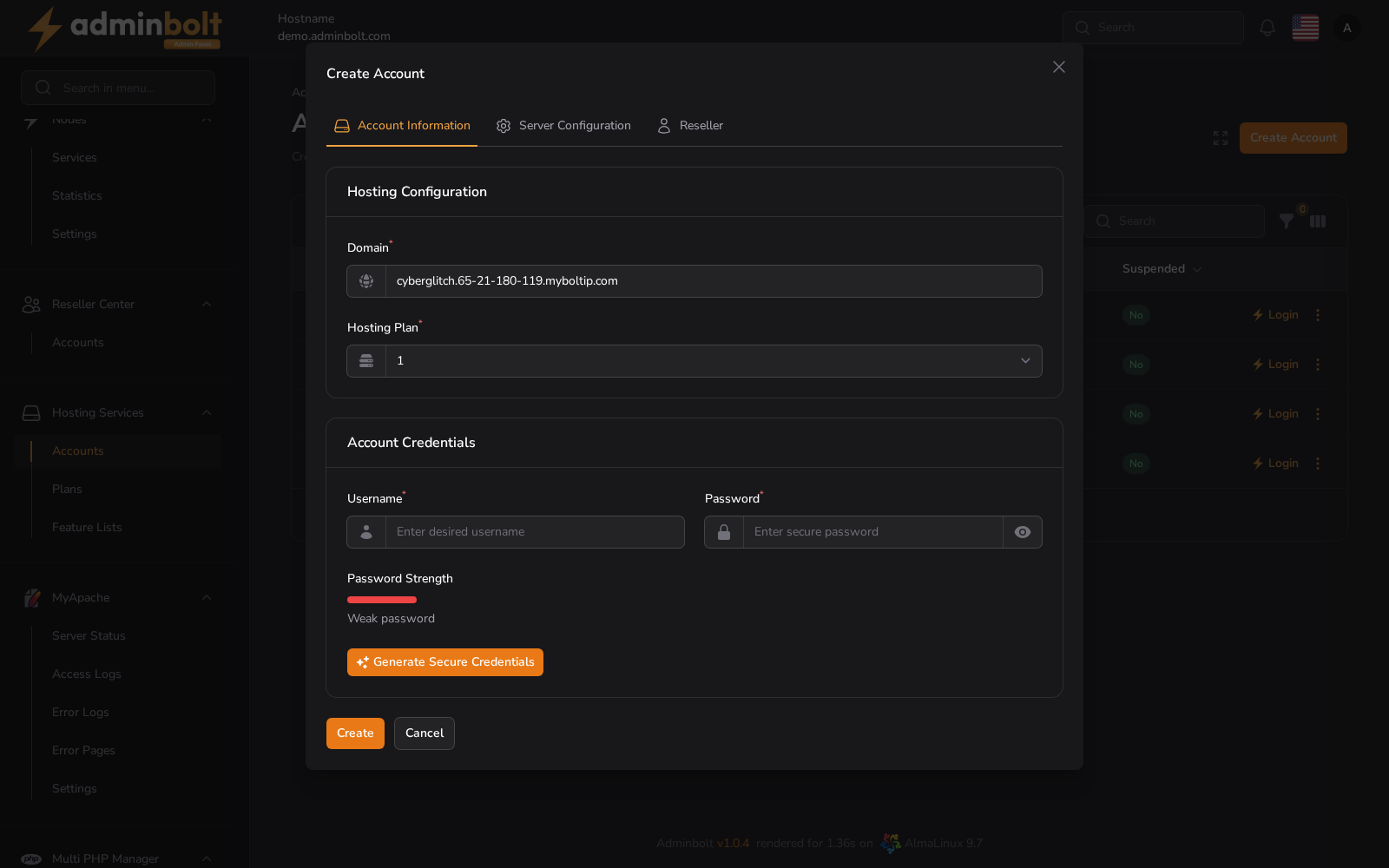
Clicking the Create Account button opens a modal with two tabs: Account Information and Reseller.
Tab 1: Account Information
Hosting Configuration
- Domain (required) - Main domain name for the account. A default subdomain is pre-filled based on the server hostname. Internationalised (non-ASCII) domain names are accepted: enter them in Unicode and AdminBolt stores them in Punycode. The document root on the server uses that Punycode form. See Internationalised domain names.
- Hosting Plan (required) - Select one of the available hosting plans from the dropdown.
Account Credentials
- Username (required) - System username for the hosting account.
- Password (required) - Secure password input with a strength indicator.
- Password strength is displayed below the field (e.g., "Weak password", "Strong password").
- Click Generate Secure Credentials to auto-generate a strong password.
Tab 2: Reseller
Reseller Details
- Reseller - Assign the account to a reseller (optional). Select from the dropdown or leave empty.
Buttons
- Create - Save the hosting account.
- Cancel - Close the modal without saving.
Impersonating a User
Clicking the Login button next to a hosting account will impersonate that user and open their dashboard.
While impersonating:
- A blue bar appears at the top of the screen indicating "Impersonating user {username}"
- You will see the user's interface exactly as they would
- To exit impersonation mode, click the Leave button in the top bar
Viewing Hosting Account Usage
You can view detailed usage per account:
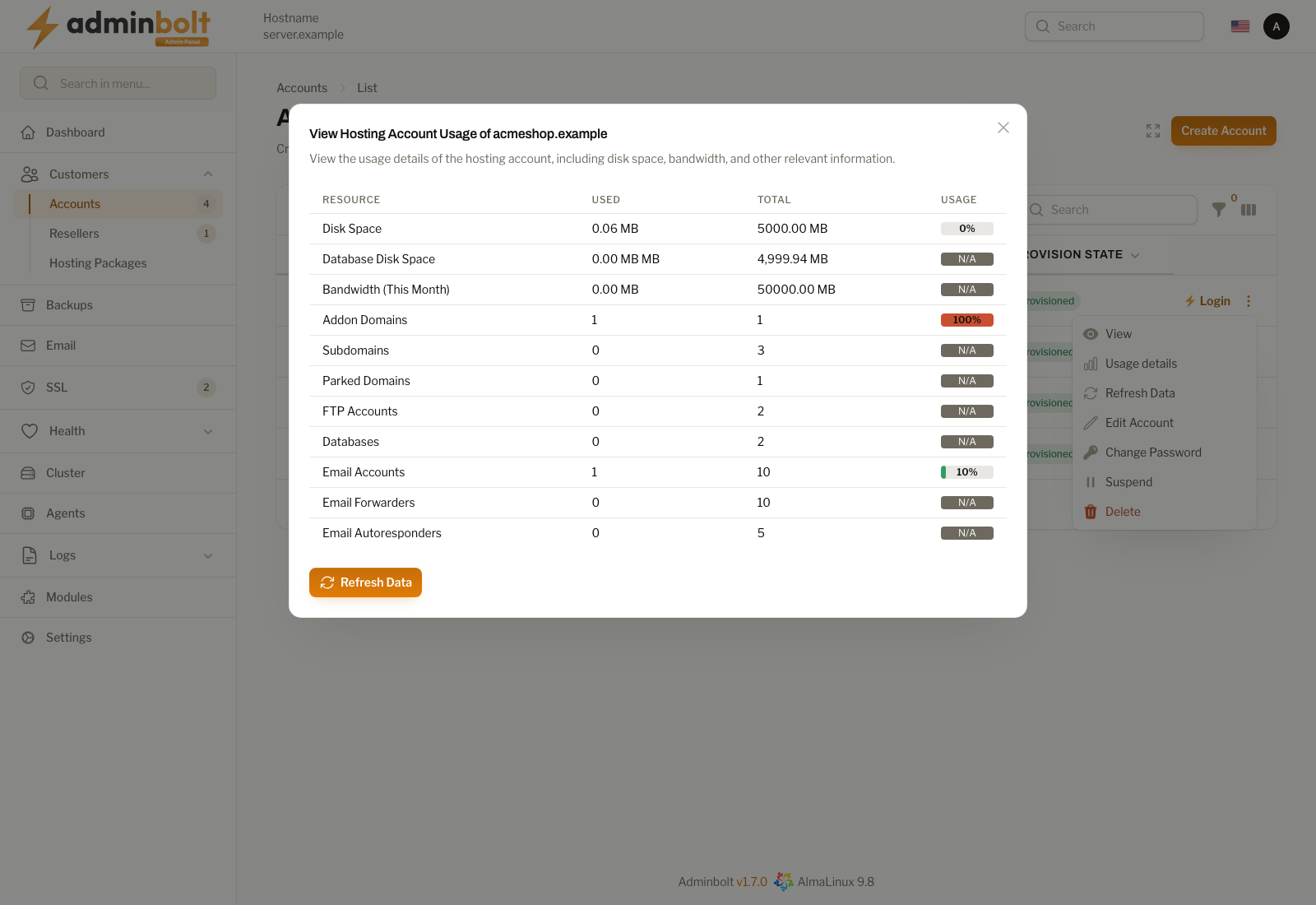
This dialog displays current usage vs. limits for various hosting resources, including:
| Resource | Used | Total | Usage |
|---|---|---|---|
| Disk Space | e.g. 0.14 MB | e.g. 10000 MB | e.g. 0% |
| Database Disk Space | e.g. 0.00 MB | e.g. 9999.86 MB | e.g. N/A |
| Bandwidth (This Month) | e.g. 5.57 MB | e.g. 50000 MB | e.g. 0% |
| Addon Domains | e.g. 2 | e.g. 5 | e.g. 40% |
| Subdomains | e.g. 1 | e.g. 5 | e.g. 20% |
| Alias Domains | e.g. 0 | e.g. 5 | e.g. 0% |
| FTP Accounts | e.g. 3 | e.g. 5 | e.g. 60% |
| Databases | e.g. 2 | e.g. 5 | e.g. 40% |
| Email Accounts | e.g. 4 | e.g. 5 | e.g. 80% |
| Email Forwarders | e.g. 1 | e.g. 5 | e.g. 20% |
| Email Autoresponders | e.g. 0 | e.g. 5 | e.g. 0% |
Note: Values shown above are examples. The actual usage will depend on each individual account's activity and plan limits.
You can click Refresh Data to update usage stats.
Editing a Hosting Account
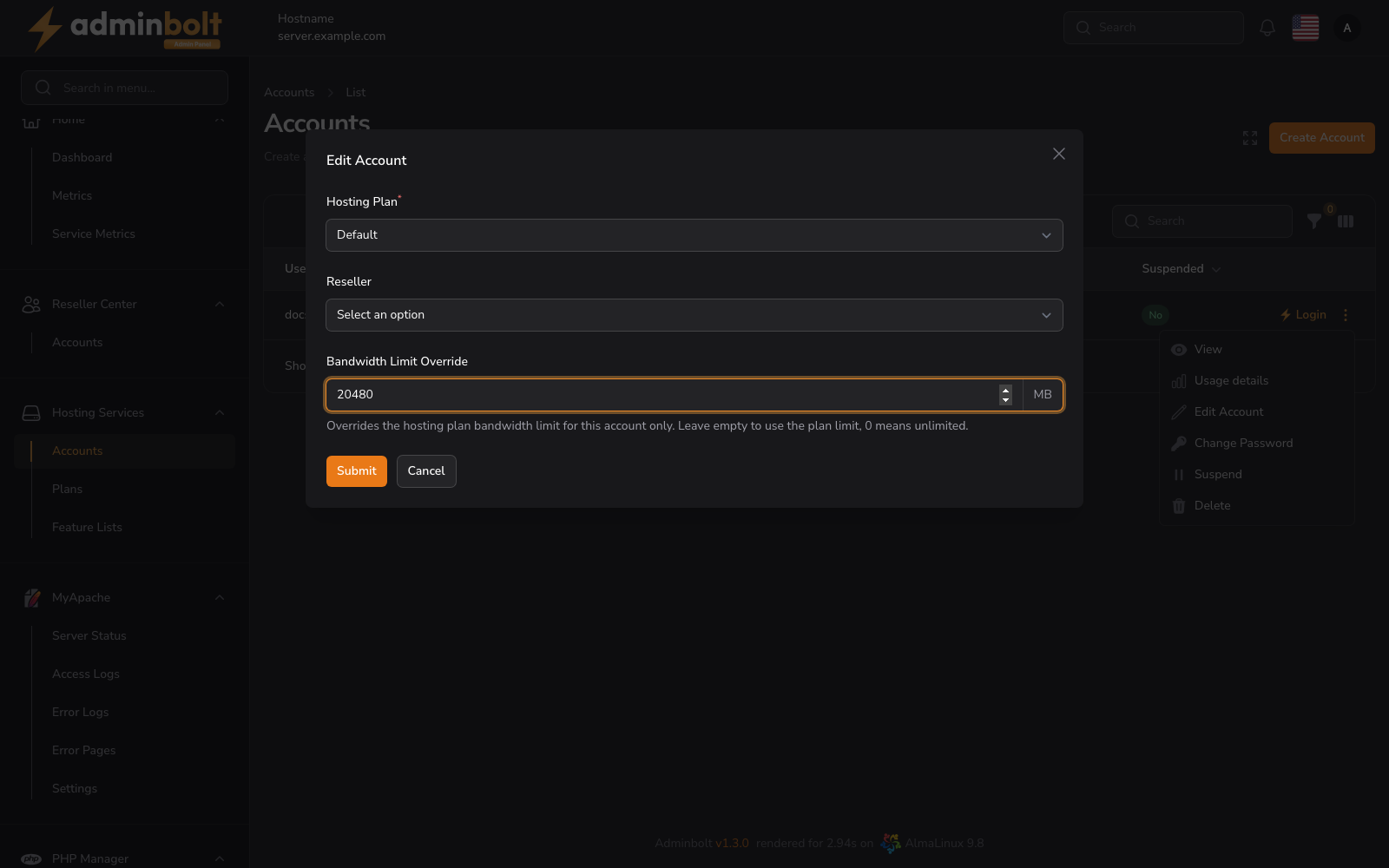
You can modify:
- Hosting Plan - Reassign the user to a different plan.
- Reseller - Assign or change the reseller.
- Bandwidth Limit Override - A per-account monthly bandwidth cap in MB. Helper text: Overrides the hosting plan bandwidth limit for this account only. Leave empty to use the plan limit, 0 means unlimited. The override survives a plan change, so switching the account to a different plan does not reset it. The account owner cannot change or remove it from the client panel.
- Extra open_basedir Paths - Additional absolute paths to allow in the account's PHP
open_basedir, one per line. The account home and/usr/shareare always included, and the Softaculous/SitePad path is added automatically when Softaculous is installed, so this field is only for paths of your own. Entries may contain letters, digits, and the characters_.-/only; a line that does not qualify is named in the error and nothing is saved. Saving re-renders the account's virtual hosts and PHP-FPM pools. - SSH Access - Toggle SSH on or off. This toggle appears only when the server provides an isolated SSH mechanism, which is CloudLinux or the SecureBox module. On CloudLinux servers, SSH access works natively through CageFS.
Click Submit to apply changes.
open_basedir on CloudLinux
With CageFS in use, a path outside the account home also has to be mounted into the cage (cagefs.mp) before the account can reach it. Adding it here alone is not enough.
Changing the Primary Domain
Change primary domain on the account's View page renames the account's main domain. Enter the New primary domain and submit.
The account moves as one piece: the site files, the virtual host, the PHP-FPM pool, the web logs, and the DNS zone are re-created under the new name, and the old name stops serving.
Mail is not moved. A domain that carries mailboxes, forwarders, autoresponders, a catch-all, domain forwarders, or a mailing list is refused up front, and the message says so. Move or remove the mail first, then rename.
When the rename is applied but a follow-up step does not land, the result is reported as Primary domain changed with warnings and names what still needs attention.
Note: This is an administrator action. Clients cannot rename their account's primary domain. Renaming a secondary domain is unchanged, and stays available where it already was.
Changing Password
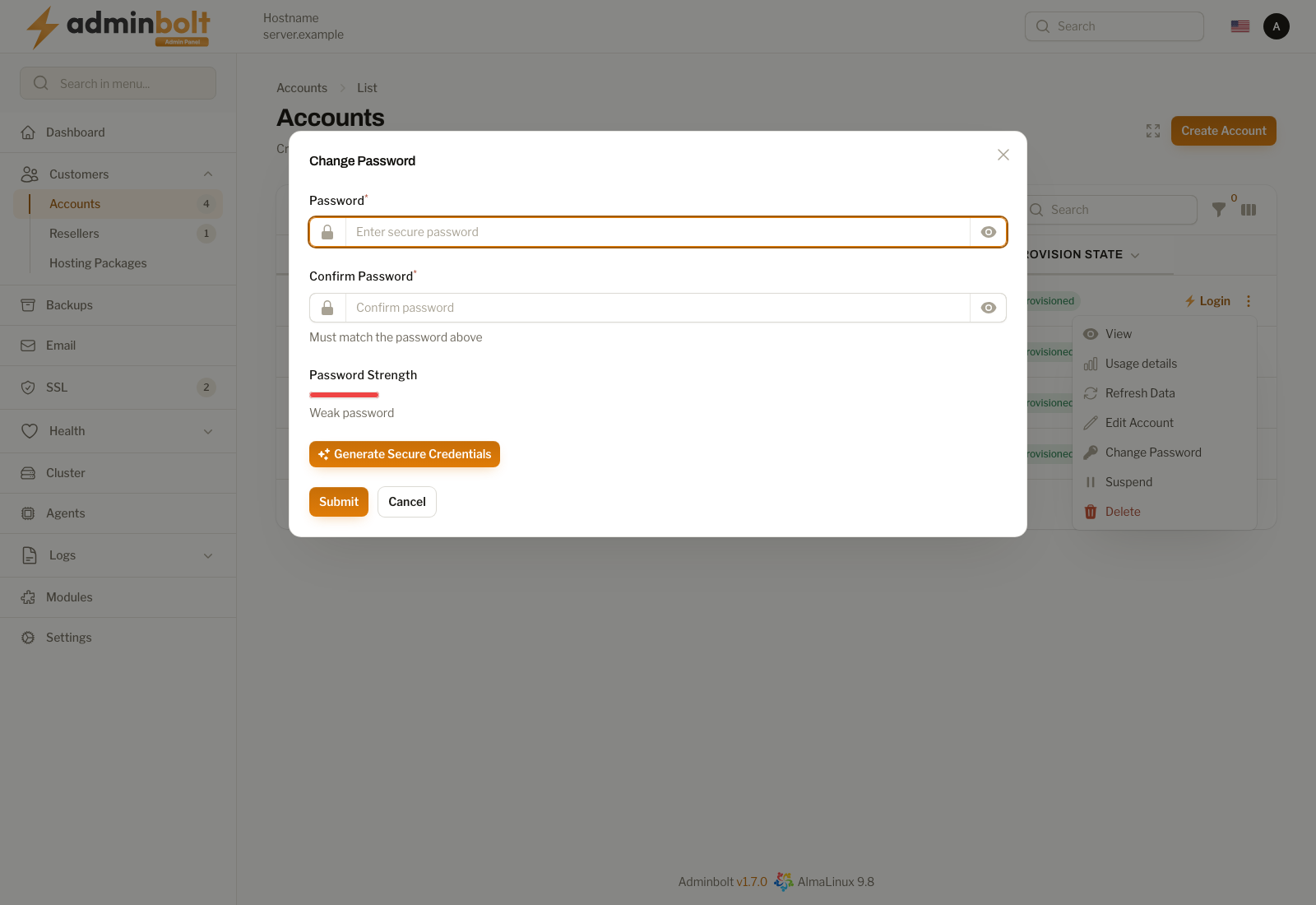
From the dropdown menu, select Change Password.
- Enter a new password and confirm it
- Password strength will be displayed
- You can auto-generate a secure password with the built-in generator
- Click Submit to apply the new password