

Domains
Overview
URL: /client/domains
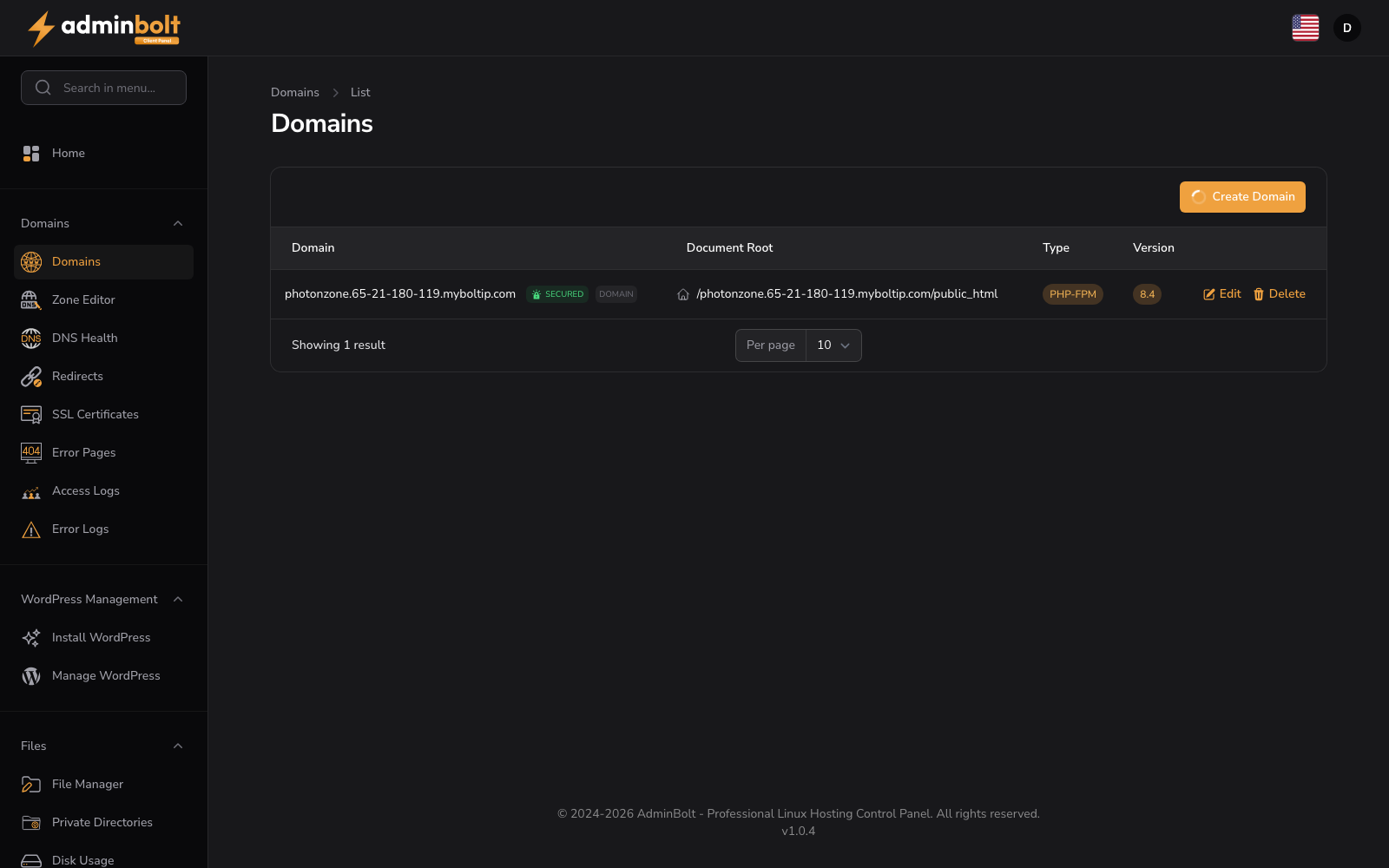
The Domains page allows you to manage all domains associated with your hosting account. Create new domains, view SSL status, and configure domain settings.
Domain Management
Create Domain
Click the "Create Domain" button to add a new domain to your account.
Creating a Domain
The Create Domain form allows you to add a new domain, subdomain, or parked domain to your account. The form includes a "Domain type" dropdown that changes available fields based on your selection.
Domain Type Options:
Domain When creating a standard domain, fill in:
- Domain (text, required) - Enter the domain you want to create. Placeholder: "example.com". Help text: "Enter the domain that you would like to create."
- Domain path (text) - Auto-filled based on your domain name
Subdomain When creating a subdomain, fill in:
- Subdomain (text, required) - Placeholder: "blog"
- To Domain (dropdown, required) - Select the parent domain
- Domain path (text) - Auto-filled based on your subdomain
Parked Domain When creating a parked domain, fill in:
- Domain (text, required) - Placeholder: "example.com"
- Park on Domain (dropdown, required) - Select the main domain to park this domain on
After completing the form, click "Create Domain" to add it to your account or "Cancel" to exit the form.
The webmail subdomain
Domains and subdomains are provisioned with a webmail.<domain> address that serves webmail, so you and your mailbox users can reach it where you would expect, for example webmail.example.com, instead of at the panel address and port. Parked domains do not get one.
It comes with the domain and needs no setup: it is served by the domain's own virtual host rather than being listed as a separate domain of yours, and it gets an A record in the zone the panel manages.
If you create webmail.<domain> yourself as a real subdomain, your site wins and the built-in webmail address steps aside; delete that subdomain again and webmail comes back. Because webmail needs it, the webmail record stays in the parent zone in that case, while deleting any other subdomain removes its records from the parent zone as usual.
For the subdomain to work from the internet, its DNS record has to resolve to this server. Domains whose zone AdminBolt manages get the record automatically; if you host DNS elsewhere, add the record there.
Internationalised domain names (IDN)
You can create domains that use non-ASCII characters, such as пример.example or münchen.example. Enter the name in its readable Unicode form. AdminBolt stores it in Punycode (the ASCII-compatible xn-- encoding) and shows it back to you in Unicode in the domains table and elsewhere in the panel. Both forms refer to the same domain, so SSL, email, and DNS keep working as usual.
Files on the server are the exception: the document root and every path derived from it use the stored Punycode form, because that is what the filesystem holds. A domain shown as пример.example has its files under xn--e1afmkfd.example. The Create Domain form previews the path it will use while you type, so you can see the exact folder name before you confirm.
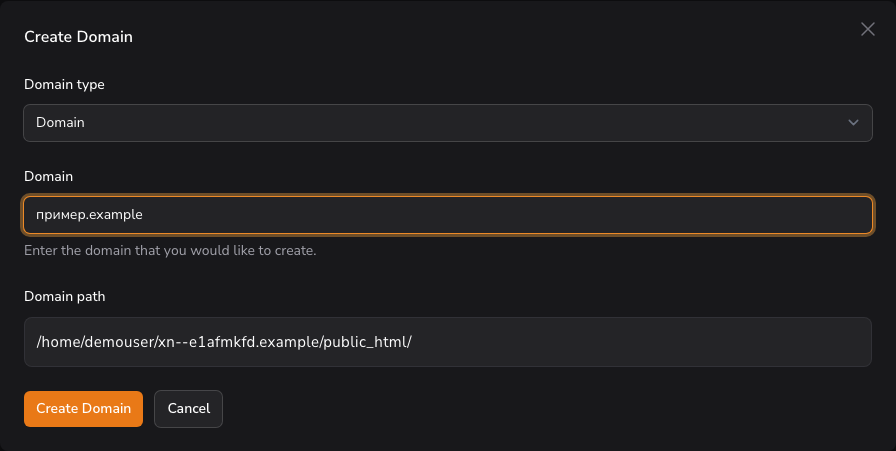
This matters wherever you work with paths rather than with the domain name: File Manager, FTP, SSH, cron jobs, and the paths that appear in log entries. Search for the xn-- form in those places, not the Unicode one.
Domain Table
The domains table displays all domains on your account with the following columns:
- Domain - Domain name (sortable)
- Document Root - Directory path where domain files are located
- Type - Server type (e.g. PHP-FPM)
- Version - Server version (e.g. 8.4)
- Actions - Edit or Delete options
Search and Filter
Use the search bar to find specific domains by name. Results update as you type.
Pagination
Select the number of domains to display per page: 5, 10, 25, 50, or All. The table updates to show the selected number of rows.
Row Actions
Each domain row includes two action buttons:
- Edit - Modify domain settings
- Delete - Remove the domain from your account
Edit Domain
The Edit Domain dialog has two tabs:
- Configuration - www alias, application type, and PHP settings for the domain
- Filesystem Backups - create, restore, and delete archives of the domain's files; see Filesystem Backups