

Redis
Redis gives your hosting account its own in-memory cache for object and session caching. It is private to your account: your own PHP, cron, and SSH processes can reach it, and nothing else on the server can.
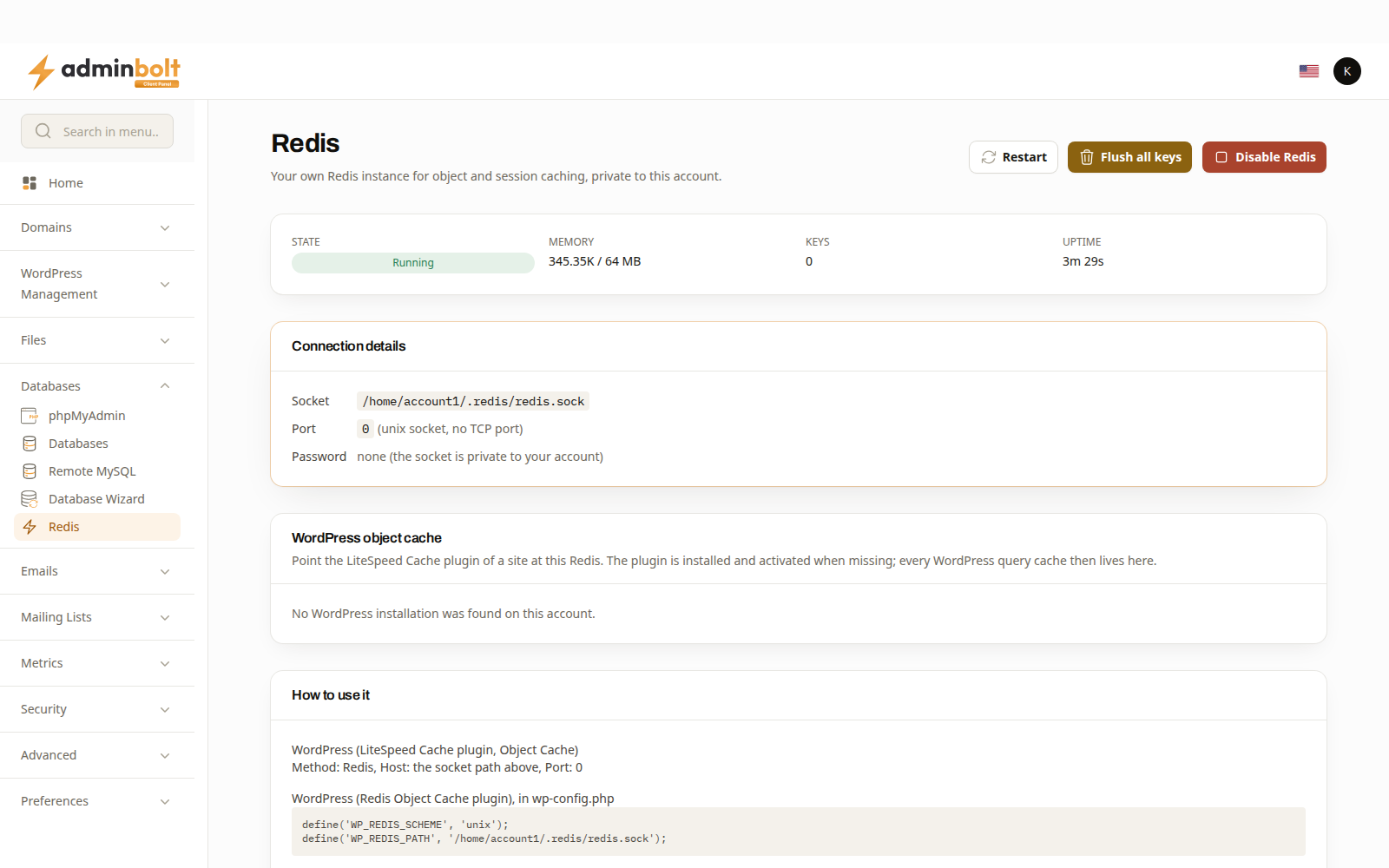
Overview
URL: /client/redis
Open it from Databases > Redis in the sidebar.
The page appears when your hosting plan includes Redis. If your plan does not, the page states that and no instance can be started. Your provider sets how much memory the instance may use on the hosting plan.
Turning it on
Enable Redis starts the instance. The confirmation names the memory your plan allows.
The form offers one option, Also require a password. The connection is already private to your account, so a password is not needed for security; some applications insist on one anyway. When you tick it, the password is generated for you and shown on this page.
State
Once the instance runs, the page reports:
| Field | What it shows |
|---|---|
| State | Running, Stopped, Unknown, or Suspended. |
| Memory | How much memory the cache currently holds. |
| Keys | How many keys are stored. |
| Uptime | How long the instance has been running. |
What the state means
- Running - Redis answers. This is judged by Redis itself answering, not by the name of the service behind it.
- Stopped - nothing answers. Restart starts it again; if it stops again, contact your hosting provider.
- Unknown - the panel could not read the state just now, so Redis may be working normally. A sentence under the state says why and what to do, usually to refresh the page in a moment.
- Suspended - your account is suspended, so its Redis is kept stopped. It starts again when the account is unsuspended.
Connection details
The Connection details section holds what an application needs:
- Socket - the socket file your application connects to.
- Port - shown as (unix socket, no TCP port). There is no port to connect to, and no network exposure.
- Password - the generated password, or a note that none is set because the socket is private to your account.
How to use it below the table carries ready-to-paste configuration for the common cases:
- WordPress with the LiteSpeed Cache plugin, under Object Cache.
- WordPress with the Redis Object Cache plugin, for
wp-config.php. - Laravel, for the
.envfile. - Plain PHP, using the
Redisclass.
WordPress object cache
The WordPress object cache section lists the WordPress installations found on your account and the cache state of each one:
- Connected - the site uses this Redis instance. Disconnect stops it.
- Plugin active, cache off, Plugin inactive, or Plugin not installed - the site is not caching yet. Connect points it at this instance, installing and activating the plugin when it is missing.
- PHP redis extension not enabled - the site's PHP version cannot talk to Redis yet. Change the domain's PHP settings, then connect the site.
When no WordPress installation is found on the account, the section says so.
Actions
- Restart - restart the instance. Cached data is rebuilt by your applications on the next requests. Restart is offered when the state is Stopped. When the state is Unknown because Redis did not answer as expected, it is offered behind a confirmation, because restarting empties the cache and briefly disconnects your applications. It is not offered while Redis is running, while the account is suspended, or when the server could not be asked at all.
- Flush all keys - remove every key. Applications rebuild their cache on the next request. You are asked to confirm.
- Disable Redis - stop and remove the instance together with its data. Applications still configured to use it fall back to no cache, or fail to connect, until you point them elsewhere. You are asked to confirm.
Related pages
- Databases - your MySQL databases and users.
- LiteSpeed Cache - full-page caching, which works alongside the object cache.
- Manage WordPress - the sites listed in the object cache section.