

LiteSpeed
Where to find it in the panel: LiteSpeed is the LiteSpeed tab of the Web Server area, at
/admin/web-server/litespeed, and its module page is at/admin/modules/litespeed.
LiteSpeed Web Server (LSWS) is a high-performance web server with built-in LSCache. Your existing sites and .htaccess rules keep working after the switch with no reconfiguration. Since panel 1.9.0 LiteSpeed runs in native mode, with its own configuration, and serves Node.js, Python, and Ruby applications; a server where LiteSpeed was installed earlier runs it as an Apache drop-in until you convert it. Since panel 1.9.3 the Apache drop-in serves applications too. AdminBolt installs LiteSpeed, applies your license, switches the active web server between MyApache (Apache) and LiteSpeed, moves your domains to the matching PHP engine, and lets your clients manage LSCache per domain.
What it provides
- Module installer - set up LiteSpeed from the panel.
- License management - apply your LiteSpeed license serial, or start with a trial key.
- Web server switch - move the active server between MyApache (Apache) and LiteSpeed. Only one runs at a time.
- PHP engine migration - move domains and hosting plans between REMI PHP and the matching LSPHP version.
- LSCache management - per-domain LiteSpeed cache controls for your clients (enable, TTL, clear cache).
- Logs - real-time LiteSpeed access and error logs.
- Settings - manage the server configuration that both MyApache and LiteSpeed share.
- Native mode - LiteSpeed serves from its own configuration and can serve Node.js, Python, and Ruby applications (since 1.9.0).
- WebAdmin console - open the native LiteSpeed admin console from the panel.
Before you start
- Your server runs a supported OS: AlmaLinux 9, Rocky Linux 9, or CloudLinux 9.
- You have a LiteSpeed license serial. You can also start with a trial key from the panel and add a paid serial later.
- You are signed in to the admin panel.
- If you plan to serve existing sites with LiteSpeed, your domains need the matching LSPHP versions. The install sets them up for the Remi PHP versions installed on the server (see Install LiteSpeed); a version added later is installed from Settings > PHP > PHP Versions. Domains without a matching version are skipped during a LiteSpeed PHP migration.
- For HTTP/3 (QUIC) to work, allow UDP on port 443 to your node in any external firewall. Without it, sites still load over HTTP/2, but HTTP/3 is unavailable.
Switching the active web server affects every site on the node, so plan the change for a quiet moment.
Install LiteSpeed
Go to Modules in the sidebar (
/admin/modules).Find the LiteSpeed card. The status shows Not Installed.
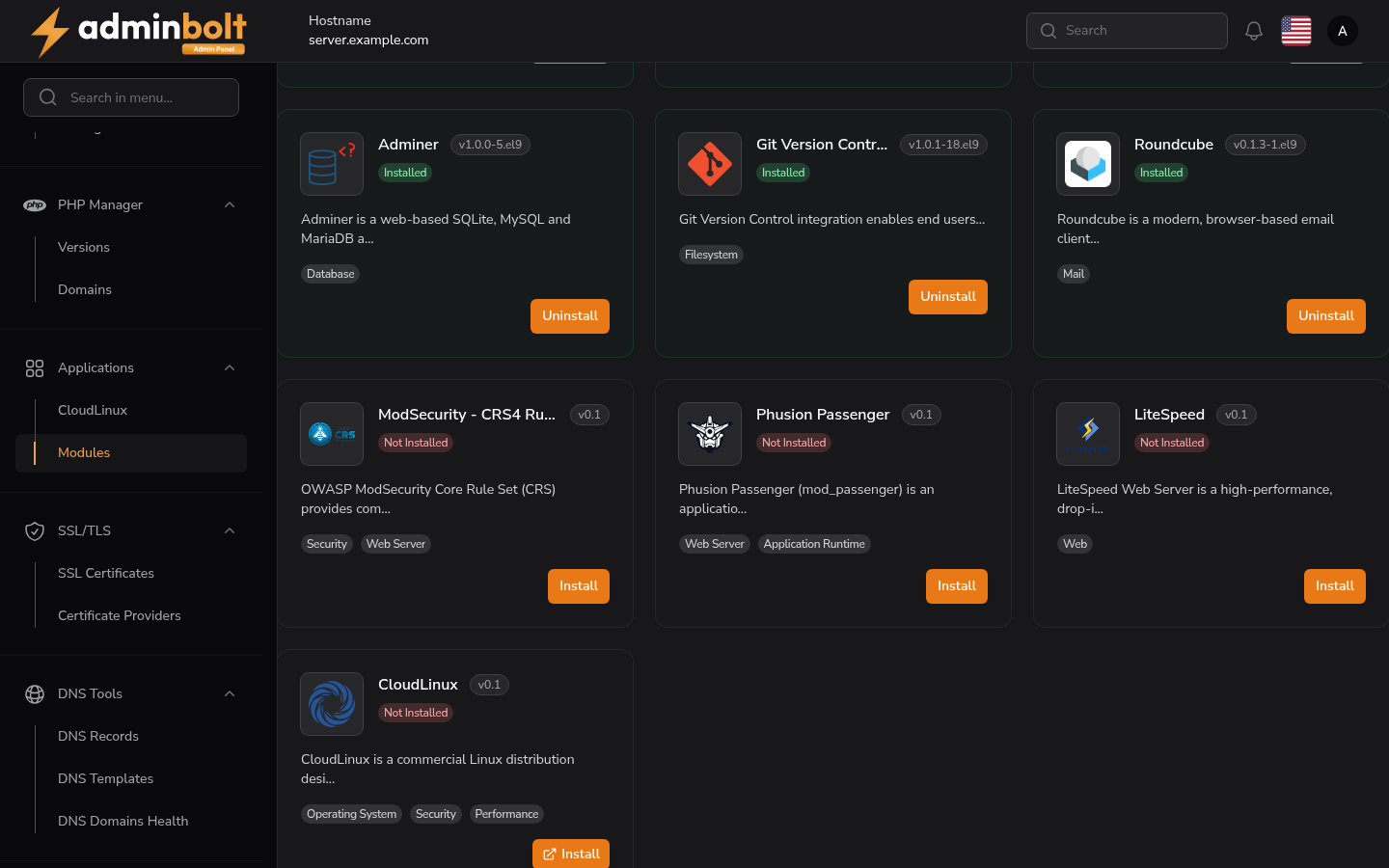
Click Install, then Confirm in the dialog.
The panel runs the installation in the background and shows a live progress log, the Provision Log. Installing LiteSpeed and its LSPHP runtimes takes several minutes, so wait for it to finish.
When it completes, the module status changes to Installed, and the LiteSpeed tab appears in Web Server (
/admin/web-server/litespeed). Since panel 1.9.2 the tab is shown only while LiteSpeed Enterprise is installed or is the web server; before the install, the Install link on the LiteSpeed card of the Web Server overview leads to the module page. Its access and error logs become tabs of the Logs page.
At this point LiteSpeed is installed but not yet active - MyApache keeps serving requests until you switch.
LSPHP versions set up during the install
The install sets up the matching LSPHP version for every Remi PHP version installed on the server, so existing sites have an LSPHP version to move to. Since panel 1.9.2 the panel first reads the installed PHP versions from the server, so a PHP version installed outside the panel, for example on the server's command line, gets its LSPHP version too.
- If the server cannot confirm which PHP versions are installed, the install goes on with the versions the panel already knows and ends with a warning. Check that the server agent is running, open Settings > PHP > PHP Versions to refresh the list, then install any missing LSPHP version there.
- On a CloudLinux server the install sets up no LSPHP, because websites run CloudLinux alt-php there.
When the install fails
Since panel 1.9.2, when the install fails because a package it needs is in no enabled package repository, the panel says which one. The failed step in the Provision Log, the notification, and the job in the administrator API name the package, what it needs, and the next step. For example:
The package lsphp83-gd needs libgd.so.103()(64bit), which no enabled package repository provides. libgd.so.103 comes from the gd3php package in the Remi repository. Make sure Remi is installed and enabled (installing a PHP version under PHP Versions sets it up), then try again.
The same applies to each LSPHP version the install sets up: a step such as LSPHP 8.3 installation failed. is followed by the reason. Take the step the message names, then install again.
Apply your license serial
Open the LiteSpeed tab of Web Server in the sidebar. The License Serial card shows Not Set right after installation.
Click Update License Serial. Enter your serial, or tick Use Trial Key to start with a trial. Keep Restart LiteSpeed after applying the license key enabled so the change takes effect immediately.
Click Submit. The Current Serial now shows your key (masked). A running LiteSpeed restarts with the new key in the background. Since panel 1.9.2, a LiteSpeed that is stopped, for example while Apache is the web server, stays stopped when you apply a key.
The trial key is time-limited and meant for evaluation. Apply a paid serial for production use.
If you apply the license while Apache is still the active web server, the dashboard briefly reports Conflict Detected because both servers are running at once. It clears as soon as you switch to a single web server in the next step.
Switch the active web server
On the LiteSpeed tab of Web Server, in the Webservers card, click Switch to LiteSpeed.
Read the notice and click Confirm. The panel prepares LiteSpeed's configuration while MyApache still serves, then stops MyApache and starts LiteSpeed. Expect a brief interruption for every site on the node while the active server changes. If LiteSpeed does not start, or starts without serving on ports 80 and 443, the panel tries to start MyApache again and keep it as the active server. The message says whether that worked; when it did not, the sites are down until MyApache is started again.
After a few seconds the banner reads LiteSpeed is Active, and LiteSpeed serves requests on the node. A reminder points you to PHP Migration for any domains still on REMI PHP.
Verify your sites. Open a few of your sites and confirm they load and that SSL still works. A quick check is the response
Serverheader, which readsLiteSpeedonce the switch is done. You can also open the LiteSpeed Access tab of the Logs page to confirm LiteSpeed is serving traffic.
To return to Apache, see Restart, roll back, or remove LiteSpeed.
Move PHP engines to LSPHP
Apache serves REMI PHP and LiteSpeed serves LSPHP. After switching, move your domains and hosting plans to the matching LSPHP version so they are served by LiteSpeed.
Open the PHP Migration tab of Web Server (
/admin/web-server/litespeed/migration). The page previews what will change. Domains whose matching LSPHP version is not installed are skipped, and the migration is safe to re-run.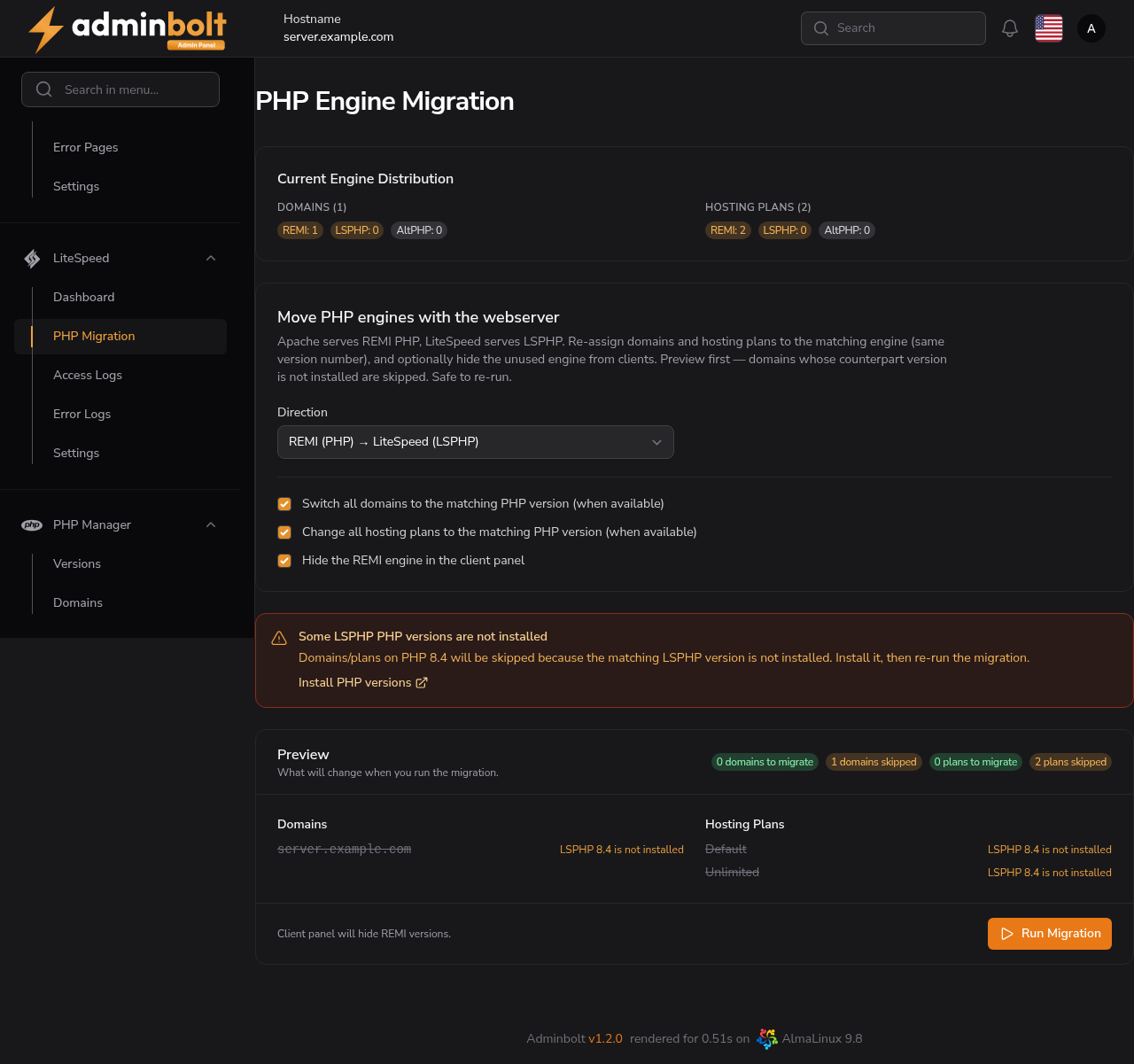
Keep the default direction REMI (PHP) → LiteSpeed (LSPHP). Optionally hide the unused REMI engine from the client panel. Click Run Migration, then Confirm.
The migration re-assigns each domain and plan to the matching LSPHP version, rebuilds their virtual hosts, and reports the result. The engine distribution at the top updates to show the domains and plans now on LSPHP.
The migration is bidirectional. Use REMI (PHP) → LiteSpeed (LSPHP) when moving to LiteSpeed, and LiteSpeed (LSPHP) → REMI (PHP) if you later switch back to MyApache.
Manage LSCache
LiteSpeed's built-in LSCache speeds up dynamic sites by serving cached pages. Your clients manage it per domain from their own panel - see LiteSpeed Cache in the client panel guide.
In the client panel, open LiteSpeed Cache. Each domain shows whether LiteSpeed Cache is Enabled, with Settings and Clear Cache actions.
Settings opens per-domain options: enable or disable the cache, Default TTL and Maximum TTL (how long pages stay cached), Maximum object size, and Excluded paths (paths kept out of the cache, for example
/wp-admin,/cart,/checkout).Clear Cache purges the cached pages for that domain.
For WordPress, install the LiteSpeed Cache plugin in the site to control full-page caching, image optimization, and purging from the WordPress admin (see the LiteSpeed Cache documentation). Server-wide cache tuning lives in the WebAdmin console.
View LiteSpeed logs
Open the Logs page and use its LiteSpeed Access tab for real-time HTTP access logs across all domains served by LiteSpeed, and its LiteSpeed Error tab to diagnose problems. Use them to confirm LiteSpeed is serving traffic after a switch and to investigate a site that does not load. Clients see their own access and error logs in the client panel.
Native mode
Since panel 1.9.0, LiteSpeed runs in one of two modes, shown as Mode on the LiteSpeed card of the LiteSpeed tab:
- Native - LiteSpeed serves from its own configuration, with a virtual host of its own for every domain. This is the mode LiteSpeed runs in when it is installed with panel 1.9.0 or later.
- Apache drop-in - LiteSpeed reads the Apache configuration. A server where LiteSpeed was installed before 1.9.0 keeps this mode until you convert it, and the Needs attention card on the dashboard shows a warning while it does.
To convert a server:
- Make LiteSpeed the active web server (see Switch the active web server).
- On the LiteSpeed tab of Web Server, click Convert to native mode and confirm.
- The panel writes a virtual host for every domain, then restarts LiteSpeed once. If LiteSpeed does not serve afterwards, the panel restores the Apache drop-in configuration and names the problem. Correct it, then convert again.
Revert to Apache drop-in goes back. LiteSpeed reads the Apache configuration again and restarts once. Since panel 1.9.3, existing applications keep being served: after a conversion either way, and after a switch of the active web server, the panel sets them up again for the new configuration in the background, so an application can be unavailable for a short while.
The conversion does not change any domain's PHP. Domains on REMI PHP and domains on LSPHP keep the version they have.
Applications on LiteSpeed
In native mode, clients can run Node.js, Python, and Ruby applications on LiteSpeed, the same way as on OpenLiteSpeed. Node.js works as soon as a version is installed. Ruby and Python applications also need their application server support installed on the server; the Runtime Manager and the client's application form say when it is missing. Since panel 1.9.3, LiteSpeed serves applications in Apache drop-in mode as well, each running as its account:
- Node.js works as soon as a version is installed.
- Ruby needs the ruby-lsapi extension: Enable Ruby support in the Runtime Manager builds it.
- Python needs lswsgi beside the Python interpreter that applications run with. The panel installs it only on a CloudLinux server: Set up LiteSpeed runners in the Runtime Manager installs it, together with ruby-lsapi for the CloudLinux Ruby versions.
LiteSpeed settings
Open the settings tab of the LiteSpeed page, on the LiteSpeed tab of Web Server (/admin/web-server/litespeed?tab=settings), to manage the server configuration. At the top, the LiteSpeed Profile selector chooses which saved configuration profile is applied (the Default profile is used unless you add others).
In Apache drop-in mode, LSWS reads your existing Apache configuration directly and the panel keeps one shared set of server settings: any change here applies whether MyApache or LiteSpeed is the active server. VirtualHosts, .htaccess, mod_rewrite, mod_security, and most Apache directives are read natively by LiteSpeed, and PHP is served through LSAPI (LSPHP) instead of mod_php. Settings are grouped into six tabs: Server Configuration, Security & Performance, Timeouts & Performance, Request Limits, Logging Configuration, and Modules Configuration.
In native mode, LiteSpeed does not read the Apache configuration. The Apache-style settings on this tab are stored but not applied, and the tab says so. Real visitor IP settings still apply, and Apache Includes are not read.
Open the LiteSpeed WebAdmin console
For advanced tuning you can open the native LiteSpeed WebAdmin console.
- On the LiteSpeed tab of Web Server, click LiteSpeed Admin Details.
- The panel shows the WebAdmin URL (on port 7080) and a generated admin password. Reveal the password with the eye icon, click Open LiteSpeed Admin Panel, or copy the URL and password to sign in.
The WebAdmin console is a separate admin surface. Keep port 7080 reachable only from trusted networks, and safeguard the generated password rather than exposing the console publicly.
The WebAdmin console is LiteSpeed's own tool rather than an AdminBolt screen; see the LiteSpeed documentation for how to use it.
Restart, roll back, or remove LiteSpeed
Restart LiteSpeed - on the LiteSpeed tab of Web Server, use Restart LiteSpeed to restart the server after a configuration change or to recover from a transient issue, without switching servers.
Roll back to Apache - the panel will not switch to Apache while any domain is still on an LSPHP version, because Apache cannot serve LSPHP. Roll back in this order:
Open the PHP Migration tab of Web Server and run it in the LiteSpeed (LSPHP) → REMI (PHP) direction, so every domain and hosting plan returns to REMI PHP.
On the dashboard, click Switch to MyApache and Confirm. Since panel 1.9.2 the button is hidden, and the switch refused, while Apache is already the active web server or while the panel cannot read which web server runs.
Verify your sites load on Apache.
If you try to switch to Apache before migrating, the panel blocks the switch and names the domains that still use LSPHP.
Remove LiteSpeed - see Remove LiteSpeed below.
Remove LiteSpeed
To uninstall the module, first roll back to Apache (the steps above), then open Modules, click the LiteSpeed card, and click Uninstall. The LiteSpeed tab leaves Web Server with it.
Removing the package leaves files behind in /usr/local/lsws: LiteSpeed's configuration, the configuration of your sites, and its WebAdmin and license files. Since panel 1.9.2, once the package is removed, the panel moves them to a dated folder next to it, /usr/local/lsws-removed-<date-time>, so a later OpenLiteSpeed install, which uses the same folder, starts clean. This happens whichever way you remove LiteSpeed Enterprise: from Modules, with Remove in Health > Manage services, or through the administrator API.
- Nothing is deleted. The folder keeps the layout
/usr/local/lswshad, and itsMANIFEST.txtlists every file that was moved. Copy back what you need from it, and delete the folder when you no longer need it; nothing on the server uses it. - Two things stay in place: the logs, in
/usr/local/lsws/logs, and the LSPHP builds, which are packages of their own that Apache with the LSAPI Engine and OpenLiteSpeed also run PHP with. They stay on PHP Versions, where you can still configure or uninstall them; while no web server can run them, each is marked No web server uses it now. - You are told the outcome. The Provision Log of the uninstall lists it, and every administrator gets a Files left by LiteSpeed Enterprise notification: green when the files were moved, a warning when they were not or only partly. A warning names the reason and says that nothing was deleted; move the remaining files out by hand, keeping the logs, before you install OpenLiteSpeed.
- OpenLiteSpeed waits for it. Until the files are moved, installing OpenLiteSpeed is refused with a message that says to wait for the Files left by LiteSpeed Enterprise notification, normally within a few minutes.
Who can do what
- Admin - installs LiteSpeed, applies the license, switches the web server, and runs PHP migration. These are node-level actions and are admin-only.
- Clients - manage LiteSpeed Cache per domain and choose the PHP version for their domains. The version list shows the installed LSPHP versions; REMI is hidden when you chose to hide it during migration.
- Resellers - manage hosting plans and accounts. They do not switch the web server or run migration; their accounts inherit the active server.
Troubleshooting
- Sites still run on REMI PHP after switching - run PHP Migration in the REMI → LSPHP direction so domains and plans move to the matching LSPHP version.
- A domain is skipped during migration - the matching LSPHP version is not installed for that domain. Install it from Settings > PHP > PHP Versions, then re-run the migration. If you installed the LSPHP version a moment ago and the migration still reports it as missing, reopen Settings > PHP > PHP Versions to confirm it shows as Installed before re-running.
- Cannot switch to Apache - domains still on LSPHP - the panel blocks the switch until those domains return to REMI. Run PHP Migration in the LSPHP → REMI direction first, then switch.
- HTTP/3 does not work - confirm UDP port 443 is open to your node. Sites still load over HTTP/2 without it.
- LiteSpeed misbehaves after a change - use Restart LiteSpeed on the dashboard before switching back to Apache, and check the LiteSpeed Error tab of the Logs page.
- License shows as a trial - open the LiteSpeed tab of Web Server and use Update License Serial to enter your paid serial.
- The install fails and names a package - a package LiteSpeed or LSPHP needs is in no enabled repository. Take the step the message names, for example install a PHP version under Settings > PHP > PHP Versions to set up the Remi repository, then install again. See When the install fails.
- The dashboard reads Web Server State Unknown - the panel could not read which web server runs, so it offers no switch. Use Refresh Status; if the state stays unknown, check that the server agent is running.
- The LiteSpeed tab is missing from Web Server - LiteSpeed Enterprise is not installed. Install it from Modules, or with Install on the LiteSpeed card of the Web Server overview.
Known limitations
- LiteSpeed replaces Apache as the active web server rather than running alongside it. Only one web server is active at a time, and the switch causes a brief interruption for every site on the node.
- A LiteSpeed license serial is required for production use. A trial key is available from the panel but is time-limited.
- In Apache drop-in mode, the settings page edits one shared set of server settings, applied to whichever web server is active. In native mode, those settings are not applied to LiteSpeed.
- In Apache drop-in mode, Python applications need lswsgi, which the panel installs only on a CloudLinux server, with Set up LiteSpeed runners. Where it is missing, run Python applications in native mode.
- Server-wide LSCache tuning and some advanced options live in the LiteSpeed WebAdmin console, not in the AdminBolt panel.
Further reading
The WebAdmin console, LSCache, and LSPHP are LiteSpeed's own components. For in-depth reference, see the LiteSpeed documentation and the LiteSpeed Cache documentation.