

Import a backup
Import a backup brings a hosting account from a cPanel server into one of your accounts, or into a new account on one of your plans, from a backup file of that account. You upload the file, the server reads it and shows what it holds, and nothing is written to any account until you check the preview and choose Restore. You need no access to the old server. Since panel 1.9.3.
Not an external migration, and not a restore of your own backups
Backup file import reads one account from one backup file and never contacts the old server. Moving accounts directly from a running cPanel or DirectAdmin server is an external migration, which the server administrator runs. Restoring a backup this server made is done from Backups. All the features that move accounts are compared in Migration: which one do you need?.
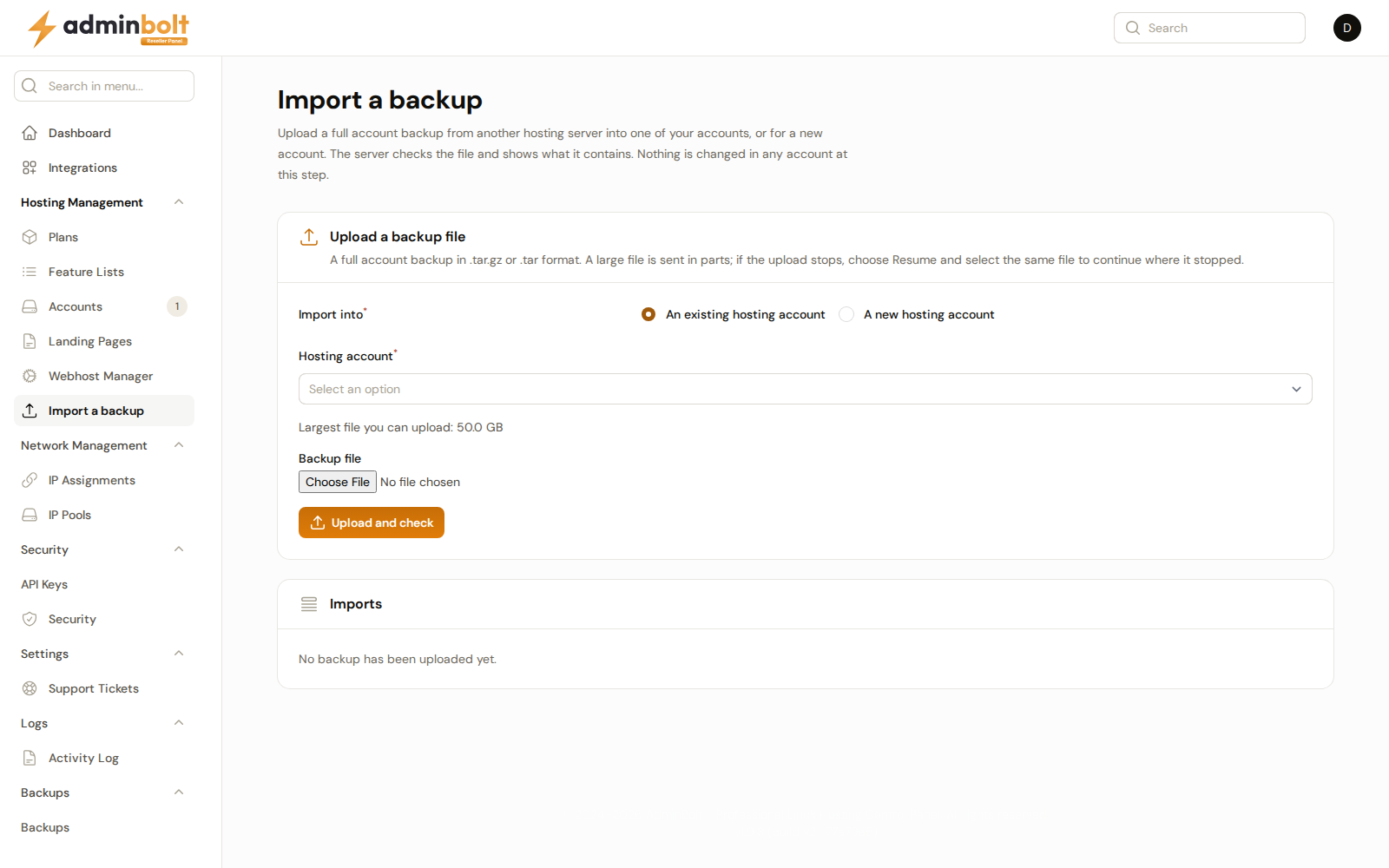
Overview
URL: /reseller/backup-import
Open it from Hosting Management > Import a backup in the sidebar. The page reads:
Upload a full account backup from another hosting server into one of your accounts, or for a new account. The server checks the file and shows what it contains. Nothing is changed in any account at this step.
The menu entry appears only while the server administrator allows backup imports. While they are off, the page cannot be opened. Resellers need no plan feature for it.
Which backup files are imported
The import reads a full account backup made by cPanel, in .tar.gz or .tar format, holding one account: the backup a server administrator makes in WHM, usually named cpmove-<user>.tar.gz, or the full account backup an account owner downloads in cPanel, usually named backup-<date>_<user>.tar.gz. A backup from another control panel is refused with "This file is not an account backup the import can read."
Uploading a backup
- Under Import into, choose An existing hosting account or A new hosting account.
- For an existing account, pick one of your accounts in Hosting account. You can search by username or domain.
- For a new account, pick one of your plans in Hosting plan and, if you want, an Account name: "Leave empty to use the name from the backup." You own the new account.
- Choose the file under Backup file and click Upload and check.
The page shows the Largest file you can upload, which the server administrator sets. A large file is sent in parts. When the connection drops, the upload stops: click Resume on the import's row and select the same file, with the same name and size, and the upload continues where it stopped.
An import into a suspended account is refused: unsuspend the account first.
The imports list
Imports lists your imports, and imports into your accounts that the server administrator or the account's owner started, with File, Import into, Import state, Size, and Started. The page updates by itself while an import runs. The row actions are Show, Resume, Try again, Cancel, Stop, and Remove file, as described in The imports list of the administrator guide.
Only whoever uploaded a backup, or an administrator, can restore it, and once a restore has started only whoever started it, or an administrator, can stop it or try it again. In place of those buttons you then see who can, for example "This backup was uploaded by the account's owner. Only they, or an administrator, can restore it."
Checking the preview
Show opens the import. Once the server has read the file, you see the account in the backup, when the backup was made, its type, and everything it holds, grouped by kind. Mailing lists, SSH keys, PostgreSQL databases, DNS records of a kind the server does not keep (such as CAA), catch-all addresses, and the account mailbox are shown but not imported. The plan, address, and owner the account had on the old server are never carried over. See What the preview shows for the full list.
The restore part of the preview works as in the administrator guide:
- Restoring into a new account: you set Account name, Hosting plan, and IP address. The plans are yours, and the addresses are the ones assigned to you. When you have reached one of your reseller limits, the preview says so.
- Restoring into an existing account: the backup is merged into the account, and nothing the account has is removed or overwritten unless you choose to replace it and confirm. What a replacement takes away is kept in the account.
- Checking the items: the plan limits, the planned action for each item, and the items you leave out.
Click Restore and confirm.
Progress, report, and trying again
The restore shows its steps as it goes, and Stop ends it after the current step. The Restore report lists every item with its result, and says for each login whether the password from the backup works here or a new one has to be set. A mailbox or database user the account already had keeps its own password by default, and the report then shows the same "works here" line for it. See Restore progress and report.
When a restore ends Partly completed, Failed, or Cancelled, Try again makes a new preview of what is left: items already restored are not touched again. Check it and click Restore again. See Try again. When the import created a new account but did not complete, Remove the new account removes it with everything the import put into it.
REST API
The same import is available in the reseller REST API under /api/reseller/cpanel-imports. See the API reference.
Related
- Accounts - where an imported account appears.
- Import a backup file - the administrator guide, with the settings and every message.
- Import a backup - the same feature for your clients, when their plan includes it.