

Reseller Accounts
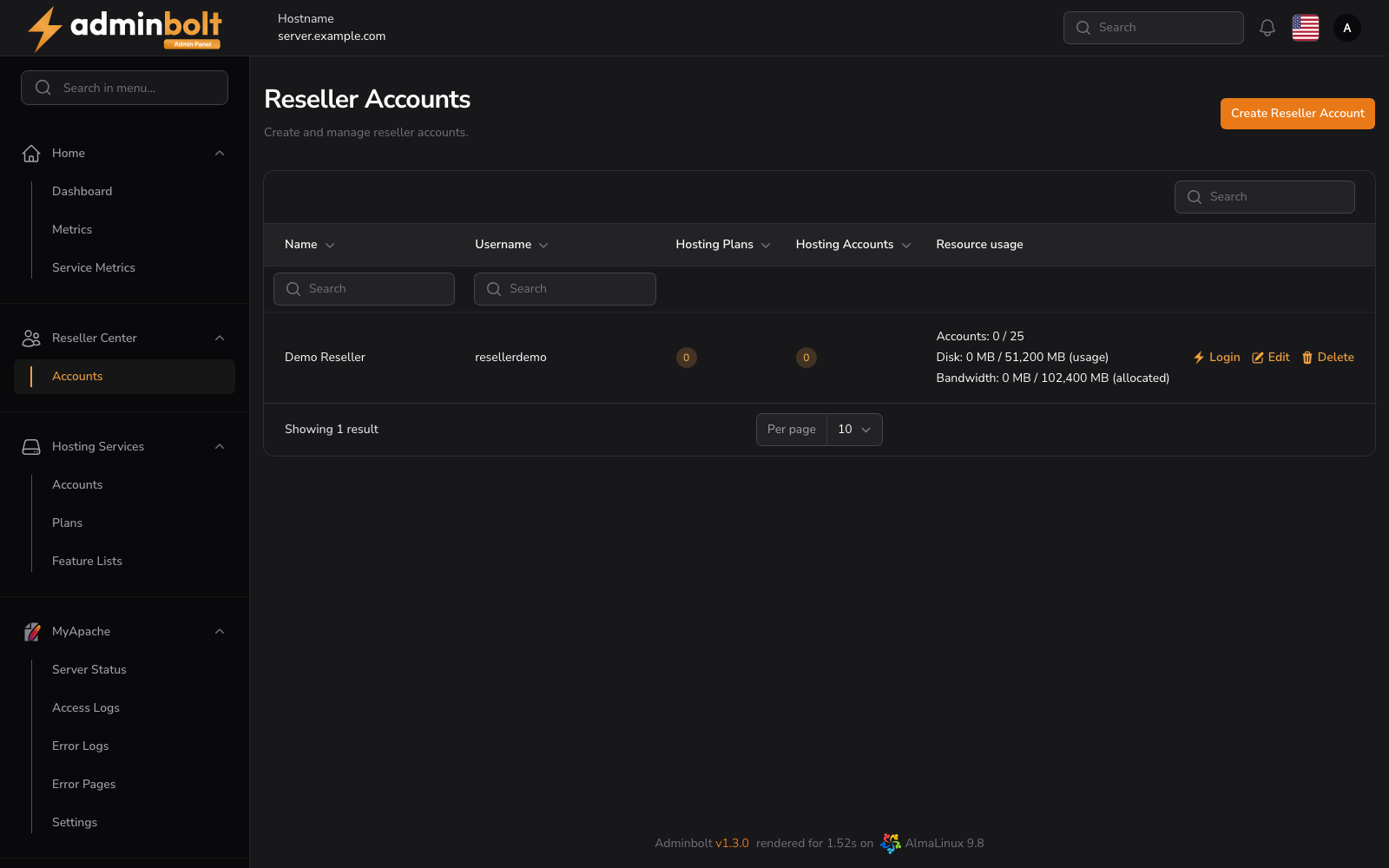
The Reseller Accounts section allows administrators to create, manage, and impersonate reseller accounts. Open it from Customers > Resellers in the sidebar.
Overview
URL: /admin/resellers
The page header reads "Create and manage reseller accounts.", and the sidebar entry carries the number of resellers. The list has five columns:
- Name - Display name of the reseller
- Username - System username used for login
- Hosting Plans - Total number of hosting plans created by the reseller
- Hosting Accounts - Total number of hosting accounts managed by the reseller
- Resource usage - Current accounts, disk, and bandwidth usage against the reseller's limits (see Resource Limits)
Actions
- Login - Impersonates the reseller and opens their dashboard
- Edit - Update reseller info and credentials
- Delete - Permanently removes the reseller account
Search and Filtering
- Individual search boxes are available for:
- Name
- Username
Each input filters the list dynamically based on entered text.
Pagination
Pagination controls allow you to set how many records to display per page:
- Options: 5, 10, 25, 50, All
Creating a Reseller Account
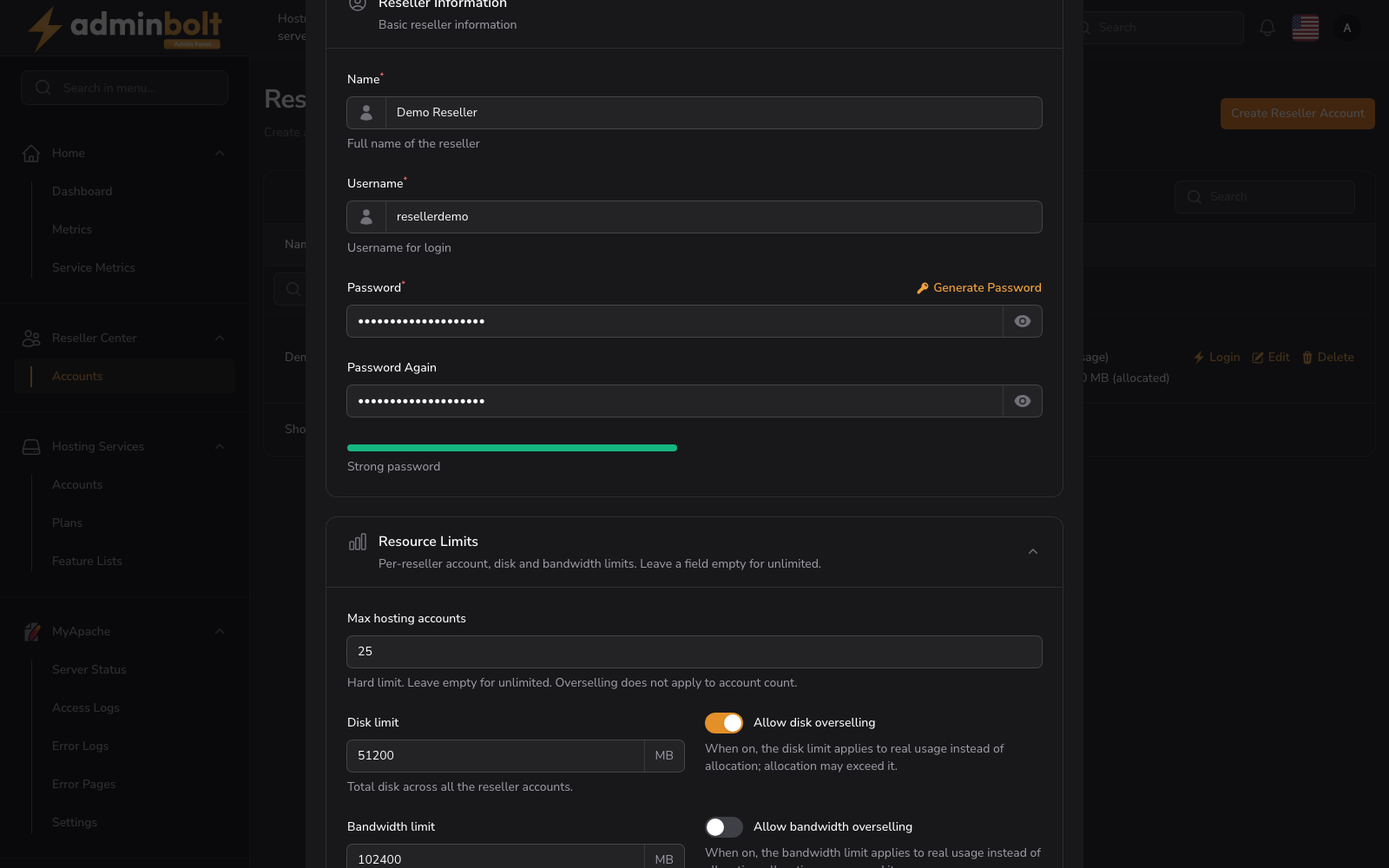
Clicking the Create Reseller Account button opens the creation form.
Fields
Reseller Information
- Name (required) - Full name for display
- Username (required) - Login username
- Password (required) - Secure password with strength validation
- Password Again (required) - Confirmation of password
You can click Generate password to auto-generate secure credentials.
Contact Details (optional)
- Email - Primary email address
- Phone - Contact number
Company Information (optional)
- Company - Business or organization name
Override Mail Server
Shown once the panel has a mail server besides its own. Hosting accounts created under the reseller afterwards use the chosen mail server; the reseller's existing accounts keep theirs. See Email Servers.
Resource Limits (optional)
- Max hosting accounts - The maximum number of hosting accounts the reseller may own. Leave empty for unlimited.
- Disk limit (MB) - Helper text: Total disk across all the reseller accounts. Leave empty for unlimited.
- Allow disk overselling - When enabled, the disk limit applies to real usage instead of allocation; allocation may exceed it.
- Bandwidth limit (MB) - Monthly bandwidth cap. Helper text: Total monthly bandwidth across all the reseller accounts. Leave empty for unlimited.
- Allow bandwidth overselling - When enabled, the bandwidth limit applies to real usage instead of allocation; allocation may exceed it.
- Acronis Backup history - How many past days of Acronis recovery points the reseller and its accounts may restore from, in days. It caps the limit of each account's plan. Leave empty for unlimited. Shown only while the Acronis Backup module is installed. Since panel 1.9.3; see Acronis Backup.
See Resource Limits for how allocation and overselling are counted and enforced.
CloudLinux LVE Resource Limits (optional)
Shown on a server with CloudLinux. Since panel 1.9.0. See CloudLinux LVE limits.
Buttons available:
- Create - Save the new reseller
- Create & Create Another - Save and reopen the form
- Cancel - Close without saving
Resource Limits
Resource limits cap how much a reseller can hand out to their own hosting accounts. Every field is optional, and an empty field means unlimited.
- Max hosting accounts - A hard limit on the number of hosting accounts the reseller may own. Overselling does not apply to the account count: the reseller can never exceed this number.
- Disk limit (MB) - A cap on disk across all the reseller's accounts.
- Bandwidth limit (MB) - A cap on monthly bandwidth across all the reseller's accounts.
Allocation versus overselling
Each of the disk and bandwidth limits has its own Allow overselling toggle that changes how the limit is counted:
- Overselling off (allocation) - The limit is measured against allocation, which is the sum of the plan limits of the reseller's accounts. Because allocation is fixed at the plan level, a plan with an unlimited disk or bandwidth value is rejected when it would count toward a capped limit.
- Overselling on (real usage) - The limit is measured against real usage instead of allocation, so the total allocation may exceed the limit as long as actual consumption stays within it.
Enforcement
AdminBolt enforces these limits when a reseller creates a hosting account and when a reseller changes an account's plan, including requests made through the admin and reseller REST API. An action that would push the reseller past a limit is rejected, and the API returns a 422 response.
Resource usage column
The reseller list shows a Resource usage column summarizing each reseller against their limits:
- Accounts: X / Y - accounts owned versus the maximum.
- Disk: X MB / Y MB (usage) or (allocated) - the suffix is
(usage)when disk overselling is on, and(allocated)when it is off. - Bandwidth: X MB / Y MB (usage) or (allocated) - the suffix follows the bandwidth overselling toggle in the same way.
CloudLinux LVE limits
Since panel 1.9.0, on a server with CloudLinux, the CloudLinux LVE Resource Limits section of the reseller form sets a ceiling for all of the reseller's accounts together: CPU speed (%), Physical memory (MB), Virtual memory (MB), I/O throughput, I/O operations, Processes, and Entry processes. Leave a field empty for no ceiling on that resource.
- The ceiling is counted against the limits of the plans the reseller's accounts are on. Creating an account, or moving one to another plan, is refused when it would take the reseller past the ceiling, and so is a plan that sets no value for a resource the ceiling covers.
- Each account is held to its own limit, from its plan or its override, and never to more than what is left of the reseller's ceiling.
- A single account can get its own limits with CloudLinux LVE Resource Overrides on Edit Account. They replace the plan's limits for that account and stay within the reseller's ceiling.
- The Resource usage column adds a line for each resource that has a ceiling, and the reseller sees the same figures on their dashboard, with per-account usage on LVE Usage and LVE Faults.
The new limits apply to the reseller's accounts when you save. When CloudLinux does not take them for some accounts, the save says so and names those accounts, which keep their previous limits. Check the panel log, then save the reseller again to retry.
A limit below what the plans add up to
The section's help text says that each limit is compared with the sum of the plan values of the reseller's accounts, not with live usage, and cannot be lower than that sum. Since panel 1.9.3:
- Saving a lower limit is refused per resource. When you change a limit to a value below what the plans of the reseller's accounts add up to, that field is refused with the current sum and the limit, for example "CPU speed: currently 300%, limit 200%", and the message says to set at least that sum, leave the field empty for unlimited, or move accounts to smaller plans first. Nothing is saved or applied. Clearing a field (unlimited) is always accepted, and a new reseller has no accounts, so any limit saves.
- A reseller already over a limit can still be saved. A limit that was saved below the sum earlier and that you leave unchanged does not block the save of other changes, such as the name, email, password, or another limit. While the reseller stays over its limit, saving without changing an LVE limit does not apply the limits again, so the accounts keep the limits they run with now.
- Accounts can move to plans that raise no limit. A move to a plan that does not raise any of the account's values passes even while the reseller is over its limit. Moving to a plan with higher values, moving from an unlimited value to a set one, and creating a new account are still checked and refused while they do not fit.
After the upgrade to panel 1.9.3, every administrator gets one notification in the bell for each reseller already over its LVE limit, titled "Reseller name is over its CloudLinux LVE limit". It names the resources with their sums and limits, and says that these accounts run below their plan limits. Raise the reseller limit or move accounts to smaller plans; the accounts get their correct limits again when you save the reseller.
Notifications
AdminBolt raises a notification when a reseller reaches or exceeds a limit. These notifications appear in the bell menu of the reseller and, since panel 1.9.1, of every administrator. Mail and webhook delivery are optional and driven by the matching notification templates.
Impersonating a Reseller
Clicking the Login button next to a reseller account allows the admin to impersonate that reseller.
While impersonating:
- The top of the screen will display a blue bar with "Impersonating user {username}"
- The interface switches to the reseller panel layout
- To stop impersonating, click the Leave button in the top bar
Since panel 1.9.4, admin pages opened during the impersonation name the reseller that is open in the other panel, "You are also logged into the reseller panel as reseller.", and keep Leave. See Impersonating a User.
Editing a Reseller Account
Clicking Edit opens the form with all fields pre-filled.
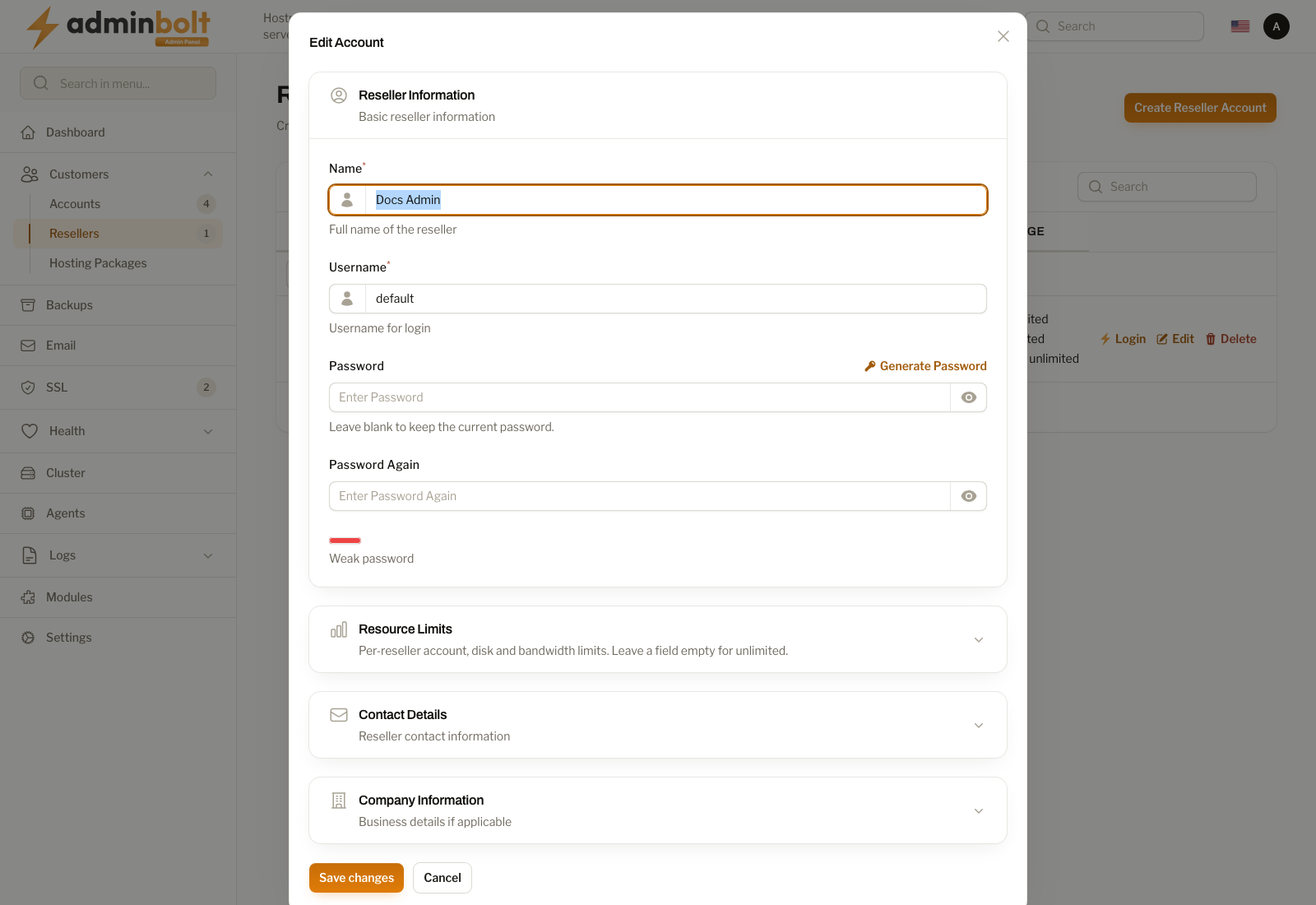
You can update:
- Name
- Username
- Password
- Contact and company details
Click Save changes to apply updates.
The administrator API
Since panel 1.9.4, POST /api/resellers and PUT or PATCH /api/resellers/{id} set the same limits as the reseller form, with the same allocation checks:
max_accounts,disk_limit_mb, andbandwidth_limit_mb, wherenullor an empty string means unlimited.oversell_diskandoversell_bandwidth, the two Allow overselling toggles.mailserver, the Override Mail Server choice.- On CloudLinux, the LVE pool:
resource_cpu_speed,resource_physical_memory,resource_virtual_memory,resource_io,resource_iops,resource_processes, andresource_entry_processes. The new pool reaches the reseller's accounts, as a save of the form does.
Only what a save changes is checked against the current allocation, as in Allocation versus overselling. The account count and the LVE pool can never go below what the reseller already uses. Disk and bandwidth are held to the allocation only while overselling stays off, and turning overselling off is checked against the limit it leaves. An unknown field, an LVE field on a server without CloudLinux, and a body that is not valid JSON are refused by name with 422. The read-only fields a GET returns are ignored, so a reseller read with GET can be sent back.
POST /api/resellers/{id}/generate-sso-token is the API counterpart of the Login button: it returns sso_url, a sign-in link to the reseller panel that works once, and expires_at, when the link stops working. A new link replaces the previous one. A reseller with two-factor authentication is asked for the second factor after opening it.
Hosting plan feature lists have their own endpoints. See Feature Lists.