

Cron Jobs
Cron Jobs lists the scheduled commands that run on the server, including the ones AdminBolt schedules for itself, and lets you add your own.
Overview
URL: /admin/settings/cron-jobs
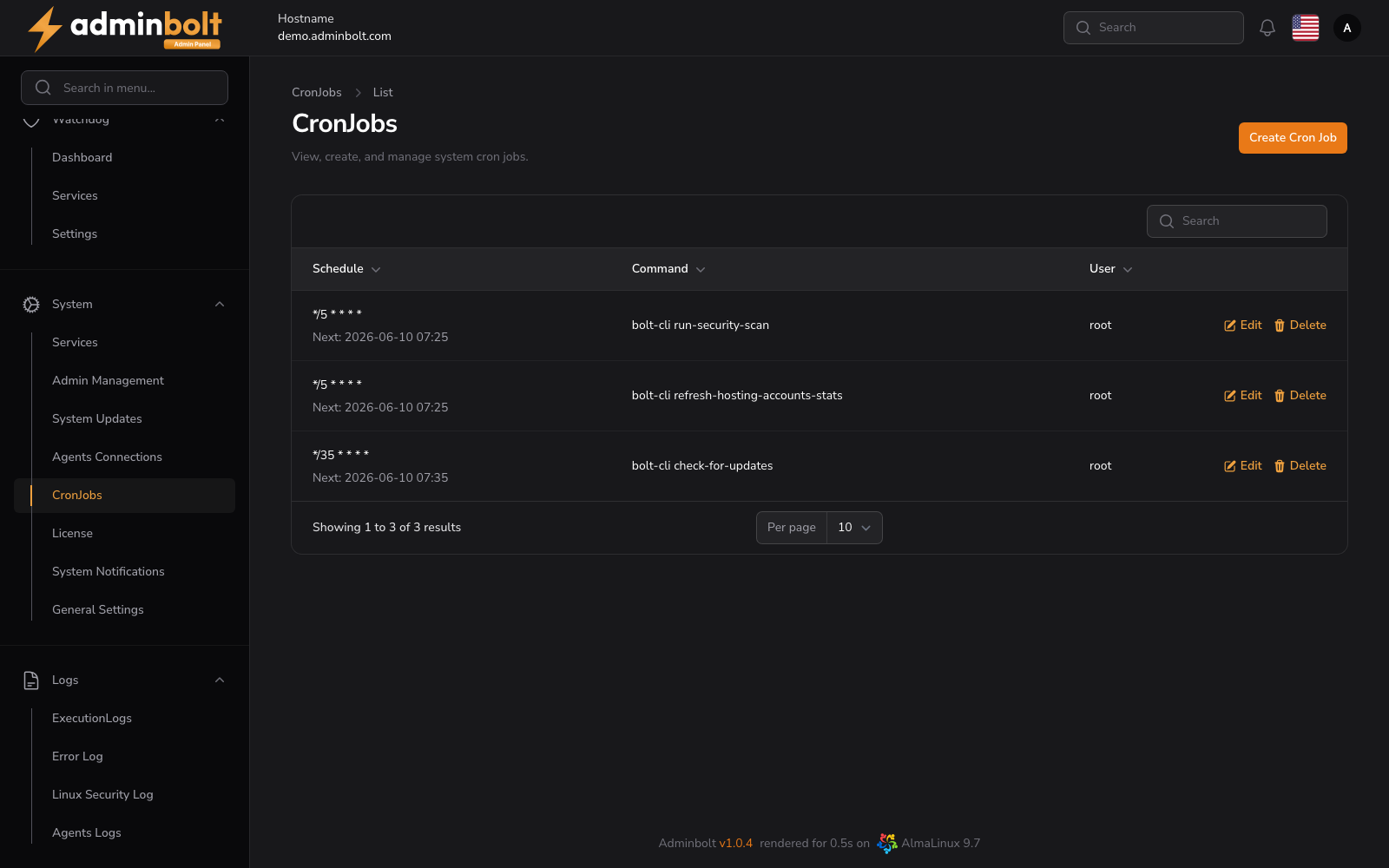
Open it from Settings > System > Cron Jobs in the sidebar. The entry carries a counter showing how many jobs are scheduled. The page subheading reads "View, create, and manage system cron jobs."
The job list
| Column | Meaning |
|---|---|
| Schedule | The cron expression, with the next run time underneath it. |
| Command | The command that runs. Long commands are shortened in the list. |
| User | The system user the command runs as. |
Each row has Edit and Delete; deleting asks for confirmation first. The search box covers all three columns, and the page size can be set to 5, 10, 25, 50, or All.
The jobs a fresh installation schedules for itself are listed here too, so this page is also where you see how often AdminBolt checks for updates, refreshes account statistics, or issues certificates.
Jobs restored from outside the panel
Cron jobs restored from a backup outside the panel, for example by a JetBackup restore, are adopted onto this page within five minutes and keep running in the meantime. Lines the panel cannot represent, such as @reboot entries or environment assignments, are left in place untouched instead of being rewritten. To run the sweep on demand, use bolt-cli reconcile-cron-jobs.
Where cron output is mailed
The panel's own cron jobs run as root and mail whatever they print. Root cron email in the header decides where those mails go:
- root (system default) - the mails go to root, as they do without any setting.
- Nobody (turn cron emails off) - the output is discarded.
- A custom address - the mails go to the address you enter in Email address.
The setting applies to every cron job of that user, and the crontab is rewritten as soon as you save. A job that prints nothing sends no mail either way. An address the panel cannot use is refused before anything is written.
Cron output for a hosting account is set per account by the client, on the client Cron Jobs page.
Creating a job
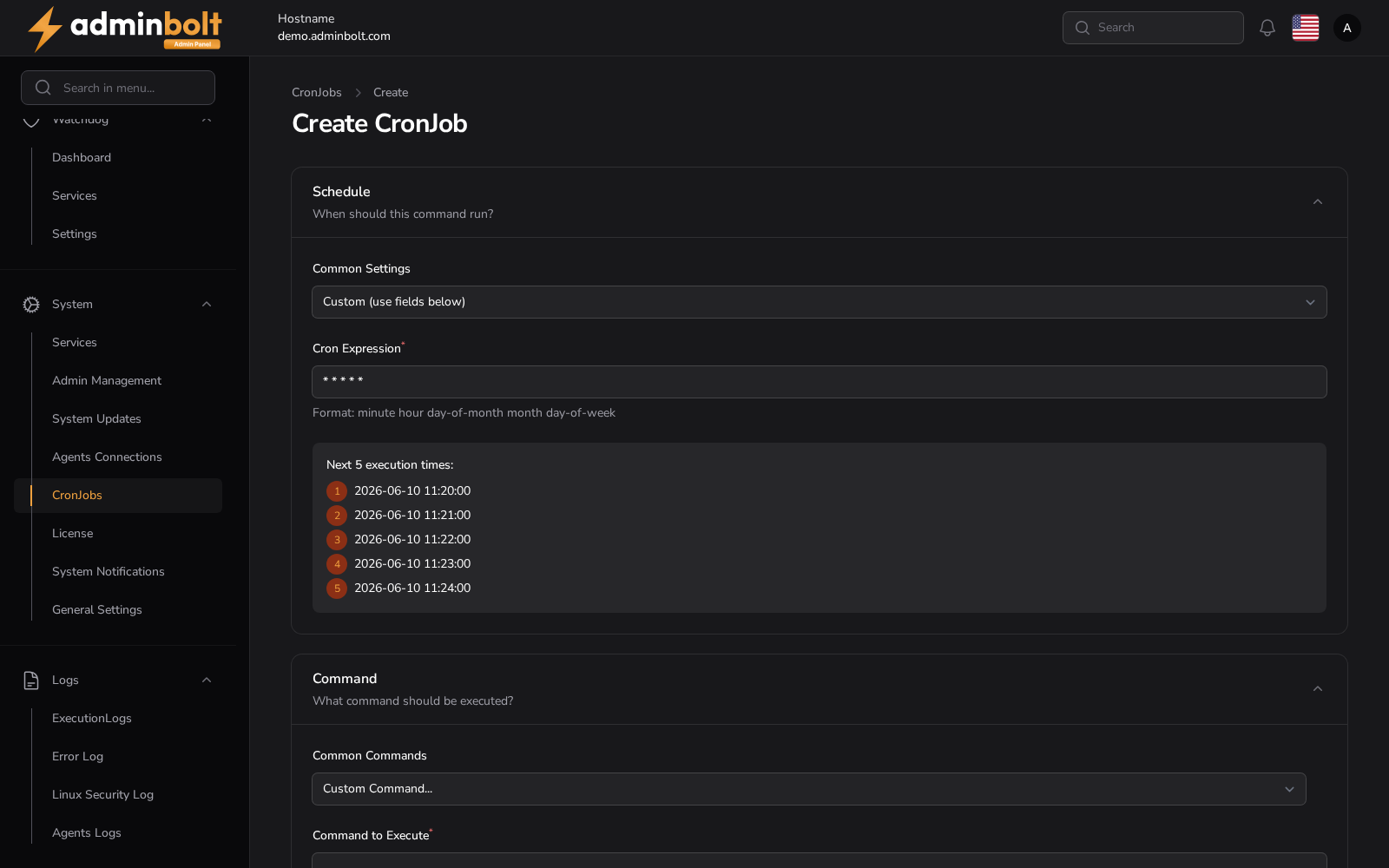
Create Cron Job opens Create Cron Job at /admin/settings/cron-jobs/create.
Schedule
Common Settings offers ready-made schedules:
| Preset | Cron expression |
|---|---|
| Custom (use fields below) | Typed by hand |
| Once Per Minute | * * * * * |
| Every 5 Minutes | */5 * * * * |
| Every 15 Minutes | */15 * * * * |
| Every 30 Minutes | */30 * * * * |
| Once Per Hour | 0 * * * * |
| Every 2 Hours | 0 */2 * * * |
| Every 6 Hours | 0 */6 * * * |
| Once Per Day | 0 0 * * * |
| Once Per Day at Noon | 0 12 * * * |
| Once Per Week | 0 0 * * 0 |
| Once Per Month | 0 0 1 * * |
Cron Expression (required) holds the schedule itself. Picking a preset fills it in; picking Custom leaves it to you. As you type, the form lists the next five run times, which is the quickest way to check an expression before saving it.
The expression uses the standard five-field format:
| Field | Range |
|---|---|
| Minute | 0-59 |
| Hour | 0-23 |
| Day of month | 1-31 |
| Month | 1-12 |
| Day of week | 0-7 (0 and 7 are Sunday) |
Command
- Common Commands - Run PHP Script, Call Webhook, or Custom Command.... The first two pre-fill an example you then edit.
- Command to Execute (required) - the command line to run.
- Run As User (required) - the system user the command runs as, for example
root.
Create saves the job, Create & create another reopens the form, and Cancel returns to the list.
Editing a job
Edit on a row reopens the same form with the current values, including the next-run preview. Save changes applies the change.