

Change System Hostname
The hostname is the server's own name. The panel, mail (SMTP, IMAP, POP3), and FTP answer on it, it appears in the headers of every message the server sends, and the panel's own mailboxes and DNS zone are named after it. Choose it once and leave it alone.
Overview
URL: /admin/settings/change-hostname
You usually change the hostname under Settings > General > General Settings, on the Hostname & SSL tab, with Change hostname. That tab also shows whether the hostname resolves to this server and which certificate it serves.
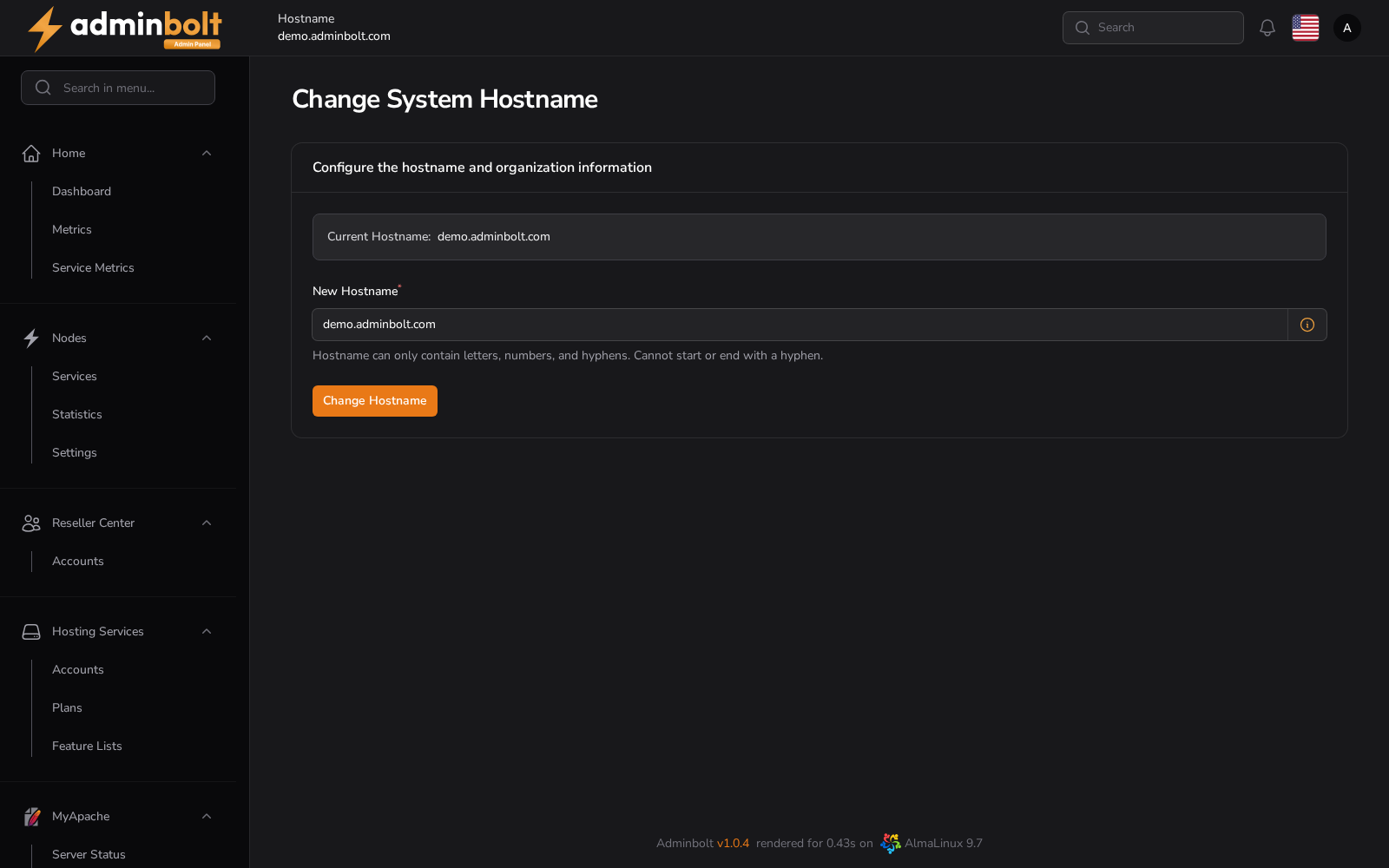
This page does the same change. It is reached by its address and is not listed in the sidebar:
- Current Hostname - the name the server answers to now.
- New Hostname (required) - the name to change it to.
Change Hostname applies the new name. Both places show, next to the field, what the change does to the system mail of the current hostname.
A new server starts with a hostname under myboltip.com. See The default hostname.
Choosing a hostname
The hostname has to be a fully qualified domain name, that is a host part and a domain, such as host.example.com.
The field itself accepts letters, numbers, and hyphens, and rejects a name that starts or ends with a hyphen. Beyond what the field enforces:
- Keep it under 60 characters.
- Use lowercase letters.
- Do not start it with
wwwor with a digit. - Keep each label distinct, rather than repeating a word.
Pick a name you will never want as a customer domain. Since panel 1.9.3 a domain named like the server hostname cannot be added or renamed to on this server, and an imported account skips it; see Domains named like the hostname. The name is also visible in outgoing mail headers, so choose something neutral.
Point the new name at this server before you change it: add an A or AAAA record for it at the DNS provider of its parent domain.
What a hostname change does
Since panel 1.9.3 a hostname change does the following:
- Checks that no one else uses the name. The change is refused when a hosted domain, a fleet node, or an external DNS source already serves a DNS zone with that name. The message names the owner and ends with "Choose a hostname that no domain or DNS source uses."
- Writes the DNS zone of the new hostname from the hostname DNS template, so the new name gets its own zone with its A, MX, mail, and nameserver records. Records you added to that zone by hand are kept. The zone of the previous hostname is kept as it was; see The previous hostname's DNS zone.
- Moves the system and mail services to the new name, and sets up the
system@andadmin@mailboxes of the new hostname. - Switches off the system mail of the previous hostname. See System mail of the previous hostname.
- Checks the new name in public DNS without blocking the change. When it does not resolve to this server yet, a Hostname DNS check notification names the cause, this server's addresses, and the next step, and Health keeps the warning until it does.
The change does not order a certificate itself. Until a certificate for the new name is issued, the panel, mail, and FTP keep serving the certificate they had. The nightly certificate run orders it once the name resolves to this server, or you order it at once with Issue certificate on the Hostname & SSL tab. While a purchased hostname certificate is installed, install one issued for the new name.
When a step does not complete, the notification reads "Hostname change completed partially", lists what was and was not completed, and asks you to run the change again to repeat the steps that did not complete.
System mail of the previous hostname
The panel keeps two mailboxes on its hostname: system@, which receives mail addressed to the server, and admin@, the address the panel sends its own mail from. You open them from System Mailboxes.
Since panel 1.9.3, once the mailboxes of the new hostname work, a hostname change switches off system@ and admin@ of the previous hostname. They stop receiving mail and accepting logins. Their stored messages stay on the server, and the notification after the change says so and gives the command that removes them. Changing back to a previous hostname later makes its mailboxes work again.
Updating to 1.9.3 does the same once for hostnames the server used before. If that step could not run, System Updates lists it under Upgrade steps that failed with the reason and what to do.
Removing them
To remove the switched-off mailboxes of a previous hostname, run on the server:
bolt-cli manage-system-email-account --action=remove --hostname=old.example.com- Only
system@andadmin@of that hostname are removed. Their mail is moved to a dated backup folder on the server, next to a list of what was moved, and never deleted. The command prints where it went. - The mail domain of that hostname is removed only when nothing else is left in it and it is not a hosted domain. Otherwise it stays, with the reason in the result.
- The current hostname is refused, and so is a hostname the panel still sends its own mail as.
The same removal is available in the admin REST API:
POST /api/system-mailboxes/previous-hostnames/removeThe body takes exactly one field, hostname. The response gives status (success, or partial when something was kept), the removed_accounts, where the mail of each was moved, whether the mail domain was removed (domain_removed), and in kept every account, folder, or domain that stayed, with the reason and a next_step. A refused request, for example for the current hostname or with a field other than hostname, answers 422 and changes nothing.
See Mail commands for the command's other action.
The previous hostname's DNS zone
The DNS zone of the previous hostname is kept on this server's DNS server. When you no longer need it, remove it on the DNS server. bolt-cli dns-orphan-zones lists zones that no domain, node, or DNS source owns, and lists the previous hostname's zone among them. The zone of the server's default myboltip.com name is not listed, because the panel still uses that name (see What keeps the myboltip.com name).
bolt-cli dns-orphan-zones--remove --yes deletes every zone the command lists, not only the previous hostname's, so read the list first. See Global DNS Zones for the command's options.
Updating to 1.9.3 repairs servers whose hostname was changed before: the hostname DNS template is applied to the current hostname, and records added to its zone by hand are kept. When the repair cannot run, for example because no nameservers are set, System Updates shows it under Upgrade steps that failed with what to do.
Domains named like the hostname
Since panel 1.9.3 the server hostname is reserved:
- Adding a domain, subdomain, or parked domain named like the hostname, or renaming a domain to it, is refused with "Domain is reserved by system", in the admin, reseller, and client panels and in the REST APIs.
- An imported account skips such a domain with a warning, and imports the rest. An account whose main domain is the hostname is not imported; change the server hostname first, then import it again.
- The hostname DNS zone is never written over a zone that a hosted domain, a fleet node, or an external DNS source owns. Such a conflict is reported with the owner, and the next step is to change the hostname or remove the zone from that owner.
What keeps the myboltip.com name
A server that started with the default <ip-with-dashes>.myboltip.com hostname keeps using that name in some places after you change the hostname:
- Nameservers. The default nameservers,
ns1andns2under themyboltip.comname, stay until you change them, and the NS records of the new hostname's zone name them. Set your own under Settings > DNS > DNS Settings; see Change Nameservers. - Contact Email. The Contact Email on the General tab of General Settings starts as
admin@of the default hostname. That mailbox is switched off by the hostname change, so set Contact Email to an address you read. - The free temporary domain. The panel keeps the
myboltip.comname of the server's address as the server's free temporary domain, for example in the domain it suggests for a new hosting account. Hide the free temporary domain from all customers on the Branding tab of General Settings hides it from customers. Since panel 1.9.4, Temporary domain on the same tab puts a domain of your own in its place; see Temporary domain.
How these names resolve, and what happens in DNS when their certificate is issued, is described in How myboltip.com names work.
Related pages
- General Settings - organisation details, branding, and the Hostname & SSL tab.
- Change Nameservers - the default nameservers handed to new domains.
- System Mailboxes - the
system@andadmin@mailboxes of the hostname. - Health - the hostname DNS and certificate findings.