

Error Pages
URL: /client/error-page
Overview
The Error Pages section allows you to customize HTML content displayed when visitors encounter errors like 404 (Not Found) or 500 (Server Error) on your domains. Create branded error page mappings to improve user experience during failures.
Requests to missing .php files
A custom 404 page is served for requests to non-existent .php files as well, not only for missing static files. A visitor who follows a stale link to a script that no longer exists sees your branded page instead of the web server's default one.
Interface Elements
Primary Controls
- Add Error Page button - Create new custom error page mapping
- Group by dropdown - Organize by (none), Domain, or Error page
- Group direction - Sort ascending or descending
- Search bar - Find specific domains or error codes
- Toggle columns - Show or hide Domain and Updated columns
Current Error Page Mappings
Table displaying all configured error pages. Select a domain and error code, then customize its HTML content and save.
Empty State
Display message: "No Error Pages" / "You have not created any error pages yet."
This indicates no custom error pages have been configured for your domains.
Workflow
- Click Add Error Page to start creating a mapping
- Select a domain from the dropdown
- Choose an error code (e.g., 404, 500)
- Customize the HTML content in the editor
- Save the configuration
Adding an Error Page
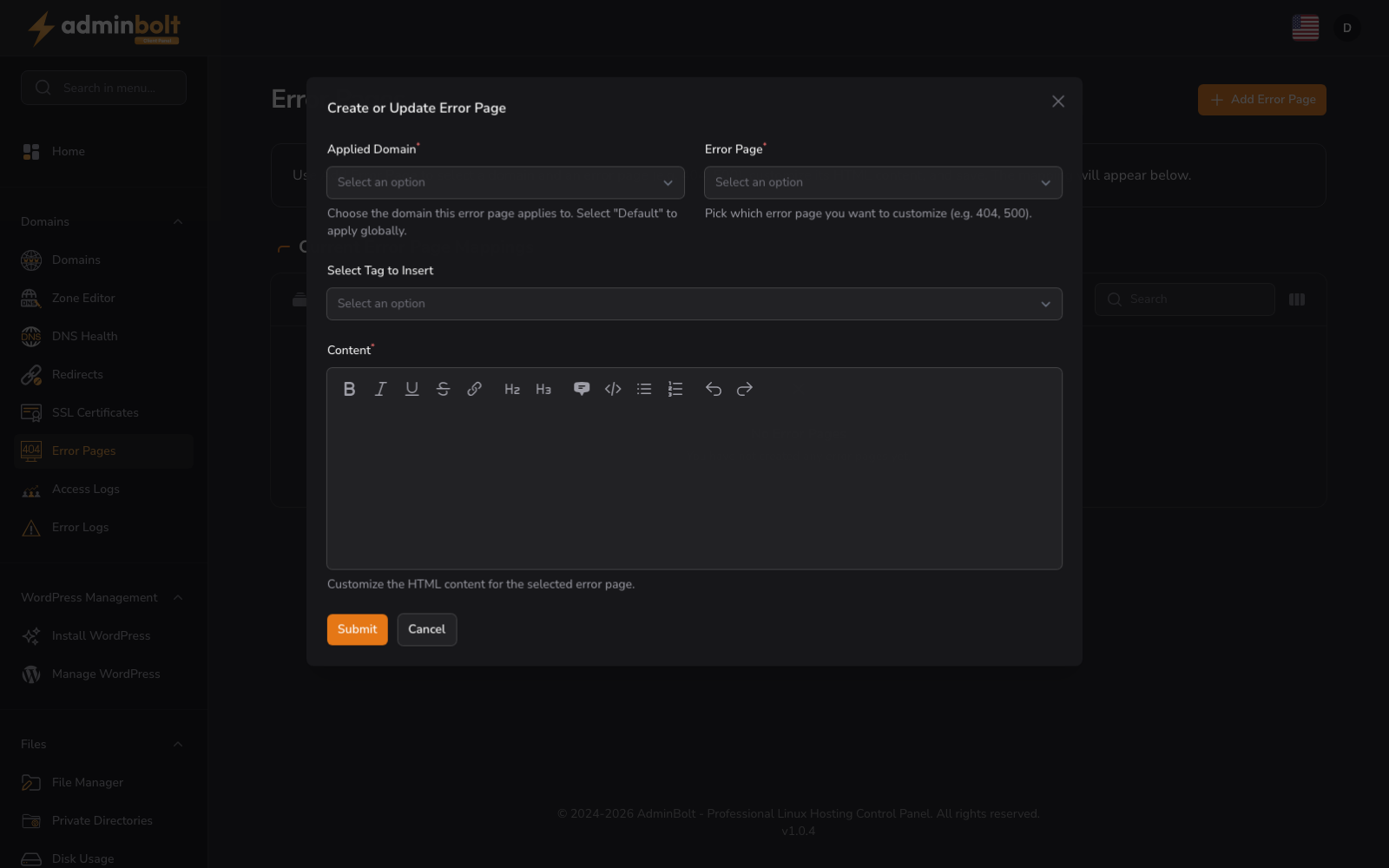
The "Create or Update Error Page" form allows you to customize HTML content for specific error codes on your domains. Complete the following fields:
- Applied Domain (dropdown, required) - Select which domain the error page applies to
- Error Page (dropdown, required) - Select the error code to customize (400, 401, 403, 404, 500, etc.)
- Select Tag to Insert (dropdown) - Insert template tags to customize the HTML content
- Content (rich text editor) - Customize the HTML content for the error page. A formatting toolbar is provided to help with HTML customization
After configuring your error page, click "Create" to save it or "Cancel" to exit the form.