

Install WordPress
Step-by-step wizard to install WordPress on any of your domains. Available from the client panel sidebar under Install WordPress.
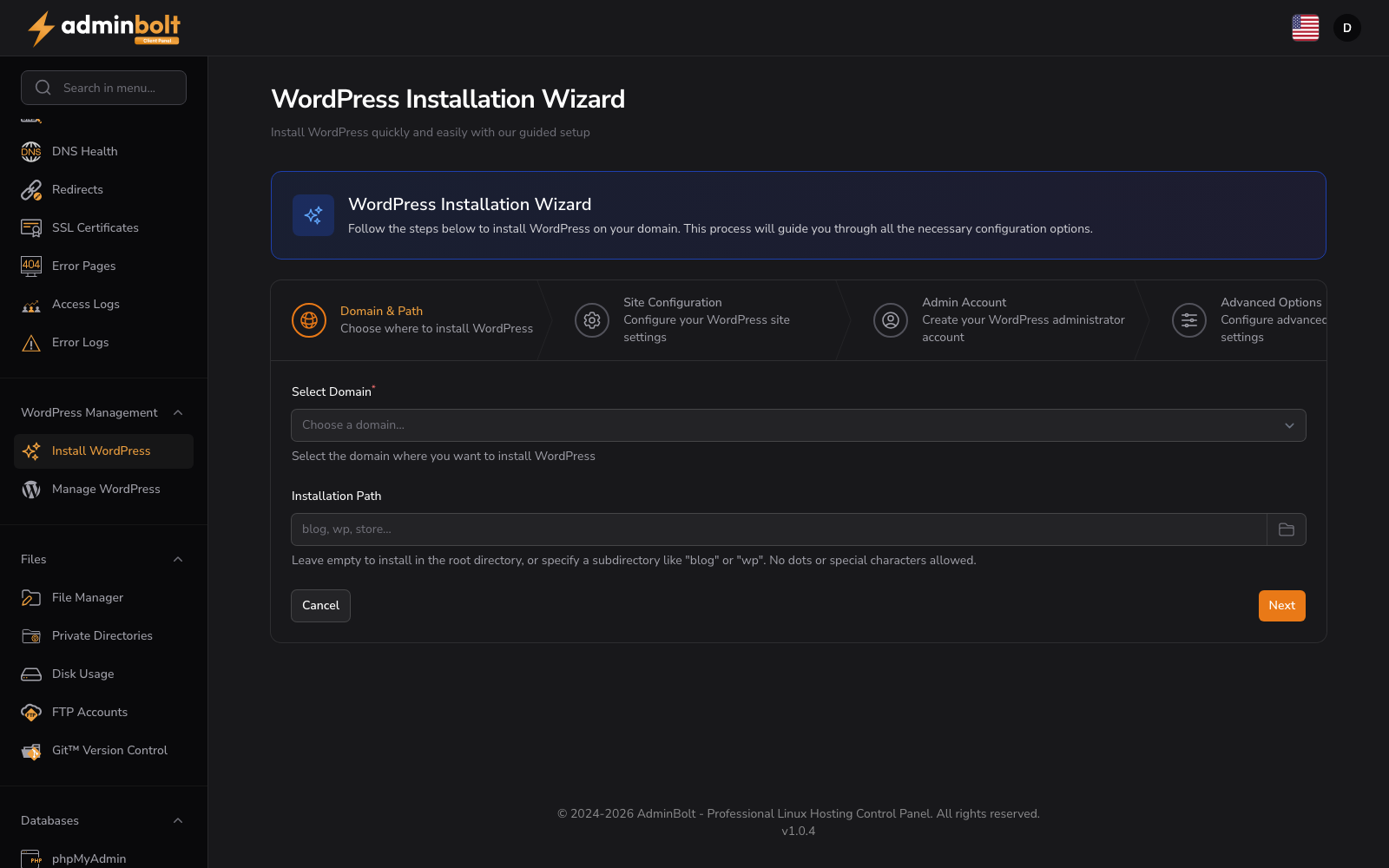
Overview
URL: /client/wordpress-installer
The wizard walks you through five steps:
- Domain & Path - choose where to install
- Site Configuration - title, description, search engine visibility
- Admin Account - username, email, password
- Advanced Options - debug mode, clean existing files, language, timezone
- Review & Install - final summary before installation starts
Some fields are filled in for you when the wizard opens: a placeholder site title, the username admin, an email address built from your account, and a freshly generated password. Change anything you do not want before you reach the last step.
Before you start
- The domain must already exist on your account. Add it under Domains first - the wizard only lists domains that belong to you.
- Each installation needs its own directory. Installing two sites into the same directory is not supported.
Step 1: Domain & Path
Choose where WordPress will live.
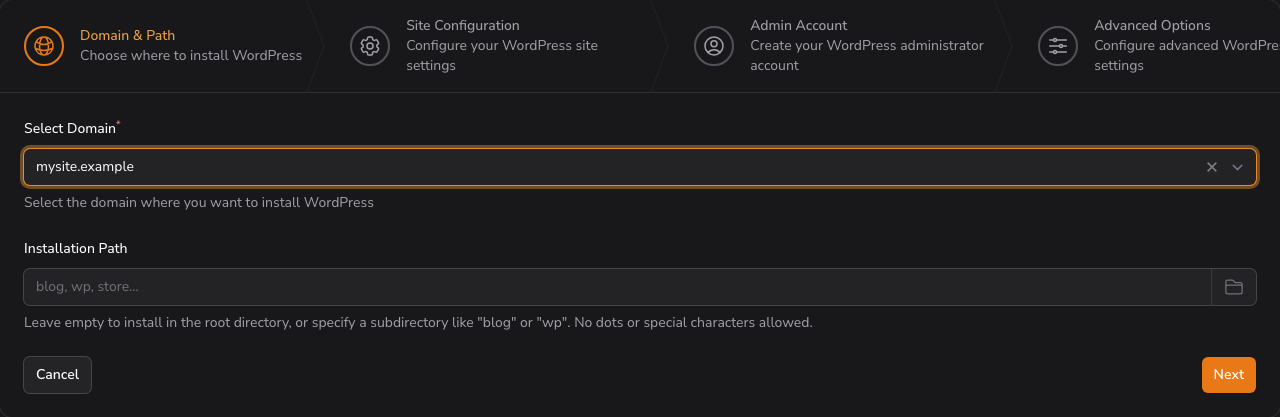
- Select Domain (required) - pick one of your domains from the dropdown. The list is searchable, which helps when the account holds many domains.
- Installation Path - leave empty to install in the domain root, or type a subdirectory such as
blog,wporstore. Only letters, digits, underscores, hyphens and slashes are allowed - no dots and no other special characters. Maximum 255 characters.
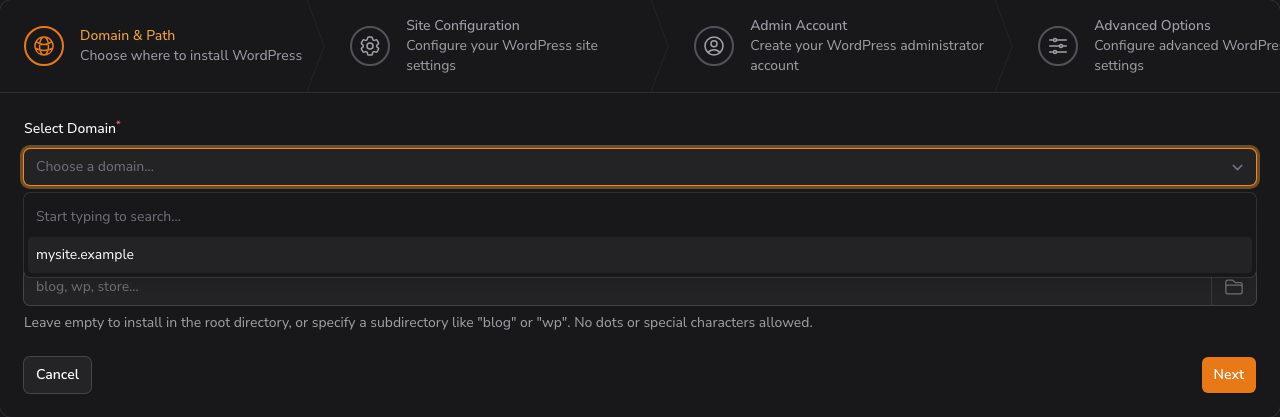
Opening the dropdown shows every domain on the account:
The Cancel button next to Next discards what you have entered and reloads an empty wizard.
Step 2: Site Configuration
Set how the site introduces itself.
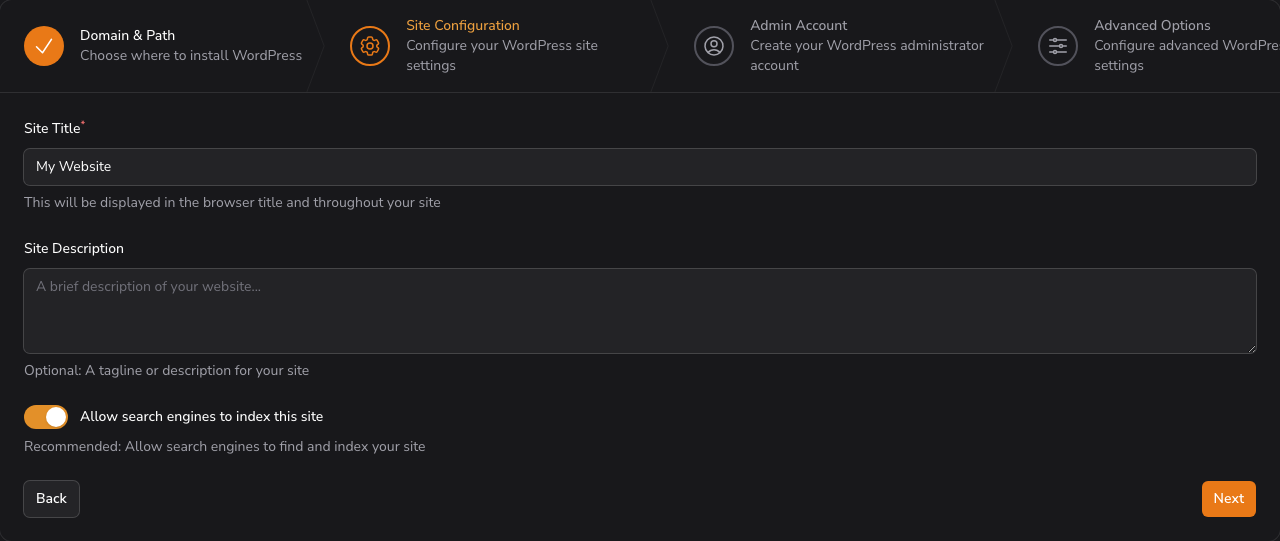
- Site Title (required) - shown in the browser title and across the site. Maximum 255 characters.
- Site Description - an optional tagline. Maximum 500 characters.
- Allow search engines to index this site - on by default. Turn it off while the site is still being built; you can change it later in WordPress under Settings → Reading.
Step 3: Admin Account
Create the WordPress administrator. These credentials are for WordPress itself, not for the hosting panel.
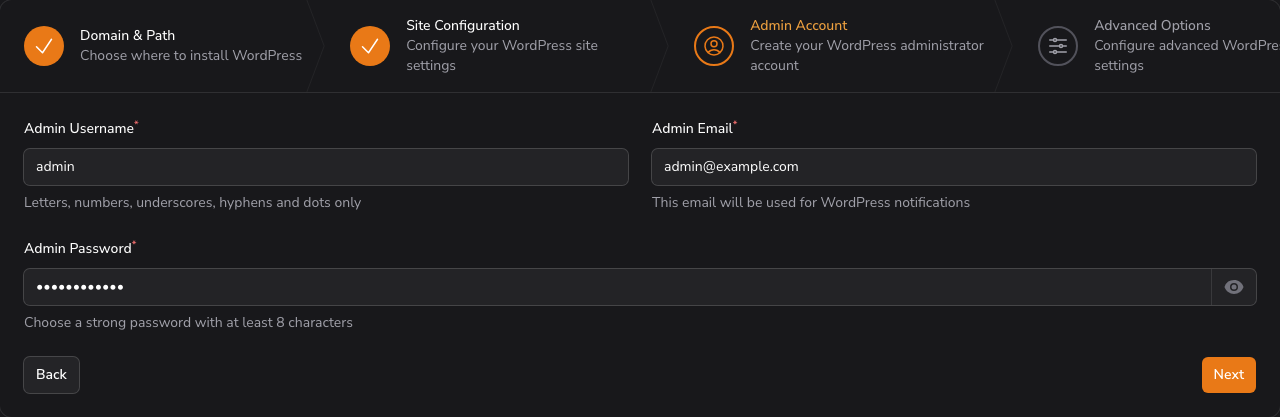
- Admin Username (required) - letters, digits, underscores, hyphens and dots only. Maximum 60 characters.
- Admin Email (required) - where WordPress sends its notifications, including password resets. Maximum 100 characters.
- Admin Password (required) - at least 8 characters. The field is masked; use the reveal button at its end to check what you typed before moving on.
WARNING
Write the password down before you continue. The panel does not show it again after the installation finishes.
Step 4: Advanced Options
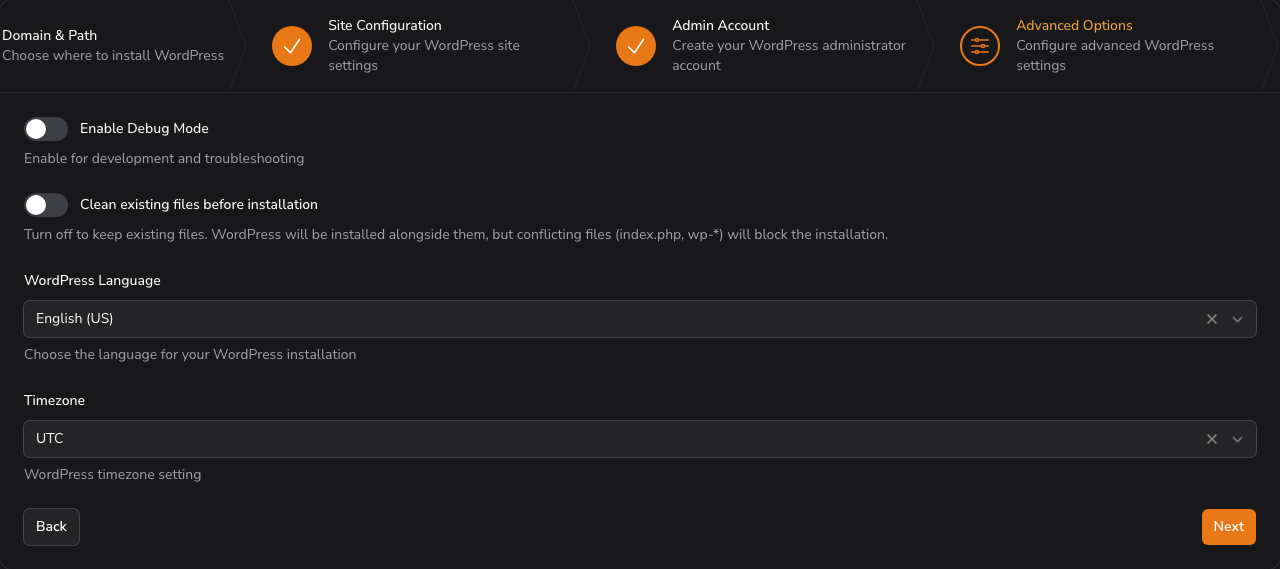
- Enable Debug Mode - off by default. Turns on WordPress
WP_DEBUG, which is useful while developing and noisy on a live site. - Clean existing files before installation - off by default. Left off, existing files stay where they are and WordPress is installed alongside them; if the directory already contains
index.php,index.htmlor anything starting withwp-, the installation stops instead of overwriting them. Turned on, the target directory is emptied first. - WordPress Language - English (US), English (UK), Spanish, French, German, Italian or Polish. Defaults to English (US).
- Timezone - the timezone WordPress uses for scheduled posts and timestamps. Defaults to UTC. The list is searchable.
DANGER
Clean existing files before installation deletes everything in the target directory, including any site already published there. Leave it off unless you are certain the directory is disposable.
Step 5: Review & Install
The last step summarises the choices that matter: domain, installation path, site title, admin username, admin email, language, and whether existing files will be cleaned.
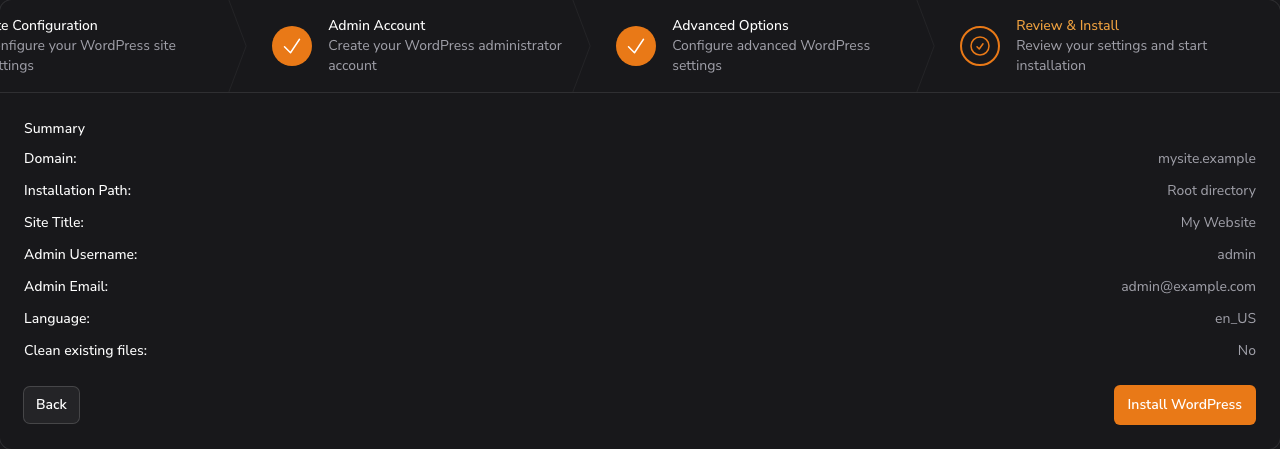
Use Back to correct anything, or the step headers along the top to jump to a step you have already completed. Install WordPress starts the installation.
Installation progress
The wizard is replaced by a progress list that refreshes on its own. The installer works through nine stages:
- Cleaning directory
- Setting up database
- Checking WP-CLI
- Downloading WordPress
- Creating configuration
- Creating database tables
- Installing WordPress
- Configuring settings
- Creating .htaccess
A typical installation takes about a minute. The database and its user are created for you - you do not need to prepare anything under Databases first.
TIP
The installation runs on the server, so it finishes even if you close the page. The progress list itself only updates while the page stays open; if you navigate away, follow the installation under Manage WordPress instead.
After the installation
A summary replaces the progress list, with a link to the new site and a link to its WordPress admin.
- Open Website - opens the installed site in a new tab.
- Login to Admin - opens
/wp-adminin a new tab, where you sign in with the administrator account you just created. - Installation Details - domain, installation path, installation time, website URL and admin URL.
Start New Installation appears in the page header and returns the wizard to its starting state, so you can install another site without leaving the page.
Conflicting files
With Clean existing files before installation left off, the installer checks the target directory first and refuses to write into a directory that already holds index.php, index.html or a file starting with wp-. The warning names the files it found.
You have three ways forward:
- install into a different subdirectory,
- remove the conflicting files under File Manager,
- or turn on Clean existing files before installation - which deletes the contents of the directory.
Nothing is written and nothing is deleted when the installation stops this way, so the directory is left exactly as it was.
Related pages
- Manage WordPress - the list of installed sites, with updates, backups and removal.
- Domains - add a domain before installing onto it.
- Databases - the database the installer creates for the site.