

Zone Editor
Overview
URL: /client/zone-editor-page
The Zone Editor allows you to manage DNS records for your domains. DNS (Domain Name System) converts human-readable domain names into computer-readable IP addresses.
Internationalised domains
Domain names and record names appear in their readable Unicode form. Record names, and the content of records that hold a hostname, are saved in Punycode, which is the form the DNS itself uses.
Search behaves differently in the two tables. In the domains table you can search with either form. Inside a zone, the record search matches the stored Punycode value, so search for xn--e1afmkfd.example rather than пример.example. See Internationalised domain names.
Managing DNS Records
Use the Zone Editor to manage your site's DNS records. Each domain may have multiple DNS records that control where traffic is routed and how email is delivered.
Hosting Account Domains
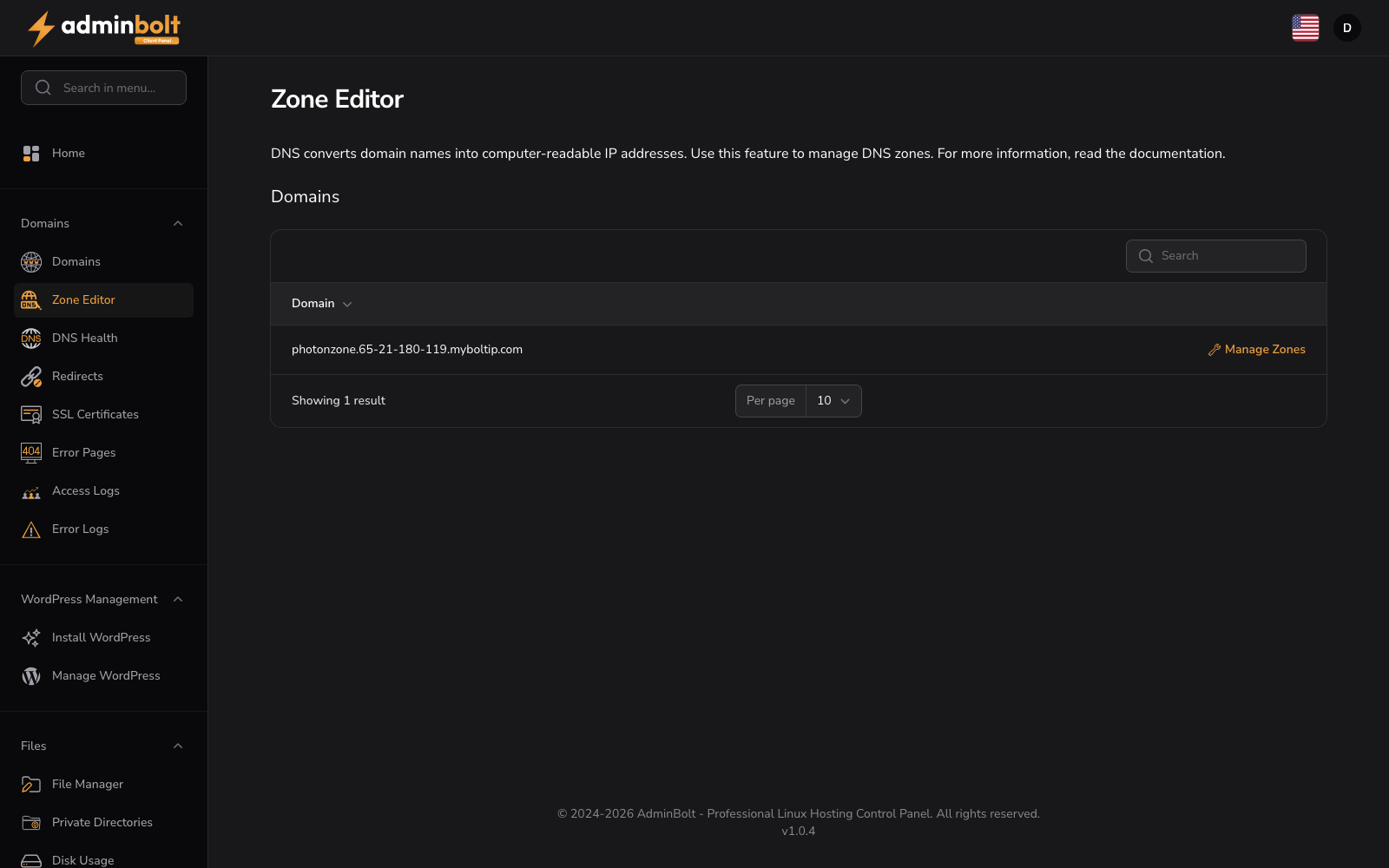
The main section displays a table of all domains on your account:
- Domain - Domain name (sortable)
- Action - "Manage Zones" button
Click "Manage Zones" to edit DNS records for that domain.
Managing zone records
Manage Zones opens the domain's records (the page header reads "Zone records for <domain>"). Go back returns to the domain list.
The records table lists each DNS record:
| Column | Description |
|---|---|
| Name | The record name - @ for the domain root, or a label such as www or mail. |
| TTL | How long resolvers cache the record, in seconds. |
| Type | The record type. |
| Content | The record value (an IP address, hostname, or text, depending on type). |
Each record has Edit and Delete actions.
Since panel 1.9.4, while you manage the zone of a free temporary domain, the page shows the warning Mail on a free temporary domain: public DNS for that domain publishes only its A record, so mail sent from it may fail SPF and DKIM checks at other mail providers. Records you add here for such a domain stay on this server and are not published. See Mail on a free temporary domain.
Your own DKIM record
If you sign mail through an outside mail provider, you can publish its DKIM record under the name dkimkey._domainkey, as a CNAME or a TXT record. Since panel 1.9.4 the server keeps that record when it rebuilds the zone from its DNS template, and does not add its own DKIM key next to it. To sign mail for the domain with the server's key instead, delete your record and ask your hosting provider to apply the DNS template again.
Add Record
Add Record opens a form with:
- Name (required) - the record name (for example
@,www,mail) - Type (required) - one of
A,AAAA,CNAME,MX,TXT,SRV,NS - Content (required) - the record value; for
MXandSRVrecords this includes the priority - TTL (required) - the cache lifetime for the record
Editing a record reopens the same form with its current values.
Export Zone
Export Zone downloads the domain's records as a standard BIND zone file, named <domain>.zone. Use it to keep a copy before a large change, or to move the zone to another server.
Import Zone
Import Zone loads a BIND zone file into the domain. The form has three parts:
- BIND zone file (required) - the file to upload, up to 512 KB. A standard BIND zone file works, for example an export from cPanel, Plesk or another AdminBolt server.
- Import mode (required):
- Add to existing records - records from the file are added, and duplicates of records you already have are skipped. This is the default.
- Replace existing records - the existing records are replaced by the file's. The SOA record is kept, and the NS records are kept when the file does not carry any.
- Preview - as soon as a file is selected, AdminBolt shows what the import would do, before anything is written.
Read the preview before you submit. It lists the records that will be applied and every line that cannot be applied, with the reason:
- a record type AdminBolt does not manage,
- a record that belongs to a different zone than the one you are importing into,
- a line that is malformed.
TTL values outside the panel's supported range of 60 to 86400 seconds are clamped to that range, and the import reports it.
Note: The SOA record stays managed by the panel. It is never taken from the imported file.
When the import finishes, AdminBolt reports either Zone imported or Zone imported with issues along with the details. Both notifications stay on screen until you dismiss them, so you can read through a long list of skipped lines.
Search and Filter
Use the search bar to find specific domains by name.
Pagination
Use the per-page selector to control how many domains are displayed on each page.
Over the API
Since panel 1.9.4, the client REST API offers the zone tools of this page for one domain:
| Method and path | What it does |
|---|---|
GET /api/client/domains/{domain_id}/zone-file | Export the domain's records as a BIND zone file, like Export Zone. |
POST /api/client/domains/{domain_id}/zone-file/preview | Preview an import, like the preview of Import Zone: the records the file would add, the lines it skips, and the warnings. Nothing changes. importable says whether the import would take the file. |
POST /api/client/domains/{domain_id}/zone-file/import | Import the file, like Import Zone, in the merge or replace mode. |
GET /api/client/domains/{domain_id}/dnssec | Read the DNSSEC keys stored for the domain, without their key material, and the DS records to give the registrar. |
The file is sent as the upload zone_file or as the text zone. The import is all or nothing: a file in which the preview finds no records, with lines that would be lost, or with a record the zone refuses, is refused with HTTP 422 and nothing changes, so read the preview first. When the zone cannot be applied on the DNS server, the change is rolled back and the import answers 502.
The panel does not sign zones itself. Without a stored public key for a key-signing key, ds_records is empty and ds_unavailable_reason says why.
The endpoints need this page's feature in your hosting plan; see API Keys.