

Nodes
The Nodes page is where the hub connects to and manages its remote servers. Each of those servers is a node: a full AdminBolt panel of its own that the hub drives through the panel API.
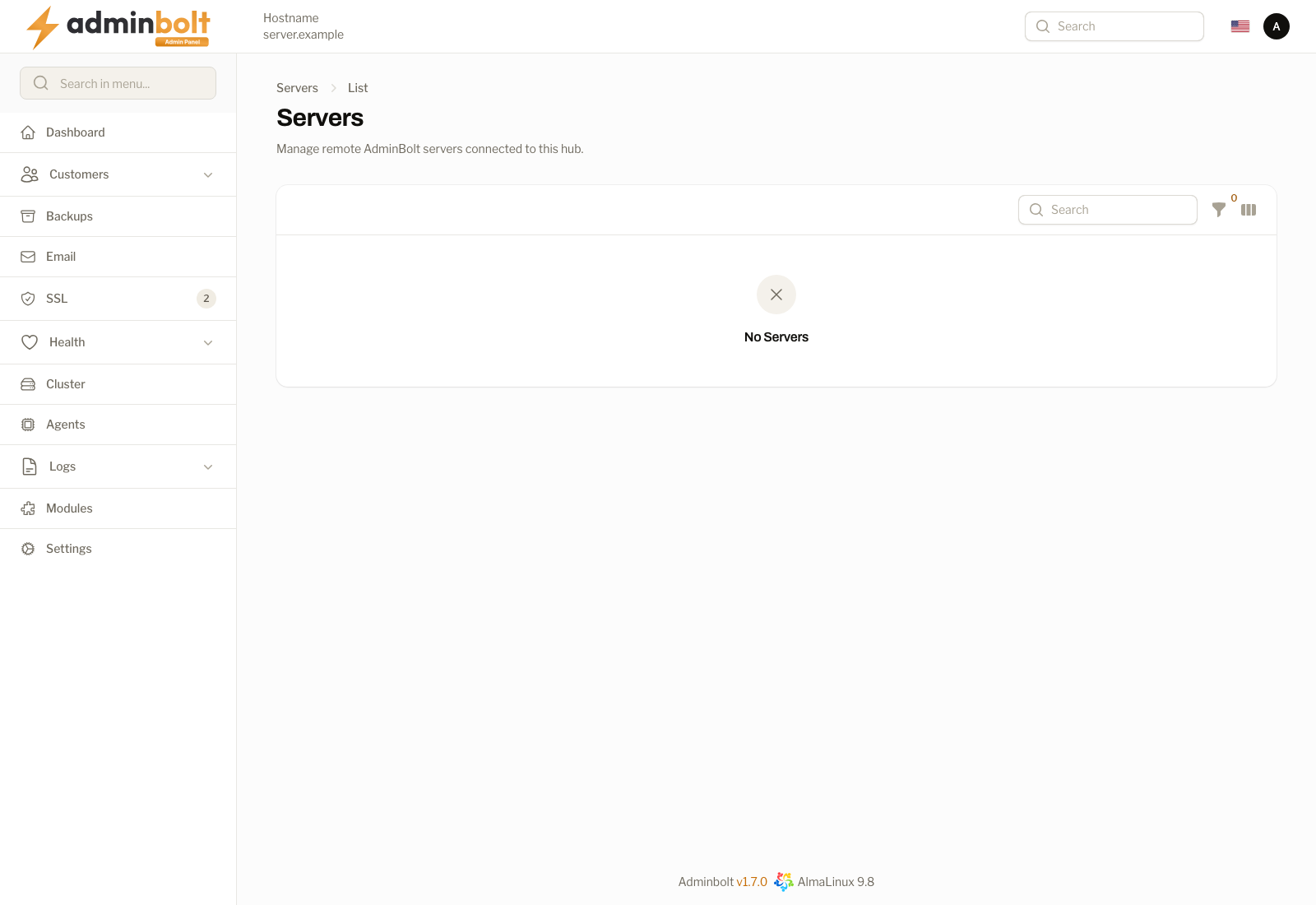
Overview
URL: /admin/cluster/nodes - under Cluster > Nodes. Since panel 1.9.1 the page is called Nodes again, and its earlier address /admin/cluster/servers leads here.
The AdminBolt servers paired with this hub as its nodes.
Each row is one node. Until a node is connected, the table says No Servers.
Managing the list
- Search - filter the server list by text.
- Filter - narrow by connection status (
Connected,Disconnected,Error,Unknown) and by activity (Active only,Inactive only). Reset clears the filters. - Toggle columns - show or hide table columns, including Connection Status, Active, Version, Last Sync, and Created.
- Bulk actions - select rows and apply Delete selected.
Server list
Once nodes are paired, each row shows:
| Column | Description |
|---|---|
| Name | The node's display name (e.g. testing). |
| Address | The node panel's hostname/IP and port (e.g. node.example.com:8443). |
| Status | Connection state: Connected, Disconnected, Error, or Unknown. |
| Roles | The functions the node runs: WWW, SQL, Mail, DNS, and Secondary DNS. |
| Install | Provisioning state - paired for an existing panel that was connected, or the install progress for a hub-installed node. |
| Version | The node's panel version (gated by the Minimum node panel version in Hub Settings). |
| Active | Whether the node is enabled in the hub. |
| Last Sync | When the hub last synced with the node. |
| Created | When the node was added. |
Node health and polling
Beyond the connection Status column, the hub tracks a health status for each node from its polling cycle. The hub polls every node every 5 minutes and shows the result with a last poll: X ago label:
- Online - the node answered its most recent poll.
- Degraded - the node answered, but a service or metric reported a problem.
- Stale - no successful poll for about 7 minutes. The node's cached metrics are flagged as too old / unreachable.
- Offline - no successful poll for about 15 minutes, or the node has never been polled.
Use Check Health Now to poll a node immediately rather than waiting for the next 5-minute cycle.
Since panel 1.9.3, when a node answers but its list of services does not arrive, Check Health Now gives a warning titled Check node health instead of a success: "node answered the health check, but its services list did not arrive, so its services state is unknown.", with the next step "Make sure the panel on the node is running and up to date, then run the health check again." Health shows the node's services state as unknown until the list arrives.
Per-server actions
Each row provides these actions:
| Action | Description |
|---|---|
| Login to node | Single sign-on into the node's own panel - no need to re-type credentials. |
| Test Connection | Verifies the hub can reach the node's panel API. |
| Check Health Now | Refreshes the node's health and service status immediately. |
| Synchronize | Re-pulls statistics and inventory from the node. |
| Resync DNS | Pulls every zone the node serves onto the hub again, changed or not, and reports how many zones were synced and removed. See Node zones on the hub. It does not push the cluster DNS configuration to the node. Since panel 1.9.3 it then also sends every zone the hub is primary for to every active secondary DNS server in the background, and the outcome arrives in the panel bell; see Sending the zones again. |
| Send zones | Since panel 1.9.3, on a paired node with the Secondary DNS role. After you confirm, the hub sends NOTIFY for every zone it is primary for to the node, which creates the zones it is missing and transfers them. The notification says how many zones NOTIFY was sent for, and the delivery result follows in the panel bell. When the hub does not list the node's current address as an active secondary DNS server, nothing is sent and the next step is to turn the Secondary DNS role off and on again. |
| Compare plans | An account migrated to a node lands on the node's plan of the same name, so the plans should allow the same on both. This action lists the hub's hosting plans next to the node's, each marked Same, Differs, Missing on the node, or Only on the node. Push the hub's plans creates the missing plans and updates the differing ones on the node; plans only on the node are left as they are. Offered on paired nodes. |
| View | Opens the node's details. |
| Edit | Edits the node's connection settings and roles. |
| Unpair | Removes the node from the hub while leaving the node's own panel running. The node stays in the list, unpaired; to bring it back, see Connecting a server the hub already knows. Since panel 1.9.3, refused while hosting accounts or resellers use the node as their mail server. |
| Delete | Removes the node record from the hub. Since panel 1.9.3, refused while hosting accounts or resellers use the node as their mail server. |
Connect Node
URL: /admin/cluster/nodes/create
Click Connect Node to add a server. The form first asks how to add it:
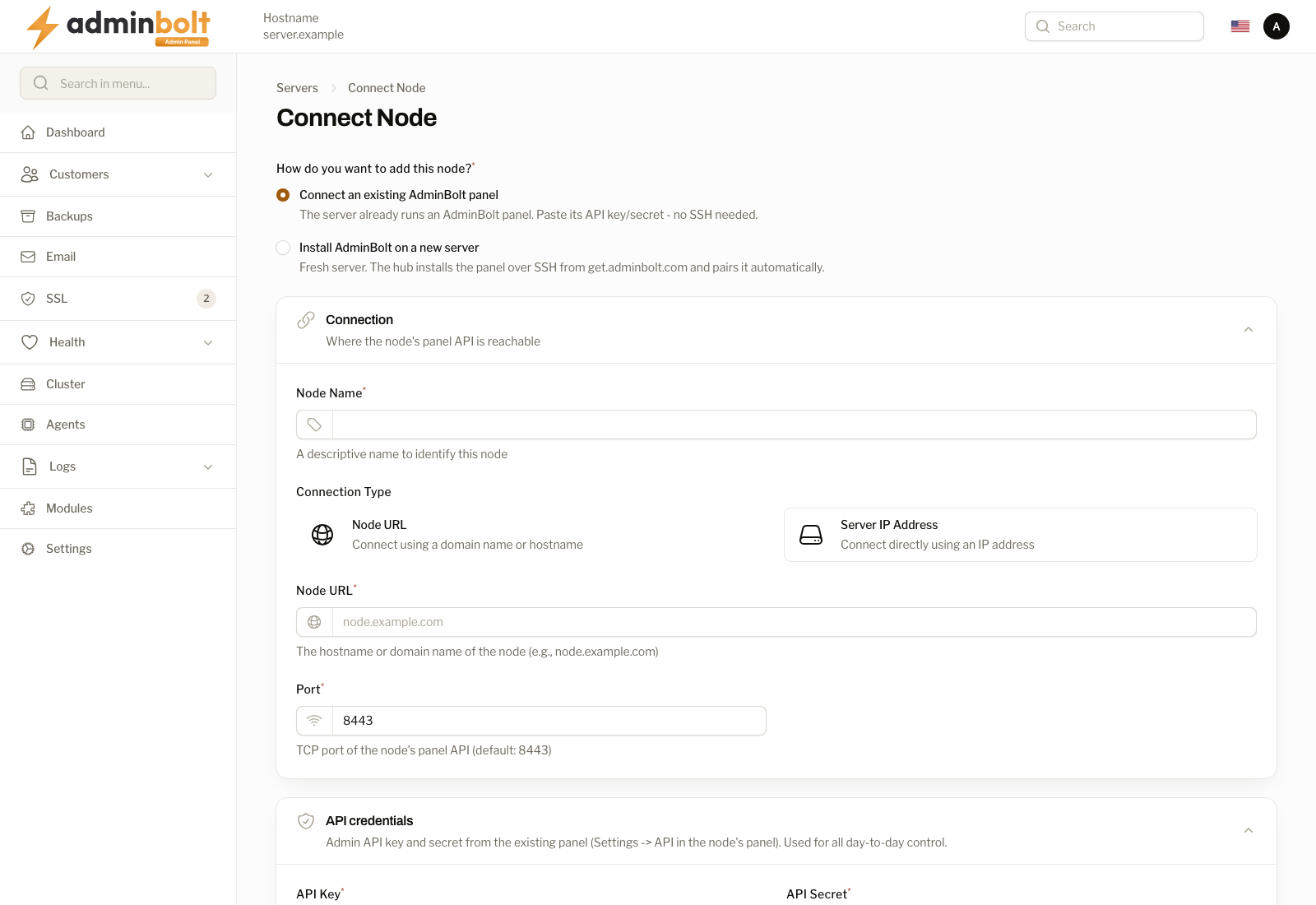
- Connect an existing AdminBolt panel - the server already runs an AdminBolt panel. Paste its API key/secret; no SSH needed.
- Install AdminBolt on a new server - a fresh server: the hub installs the panel over SSH from
get.adminbolt.comand pairs it automatically.
Connection
Where the node's panel API is reachable
| Field | Description |
|---|---|
| Node Name | A descriptive name to identify this node. |
| Node color | Marks this node wherever the hub and its nodes are listed side by side (Cluster Accounts, Migrations). Left empty, one is picked for it. |
| Connection Type | Connect by Node URL (hostname/domain) or Node IP Address. |
| Node URL | The hostname or domain name of the node (e.g., node.example.com). |
| Port | TCP port of the node's panel API (default: 8443). |
API credentials
The admin API key and secret from the existing panel (Settings > API Keys in the node's panel). These are used for all day-to-day control.
| Field | Description |
|---|---|
| API Key | The node panel's API key. |
| API Secret | The node panel's API secret (masked by default). |
Roles
Node roles describe the functions a node fulfils in the cluster; they drive dashboards, filtering, and targeted orchestration.
- WWW, SQL, Mail, DNS - the services this node runs (web, database, mail, and DNS). Ticking Mail here does not make the node a mail server for the hub's accounts: since panel 1.9.3 that is Use Fleet Node on Email Servers, which needs the node's SSH Access saved on this form.
- Act as a public secondary nameserver for the cluster - turns the node into a public secondary nameserver for the whole cluster. When enabled, the hub sends it NOTIFY for every zone the hub serves and the node transfers those zones, so it can answer DNS for all federated domains. The panel configures the node for you. Requires the DNS role, which is ticked for you. Point one of your cluster nameservers (NS1-NS4) at this node's IP once enabled. The node list shows it as the
Secondary DNSrole. How the role is turned on, checked, and repaired is described under Secondary DNS role.
Finish with Connect Node, or use Save & Add Another to add several in a row.
Connecting a server the hub already knows
Since panel 1.9.3 Connect Node with Connect an existing AdminBolt panel first looks for a node the hub already has at the same address and port. A node you unpaired stays in the list, so connecting its address again takes that node back instead of adding the same server a second time:
- An unpaired node at that address is updated with the details you entered and synchronised. It keeps its place in the list, its zones, and its roles, and the roles you tick are added to the ones it had. Roles are removed only on Edit. If the same server was added more than once before 1.9.3, those unpaired entries are merged into one.
- In the other cases the connect is refused, and the reason appears under the address field:
- a paired node at that address: "This server is already connected to the hub as node."
- a node the hub is installing or pairing over SSH: "An installation or pairing of this server is already running on the hub as node."
- another connect of the same address that is still running: "Another connect of this server is already running. Try again in a moment."
Another port or another address adds a new node, and so does Install AdminBolt on a new server. Over the admin REST API, POST /api/nodes with intent set to connect behaves the same way, and a refusal answers 409 with the reason as message. When a paired node or a node being installed or paired is at that address, the answer also carries its node_id; a refusal because another connect is still running has none.
Secondary DNS role
Since panel 1.9.2 the hub confirms that a node took the Secondary DNS role, instead of assuming it from the node's answer. The role is turned on with Act as a public secondary nameserver for the cluster in the Roles section, when you connect a node or edit one.
Before you turn it on
The node registers the hub as its primary nameserver under the Primary nameserver (NS1) of the DNS Cluster settings. While that field is empty, the hub refuses the role before it asks the node anything:
The DNS cluster has no primary nameserver (NS1), so the node has no nameserver to register for this hub.
Set Primary nameserver (NS1) under Cluster > DNS Cluster, then turn the role on again. For the same reason, NS1 cannot be emptied while any node holds the role, whether or not the DNS cluster is enabled.
Turning the role on
When you save the node, the hub configures it as a secondary and reads back whether the node registered the hub. A notification titled Enable the Secondary DNS role gives the outcome:
- Success - "The secondary DNS configuration is complete: the node registered this hub as its primary nameserver (
ns1.example.com). Zone transfer has not been tested yet." Since panel 1.9.3 the hub then sends NOTIFY for every zone it is primary for to the node, and the notification goes on with how many zones that was, for example "NOTIFY for 24 zone(s) was sent to 203.0.113.7." Whether the node serves them arrives later in the panel bell as Zone delivery to followed by the node's address. Wait for that result, or check the node as described under Checking that a secondary serves the zones, before you point a nameserver at it. - Zones not sent - when the role was set up but the hub could not send the zones, the notification is a warning that says why and names the next step. The role stays on; correct the cause, then use Send zones on the node's row.
- Failure - the role is turned off again, the notification names the node's reason and the next step, and the same text stays on the node's edit page in the Roles section, under Secondary DNS registration needs repair.
When you connect a new node with the role ticked and the role fails, the node itself is still connected, and the notification says: "The node is connected, but the Secondary DNS role could not be enabled", followed by the reason.
The reasons the hub recognises are named in plain words, each with its next step:
| The message says | What to do |
|---|---|
| The PowerDNS database on the node is read-only, so the node could not save the registration. | Make the PowerDNS database on the node writable (check its file attributes and free disk space), then try again. |
| PowerDNS or its database is missing on the node. | Install the DNS service on the node (PowerDNS with its database), then try again. |
| The node was refused permission to write the registration. | Check the owner and permissions of the PowerDNS files on the node, then try again. |
Any other cause is shown with its general reason and a correlation ID.
A node that is already a secondary
A node that already holds the role keeps it, together with every zone it copied from the hub, when a later registration attempt fails, for example because NS1 is empty or the hub could not update its list of secondary DNS servers. The message ends with "The node stays a secondary DNS server and keeps its zones.", and the next step is to correct the cause and use Register again. Connecting or pairing such a node says "The node is connected and stays a secondary DNS server, but its registration needs repair", followed by the reason.
Register again
When the hub has no confirmation that a node with the role registered the current NS1, the node's edit page shows Secondary DNS registration needs repair in the Roles section, and a Register again button in the page header. Register again asks for confirmation, then sends the registration once more with the current NS1, and reports the outcome in a notification titled Register the secondary DNS server again. Since panel 1.9.3 a registration that works is followed by NOTIFY for every zone the hub is primary for, as when the role is turned on. Turning the role on and Register again also set the node up to follow the hub's catalog and give it its TSIG key. When the hub or the node has to be upgraded first, the registration needs repair, and the message names what to upgrade: bolt-agent on the hub, or the panel and bolt-agent on the node.
A registration needs repair:
- on every node that was already a secondary before the hub was updated to 1.9.2, since the hub has no record of its registration yet. The section says: "This hub has no confirmation that the node registered the current cluster nameserver (
ns1.example.com). Use Register again to fix it." - after you change Primary nameserver (NS1) in the DNS Cluster settings,
- after a registration attempt failed on a node that kept the role,
- when the node registered the current NS1 but could not remove an older registration of this hub. Use Register again to retry the cleanup.
- since panel 1.9.3, when the node does not follow the hub's catalog or did not install its TSIG key, for example because it runs an older panel or bolt-agent, and after the update of the hub to 1.9.3 until each node is converted; see Updating an existing hub.
Turning the role off
Turning the role off removes the secondary configuration and the zones the node pulled from the hub; the node keeps feeding its own zones to the hub. If the hub or the node could not finish this, the notification titled Disable the Secondary DNS role says what is left and asks you to correct the cause and save the node again, which finishes turning the role off.
Since panel 1.9.3 the hub reports success, "DNS Slave disabled", only once the node confirms that it has left secondary mode. When the node could not finish, the notification is an error that stays on screen until you close it. It starts with "The hub stopped notifying the node, but the node did not tear down its secondary configuration.", then names each step the node could not finish, for example "The node could not remove this hub as its primary nameserver.", and lists the zones copied from the hub that are still on the node: "The node still holds these zones copied from this hub: zones." Up to ten zones are named, followed by how many more there are. The cause and the next step follow, for example "Restore write access to the PowerDNS database file on the node, then save the node again to finish turning the Secondary DNS role off.", with a correlation ID.
Until the turn-off is finished, the node's edit page shows the same reason and next step in the Roles section, under Secondary DNS registration needs repair. Every save of the node tries the turn-off again: once the cause is corrected, the save finishes it and the notice disappears; otherwise the same error is shown again. This report needs panel 1.9.3 on the node too: for a node on an older panel, the hub still reports success, as before.
Related
- Hub Dashboard - resource and service status for every server, including connected nodes.
- DNS Cluster - unified nameservers, secondary DNS servers, and external DNS sources.