

Firewall Rules
Firewall Rules is the list of ports the server accepts traffic on, and from where. Everything not listed here is closed.
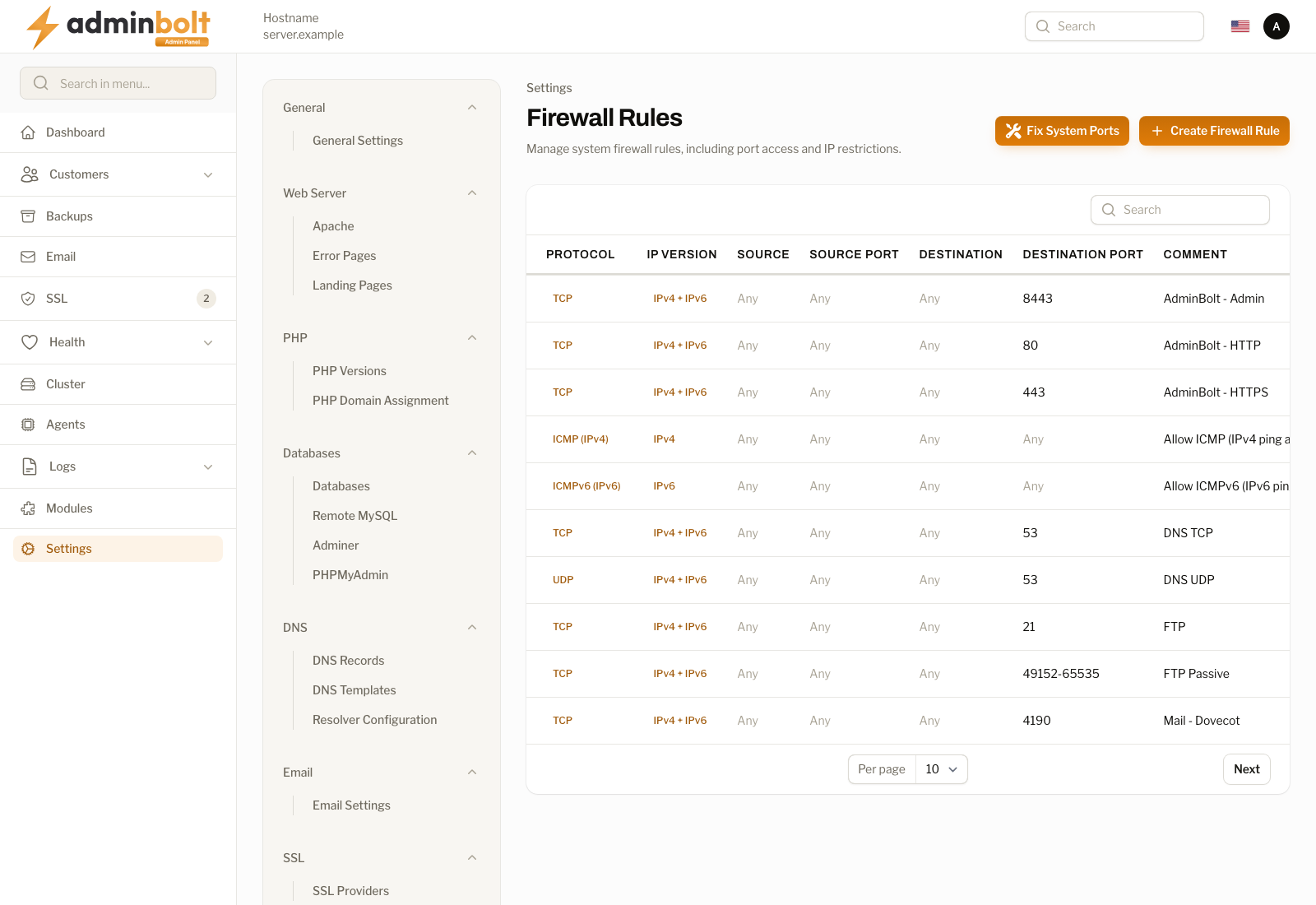
Overview
URL: /admin/settings/firewall-rules
Open it from Settings > Security > Firewall Rules in the sidebar. The page subheading reads "Manage system firewall rules, including port access and IP restrictions."
The rule list
| Column | Meaning |
|---|---|
| Protocol | TCP, UDP, ICMP (IPv4), or ICMPv6 (IPv6). |
| IP Version | Which address family the rule is applied over: IPv4, IPv6, or IPv4 + IPv6. |
| Source | The address traffic must come from. Any when unrestricted. |
| Source Port | The port traffic must come from. Any when unrestricted. |
| Destination | The address on this server the rule applies to. Any when unrestricted. |
| Destination Port | A port or a range, for example 443 or 49152-65535. |
| Comment | What the rule is for, for example AdminBolt - HTTPS. |
Each row has Edit and Delete. The search box works across the visible columns, and the page size can be set to 5, 10, 25, 50, or All.
Fix System Ports restores the rules the managed services need. Use it after an experiment closes a port the panel, web server, DNS, FTP, or mail depends on.
Default rules
A fresh installation creates these:
| Comment | Protocol | Destination Port |
|---|---|---|
| AdminBolt - Admin | TCP | 8443 |
| AdminBolt - HTTP | TCP | 80 |
| AdminBolt - HTTPS | TCP | 443 |
| Allow ICMP (IPv4 ping and diagnostics) | ICMP (IPv4) | Any |
| Allow ICMPv6 (IPv6 ping and diagnostics) | ICMPv6 (IPv6) | Any |
| DNS TCP | TCP | 53 |
| DNS UDP | UDP | 53 |
| FTP | TCP | 21 |
| FTP Passive | TCP | 49152-65535 |
| Mail - Dovecot | TCP | 4190 |
| Mail - IMAP | TCP | 143 |
| Mail - IMAPS | TCP | 993 |
| Mail - POP3 | TCP | 110 |
| Mail - POP3S | TCP | 995 |
| Mail - SMTP | TCP | 25 |
| Mail - SMTP | TCP | 587 |
| Mail - SMTPS | TCP | 465 |
| SSH | TCP | 22 |
The two ICMP rules keep the server answering ping and the diagnostics that depend on it, over each family separately.
Creating a rule
Create Firewall Rule opens a form:
| Field | Description |
|---|---|
| Protocol | TCP, UDP, ICMP (IPv4), or ICMPv6 (IPv6). |
| Action (required) | Accept lets the traffic through, Drop discards it silently, Reject answers with an error. Block rules are applied before accept rules, so a block cannot be shadowed by an accept on the same port. |
| Source IP | The address the rule applies to. Leave blank for any source. |
| Source Port | The port traffic comes from. Leave blank for any source port. |
| Destination IP | The address on this server. Leave blank for any. |
| Destination Port | A single port or a range. Leave blank to cover all ports, which is how a rule is written for an address rather than for a service. |
| Comment | A description you will recognise later. |
A rule that would match every address on every port asks for an explicit confirmation before it is saved, so a rule that opens or closes the whole server is never one field away.
Execute Rule saves and applies the rule; Cancel closes the form. Edit on a row reopens the same form with the current values.
Delete removes a rule after a confirmation. Deleting a rule closes the port it opened, so check what depends on it first.
IPv4, IPv6, and both
The addresses you pin a rule to decide which family it covers, and the IP Version column states the result for every row:
| Rule | IP Version |
|---|---|
| Source or destination is an IPv4 address | IPv4 |
| Source or destination is an IPv6 address | IPv6 |
| No source and no destination address | IPv4 + IPv6 |
This matters when you open a port to a single address. A rule that allows 203.0.113.10 opens the port over IPv4 for that address and leaves it closed over IPv6. To reach the same service over both families, create a second rule pinned to the corresponding IPv6 address.
Where a restriction cannot be expressed for one family, the port stays closed there rather than being opened to everyone. Identical rules are applied once, so a duplicate you create by accident does not produce a duplicate rule on the server.
Related pages
- Fail2Ban Settings - automatic bans, which are written into the same firewall.
- SSH Access - the SSH port and the addresses allowed to reach it.