

DNS Records
The DNS Records page manages the DNS zone entries for hosted domains. The page header reads: "Browse, filter, and manage DNS records per domain, and synchronize changes with the live DNS server."
Overview
URL: /admin/settings/dns-records
Navigate to Settings > DNS > DNS Records.
The DNS area has two tabs above the table, and each is a page in its own right:
| Tab | Address | Documented in |
|---|---|---|
| Records | /admin/settings/dns-records | This page. |
| Templates | /admin/settings/dns-record-template | DNS Templates |
Resolver Configuration, the third entry in the DNS group, is a different thing: it sets the resolvers the server itself queries, not the records the server answers with. See Resolver Configuration.
Internationalised domains
Unlike the client-panel screens, this admin table shows domain and record names exactly as they are stored, which for an internationalised domain is its Punycode (xn--) form. Search matches that stored form, so search for xn--e1afmkfd.example rather than пример.example. Values you enter are still converted for you: record names, and the content of records that hold a hostname, are saved in Punycode. See Internationalised domain names.
This interface provides:
- A domain selector to choose the DNS zone
- A searchable and paginated table of existing DNS records
- Options to create, edit, and manage records inline
- The ability to resynchronize DNS data with the server
Domain Filter
Use the Domain dropdown under Filters to narrow the table to one zone. Click Reset to clear the filter.
Record Table Columns
Each record in the table displays:
- Domain - The full domain name
- Name/Host - The subdomain or host (e.g.
www,mail) - Type - DNS record type (e.g. A, AAAA, MX, NS, etc.)
- Content - The value assigned to the record
- TTL - Time to Live, e.g.
1 hour,1 day - Actions - Inline Edit and Delete options
Adding a New DNS Record
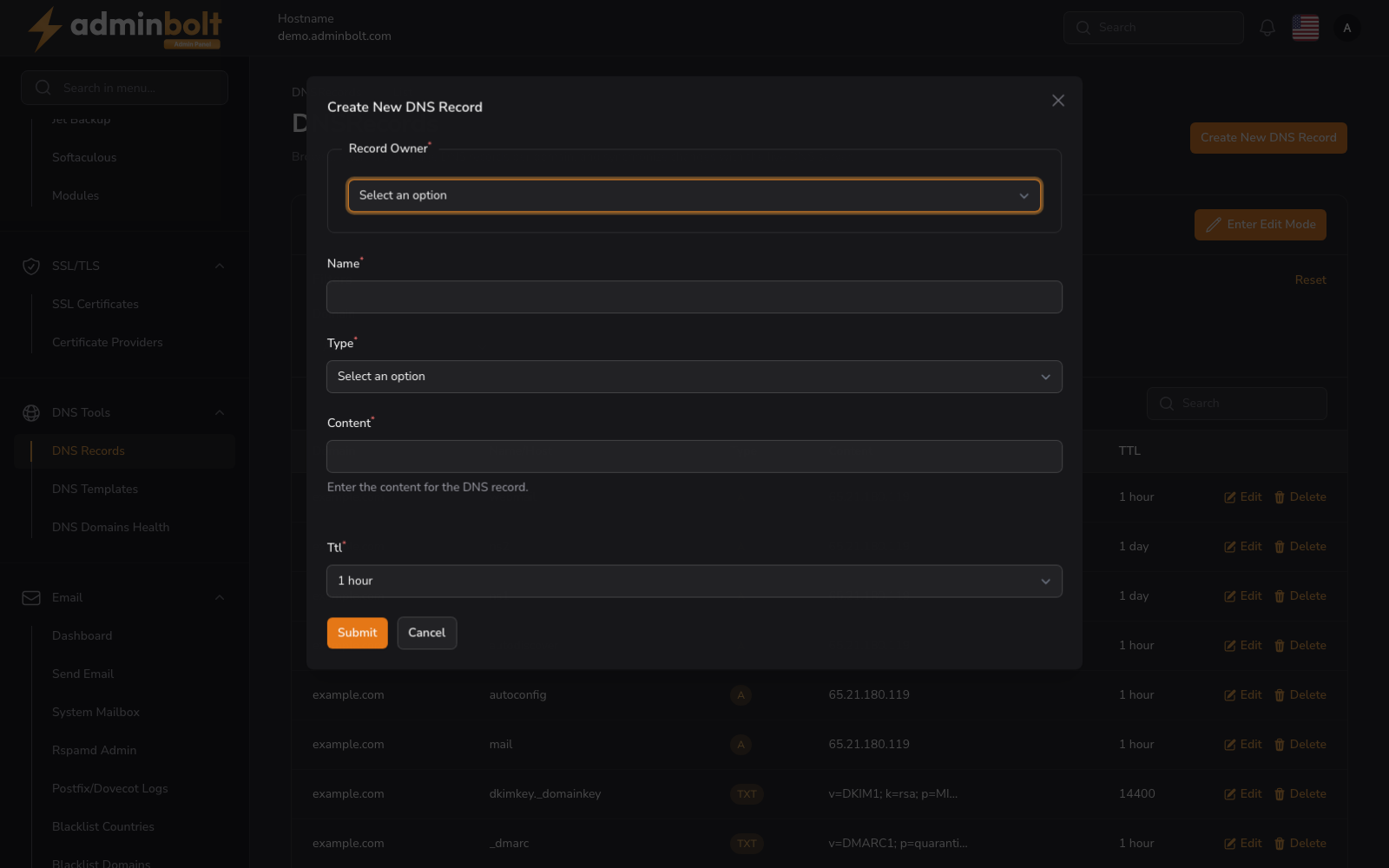
Click Create New DNS Record to open the record creation form.
Fields
1. Record Owner
The fully qualified domain name or subdomain the record applies to.
2. Name
The hostname part of the record (e.g. www, mail, @). This value is optional depending on the record type.
3. Type
Select the record type. Supported types:
- A
- AAAA
- CNAME
- MX
- TXT
- PTR
- SRV
- NS
- SOA
4. Content
The value of the record - can be an IP address, domain, or string depending on type.
5. TTL
Choose how long the record should be cached by DNS resolvers.
Editing DNS Records
You can click Enter Edit Mode at the top-right or the Edit icon beside any record to modify it inline.
Deleting a Record
Click the Delete icon to remove a record. A confirmation prompt will appear before deletion.
Additional Features
- Search bar for quick filtering by Domain, Name/Host, Type, and Content.
- Paginate through large record sets with
Per pagedropdown. - DNS Domains Health at the bottom of the page opens the per-domain check on DNS Domains Health.