

Replacing a cPanel DNS cluster
This guide is for a hosting provider that runs several cPanel servers whose zones a WHM DNS cluster copies to two or more cPanel DNSOnly servers, for example ns1.provider.com and ns2.provider.com. At the end, an AdminBolt hub collects the zones from your cPanel servers, and AdminBolt servers answer for them under the same nameserver names. Your customers' domains stay delegated to the names they use today.
Nothing in this guide moves a hosting account. The accounts, websites, mailboxes, and databases stay on the cPanel servers, and each cPanel server keeps its own zones. To move accounts into AdminBolt as well, see Moving accounts later.
Before and after
| Today | After this guide | |
|---|---|---|
| Where zones are edited | On each cPanel server | On each cPanel server, unchanged |
| What collects the zones | The WHM DNS cluster | The AdminBolt hub, which reads each cPanel server over the WHM API |
| What answers DNS on the internet | The DNSOnly servers | AdminBolt servers with the Secondary DNS role |
| Nameserver names in your customers' delegation | ns1.provider.com, ns2.provider.com | The same names |
| What changes at the registrar | Nothing yet | The addresses (glue records) of your nameserver names, unless the new servers take over the old addresses |
The hub is not one of the listed nameservers. Only the servers with the Secondary DNS role are.
What you need
An AdminBolt server for the hub. Any AdminBolt server can be the hub; it keeps working as a normal panel for its own accounts. See Cluster.
AdminBolt 1.9.3 or later on the hub and on the servers that answer as nameservers. With older versions, zones deleted on a cPanel server stay on those servers; see Nodes follow the catalog of the hub.
One AdminBolt server per public nameserver name. Each one gets the Secondary DNS role and answers for every zone of the cluster. A server that already hosts accounts can take the role too.
A WHM API token on every cPanel server you connect, created in WHM under Manage API Tokens with All Access, so the hub can read the zones of every account on that server. The hub uses the token for reading only.
Network access:
From To Port What for The hub Each cPanel server you connect TCP 2087by defaultThe WHM API, to read the zones The hub Each AdminBolt node TCP 8443by defaultThe node's panel API The hub Each node with the Secondary DNS role UDP 53Notifications of new and changed zones Each node with the Secondary DNS role The hub TCP 53Zone transfers The internet Each node with the Secondary DNS role UDP and TCP 53Answering DNS queries Access to your registrar, if the nameserver names move to new addresses.
1. Turn the hub on
On the AdminBolt server that becomes the hub, open Cluster > Hub Settings, turn on Enable hub mode, give the hub a Hub display name, and save. The rest of the Cluster group appears. See Hub Settings.
2. Keep your nameserver names
Open Cluster > DNS Cluster, tab Settings:
- Turn on Enable DNS cluster.
- Enter the names your customers already use:
ns1.provider.comin Primary nameserver (NS1),ns2.provider.comin Secondary nameserver (NS2), and Nameserver 3 (NS3) and Nameserver 4 (NS4) if you have them. - Optionally fill in SOA contact.
- Click Save.
Every zone the hub takes from a cPanel server gets these NS records and a hub-generated SOA record, so the delegation at the registrar and the NS records inside the zones keep matching. See DNS Cluster: Settings.
3. Add the public nameservers
For each nameserver name, connect an AdminBolt server to the hub with the Secondary DNS role:
- Open Cluster > Nodes and click Connect Node.
- Choose Connect an existing AdminBolt panel. To have the hub install AdminBolt on a fresh server instead, follow Connect Node; that way needs SSH access from the hub to the server.
- Enter a Node Name, the panel's address, and the admin API Key and API Secret from that panel.
- Under Roles, turn on Act as a public secondary nameserver for the cluster. The DNS role is ticked for you.
- Click Connect Node.
The node shows the Secondary DNS role once the hub has confirmed it, and it starts answering for every zone the hub is primary for. See Nodes: Secondary DNS role.
4. Bring the zones in from cPanel
Connect your cPanel servers as external DNS sources of the cPanel / WHM type. On the hub, open Cluster > DNS Cluster, tab External Sources, and click New External DNS Source:
- Name: a label, for example the server's hostname.
- Type:
cPanel / WHM. - Host: the cPanel server's hostname or IP address. Leave API Port empty for the default,
2087. - API Username: the WHM account that owns the token, usually
root. - API Token: the WHM API token from What you need.
- Leave Rewrite NS to cluster nameservers on, so the zones carry the names from step 2.
- Sync every (minutes): how often the hub reads the server. The default is 5 minutes; give a server with tens of thousands of zones an hour or more.
- Click Create, then Sync Now on the source's row.
The Zones column of the source shows how many zones the source lists. On the next read, the hub picks up records added or changed on the cPanel server and removes zones deleted there. The nodes with the Secondary DNS role then serve the changes too. See DNS Cluster: External Sources.
Which servers to connect:
- Every cPanel server that hosts accounts. This is the setup that stays: each server is read on its own, and the hub keeps working after the WHM DNS cluster is gone.
- Or, to start with, one DNSOnly server. A DNSOnly server has WHM too. When the WHM DNS cluster sends every cPanel server's zones to it, one source brings in all of them at once; check its zone list against your servers (step 5). It stays current only as long as the cluster keeps sending changes to it, so replace it with the cPanel servers themselves before you switch the nameservers in step 6:
- Add every cPanel server as its own source and click Sync Now on each.
- Remove the DNSOnly source with Remove on its row. Removing a source deletes the zones it served from the hub, also those another source brings too, until that other source reads them again.
- Wait for the notification that the removal finished, then click Sync Now on each cPanel source.
- Repeat the checks in step 5.
What the hub copies
From a cPanel server the hub copies the A, AAAA, CNAME, NS, MX, PTR, TXT, and SRV records of each zone. Records of any other type, such as CAA or TLSA, are not copied, and neither are DNSSEC signatures. To list every such record, run this on each cPanel server:
awk '{for(i=1;i<=NF;i++) if($i=="IN"){t=$(i+1); if(t!~/^(A|AAAA|CNAME|NS|MX|PTR|TXT|SRV|SOA)$/) print FILENAME": "$0; break}}' /var/named/*.dbIt prints each record of a type the hub does not copy, with its zone file. cPanel writes some types, CAA among them, as TYPE followed by a number. Decide what to do with every record it prints before you switch. A domain signed with DNSSEC stops resolving for validating resolvers once unsigned nameservers answer for it, so remove its DS record at the registrar, and wait for the old DS record to expire from caches, before step 6.
Use the cPanel / WHM type
Connect cPanel servers with the cPanel / WHM type. The hub does not pass zones from a Generic DNS server source on automatically to the nodes with the Secondary DNS role, so those nodes would not answer for them.
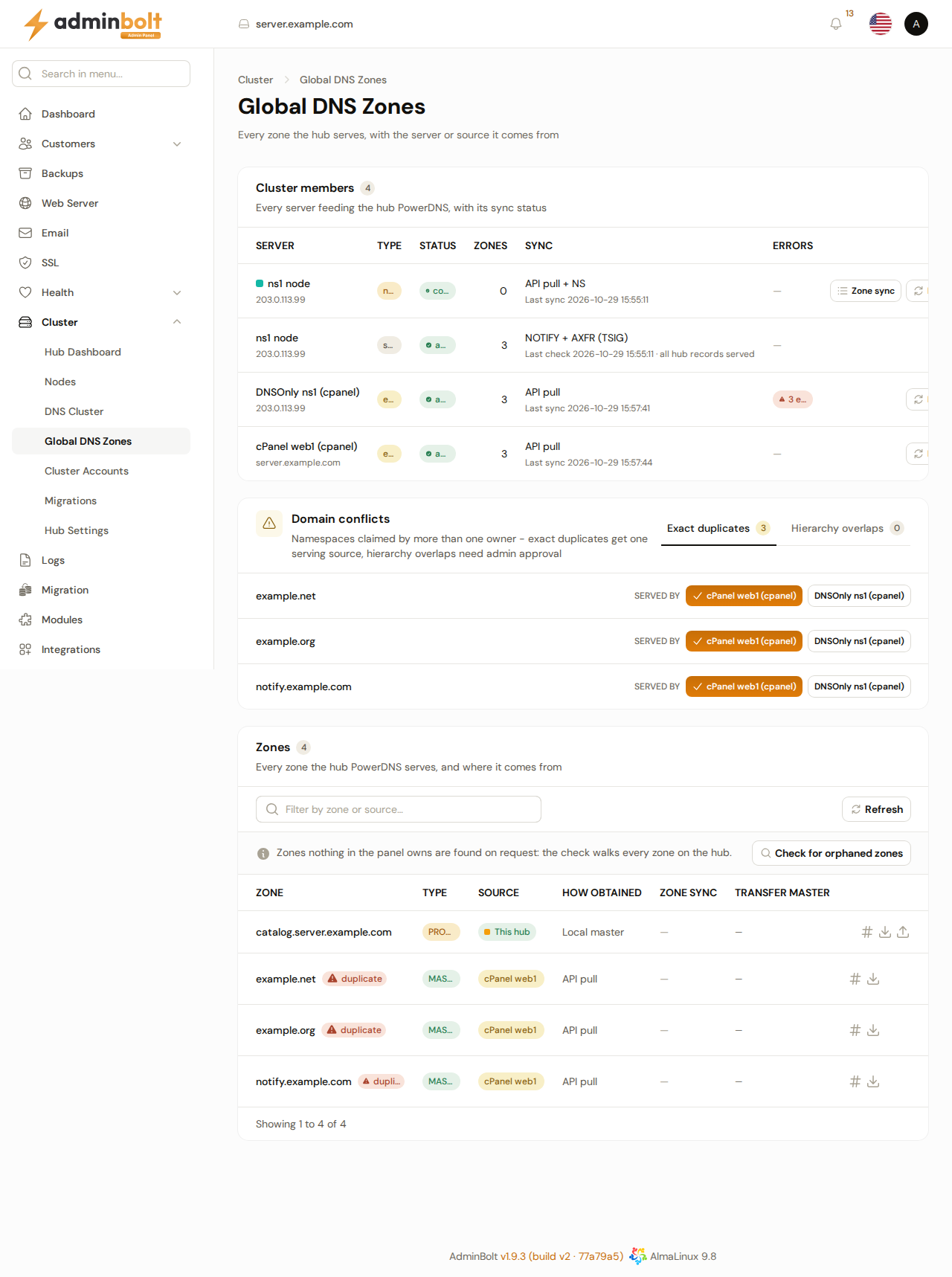
When two sources bring the same zone, for example a DNSOnly server and the cPanel server that hosts the domain, the hub serves one copy. Global DNS Zones lists such zones under Domain conflicts with the source that serves each one.
5. Check before you switch
Before any nameserver name moves, check that the hub has every zone and that the nodes answer for them:
Every zone is answered. The Zones column on a source's row is not enough on its own: it counts what the source lists, including zones the hub could not take. On each cPanel server, ask a node for every zone the server has:
bashwhmapi1 --output=json listzones | python3 -c 'import json,sys; [print(z["domain"]) for z in json.load(sys.stdin)["data"]["zone"]]' > zones.txt while read z; do dig @<node-ip> "$z" SOA +norec | grep -q 'status: NOERROR' || echo "missing: $z"; done < zones.txtIt prints nothing when the node answers for every zone.
Nothing is waiting for you. On Global DNS Zones, every zone under Domain conflicts is served by the source you want. A source that does not serve a conflicting zone shows that as errors on its row; any other error on a source's row needs fixing.
The nodes serve every zone. On Cluster > DNS Cluster, tab Secondary DNS Servers, the Zones served column of each node should say N zones served correctly. See Checking that a secondary serves the zones.
Ask a node and one of your DNSOnly servers for the same zone, from any machine:
bashdig @<node-ip> example.com SOA +norec dig @<dnsonly-ip> example.com NS +norec dig @<node-ip> example.com NS +norecThe node's answer must have
status: NOERRORand theaaflag, and its NS records must be the names from step 2.Spot-check records between the node and the DNSOnly server, such as the
A,MX, andTXTrecords of your largest customers, and resolve every record the command under What the hub copies printed.
6. Switch the nameservers
- The new servers take over the old addresses. Nothing changes at the registrar. Move each address from the DNSOnly server to the AdminBolt server that takes its name.
- The new servers have new addresses. At the registrar, change the glue records of
ns1.provider.comandns2.provider.comto the addresses of the AdminBolt servers, and change the address records of those names wherever they are published.
Resolvers keep the old addresses for as long as the TTL of the glue and address records allows, and the registry sets part of that. Keep the DNSOnly servers answering until the old addresses are no longer asked for.
7. Retire the WHM DNS cluster
- Make sure every cPanel server that hosts accounts is connected as its own source, and no DNSOnly server is a source any more (step 4).
- In WHM on every cPanel server that belongs to the DNS cluster, open Clusters > DNS Cluster and click Disable DNS clustering (see cPanel's DNS Cluster documentation).
- Shut the DNSOnly servers down.
From then on, a zone created, changed, or deleted on a cPanel server reaches the hub on the next read of that server, and the nodes serve it.
Keeping a DNSOnly server as a secondary
This guide replaces the DNSOnly servers with AdminBolt servers. Secondary DNS Servers can also add a DNS server that is not AdminBolt, but its setup instructions do not cover a cPanel DNSOnly server, which runs PowerDNS by default.
What this does not replace
- The registrar. Nameserver names, glue records, and delegation are still changed there.
- DNSSEC. The hub does not copy DNSSEC signatures from cPanel; see What the hub copies.
- Anycast or geographic DNS. The cluster has as many nameservers as you add.
- The hosting itself. The cPanel servers keep serving the websites, mail, and databases.
Moving accounts later
Once the DNS runs through the hub, you can move selected accounts from a cPanel server into an AdminBolt node with External migrations, or turn a whole cPanel server into an AdminBolt server with Migrating to AdminBolt. The zone of a moved account reaches the hub from the node, as every node's zones do (see Node zones on the hub). As long as the cPanel server still has that zone, the hub has two copies and serves one of them. Make sure it serves the node's copy: in Domain conflicts on Global DNS Zones, click the node next to served by, which pins it as the owner, or delete the zone on the cPanel server. Then check that the node's copy is the one served, as in step 5.
Related pages
- Cluster - the hub, its nodes, and their roles.
- DNS Cluster - cluster nameservers, secondary DNS servers, and external sources.
- Global DNS Zones - every zone the hub serves and where it comes from.
- cPanel and WHM equivalents - other cPanel and WHM jobs and their AdminBolt counterparts.