

Import a backup file
Backup file import brings one hosting account from a cPanel server into this AdminBolt server from a backup file of that account. You upload the file, the server reads it and shows what it holds, and nothing is written to any account until you check the preview and choose Restore. It needs no access to the old server, so it also works when the old host is gone or only gave the customer a backup to download. Since panel 1.9.3.
Backup file import is not an external migration
An external migration connects to a running cPanel or DirectAdmin server and moves the accounts you select from it. Backup file import never contacts the old server: it reads one account from one backup file. It is not a restore from this server's own backups either, which Backups and JetBackup handle. All the features that move accounts are compared in Migration: which one do you need?.
Resellers import into their own accounts from Import a backup, and clients into their own account from Files > Import a backup. This page is where you turn the feature on for all of them.
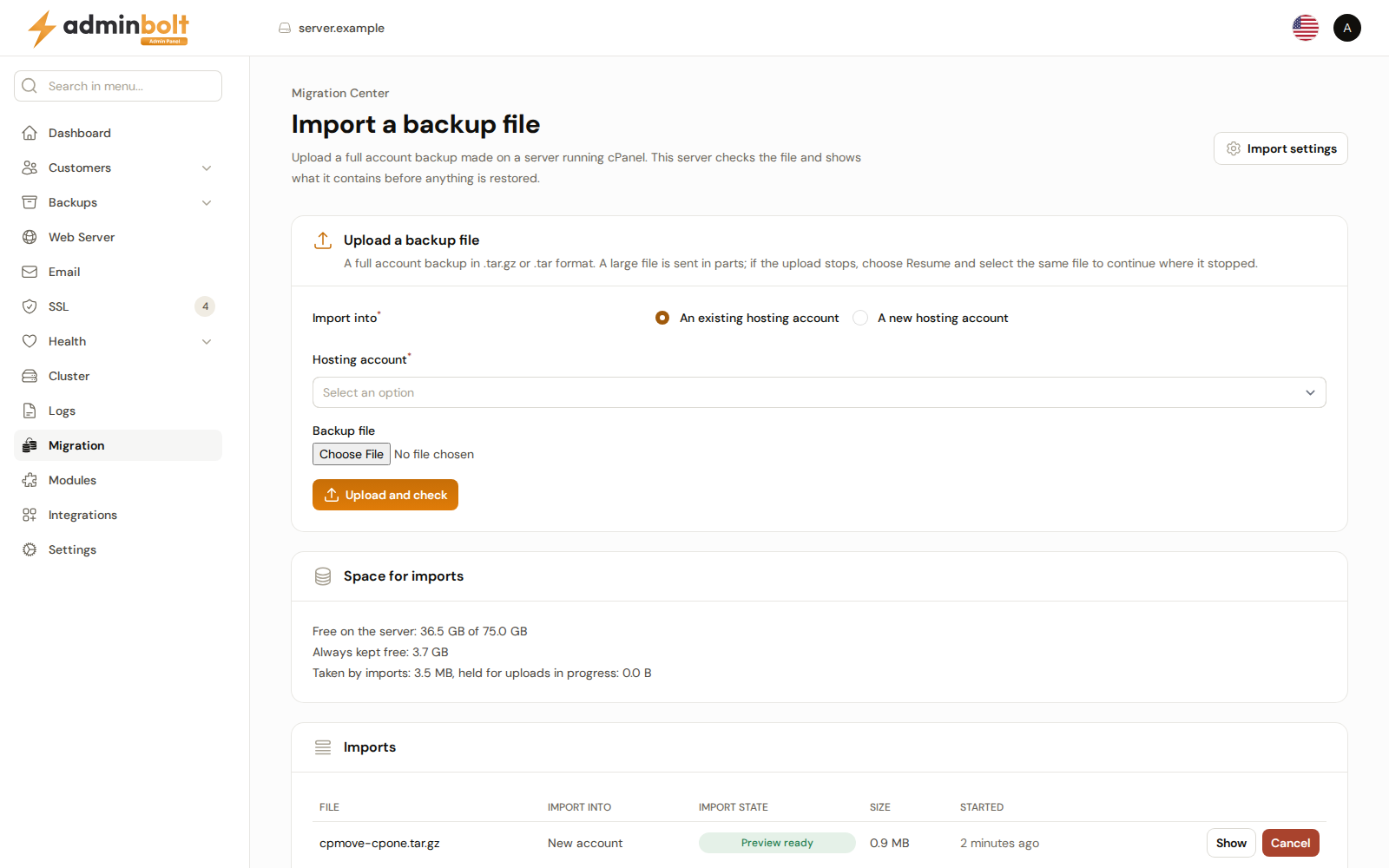
Overview
URL: /admin/migration/backup-import
The page is not in the sidebar. Open Migration, which shows External Migrations, and click Import a backup file in the page header. The page reads:
Upload a full account backup made on a server running cPanel. This server checks the file and shows what it contains before anything is restored.
Backup imports start turned off. Until you turn them on, the page shows Backup imports are turned off and nothing else: "While they are off, nobody can upload a backup, through the panel or the API." The reseller and client menu entries are hidden as well.
Which backup files are imported
The import reads a full account backup made by cPanel, in .tar.gz or .tar format, holding one account:
- the account backup the server administrator makes in WHM, usually named
cpmove-<user>.tar.gz, shown as Account backup made by the server administrator; - the full account backup the account owner downloads in cPanel, usually named
backup-<date>_<user>.tar.gz, shown as Account backup made by the user.
A file the import cannot read, for example a backup from another control panel, is refused with "This file is not an account backup the import can read. Upload a full account backup in .tar.gz or .tar format." A file with more than one account is refused too.
Import settings
Click Import settings in the page header:
| Field | What it sets |
|---|---|
| Allow backup imports | Turns backup file import on for administrators, resellers, and clients, in the panel and the REST APIs. Off by default. |
| Largest file for administrators (GiB) | The largest backup file an administrator may upload. |
| Largest file for resellers (GiB) | The same for resellers. |
| Largest file for clients (GiB) | The same for clients. A client's file must also fit in the free disk space of the client's hosting plan. |
| Imports at the same time per account | How many imports may run into one account at once. |
| Imports at the same time on this server | How many imports may run on the server at once. |
| Always keep free on the server for other data (GiB) | "Uploads stop before the free space would fall below this. The server keeps at least 5% of its disk or 2 GiB free whatever is set here." |
| Size of one upload part (MiB) | The browser sends a large file in parts of this size. |
| Remove an unfinished upload after (hours) | An upload nobody resumes is removed after this time. |
| Keep the file of a failed or unfinished import for (days) | How long the backup file stays on the server after an import fails or stops, so it can be tried again. |
Click Submit to save. The notification reads "The import settings were saved."
Clients also need the Backup import feature in the feature list of their hosting plan. It starts unticked, in new and in existing feature lists. See Feature Lists. Resellers need no feature.
Uploading a backup
Upload a backup file takes "A full account backup in .tar.gz or .tar format. A large file is sent in parts; if the upload stops, choose Resume and select the same file to continue where it stopped."
- Under Import into, choose An existing hosting account or A new hosting account.
- For an existing account, pick it in Hosting account. You can search by username or domain.
- For a new account, set:
- Hosting plan (required).
- Account name - "Leave empty to use the name from the backup." Names reserved for new accounts are refused, see Account Credentials.
- IP address - "Leave empty to use the address of the owner or of this server."
- Owner - "Leave empty for an account owned by the administrators. A plan of a reseller needs that reseller as the owner."
- Choose the file under Backup file and click Upload and check.
A progress bar follows the upload. When it finishes, the status reads "Upload finished. The server is checking the file."
When the connection drops, the upload stops with "The connection was lost. The upload stopped at N%. Choose Resume to continue." Click Resume on the import's row and select the same file, with the same name and size. The upload continues where it stopped. A different file is refused with "This is not the file this import started with." When your session has expired, reload the page and resume.
An import into a suspended account is refused: unsuspend the account first. Only one restore writes into an account at a time.
The imports list
Imports lists the newest imports, and older ones that still keep a file:
| Column | What it shows |
|---|---|
| File | The name of the uploaded file. |
| Import into | The account, or New account with its name. |
| Import state | Where the import stands, see below. |
| Size | The size of the file. |
| Started | How long ago the import started. |
The states are Uploading, Checking the file, Unpacking, Reading the contents, Preparing the preview, Preview ready, Restoring, Completed, Partly completed, Failed, Cancelled, and Expired. The page updates by itself while an import runs.
The row actions:
- Show opens the import below the list.
- Resume continues an unfinished upload, see above.
- Try again appears when an import can be run again, see Try again.
- Cancel stops an import that has not started restoring: "Cancel this import and remove its file from the server?"
- Stop stops a restore after its current step: "What was restored stays in the account."
- Remove file removes the file a failed import keeps: "It can no longer be read again or restored."
The administrator page lists the imports of every administrator, reseller, and client.
What the preview shows
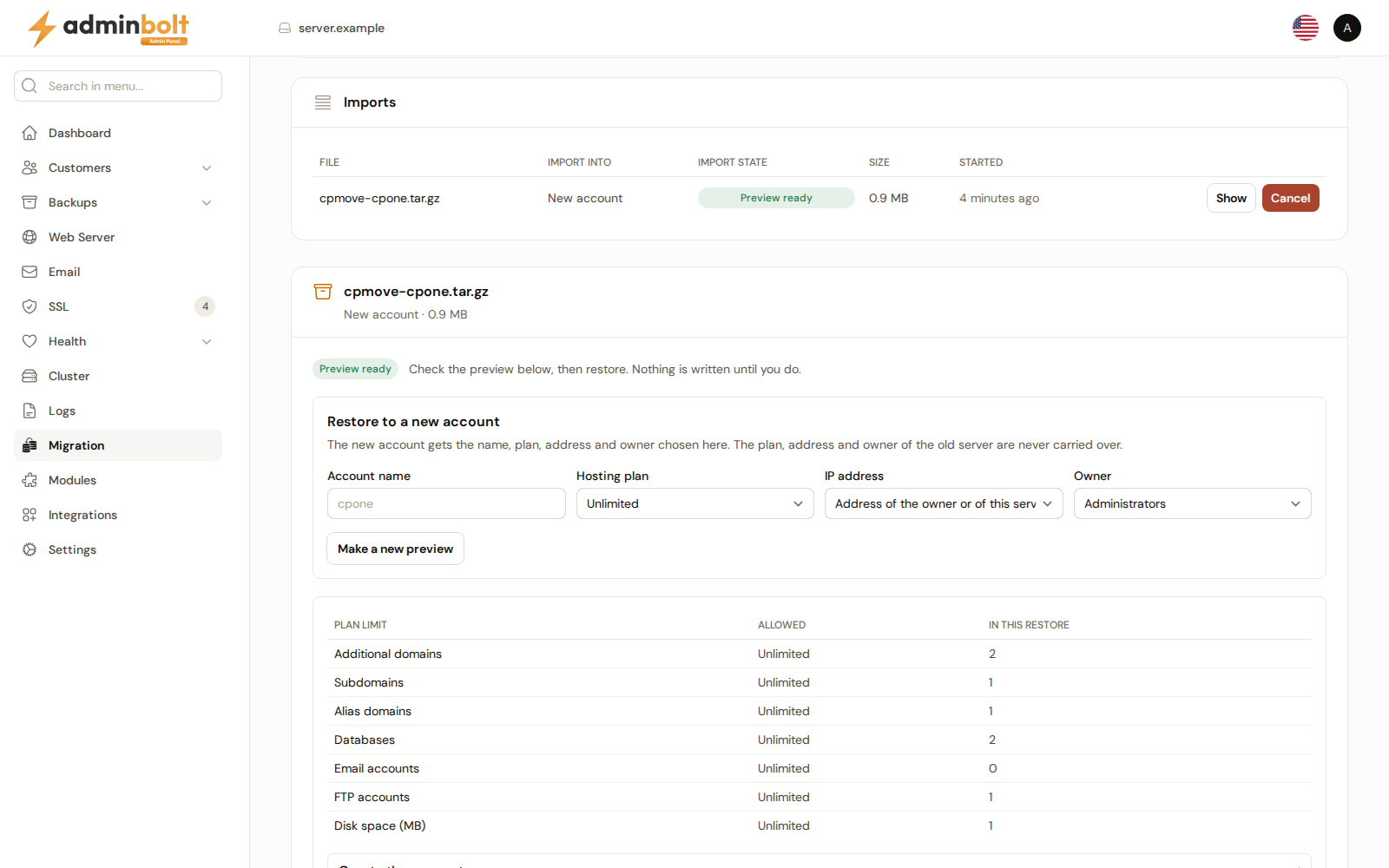
Show opens the import with its state, and a correlation ID when something failed. Once the server has read the file, you see:
- Account in the backup, Backup made, Backup type, and Version of the old server.
- What the backup holds, grouped into Domains, Website files, Databases, Database users, Mailboxes, Account mailbox, Forwarders, Autoresponders, Mailing lists, DNS zones, DNS records, Cron jobs, SSL certificates, FTP accounts, SSH keys, and Other items. Each group shows how many items it has and a status such as Found, Partly found, Data missing from the backup, or Cannot be imported. Each domain is marked Main domain, Additional domain, Subdomain, or Alias domain.
- Cron job commands and forwarder destinations that may contain a password are hidden.
- Details: the import ID, the SHA-256 of the file, the number of files and folders in the backup, and the plan, address, and owner on the old server, "shown only, never carried over".
What is not imported
The preview lists these, and the restore leaves them out:
- Mailing lists and the Account mailbox.
- SSH keys: "SSH keys are never imported. Add the keys in the account after the import."
- PostgreSQL databases: "PostgreSQL databases are not imported. Move them to the new account by hand."
- DNS records of a kind this server does not keep, for example CAA.
- Catch-all addresses, and forwarders that deliver to a program or a file rather than an address.
- Self-signed certificates, and certificates that have expired, do not match their key, or do not cover the domain.
- Views, triggers, and procedures of a database. The report counts them.
- Mailboxes stored in the dbox format, hard links, special system files, links that point outside the account, and empty folders.
The hosting plan, IP address, and owner the account had on the old server are never carried over.
Restoring into a new account
When the import is Preview ready, Restore to a new account shows Account name, Hosting plan, IP address, and Owner, filled from the upload form. "The new account gets the name, plan, address and owner chosen here." Change any of them and click Make a new preview.
When the account cannot be created as set up, for example because the name is taken or the reseller who will own it has reached a limit, the preview says so: "The new account cannot be created as it is set up now." Change the name or the plan and make a new preview.
Then check the plan limits and the items, see Checking the items, and click Restore.
Restoring into an existing account
Restore into the account explains: "The backup is merged into the account. Nothing the account has is removed or overwritten unless you choose to replace it below and confirm."
When the account does not have the main domain of the backup yet, that domain is added to it as an additional domain, so it counts against the plan's Addon Domains. When the account already has it, as its main domain or as an additional one, the domain is merged and takes up no more of the plan's allowance.
Where an item meets something the account already has, the item shows what it meets, for example "The account already has this mailbox." or a count of the files that are new, identical, and different, and a list to choose what happens:
| Item | Default | Other choices |
|---|---|---|
| Website files | Add missing files, keep existing ones | Overwrite existing files with those from the backup |
| Database | Keep what the account has | Import under a new name, Replace the database with the one from the backup |
| Mailbox | Add missing messages, keep the password | Add missing messages, use the password from the backup, Keep what the account has |
| Database user | Merge: the password stays, missing permissions are added | Keep what the account has |
| DNS records under a name | Keep what the account has | Replace the records under this name with those from the backup |
| SSL certificate | Keep what the account has | Install the newer certificate from the backup, offered when the backup's certificate is newer |
A domain, a cron job, or a forwarder that is already there is merged, and an autoresponder or an FTP account that is already there is kept. When the account already routes mail for a name, or already has an SPF or DMARC record for it, those records are kept by default. Replace the records under this name with those from the backup replaces them, after the confirmation under Confirming replacements.
Some files are kept whatever you choose: files the panel manages in a website folder, such as .user.ini, and files that belong to another user of the server. A database with triggers, views, or procedures, or one another database refers to, cannot be replaced; import it under a new name instead.
Confirming replacements
A choice that replaces something lists it under "These choices replace what the account has:", with what each choice removes. Tick I understand that these items will be replaced. before Restore becomes available. Changing a choice clears the tick.
What a replacement takes away is kept in the account:
- replaced files are moved to a folder in the account first;
- a replaced database keeps its current tables in a separate database of the account, and a dump in that folder;
- a replaced certificate is copied to that folder.
The report names the folder. A mailbox replacement changes only the mailbox password.
If you change the account after the preview, click Make a new preview before you restore. A preview the account no longer matches is refused with "The account changed after the preview was made. Review the new preview."
Checking the items
Both kinds of restore show the plan limits first:
| Column | What it shows |
|---|---|
| Plan limit | Additional domains, Subdomains, Alias domains, Databases, Email accounts, FTP accounts, and Disk space (MB). |
| Allowed | The plan's limit, or Unlimited. |
| In this restore | What the account will hold after the restore. A figure over the limit is marked. |
When the backup does not fit: "The backup does not fit the plan. Leave items out below, or choose a larger plan and make a new preview."
The items follow, grouped by restore step. Each one shows what the restore will do: Will be restored, Will be merged, Will be replaced, Blocked, or Not restored, with the reason where there is one. Tick an item to leave it out: "Ticked items are left out of the restore, together with everything that needs them."
Click Restore and confirm. "Restoring has started. This page shows its progress."
Restore progress and report
Restore progress lists the steps: Check the account again (existing account), Create the account (new account), Account password, Domains, Databases, Database users, Website files, Email, FTP accounts, DNS records, Cron jobs, SSL certificates, Final checks, and Finish. Stop ends the restore after the current step.
Restore report sums up the restore and lists every item with its result, such as Restored, Merged, Skipped, or Failed, and the reason. It also says:
- for each login, whether "The password from the backup works here." or to "Set a new password: the one from the backup could not be carried over." The first line is also shown for a mailbox or database user the account already had and that kept its own password, the default when merging: that login keeps the account's password, not the backup's. An FTP account the restore creates gets a new password; an FTP account the account already had is kept with its password.
- for a forwarder restored without a mailbox: "mail to this address is forwarded and not kept on this server." See Forwarders.
- what was left out of an item, for example views of a database or files changed after the preview.
The import ends Completed when everything selected was restored and checked, or Partly completed when something was not.
When the import has created the new account but the restore did not complete, Remove the new account removes the account with everything the import put into it, and the backup file. "This cannot be undone." To restore again, upload the backup again.
Try again
Try again appears while the import still keeps its file:
- When reading the backup failed for a reason on the server's side, it reads the backup again. "The server is reading the backup again."
- When a restore ended Partly completed, Failed, or Cancelled, it makes a new preview of what is left. Items already restored keep their result and are not touched again, and the rest is planned against the account as it is now. Check the preview and click Restore again.
A file that is removed, by Remove file, by Cancel, or once Keep the file of a failed or unfinished import for (days) has passed, cannot be tried again. Upload the backup again.
Who can act on an import
An administrator can act on every import. A reseller or a client who uploaded a backup is the only one besides an administrator who can restore it. Once a restore has started, only whoever started it, or an administrator, can stop it or try it again. Others see a note in place of the buttons, for example "This backup was uploaded by your hosting provider. Only they, or an administrator, can restore it."
Deleting a hosting account cancels the imports into it.
Space for imports
Space for imports shows how much room the server has for backup files:
- Free on the server, of the total.
- Always kept free, from Import settings.
- Taken by imports, and the space held for uploads in progress.
When the space runs out, an upload stops with "The server does not have enough free disk space for this import. Free up space, then try again."
REST API
The same import is available in the REST APIs, for administrators under /api/cpanel-imports, with the settings at /api/cpanel-imports/settings, for resellers under /api/reseller/cpanel-imports, and for clients under /api/client/cpanel-imports. Each takes the upload in parts, reports the preview, and starts the restore. See the API reference.
Troubleshooting
| Message | What to do |
|---|---|
| "Importing backups is turned off on this server." | Turn on Allow backup imports in Import settings. |
| "The file is larger than the maximum size allowed for imports." | Raise the matching Largest file setting, or use a smaller backup. |
| "The backup file is damaged or incomplete." | Create a new backup on the old server and upload it again. |
| "Too many imports are in progress." | Wait for one to finish or cancel one, or raise the Imports at the same time settings. |
| "Another import into this account is already in progress." | Wait for it to finish, or cancel it. |
| "This account is suspended." | Unsuspend the account, then import. |
| "Backup files kept on the server for this account, with what they unpack to, take up all the space allowed." | Cancel an earlier import, or click Remove file on one that did not finish, then start again. |
| "This server cannot open backups in a safe, isolated way right now, so imports are unavailable." | Check the server on Health, then click Try again. |
| "The backup reader on this server does not match this panel version." | Update the server, then click Try again. |
When a message gives a correlation ID and the problem persists, contact support with that ID.
Related
- External Migrations - move selected accounts from a running cPanel or DirectAdmin server.
- Migration: which one do you need? - every feature that moves accounts, side by side.
- Feature Lists - the Backup import feature for clients.
- Hosting Accounts - where an imported account appears.