

Malware
Malware lists every malicious file found in your hosting account, whichever scanner on the server found it, and what was done with it. From the same list you move a file out of your website into quarantine, put it back, or delete it. Available since panel 1.9.3.
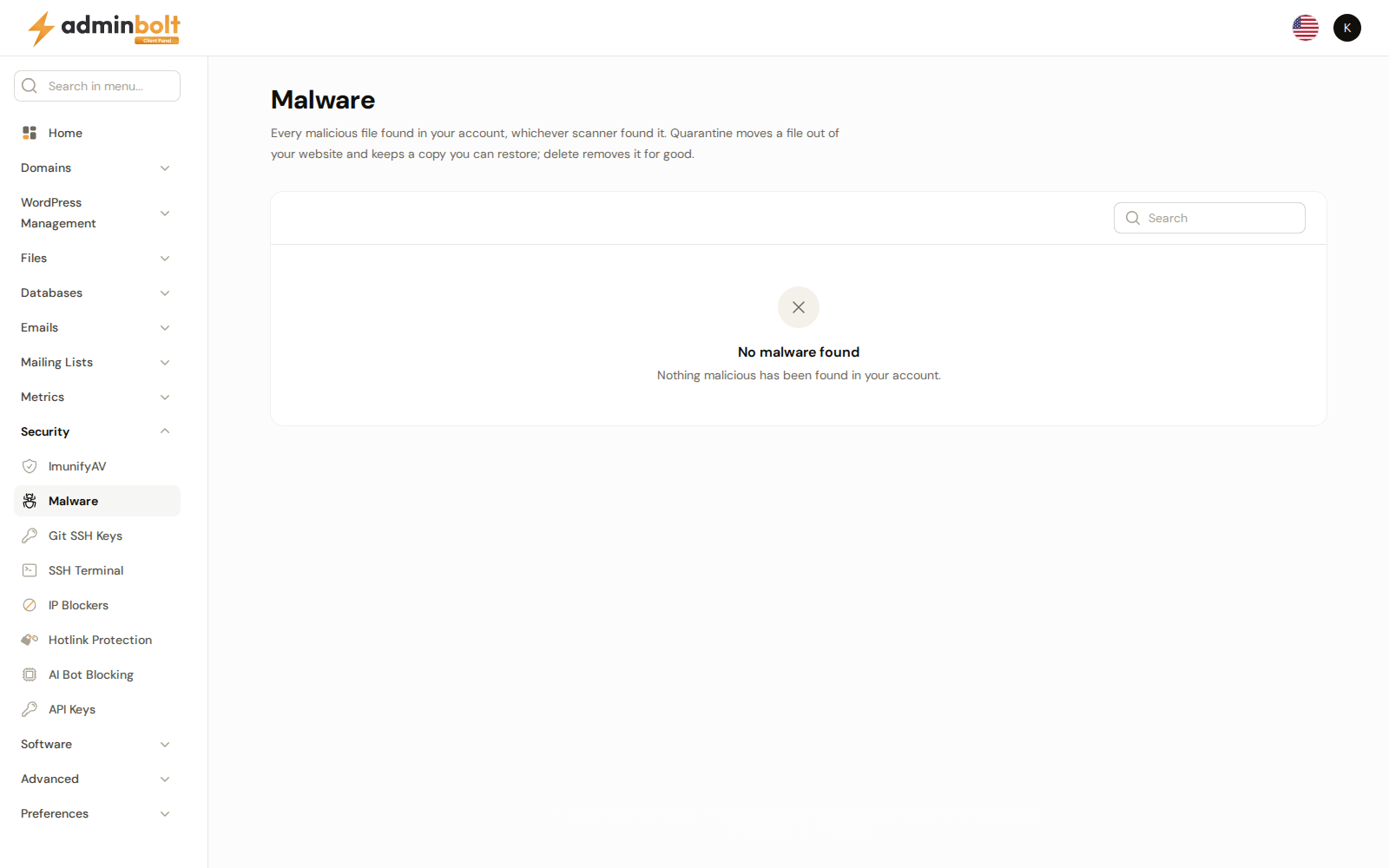
Overview
URL: /client/malware
Open it from Security > Malware in the sidebar. The page appears when your hosting provider runs a malware scanner on the server and your hosting plan includes it.
Only files in your own account are listed. When nothing has been found, the list reads No malware found.
The server scans your account; you do not start the scans from this page. Each file has one row, however often it is reported. A file that was restored or deleted and is then found in your website again goes back to In the website.
The list
| Column | What it shows |
|---|---|
| File | The full path of the file. |
| Found by | The scanner that reported the file. |
| Detection | What the scanner found, when it named it. |
| Status | Where the file is now, see the table below. |
| Detected | When the file was found. The list is sorted by it, newest first. |
The Search box searches the file paths.
| Status | Meaning |
|---|---|
| In the website | The file is where it was found. |
| In quarantine | The file was moved out of your website. A copy is kept, so it can be restored. |
| In scanner quarantine | The scanner moved the file into its own quarantine, for example In cPGuard quarantine. |
| Restored | The file was put back from quarantine. |
| Deleted | The file is gone for good. |
Quarantine, restore, and delete
Each row offers the actions that fit its status, and each one asks for a confirmation first:
| Action | Shown when | What it does |
|---|---|---|
| Quarantine | The file is In the website or Restored. | Moves the file out of your website and keeps a copy you can restore later. |
| Restore | The file is in quarantine. | Puts the file back where it was. |
| Delete | Until the file is Deleted. | Deletes the file for good. It cannot be restored afterwards. A file in a scanner's own quarantine is not deleted here, see below. |
To act on several files at once, select their rows and choose Quarantine, Restore, or Delete from the bulk actions. A message reports the result for each file.
Restore a file only if you are sure it is safe. The scanner still detects it, so the file is reported again.
A file In cPGuard quarantine is restored from this list too. A file in the quarantine of another scanner cannot be restored here. Delete removes only a file in your website or in your own quarantine: a file in a scanner's own quarantine, cPGuard's included, stays there, and the message says so. To have such a file removed, ask your hosting provider.
When an action cannot be carried out, the message says why, for example that a file is already at the original path (move or delete that one first), that the folder the file was in no longer exists, or that your quarantine is full (delete quarantined files first).
The quarantine belongs to your hosting account: when the account is deleted, its quarantined files are deleted with it.
Related pages
- ImunifyAV and CPGuard - the scanners' own pages, when your hosting provider offers them.
- File Manager - open or edit a file before you decide.
- Password & Security - the contact email that threat notifications go to.