

DNS Templates
The DNS Templates page defines the reusable DNS record template applied to newly created domains, and used to rebuild the base DNS records of existing ones.
Overview
URL: /admin/settings/dns-record-template
Navigate to Settings > DNS > DNS Templates. The page is also the Templates tab of the DNS area, so you can switch between it and DNS Records from the tabs above the table.
The interface provides a structured list of DNS record templates that include fields like:
- Name - The record name (e.g.,
@,_autoconfig_tcp) - Type - Record type (e.g.,
A,TXT,MX) - TTL - Time-to-live value (e.g.,
3600) - Content - Record content (e.g., IP address or template variables)
- Priority - Applicable for
MXandSRVrecords - Edit - Edit action to modify individual records
Pagination controls are available at the bottom of the list.
A search bar is provided in the top-right corner, allowing you to filter records by Name, Type, or Content.
Top Actions
At the top-right of the page, the following actions are available:
- Create DNS Record Template - Opens a form to define a new DNS record template
- Apply Template - Applies the current template to the hostname and to every domain on the server
- Reset to Default - Restores default DNS template settings
- SOA settings - Since panel 1.9.3, sets which nameserver the SOA record of a new zone names as its primary; see SOA primary nameserver
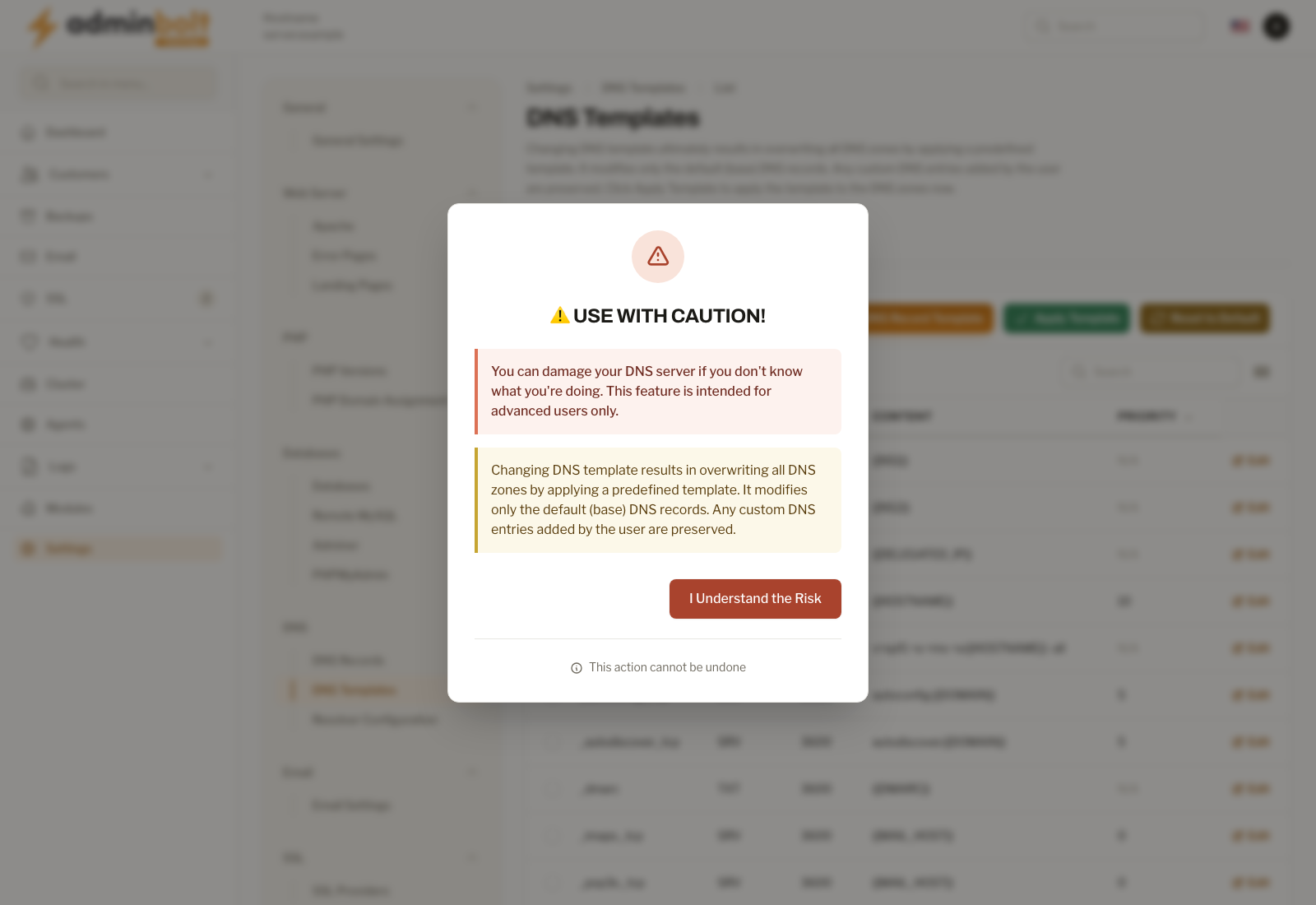
Warning: Apply Template is server-wide and destructive. It deletes every record that was not created manually, for the hostname and for all domains, then rebuilds those records from the template. Records marked as manual survive. There is no way to limit the action to a single domain, so edit individual zones on the DNS Records page instead.
What Apply Template reports
Since panel 1.9.4 Apply Template works through the hostname and the domains one zone at a time, and one domain that fails no longer stops the others. The notification titled Apply DNS template reports the outcome:
- Success - "The DNS template was applied to the hostname and domains."
- Warning - the template was applied, and the notification names what needs your attention: the domains that were applied without a record they could not use, each with its reason, a DKIM record left unchanged, or the hostname zone that was left out because it belongs to something else in the panel. When the hostname was left out, the message starts with "The DNS template was applied to the domains." The next step is in the notification.
- Failure - "The DNS template was not applied everywhere.", followed by each domain that was not applied with its reason, and the reason for the hostname zone when that one failed. The next step is "Correct the reported problem, then apply the template again."
A domain whose rebuilt records are refused keeps its records exactly as they were: "The domain's records were left unchanged." The other domains are still applied. When the records of a domain were saved but the DNS server did not take the zone, the message for that domain says so and gives the server's reason.
DKIM records of your customers
Since panel 1.9.4 the panel writes its own DKIM key into a zone only while no other record uses the DKIM key name, dkimkey._domainkey. A customer who signs mail through an outside mail provider may have a CNAME there, or a TXT record with their own key. That record stays as it is, and the panel's key is not added next to it. A zone that already holds the panel's own key does not get it a second time.
The rule applies when a new domain gets the template, and when Apply Template rebuilds the hostname and the domains. When a record was kept, Apply Template reports a warning: "A DKIM record already exists for names and was left unchanged. The DKIM key of this server was not added there." Up to five names are listed, then the number of the others. The next step is "To sign mail for these names with the key of this server, remove that record and apply the template again."
Template Records Table
Each row in the table represents a single DNS record with the following columns:
- Name
- Type
- TTL
- Content
- Priority
- Edit
Since panel 1.9.3, the Name, Type, TTL, and Priority columns sort the records when you click their headers.
You can toggle the visibility of extra columns using the column menu. Available extra columns:
Created AtUpdated At
Creating a New DNS Template Record
Click Create DNS Record Template to open the creation modal.
Fields:
Name - e.g.,
@,www,mail, etc.Record Type - Select the DNS record type from the dropdown. Supported types:
- A (IPv4 Address)
- AAAA (IPv6 Address)
- CNAME (Canonical Name)
- MX (Mail Exchange)
- TXT (Text)
- NS (Name Server)
- CAA (Certificate Authority Authorization)
- SRV (Service)
TTL (Time to Live) - Specify how long the record should be cached by resolvers (e.g.,
3600).Priority - Shown for
MXandSRVrecords, a number from 0 to 65535.Weight and Port - Since panel 1.9.4, shown for
SRVrecords. Weight is a number from 0 to 65535 and Port a number from 1 to 65535. See SRV records.Content - The record value. It can be a literal value or one of the content placeholders.
There are two buttons to save the entry:
- Create - Save and close the modal.
- Create & create another - Save the current record and open a new empty form to add another one.
Editing a DNS Template Record
Click the Edit icon beside any record to open the edit modal. The same fields are available as in creation:
- Name
- Record Type
- TTL
- Priority, Weight, and Port, for the record types that use them
- Content
Changes can be saved using the Save changes button, or cancelled with the Cancel button.
SRV records
Since panel 1.9.4 an SRV template record carries its Priority, Weight, and Port in fields of their own, and all three are required. Content holds only the target host. The default template's mail records, such as _imaps._tcp, use {{MAIL_HOST}} there, with priority 0, weight 1, and the service's port. The form refuses a value outside the ranges listed under Creating a New DNS Template Record and names the field.
An SRV record saved before 1.9.4 without one of the three values cannot be served. Apply Template leaves such a record out, applies the rest of the template, and names the record and the missing values in the result for each domain. Edit the record, fill in the missing fields, and apply the template again.
Content Placeholders
AdminBolt replaces these placeholders in the Content field when it builds records from the template:
| Placeholder | Resolves to |
|---|---|
{{DOMAIN}} | The domain the record is created for |
{{HOSTNAME}} | The server hostname |
{{MAIL_HOST}} | The mail host of the domain |
{{SERVER_IP}} | The main server IP address |
{{DELEGATED_IP}} | The dedicated IP address of the hosting account. Falls back to the main server IP address when the account has none, including when only its reseller has one |
{{NS1}}, {{NS2}} | ns1. and ns2. prefixed to the domain |
{{GENERAL_NS1}}, {{GENERAL_NS2}} | The name servers configured in the panel settings |
{{GENERAL_NS3}} and higher | The third and later name servers in the panel settings, since panel 1.9.0. A record whose name server is not in the list is left out |
{{GENERAL_NS}} | Every name server in the panel settings, one record per name server, in the list's order. Since panel 1.9.3 the record form accepts it, as it does {{DELEGATED_IP}} and {{MAIL_HOST}}; before, the form refused them as an invalid placeholder |
{{DKIM_CONTENT}} | The DKIM public key of the domain |
{{DMARC}} | A DMARC policy for the domain, in the form v=DMARC1; p=<policy>; rua=mailto:<address> |
The default template uses {{DELEGATED_IP}} for the @ and www A records, which is what routes an account with a dedicated address to that address. See Dedicated IP for a Hosting Account.
SOA primary nameserver
Since panel 1.9.3 the primary nameserver (MNAME) in the SOA record of a new domain zone follows a rule you choose. Click SOA settings above the table. The window explains the rule and has one field, SOA primary nameserver (MNAME):
| Option | The SOA names |
|---|---|
| First apex NS record produced by the template | The default. The first NS record for the domain itself (@) that the template produces, in the order the template records were created, which can differ from the order of the table. {{NS1}} gives ns1.<domain>, and {{GENERAL_NS}} gives the first nameserver of the panel's list. If the template produces no such NS record, ns1.<domain> is used. |
| A fixed nameserver name | The name you enter in Fixed nameserver name, for example ns1.example.net. A name that is not a valid host name is refused with "Enter a valid nameserver host name." |
With the default template, the default rule gives ns1.<domain>, as before 1.9.3. Saving shows "The SOA rule was saved. It applies to zones created from now on." When the fixed name is not among the NS records the template produces, the rule is still saved, and a warning says that zones created with it will name a primary nameserver they do not list, with the next step "Add name to the DNS template as an NS record, or choose a name the template lists."
The rule applies to the zones of domains and parked domains created from the template. The zone of the server hostname keeps naming the first nameserver of the panel's list. On a server whose zones are served through the DNS cluster, the served SOA names the cluster's primary nameserver whatever the rule.
Applying the rule to existing zones
Saving the rule does not change existing zones. To apply it to them:
- Apply Template rebuilds every zone from the template, the SOA record included, so the new SOA follows the rule. It replaces every record that was not created manually, see the warning under Top Actions.
bolt-cli dns-rewrite-soa-mname, as the SOA settings window says, changes only the primary nameserver in the SOA of existing zones and leaves every other record as it is. With the default rule it takes the first NS record of each zone as it is now. Name the zones with--domain, once for each domain, or pass--all:
bolt-cli dns-rewrite-soa-mname --domain=example.com
bolt-cli dns-rewrite-soa-mname --all
The command prints the rule, then one line per zone (changed, unchanged, not found, warning, skipped, or failed, with the reason or a correlation ID), then the totals. A zone that the server does not accept keeps its previous SOA. Running it again changes nothing that already follows the rule.
SOA settings over the API
| Method and path | What it does |
|---|---|
GET /api/dns/soa-settings | The rule: mode (first_apex_ns or fixed), fixed_name, and the same warnings the window shows. |
PUT /api/dns/soa-settings | Change the rule. Send mode, fixed_name, or both; fixed_name is required when mode is fixed. |
POST /api/dns/soa-mname/rewrite | Apply the rule to existing zones, as the command does. Send either {"domains": ["example.com"]} or {"all": true}. One domain is rewritten at once and the answer carries the result. Several domains or all of them are queued: the answer is 202 with a run_id, and the run appears on Background Jobs. A second run while one is queued or running answers 409. |
GET /api/dns/soa-mname/rewrite/{run} | The state of a queued run (queued, running, done, refused, or failed) and, once done, its result. |
The result lists the zones that were changed, unchanged, skipped (with the reason), failed (with a correlation ID), and not found, and the warnings for each zone.
The administrator API
Since panel 1.9.4, the DNS template is on the administrator REST API:
| Method and path | What it does |
|---|---|
GET /api/dns/templates | Every template record, in the page's order. |
POST /api/dns/templates | Add a record, with the rules of the create form. |
GET, PATCH, DELETE /api/dns/templates/{id} | Read, change, or delete a record. A record that is or becomes SRV needs a priority, a weight, and a port. |
POST /api/dns/templates/apply | Apply Template: write the template's records again to the hostname zone and to every domain zone on this server. Records added by hand are kept. |
POST /api/dns/templates/reset | Reset to Default. Existing zones change only when the template is applied. |
A record added, changed, or deleted reaches existing zones only when the template is applied, and new zones get it when they are created.
Bulk Actions
Select multiple records to use Bulk actions with Delete selected. Destructive operations require confirming the I Understand the Risk prompt before they run.