

Hub Settings
The Hub Settings page turns a standalone AdminBolt panel into a hub that orchestrates other AdminBolt panels through their REST API.
Overview
URL: /admin/cluster/settings. Its earlier address /admin/hub-settings leads here.
Run this panel as the hub of a cluster: it manages other AdminBolt panels, its nodes, through their REST API
This is the entry point to the whole area, and the one page in it that is always available. On a standalone panel the sidebar shows a single Cluster entry, and it opens this page. Once Hub Mode is on, Cluster becomes a group with the rest of the pages in it.
When Hub Mode is enabled, the panel keeps doing its own work and additionally manages the other servers:
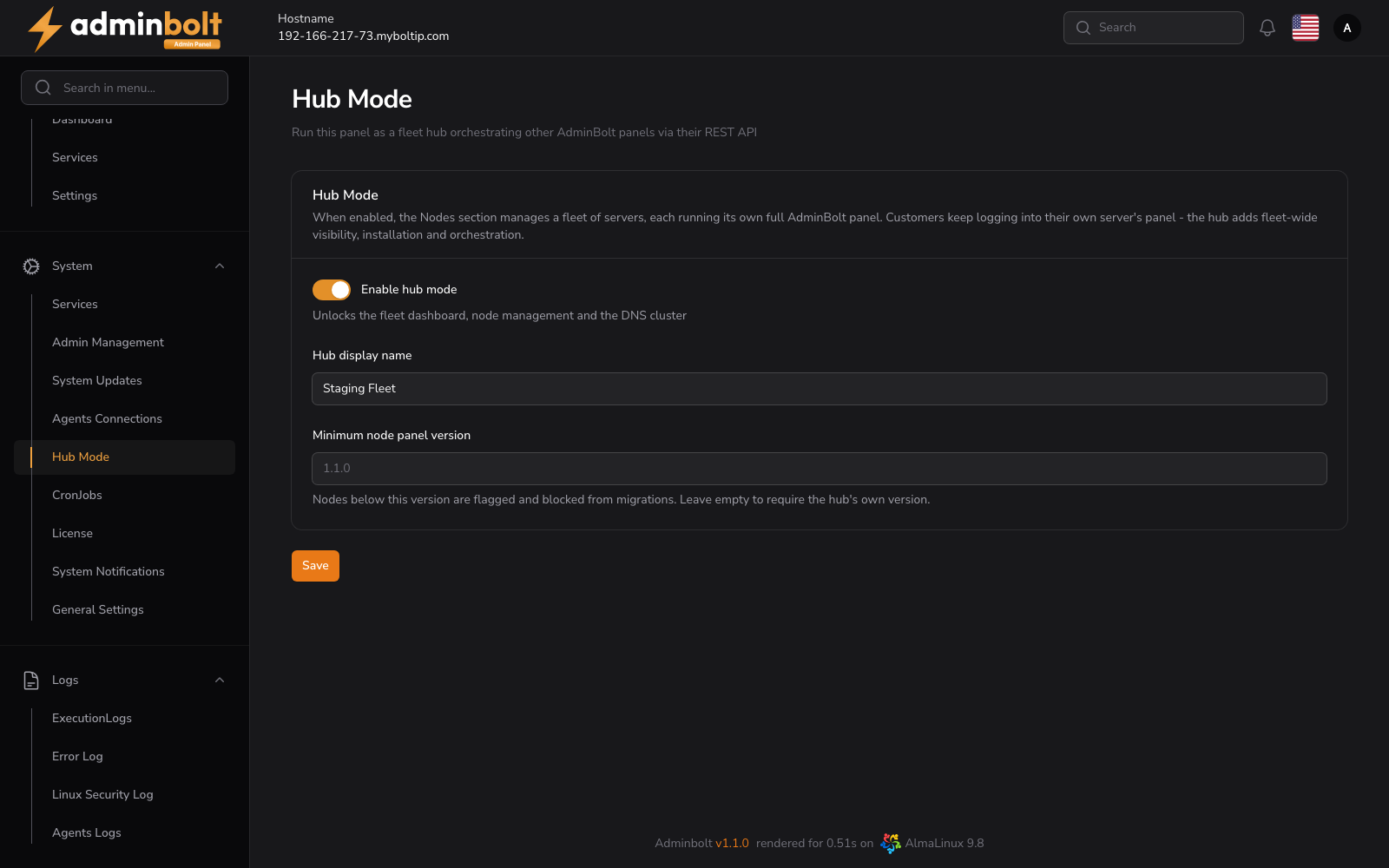
When enabled, the Cluster section manages a fleet of servers, each running its own full AdminBolt panel. Customers keep logging into their own server's panel - the hub adds fleet-wide visibility, installation and orchestration.
For the bigger picture and the standalone/hub/node distinction, see Cluster.
Settings
The page holds one section, Hub Mode:
| Field | Description |
|---|---|
| Enable hub mode | Toggle that turns the panel into a hub. Its helper text reads "Unlocks the fleet dashboard, node management and the DNS cluster". Off by default. |
| Hub display name | A friendly name for the hub (for example, EU Production). |
| Suspend the source account after a migration by default | Pre-ticks Suspend the account on this server afterwards in the migrate dialog on Cluster Accounts, so the old copy stops serving once the account has moved. You can still change it for each migration. |
| Minimum node panel version | The lowest panel version a node may run. Nodes below this version are flagged and blocked from migrations. Leave empty to require the hub's own version. |
Click Save to apply the configuration.
What happens after enabling
Turning on Enable hub mode reveals the rest of the Cluster group:
- the Hub Dashboard,
- Nodes, where remote panels are connected and managed,
- the DNS Cluster, Global DNS Zones, Cluster Accounts, and Account Migrations.
These pages become useful once servers are connected to the hub. Until at least one is connected, they are available but empty.
Secondary DNS Servers moves with hub mode: it sits under Settings > DNS on a standalone panel and under Cluster > DNS Cluster on a hub. Since panel 1.9.3 turning hub mode on or off moves it at once, and every Settings page keeps opening right after you save. A link to its old place leads to the new one.
Note: The minimum node panel version gates migrations: a node running an older panel is flagged and cannot be migrated to until it is upgraded.