

Agents Connection
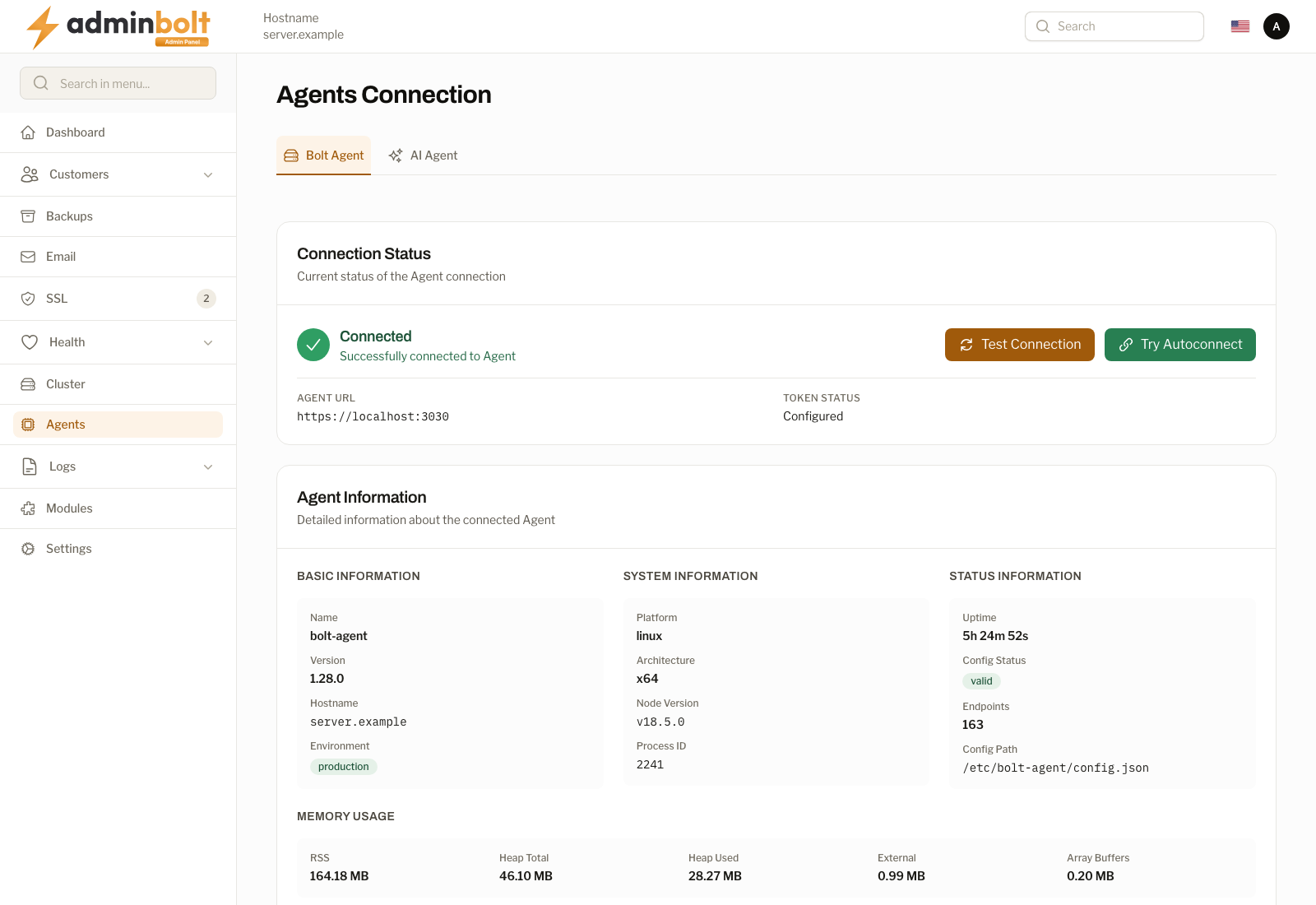
The Agents Connection page manages and monitors the connections to the two agents an AdminBolt panel talks to. Open it from Settings > Agents > Agents in the sidebar; the page itself is titled Agents Connection.
- Bolt Agent - carries out system-level operations on the server. This is the default tab, and the panel cannot manage the server without it.
- AI Agent - registers this panel with an external AI Agent Hub that handles WhatsApp and web chat for your hosting users.
Overview
URL: /admin/settings/agents
The page has two tabs, each with its own address:
| Tab | URL | What it configures |
|---|---|---|
| Bolt Agent | /admin/settings/agents | The agent that runs operations on this server. |
| AI Agent | /admin/settings/agents?tab=ai | Registration with an external AI Agent Hub. |
The Bolt Agent tab is made of five sections: Connection Status, Agent Information (Basic, System, and Status Information plus Memory Usage), Connection Settings, and Connection Information. The AI Agent tab is described in AI Agent tab at the bottom of this page.
Connection Status
Displays the current status of the Bolt Agent connection. When the agent is connected, a green indicator and the message "Connected - Successfully connected to Agent" are shown.
Two action buttons are available:
- Test Connection - Verifies the connection to the agent is working.
- Try Autoconnect - Attempts to automatically configure and establish a connection.
Below the status indicator, the following details are displayed:
- Agent URL - The URL where the agent service is running (for example
https://localhost:3030). - Token Status - Whether the security token is configured.
Agent Information
Detailed information about the connected agent, organized into three columns.
Basic Information
- Name - The agent service name (for example
bolt-agent) - Version - The agent version number
- Hostname - The server hostname
- Environment - The runtime environment (for example
production)
System Information
- Platform - The operating system (for example
linux) - Architecture - The CPU architecture (for example
x64) - Node Version - The Node.js version running the agent
- Process ID - The current process ID
Status Information
- Uptime - How long the agent has been running
- Config Status - Whether the agent configuration is valid
- Endpoints - Number of registered API endpoints
- Config Path - Path to the agent configuration file
Memory Usage
Displays memory consumption metrics for the agent process: RSS, Heap Total, Heap Used, External, and Array Buffers (all in MB).
Two timestamps close the section:
- Agent Started - When the agent process was last started
- Last Config Reload - When the configuration was last reloaded
Connection Settings
Configure the Bolt Agent connection URL and security token.
- Agent URL (required) - The URL of the agent service. Default is
https://localhost:3030. For remote connections, use the formatIP:PORTorhttp://IP:PORT. - Security Token (required) - The authentication token for the agent. This field is masked by default.
Click Save Settings to apply changes.
Connection Information
An info box at the bottom of the tab repeats the connection rules:
- Default URL is
localhost:3030for local connections - For remote connections, use the format
IP:PORTorhttp://IP:PORT - The security token is required for authentication
- Click "Test Connection" to verify your settings
- AI Agent Hub is configured under the AI Agent tab
AI Agent tab
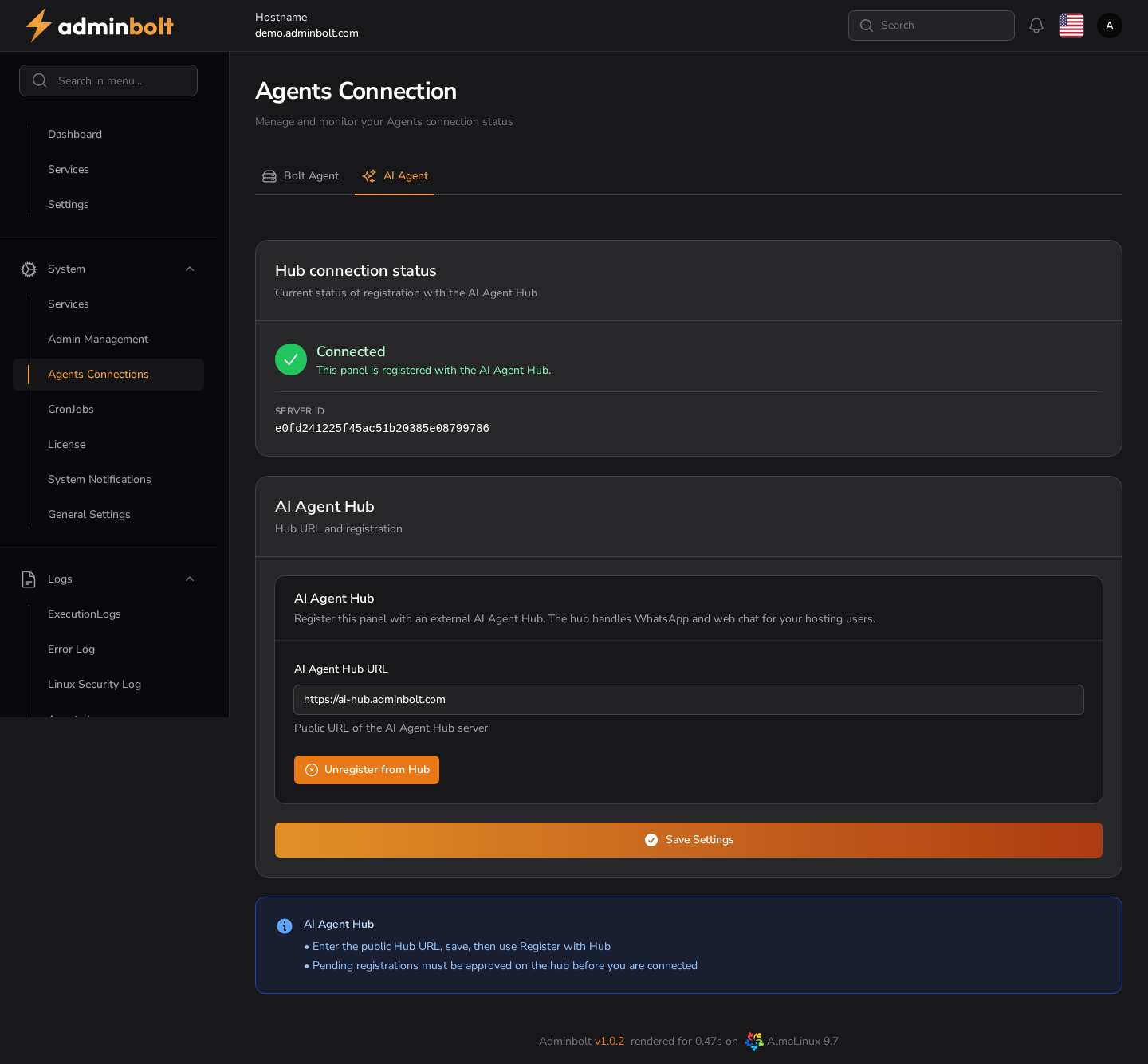
Available at /admin/settings/agents?tab=ai. Registers this AdminBolt panel with an external AI Agent Hub server that handles WhatsApp pairing, embedded web chat, and SSO for your hosting users. The client-side experience (dashboard chat box and WhatsApp pairing form) is described in Client Dashboard.
Hub connection status
Displays whether the panel is currently registered with the AI Agent Hub.
- Status badge -
Connected(green) orDisconnected. - SERVER ID - unique identifier assigned by the hub on successful registration.
AI Agent Hub settings
- AI Agent Hub URL (required) - public URL of the AI Agent Hub server you want to register with.
- Save Settings - persists the URL without registering.
- Unregister from Hub (visible when connected) - removes the panel from the hub.
To register, enter the public hub URL, save it, then use Register with Hub. A pending registration has to be approved on the hub itself before this panel shows as connected, so a freshly submitted registration stays Disconnected until someone accepts it there.