

Email Routing
Email Routing decides, per domain, where the mail this server sends for that domain is delivered.
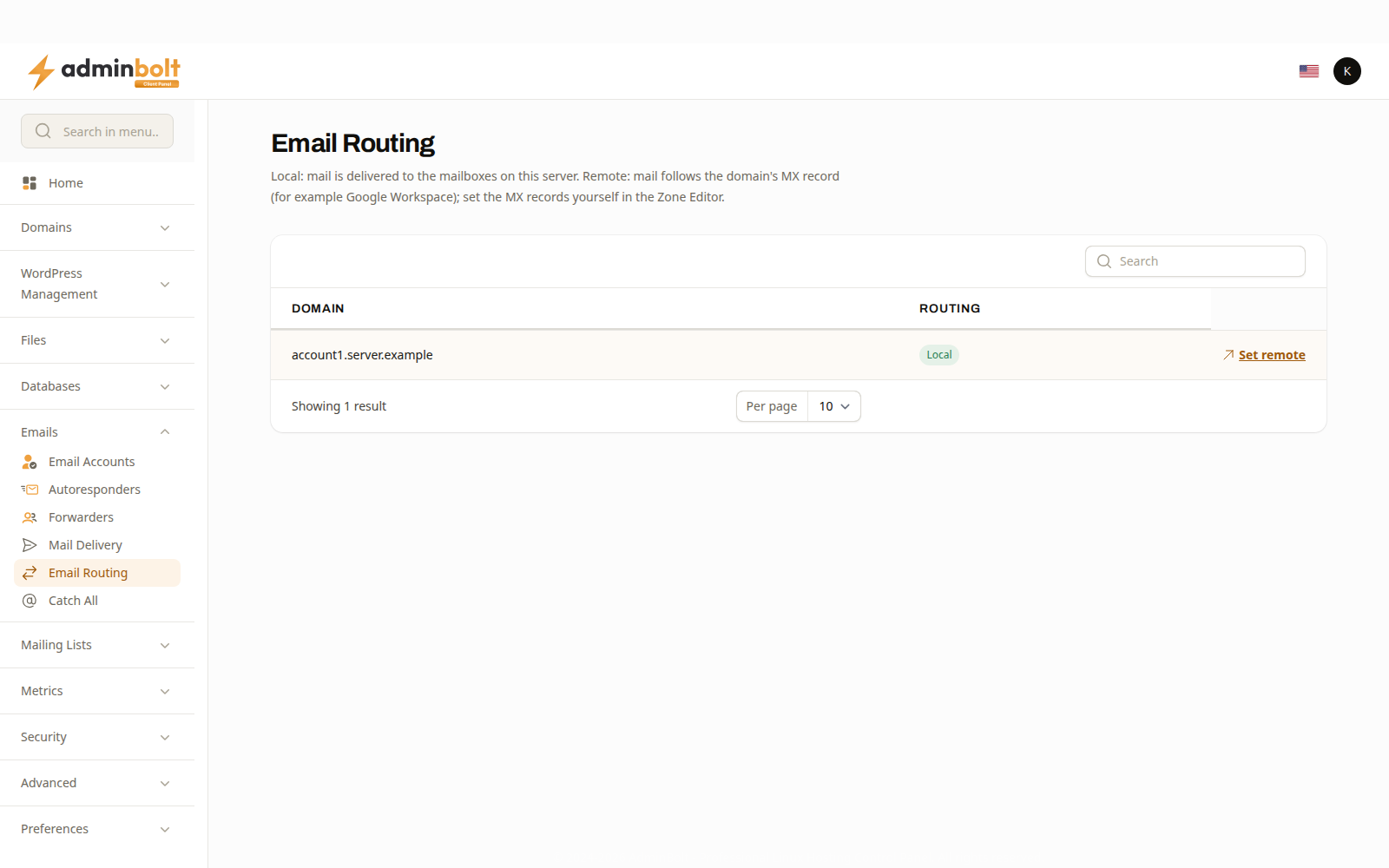
- Local - mail is delivered to the mailboxes on this server. This is the default, and what you want when your mailboxes live here.
- Remote - mail follows the domain's MX record, for example to Google Workspace or Microsoft 365. Use it when your website is hosted here but your mailboxes are somewhere else.
Overview
URL: /client/email-routing
Open it from Emails > Email Routing in the sidebar. The page appears when your hosting plan includes it.
The table lists your domains, except parked domains, with a Routing badge on each: Local in green, Remote in orange.
Setting a domain to remote
Set remote on a domain asks you to confirm, then switches it. From that point:
- Mail this server originates for the domain follows the domain's MX record.
- Local delivery for the domain stops.
- The local mailboxes of the domain can no longer log in, until routing is set back to local.
The MX records themselves are yours to set in the Zone Editor. Marking a domain as remote does not write MX records for you, and the panel does not overwrite the records you set.
Warning: Set the MX records for your external provider before you switch a domain to remote, and keep them in place. Mail sent from scripts on this server follows those records; if they point nowhere useful, that mail has nowhere to go.
Setting a domain back to local
Set local returns the domain to delivery on this server. Local mailboxes can log in again, and mail this server originates is delivered here.
What remote routing does not change
- The mailboxes themselves are kept. They are unreachable while the domain is remote, and available again when it returns to local.
- DNS records other than the ones you edit yourself are untouched.
- The domain's websites, databases, and files are unaffected.
Related pages
- Email Accounts - the mailboxes on this server.
- Zone Editor - where the MX records of the domain are set.
- Mail Delivery - tracing what happened to a message.