

Plan limits
Plan limits decides whether the disk, inode, database storage, and bandwidth allowances of your hosting plans are enforced, and what visitors see when an account runs out. Since panel 1.9.3 it is the third tab of Hosting Packages, next to the plans it applies to. Until 1.9.2 the same form was the Plan limits tab of General Settings.
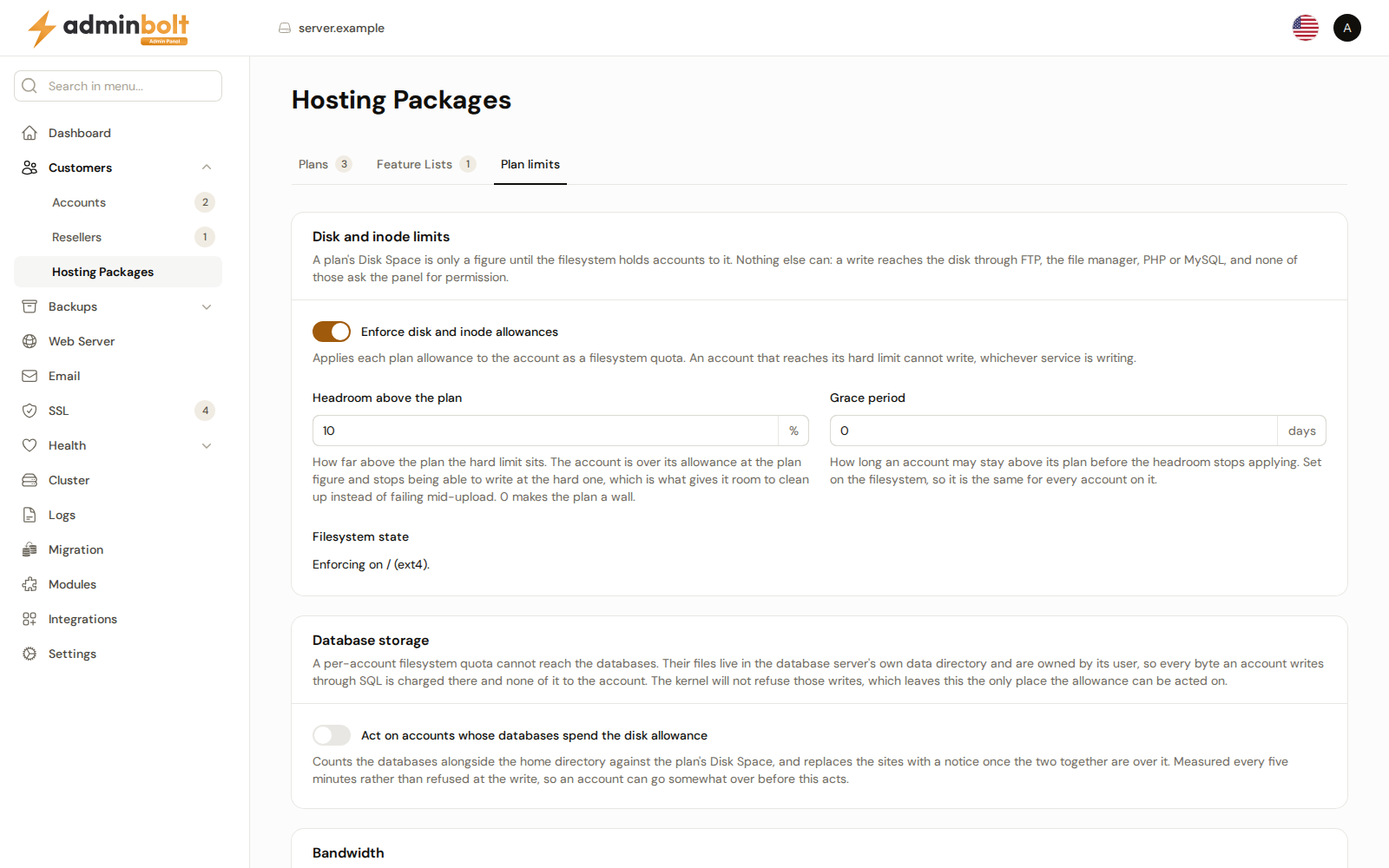
Overview
URL: /admin/customers/hosting-packages/plan-limits
Open it from Customers > Hosting Packages, then the Plan limits tab, after Plans and Feature Lists. The page is headed Hosting Packages, like its sibling tabs. An old link to /admin/settings/general-settings?tab=plan-limits opens this tab, and the settings search finds its fields.
Enforcement is available since panel 1.9.0. With enforcement off, a plan's Disk Space and Bandwidth are figures the dashboards compare usage against, and nothing stops an account that goes past them.
- Servers updated to 1.9.0 - disk and inode enforcement is off.
bolt-cli manage-disk-quota --action=install(see below) prepares the server and switches it on. Turning enforcement on for accounts that have been running without limits can take sites over the moment they are measured, so check which accounts are already over their plan on Hosting Accounts before you enable it. - Fresh installations - on a server that supports it, disk and inode limits apply from the first account. When the server cannot enforce them, the installer warns about it.
- Database and bandwidth enforcement start off on every server and are switched on here.
Disk and inode limits
- Enforce disk and inode allowances - applies each plan's Disk Space and Inodes to its accounts as a filesystem quota. An account that reaches its hard limit cannot write any more, whichever way the write arrives, for example FTP, the file manager, or PHP. The allowance is applied when an account is created, when its plan changes, and when the plan itself is edited.
- Headroom above the plan (%) - how far above the plan figure the hard limit sits, 10% by default. The account is over its allowance at the plan figure and can no longer write at the hard limit, which gives it room to clean up instead of failing in the middle of an upload.
0makes the plan figure the hard limit. - Grace period (days) - how long an account may stay above its plan figure before the headroom stops applying, 7 days by default. It is set on the filesystem, so it is the same for every account on it.
- Filesystem state - read-only. It says whether the filesystem that holds the home directories enforces quotas now.
When Filesystem state says the quota tools are not installed, or that the filesystem is not enforcing, install and enable them from the server's command line:
bolt-cli manage-disk-quota --action=installThe command also switches Enforce disk and inode allowances on, and says when the server needs a reboot before the limits apply. --action=status reports the current state, and --action=disable switches enforcement off again; the limits already written stay on the filesystem.
Some filesystems take the quota setting only when they are mounted. The command and the page then say that the server needs a reboot before enforcement begins. A filesystem that cannot carry per-account quotas is named as unsupported.
Limits are applied to existing accounts in the background after you save. A limit that went missing, for example on an account restored from a backup, is put back the same way.
Database storage
Database files are not stored in the account's home directory, so a filesystem quota does not count them.
- Act on accounts whose databases spend the disk allowance - counts the account's databases together with its home directory against the plan's Disk Space. When the two together are over the allowance, the account's sites show the notice page described below. This is measured periodically rather than refused at the moment of writing, so an account can go somewhat over before it takes effect.
Bandwidth
Bandwidth is counted after the traffic has been served, so it cannot be refused the way disk space can.
- Act on accounts over their bandwidth allowance - replaces the account's sites with a notice once the month's allowance is spent. Usage resets at the start of each month, and the sites come back on their own.
- Act at (%) - the share of the monthly allowance at which the sites are taken over.
100, the default, is the allowance itself.
What visitors see
- Show a notice page on the account's websites - every site of an account over its disk space or inode allowance serves one page naming the allowance, the same way a suspended account's sites do. Without it, such an account is visible only on the dashboards. The switch covers the disk space and inode allowances only: with Act on accounts whose databases spend the disk allowance or Act on accounts over their bandwidth allowance on, an account over those allowances gets the notice page whether this switch is on or off.
- Show it from - The plan allowance shows the notice as soon as the account is over what its plan includes. The hard limit, once writes are being refused shows it only after the headroom is used up as well.
The notice names the allowance: disk space, files, or the month's bandwidth. The site comes back once space or files are freed, at the start of the next month for bandwidth, or sooner when the account moves to a larger plan.
Other plan limits
- Mailing Lists limits on hosting plans are enforced.
- A plan change is judged on the account's real usage, so an account that fits a larger plan can move to it.
- A limit of
0counts as unlimited for the disk, database disk, bandwidth, and inode warnings.
Click Save Settings to apply changes.