

Modules
Modules is where optional functionality is installed, updated, and removed. It is a top-level area of its own, reached from Modules in the sidebar.
Overview
URL: /admin/modules
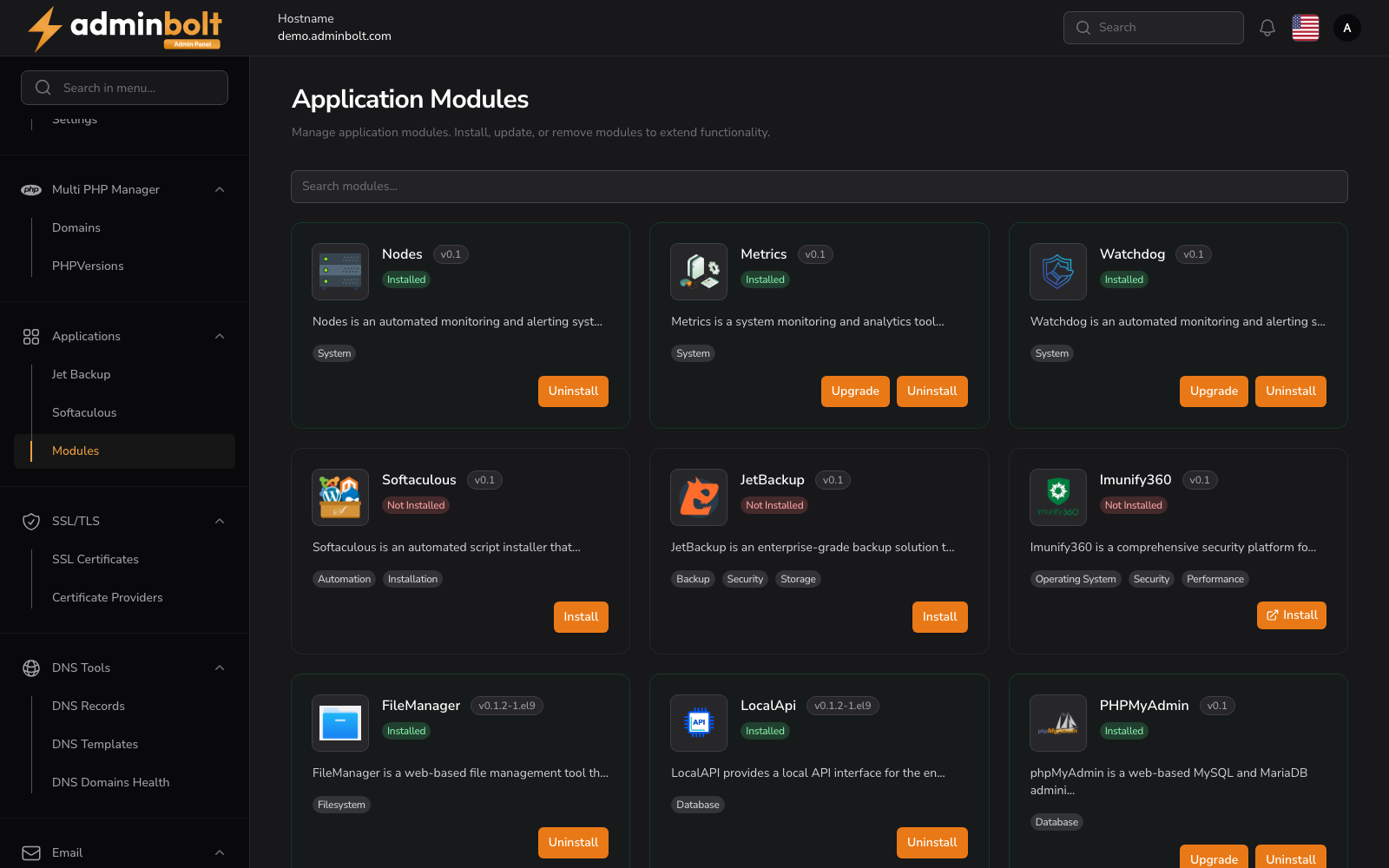
Each module is a card showing what it is and its current state. From the card you install it, update it when a newer version is available, or remove it.
The modules available on a standard installation include CPGuard, Metrics, Watchdog, Terminal, Softaculous, JetBackup, Imunify360, FileManager, LocalApi, PHPMyAdmin, Adminer, and Git Version Control. Which ones you see depends on your licence and on what the server supports.
Installing a module changes the sidebar
A module that has screens of its own adds them to the Settings area once it is installed, and takes them away when it is removed: Watchdog, JetBackup, and Softaculous appear under Settings > Tools, and CloudLinux's LVE Manager under Settings > CloudLinux. LiteSpeed and OpenLiteSpeed are the exception: they are tabs of Web Server in the sidebar, always in its tab bar, and each shows its own not-installed state until its module is installed. No module creates a top-level group of its own.
This is why the Settings area is not identical on two servers: the twelve sidebar groups are always there, and the Settings sections grow with what is installed.
Installation runs in the background
Installing or removing a module is a long-running operation on the server. It runs in the background, so you can leave the page while it works. Progress and the outcome are recorded in Logs under Executions.