

WordPress Management
ℹ️ Opened from Manage WordPress - this page is reached with the Manage action on an installation in Manage WordPress; it has no dedicated sidebar link.
The WordPress Management view manages a single WordPress installation: its plugins, themes, posts, and core status. You reach it with the Manage action on an installation in Manage WordPress.
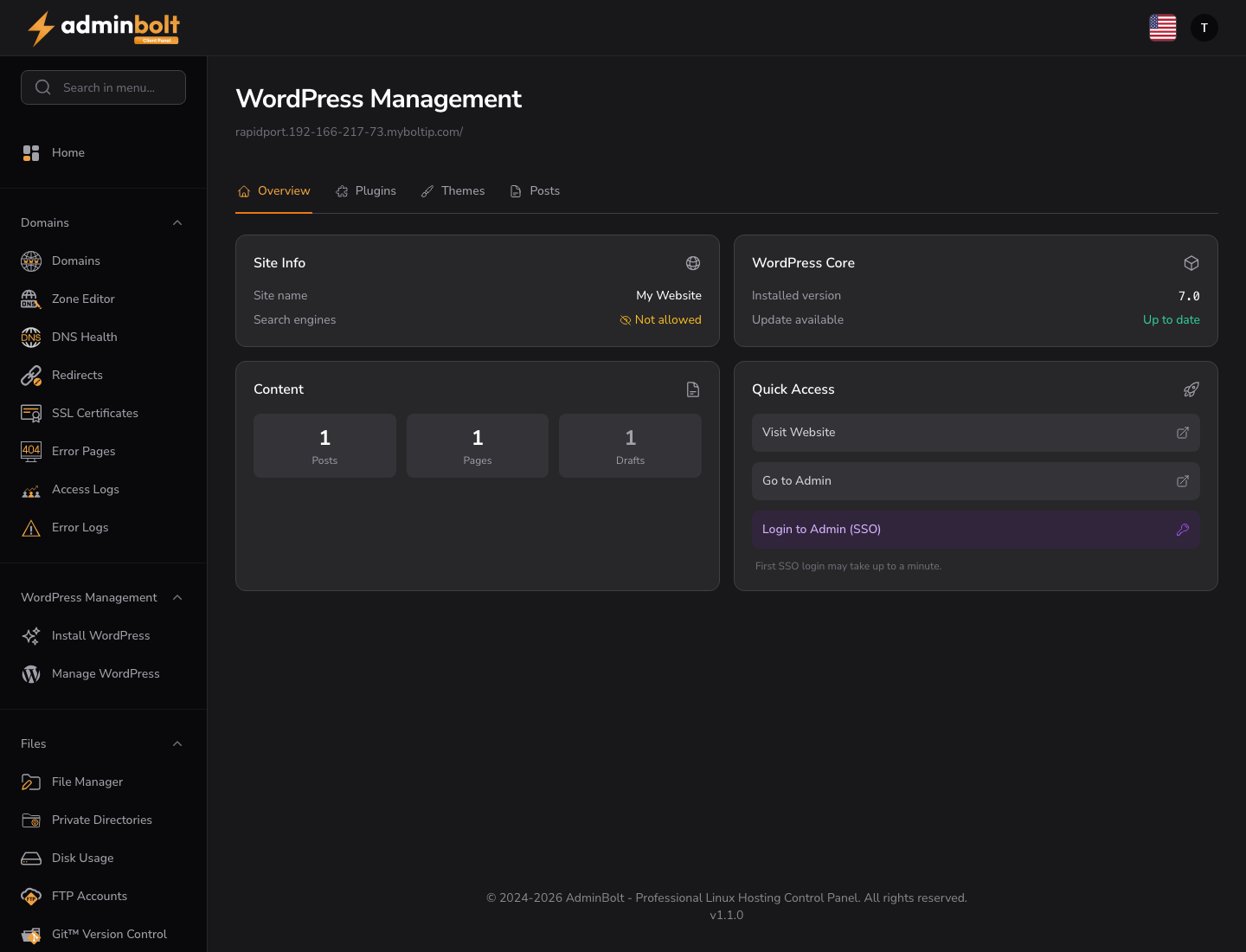
Overview
URL: /client/wordpress-management
The header shows which installation you are managing (its domain and path). The view has four tabs - Overview, Plugins, Themes, Posts - and a Refresh page action.
Overview tab
| Group | Contents |
|---|---|
| Site Info | Site name and whether search engines are allowed to index the site. |
| WordPress Core | Installed version and update status (Up to date or an available update). |
| Content | Counts of Posts, Pages, and Drafts. |
| Quick Access | Visit Website, Go to Admin, and Login to Admin (SSO). See Quick Access. |
Quick Access
- Visit Website opens the site in a new tab.
- Go to Admin and Login to Admin (SSO) both open the WordPress dashboard in a new tab, signed in as an administrator of the site through single sign-on. Since panel 1.9.2 Go to Admin signs in the same way instead of opening the WordPress login page, and both buttons are also offered while an administrator or reseller is viewing your account through impersonation.
The first single sign-on of a site may take up to a minute; the tab opens at once and fills in when the link is ready. While the link is being generated, Login to Admin (SSO) reads Generating login link.... If no sign-in link can be made, the tab opens the site's /wp-admin login page instead, where you sign in with a WordPress administrator account. When the panel can name the cause, a notification titled Open WordPress admin says why single sign-on did not work and what to correct.
Plugins tab
Manage the installation's plugins.
- Install Plugin - install a new plugin (the Install action).
- The table lists each plugin with Name, Status (
Active/Inactive), Version, and Update state. - Per plugin: Activate (or deactivate) and Delete.
Themes tab
Manage the installation's themes.
- Install Theme - install a new theme.
- The table lists Name, Status (
Active/Inactive), Version, and Update state. - Per theme: Activate and Delete. The currently active theme cannot be deleted.
Posts tab
Manage the installation's content.
- New Post - create a Post or Page, as Published or Draft, with Create.
- The table lists Title, Type (
post/page), Status (Published/Draft), and Date. - Per item: Publish or Unpublish, and Delete.