

System Notifications
System Notifications decides which server events reach you, and what the message says. Each event can be switched on or off on its own, and each has a template you can rewrite.
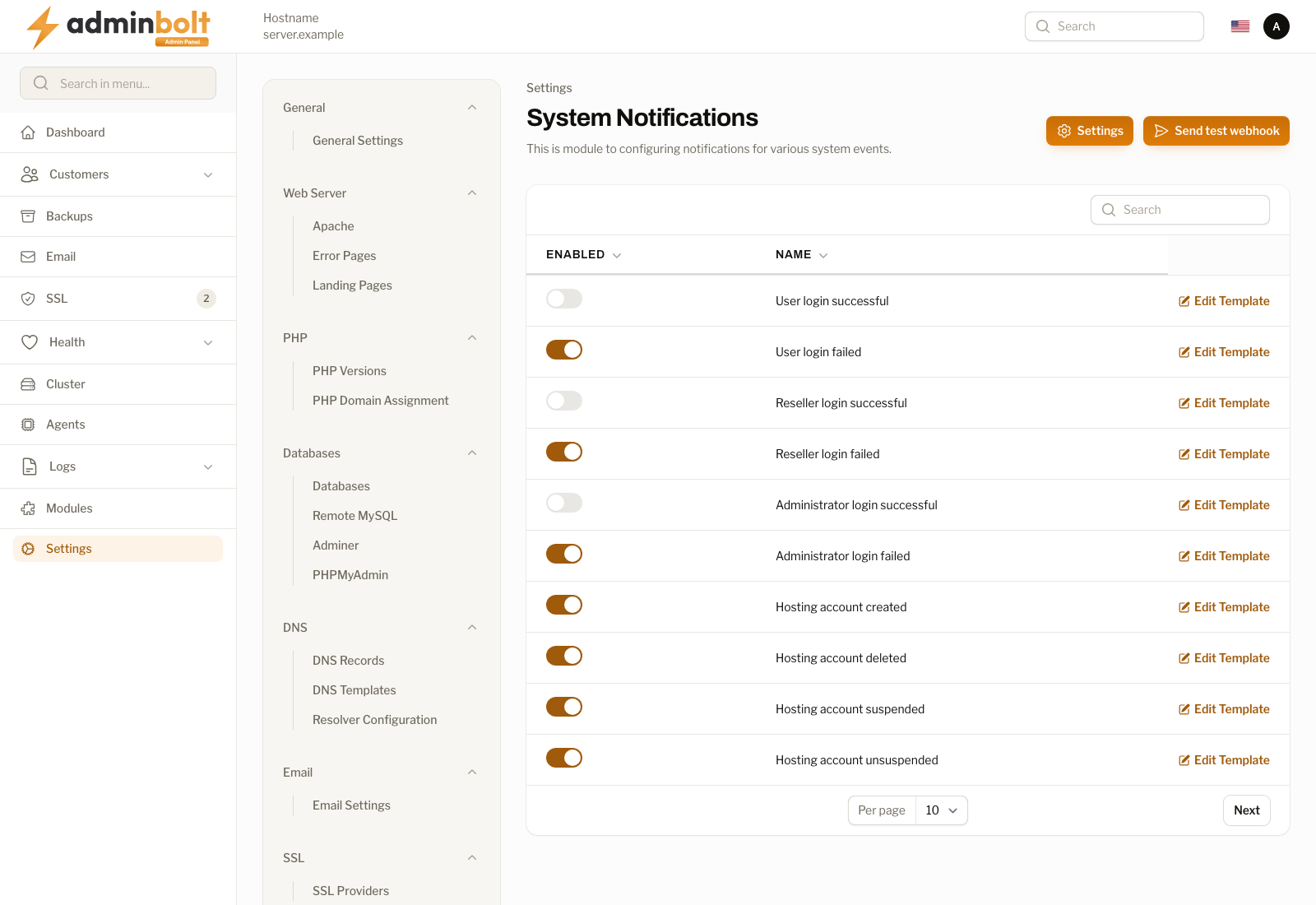
Overview
URL: /admin/settings/system-notifications
Open it from Settings > System > System Notifications in the sidebar.
The page lists 51 events. Two buttons sit above the list:
- Settings - the global delivery settings: where notifications go and over which channels.
- Send test webhook - sends a test message so you can confirm a webhook is wired up correctly before waiting for a real event.
The event list
| Column | Meaning |
|---|---|
| Enabled | A switch that turns notifications for this event on or off. |
| Name | The event. |
| Edit Template | Opens the template editor for this event. |
The search box filters by name, and the page size can be set to 5, 10, 25, 50, or All.
Events
Sign-in
| Event |
|---|
| User login successful |
| User login failed |
| Reseller login successful |
| Reseller login failed |
| Administrator login successful |
| Administrator login failed |
Two-factor authentication and passkeys
The same six events exist for each role, prefixed Administrator:, Reseller:, and User:
| Event |
|---|
| Two-factor challenge failed |
| Two-factor authentication enabled |
| Two-factor authentication disabled |
| Two-factor recovery code used |
| Passkey registered |
| Passkey removed |
Hosting accounts
| Event |
|---|
| Hosting account created |
| Hosting account deleted |
| Hosting account suspended |
| Hosting account unsuspended |
| Reseller resource limit reached |
| Reseller resource limit exceeded (oversold) |
Backups
| Event |
|---|
| Account backup failed |
| Account restore finished |
SSL
| Event |
|---|
| SSL certificate approaching its expiration date |
| SSL certificate has expired |
| Automatic SSL certificate renewal failed |
Mail
| Event |
|---|
| Outbound IPv6 mail deliverability degraded |
| Outbound IPv6 mail deliverability recovered |
| Outbound mail rejected by a sending rate limit |
| Mailbox sending suspended automatically after exceeding its limit |
| Mailbox sending restored automatically after dropping back under its limit |
| SpamExperts cluster state diverged from the panel and was repaired |
| SpamExperts filtering could not be enabled after repeated retries |
Multi-server
| Event |
|---|
| Fleet node went offline |
| Fleet node recovered |
| Fleet node role services degraded |
| Fleet node role services recovered |
| Fleet node installation or pairing failed |
| Account migration between nodes completed |
| Account migration between nodes failed |
| DNS zone claimed by more than one node |
Services
| Event |
|---|
| System service failed |
Settings
Settings opens the delivery configuration:
| Field | Description |
|---|---|
| Send Notifications To (required) | The address notification e-mail is sent to. |
| Email From Name | The sender name those messages carry. |
| Slack Webhook URL | Where Slack notifications are posted. Leave empty to send none. |
| Discord Webhook URL | Where Discord notifications are posted. Leave empty to send none. |
| Webhook minimum severity | The lowest severity that reaches the webhooks, so a chat channel can carry the serious events only while e-mail carries everything. |
Save applies the settings; Cancel closes without saving. Use Send test webhook afterwards to confirm the webhook works.
Templates
Edit Template on a row opens an editor with two fields:
| Field | Description |
|---|---|
| Template Title | The notification title, pre-filled with the event name. |
| HTML Template for email notifications | The message body, in a rich-text editor supporting bold, italic, underline, strikethrough, headings, links, and code blocks. |
Each event exposes its own variables, written in double curly braces. Sign-in events, for example, offer:
{{username}}- the account the attempt was for{{ip_address}}- where the attempt came from
Save changes applies the template; Cancel discards the edit.