

Vsftpd Logs
Where this lives now: this screen is part of Logs on the vsftpd tab. Its address is
/admin/logs?area=system&tab=vsftpd, and the old one redirects there.
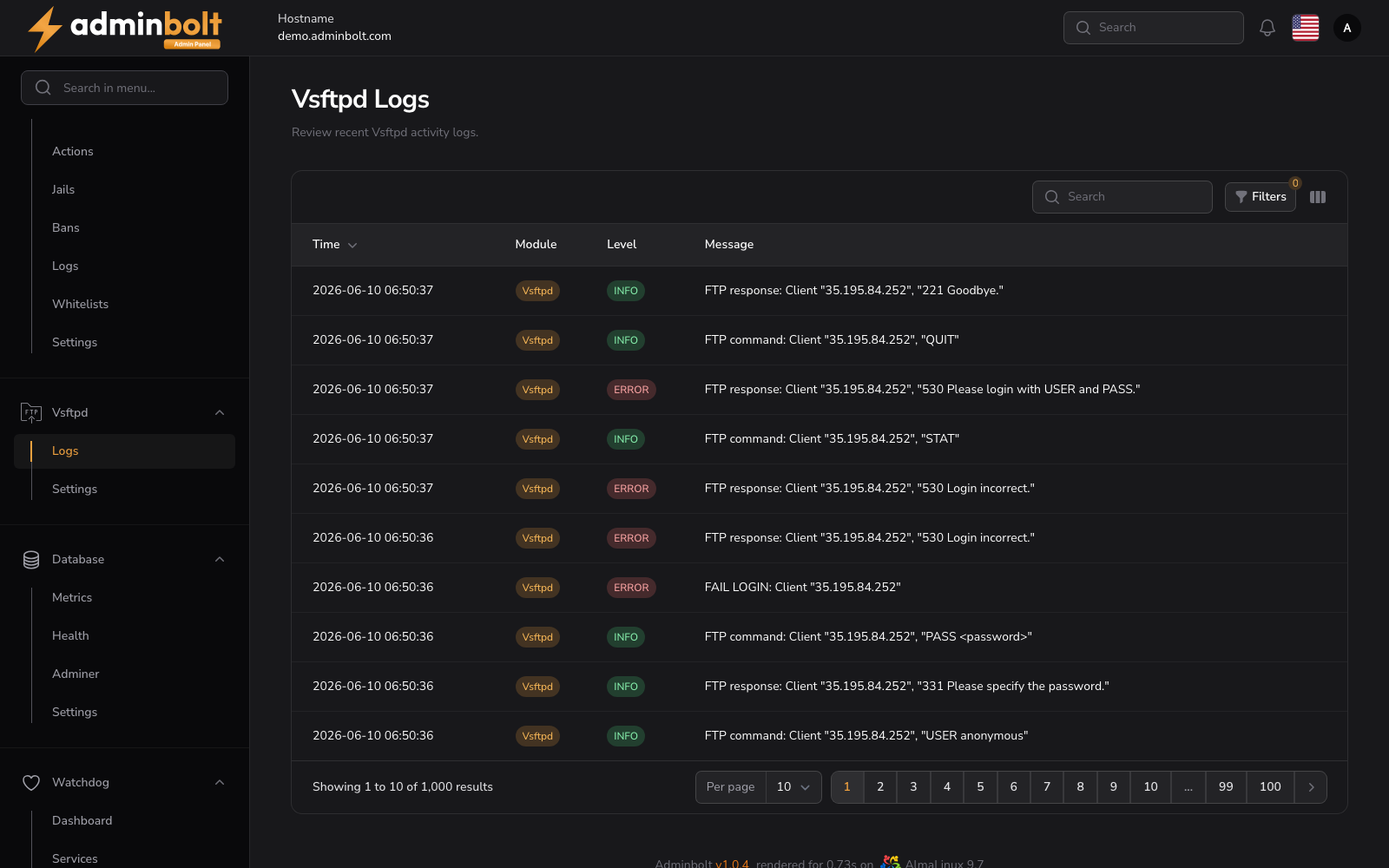
The Vsftpd Logs page displays log output for the Vsftpd FTP server, showing connections, authentication attempts, and file transfer activity.
Overview
URL: /admin/logs?area=system&tab=vsftpd
The page header reads: "Review recent Vsftpd activity logs."
This page displays a searchable, filterable, and paginated table of Vsftpd log entries.
Log Table
Columns
- Time - The timestamp of the log entry. Sortable.
- Module - The module that generated the entry, displayed as a badge (e.g., Vsftpd).
- Level - The log level, displayed as a color-coded badge (e.g., INFO).
- Message - The log message content, including connection details, FTP commands, and responses.
Search
The search bar filters log entries by message content.
Filters
Click the Filters button to open the filter panel with the following controls:
- Level - Filter by severity level (All, EMERGENCY, ALERT, CRITICAL, ERROR, WARNING, NOTICE, INFO, DEBUG).
- From - Start date for the log range.
- Until - End date for the log range.
- Module - Filter by the module that generated the entry.
- User - Filter by the FTP user.
- Client IP - Filter by the client IP address.
- Action - Filter by the logged FTP action.
- Response Code - Filter by the FTP response code.
A Reset button clears all active filters.
Toggle Columns
Click the Toggle columns button to show or hide table columns.
Pagination
Results per page can be set to: 5, 10, 25, 50, or All.