

Services
Where this lives now: this screen is part of Health. Its address is
/admin/health, and the old one redirects there.
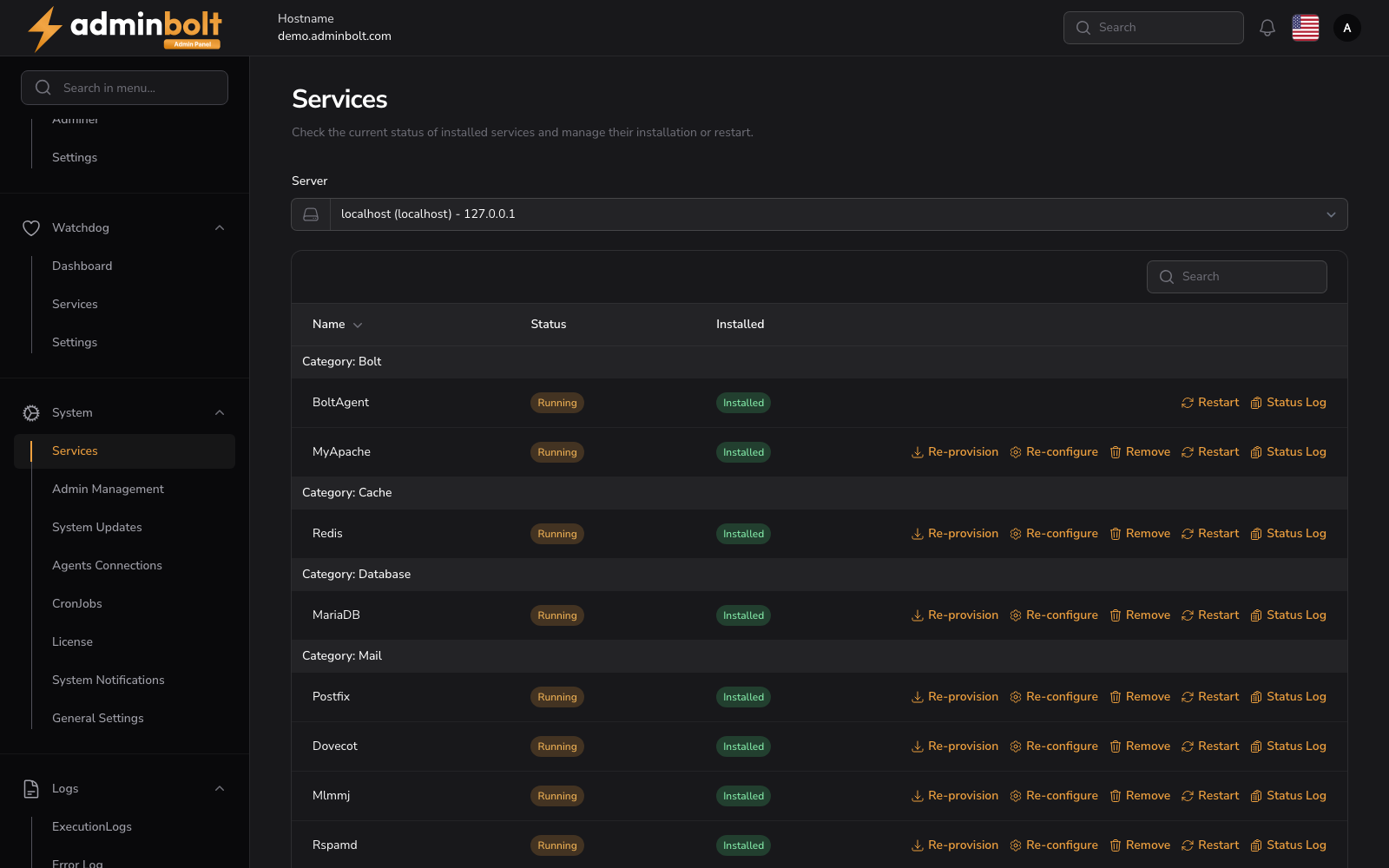
The Services page allows administrators to check the current status of installed services and manage their installation or restart.
Overview
Former address: /admin/services (this page describes an earlier version of this screen)
The page header reads: "Check the current status of installed services and manage their installation or restart."
Server Selector
A Server dropdown at the top allows selecting which server to manage (e.g., "localhost (localhost) - 127.0.0.1").
Search
A search field filters the services list by name.
Services Table
Columns
- Name - The service name. Sortable.
- Status - Current status, displayed as a badge (e.g., "Running", "Not running").
- Installed - Installation status, displayed as a badge (e.g., "Installed", "Not installed").
- Actions - Available management actions (vary by service).
Actions
For installed services, the following actions are available:
- Re-provision - Re-provision the service.
- Re-configure - Re-configure the service. Since panel 1.9.2, re-configuring SSH keeps its port, root login, and allowed addresses. A failure names the service and the next step.
- Remove - Remove the service.
- Restart - Restart the service.
- Status Log - View the service status log.
For services that are not installed, only the Install action is available.
BoltAgent has limited actions: only Restart and Status Log.
Service Categories
Services are grouped by category:
- Bolt - BoltAgent, MyApache.
- Cache - Redis.
- Database - MariaDB.
- Mail - Postfix, Dovecot, Mlmmj (mailing-list manager), Rspamd.
- Network - Fail2Ban, Vsftpd, Nftables, PowerDNS.
- Security - Symlock (symlink-attack protection). Provisioned and health-monitored through Bolt Agent.
- SSH - SecureBox (SSH access hardening).
- System - SSHD. Provisioned and configured via Bolt Agent through
bolt:manage-sshd.