

Agent Connection
The Agent Connection page allows administrators to manage and monitor connections to two services:
- Bolt Agent - handles system-level operations on the server (default tab).
- AI Agent - registers this panel with an external AI Agent Hub that handles WhatsApp and web chat for your hosting users.
Overview
- URL:
/admin/agents- Bolt Agent tab (default) - URL:
/admin/agents?tab=ai- AI Agent tab
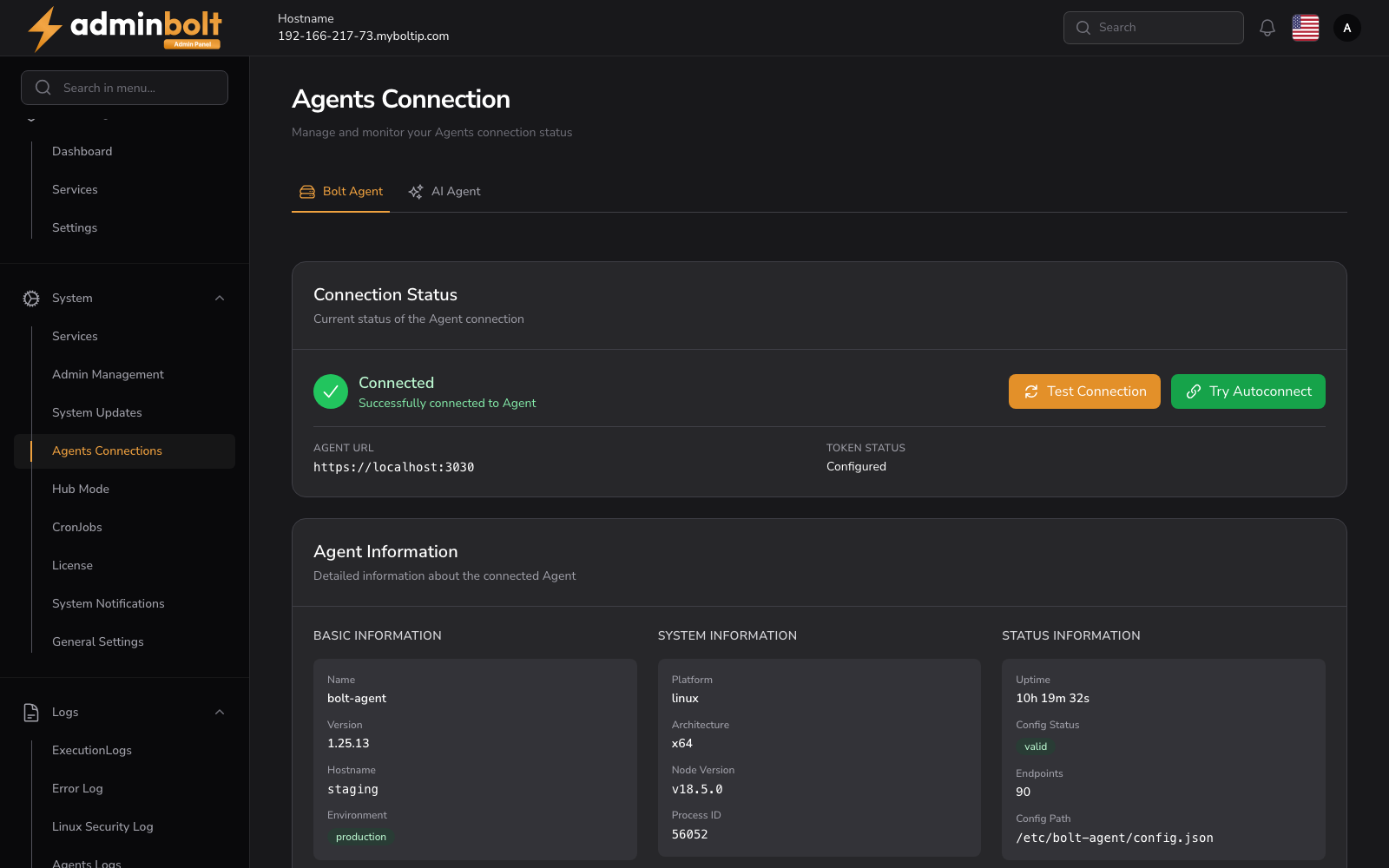
The Bolt Agent tab is divided into three sections: Connection Status, Agent Information, and Connection Settings (described below). The AI Agent tab is described in AI Agent Hub at the bottom of this page.
Connection Status
Displays the current status of the Agent connection. When the agent is connected, a green indicator and the message "Connected - Successfully connected to Agent" are shown.
Two action buttons are available:
- Test Connection - Verifies the connection to the agent is working.
- Try Autoconnect - Attempts to automatically configure and establish a connection.
Below the status indicator, the following details are displayed:
- Agent URL - The URL where the agent service is running (e.g.,
https://localhost:3030). - Token Status - Whether the security token is configured.
Agent Information
Detailed information about the connected agent, organized into three columns:
Basic Information
- Name - The agent service name (e.g.,
bolt-agent) - Version - The agent version number
- Hostname - The server hostname
- Environment - The runtime environment (e.g.,
production)
System Information
- Platform - The operating system (e.g.,
linux) - Architecture - The CPU architecture (e.g.,
x64) - Node Version - The Node.js version running the agent
- Process ID - The current process ID
Status Information
- Uptime - How long the agent has been running
- Config Status - Whether the agent configuration is valid
- Endpoints - Number of registered API endpoints
- Config Path - Path to the agent configuration file
Memory Usage
Displays memory consumption metrics for the agent process: RSS, Heap Total, Heap Used, External, and Array Buffers (all in MB).
Timestamps
- Agent Started - When the agent process was last started
- Last Config Reload - When the configuration was last reloaded
Connection Settings
Configure the Agent connection URL and security token.
- Agent URL (required) - The URL of the agent service. Default is
https://localhost:3030. For remote connections, use the formatIP:PORTorhttp://IP:PORT. - Security Token (required) - The authentication token for the agent. This field is masked by default.
Click Save Settings to apply changes.
Connection Information
An info box at the bottom of the page provides connection tips:
- Default URL is
localhost:3030for local connections - For remote connections, use the format
IP:PORTorhttp://IP:PORT - The security token is required for authentication
- Click "Test Connection" to verify your settings
- Settings are automatically saved and used by all Agent operations
AI Agent Hub tab
Available at /admin/agents?tab=ai. Registers this AdminBolt panel with an external AI Agent Hub server that handles WhatsApp pairing, embedded web chat, and SSO for your hosting users. The client-side experience (dashboard chat box and WhatsApp pairing form) is described in Client Dashboard.
Hub Connection Status
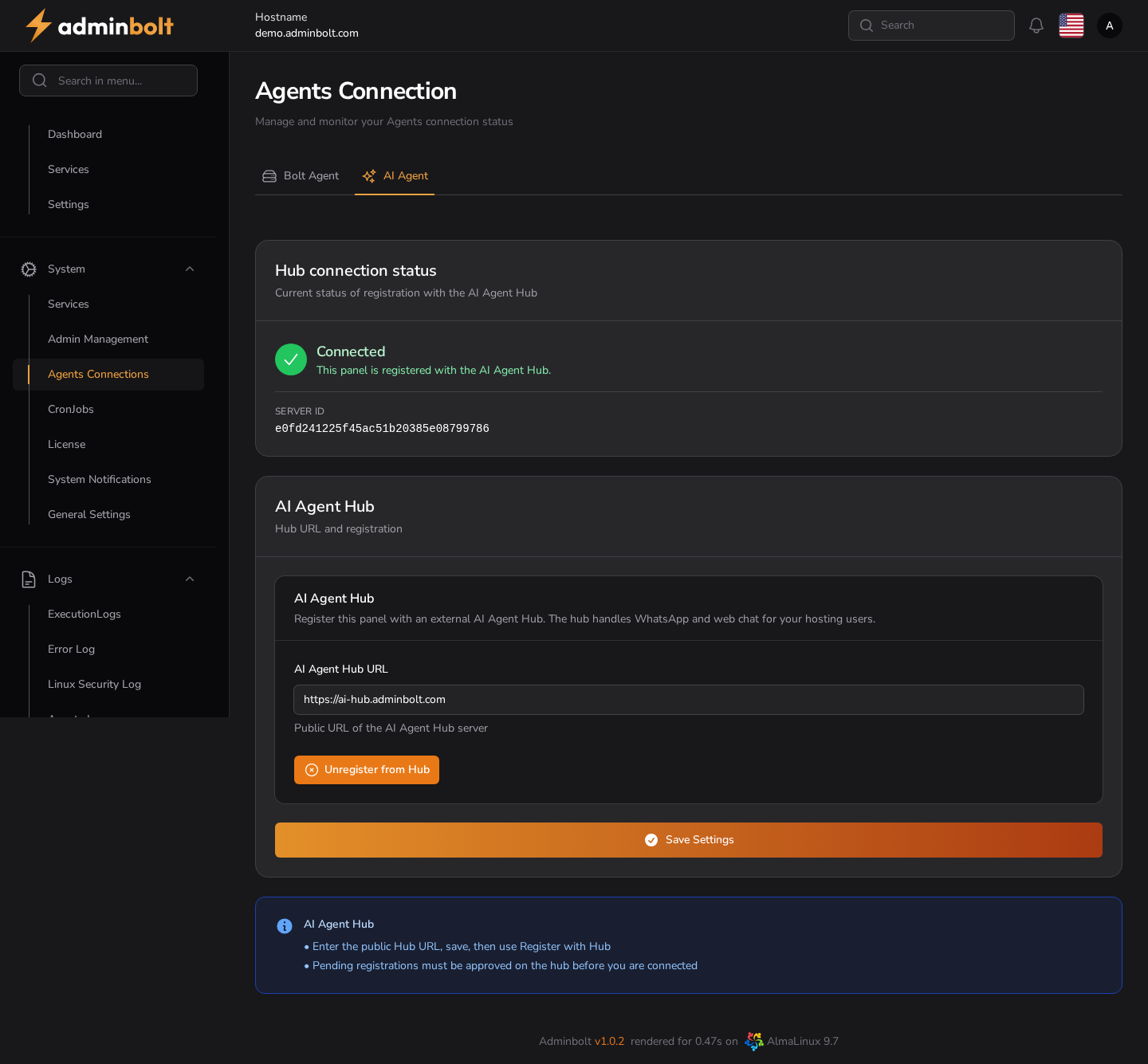
Displays whether the panel is currently registered with the AI Agent Hub.
- Status badge -
Connected(green) orDisconnected. - SERVER ID - unique identifier assigned by the hub on successful registration (e.g.
e0fd241225f45ac51b20385e08799786).
AI Agent Hub settings
- AI Agent Hub URL (required) - public URL of the AI Agent Hub server you want to register with.
- Save Settings - persists the URL without registering.
- Unregister from Hub (visible when connected) - removes the panel from the hub. Re-register by saving and