

Security (Admin Account)
The Security page is where you change your own administrator password and add a second step to your login: an authenticator app, a passkey, or both.
Two-factor authentication was added in AdminBolt 1.7.0 and is available to administrators, resellers and clients alike.
Overview
URL: /admin/security-settings
Open it from the user menu in the top right corner of the panel, under Security. The page has three sections: Change Password, Two-factor authentication (TOTP) and Passkeys.
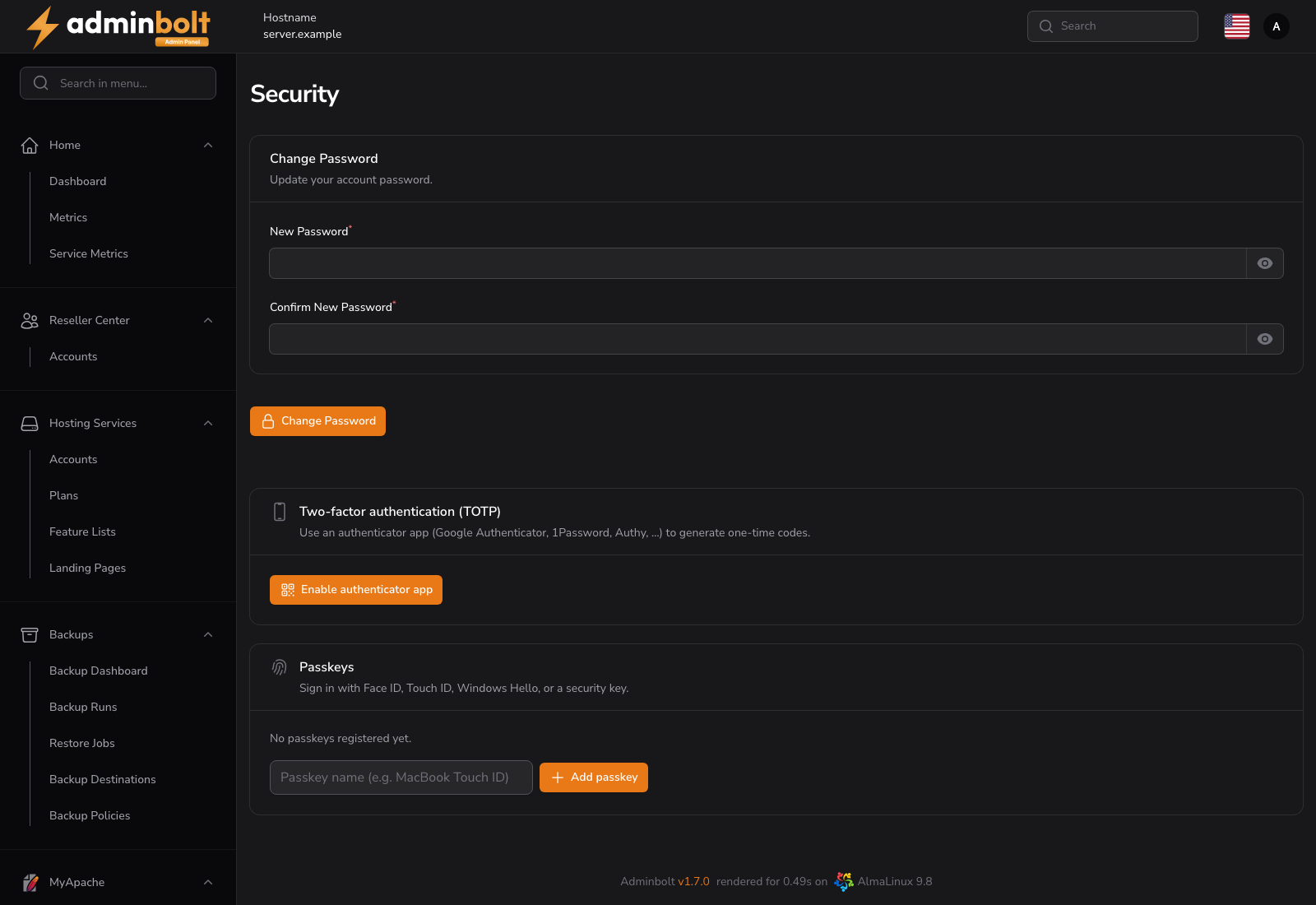
Change Password
Enter a New Password, confirm it, and save. The password is changed on the panel account.
Two-factor authentication (TOTP)
A second factor means a stolen password is not enough to sign in. AdminBolt uses standard time-based one-time codes, so any authenticator app works: Google Authenticator, 1Password, Authy, and others.
Two-factor authentication is opt-in per account. Nobody is forced into it, and turning it on for your own account does not turn it on for anyone else.
Turning it on
- Click Enable authenticator app.
- Scan the QR code with your authenticator app. If the device cannot scan, use Or enter this secret manually and type the secret in.
- Enter the six-digit code the app shows and confirm with Confirm & enable.
- Save the recovery codes that appear, then tick I have saved my recovery codes.
Once enabled, the section reads Authenticator app is enabled, and every future sign-in asks for a code after the password.
Recovery codes
Recovery codes are the way back in when you lose the device with the authenticator. Each code works once. They are shown when you enable the second factor and again when you regenerate them, and never afterwards, so store them somewhere you can reach without the panel.
Regenerate recovery codes issues a fresh set and invalidates the old one.
Turning it off
Disable authenticator app removes the second factor from your account.
Note: Disabling the second factor and regenerating recovery codes ask for a current code first, and so does removing a passkey while an authenticator app is enabled. Someone who takes over an open session cannot quietly strip the protection off the account. On an account that has passkeys but no authenticator app there is no code to ask for, so removing a passkey rests on the signed-in session alone.
Passkeys
A passkey signs you in with Face ID, Touch ID, Windows Hello or a hardware security key, instead of typing a code.
- Add passkey registers the device you are using. Give it a name you will recognize later, for example
MacBook Touch ID. - Registered passkeys are listed with their name and when they were last used, or Never used.
- Remove deletes a passkey. Removing a lost device's passkey is what you do when the device itself is gone.
Passkeys are bound to the panel's own address, and a browser that does not support them says so instead of offering the button.
You can register several passkeys, for example a laptop and a phone, and use them alongside an authenticator app.
Signing in with a second factor
With a second factor on the account, signing in has two steps: the password first, then the challenge page. The challenge accepts an authenticator code, a recovery code, or a passkey. A session is only created once that second step succeeds.
A failed second-factor attempt is treated like a failed login, so the panel's login protection reacts to someone grinding codes, and a challenge left open expires on its own.
Recovering a locked-out account
There is deliberately no button that lets one administrator reset another administrator's second factor, and none that resets your own.
- Locked-out administrator: generate a login link from the server's root shell with
bolt-cli admin-sso-generate. A link minted at the root terminal signs you in without the challenge, because whoever holds the root shell already controls the server. Open the Security page afterwards and set the second factor up again. - Locked-out reseller or client: an administrator clears it for them with the Reset 2FA action on the Reseller Accounts or Hosting Accounts page. The action is recorded in the Activity Log, and when the administrator doing it has a second factor of their own, the panel asks for a fresh code from it first.
Single sign-on links and the second factor
Only login links minted at the root terminal skip the challenge. A link generated over the REST API leads to the challenge page like a password login does, so an API key cannot be used to walk around the second factor.
Administrator impersonation of a client is unaffected: an administrator who is already signed in acts on the customer's behalf and is not asked for the customer's code.
Related pages
- Admin Management - the panel's administrator accounts and their sessions.
- Hosting Accounts - where a client's second factor is reset.
- Reseller Accounts - where a reseller's second factor is reset.
- Activity Log - the record of second-factor changes and resets.
- Client Password & Security - the account owner's version of this page.
- Reseller Security - the reseller's version.