

DNS Records
The DNS Records page allows administrators to manage DNS zone entries for hosted domains with full control and flexibility.
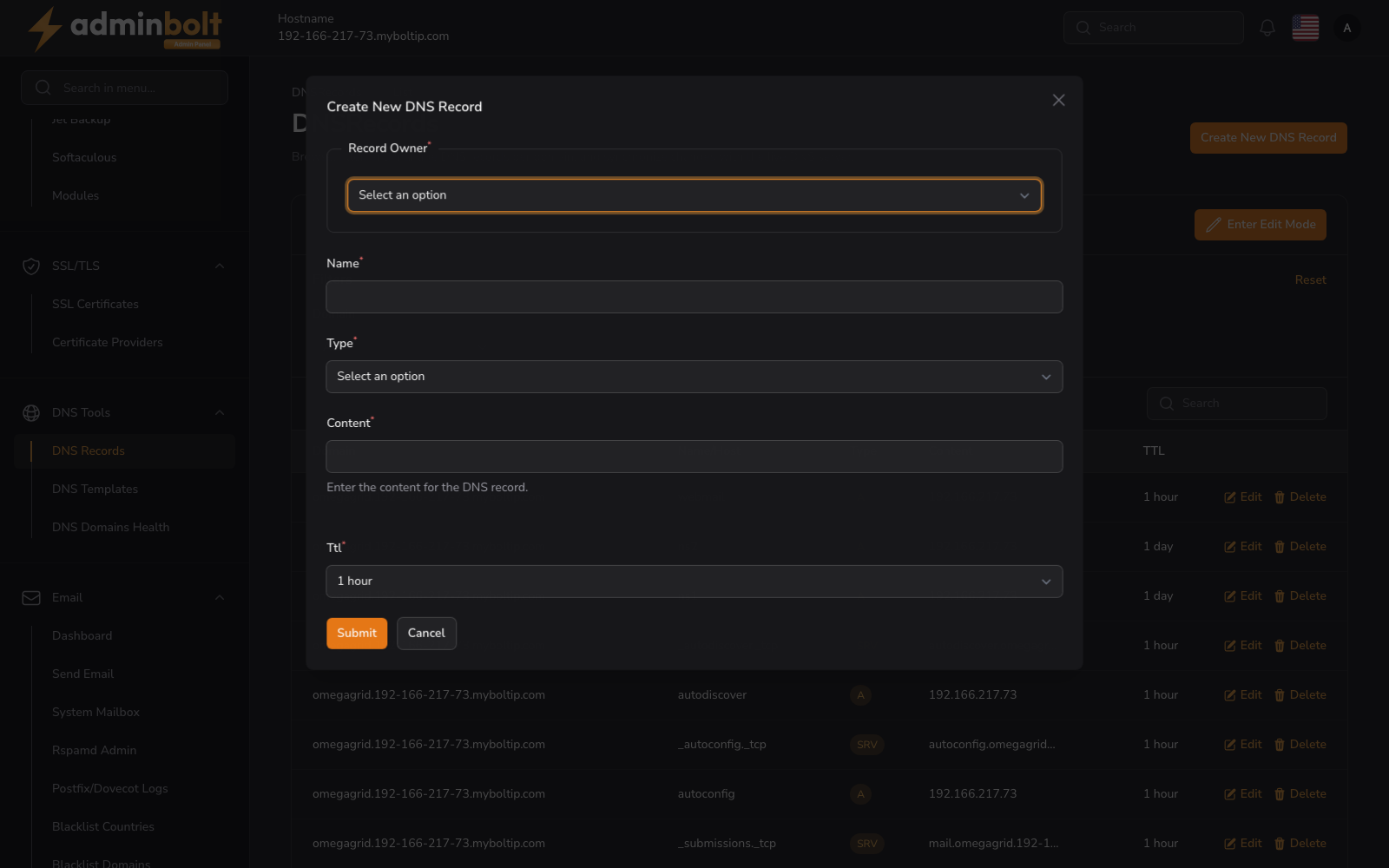
Overview
URL: /admin/dns-records
Internationalised domains
Unlike the client-panel screens, this admin table shows domain and record names exactly as they are stored, which for an internationalised domain is its Punycode (xn--) form. Search matches that stored form, so search for xn--e1afmkfd.example rather than пример.example. Values you enter are still converted for you: record names, and the content of records that hold a hostname, are saved in Punycode. See Internationalised domain names.
This interface provides:
- A domain selector to choose the DNS zone
- A searchable and paginated table of existing DNS records
- Options to create, edit, and manage records inline
- The ability to resynchronize DNS data with the server
Domain Filter
Use the Domain dropdown menu to filter records by specific domain name.
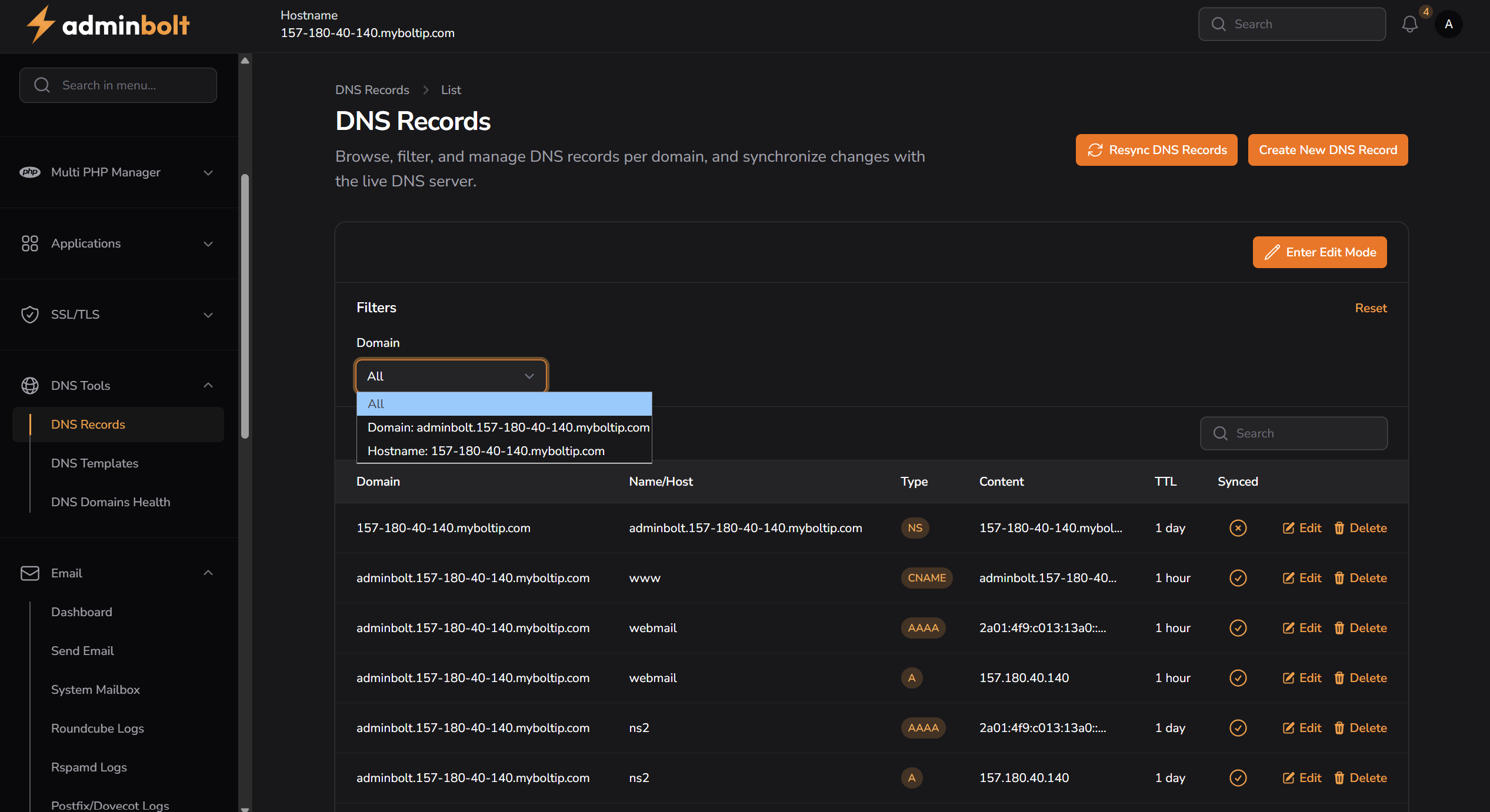
Click Reset to clear the filter.
Record Table Columns
Each record in the table displays:
- Domain - The full domain name
- Name/Host - The subdomain or host (e.g.
www,mail) - Type - DNS record type (e.g. A, AAAA, MX, NS, etc.)
- Content - The value assigned to the record
- TTL - Time to Live, e.g.
1 hour,1 day - Actions - Inline Edit and Delete options
Adding a New DNS Record
Click the "Create New DNS Record" button to open the record creation form.
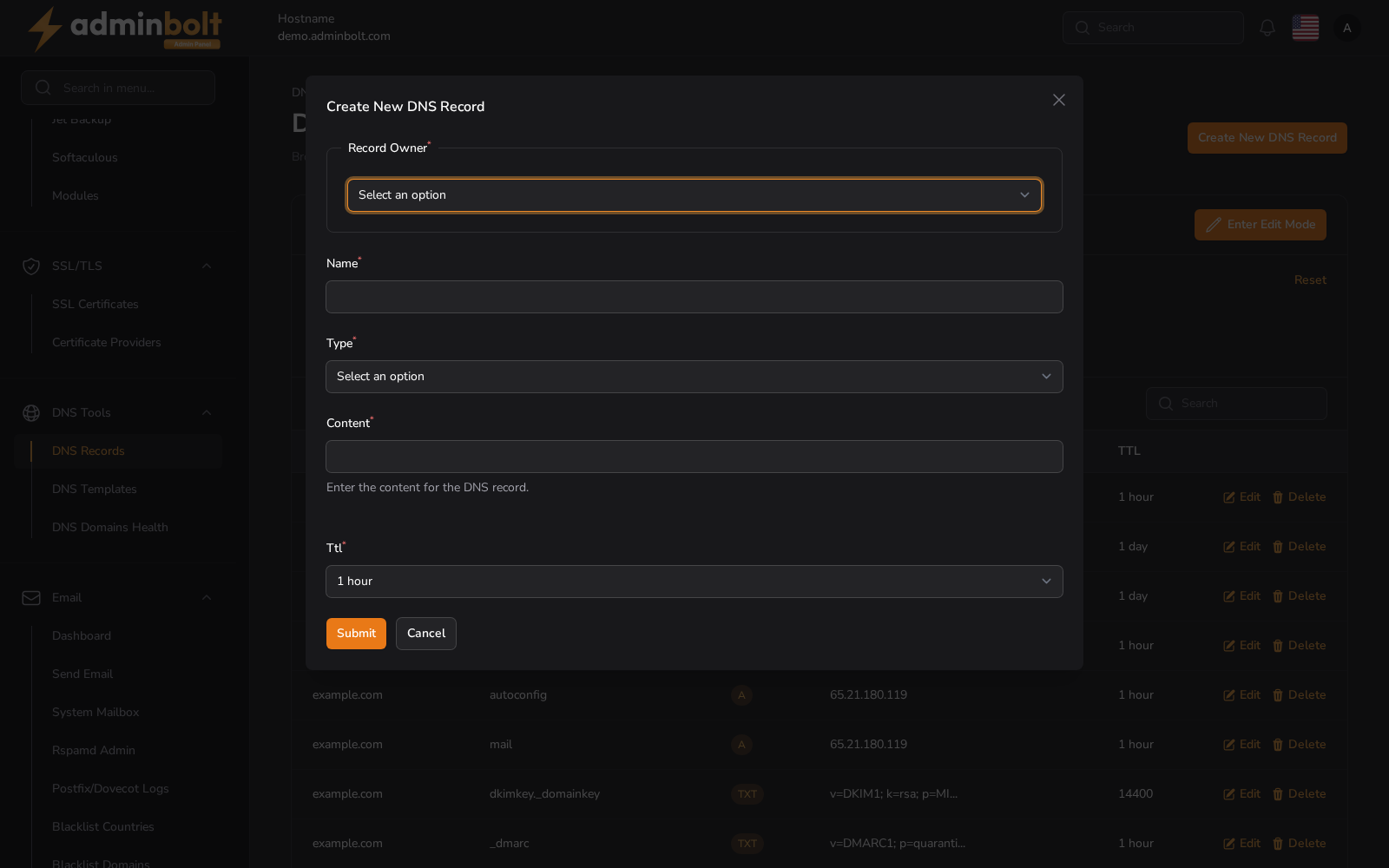
Fields:
1. Record Owner
The fully qualified domain name or subdomain the record applies to.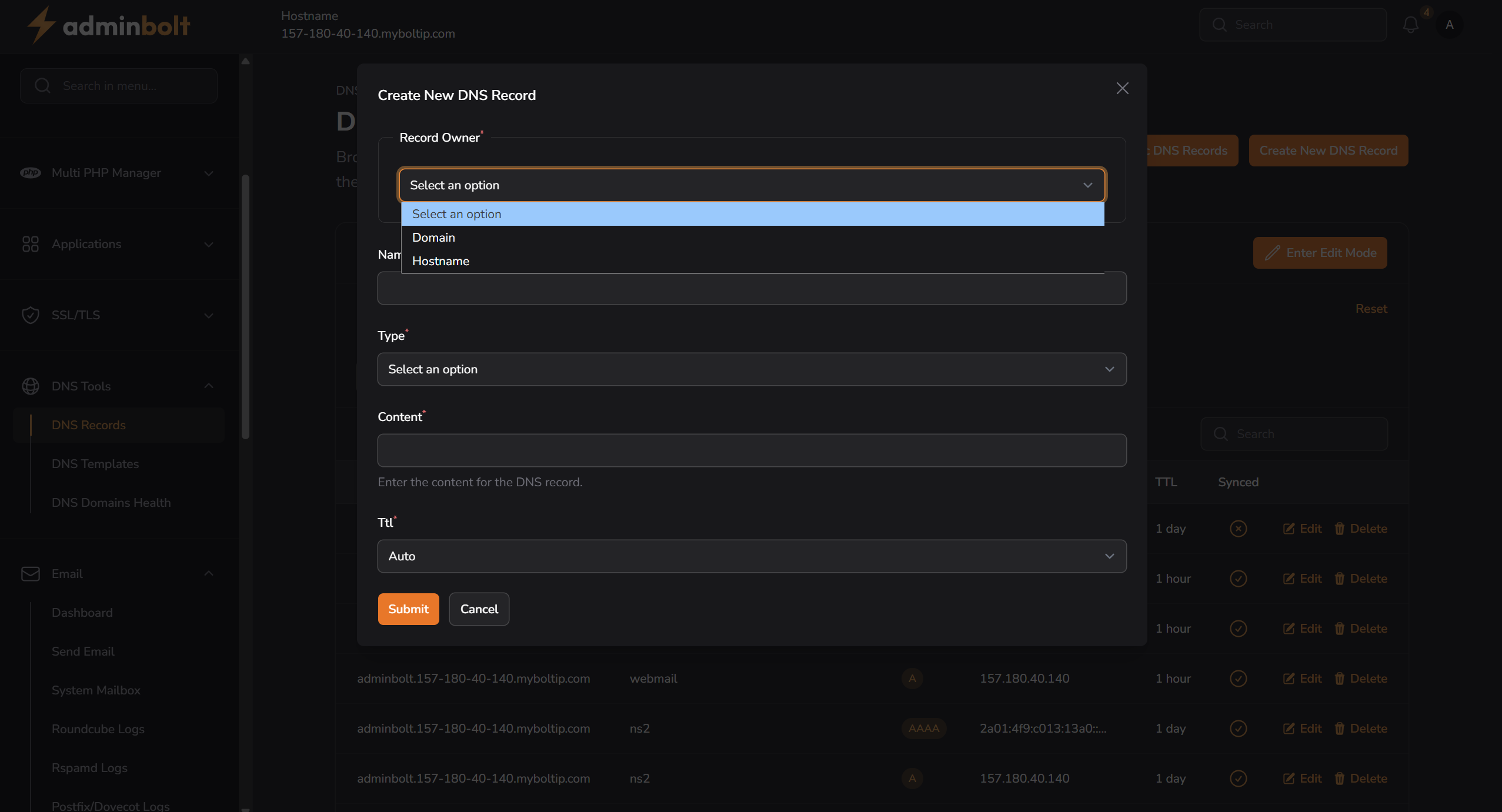
2. Name
The hostname part of the record (e.g. www, mail, @). This value is optional depending on the record type.
3. Type
Select the record type: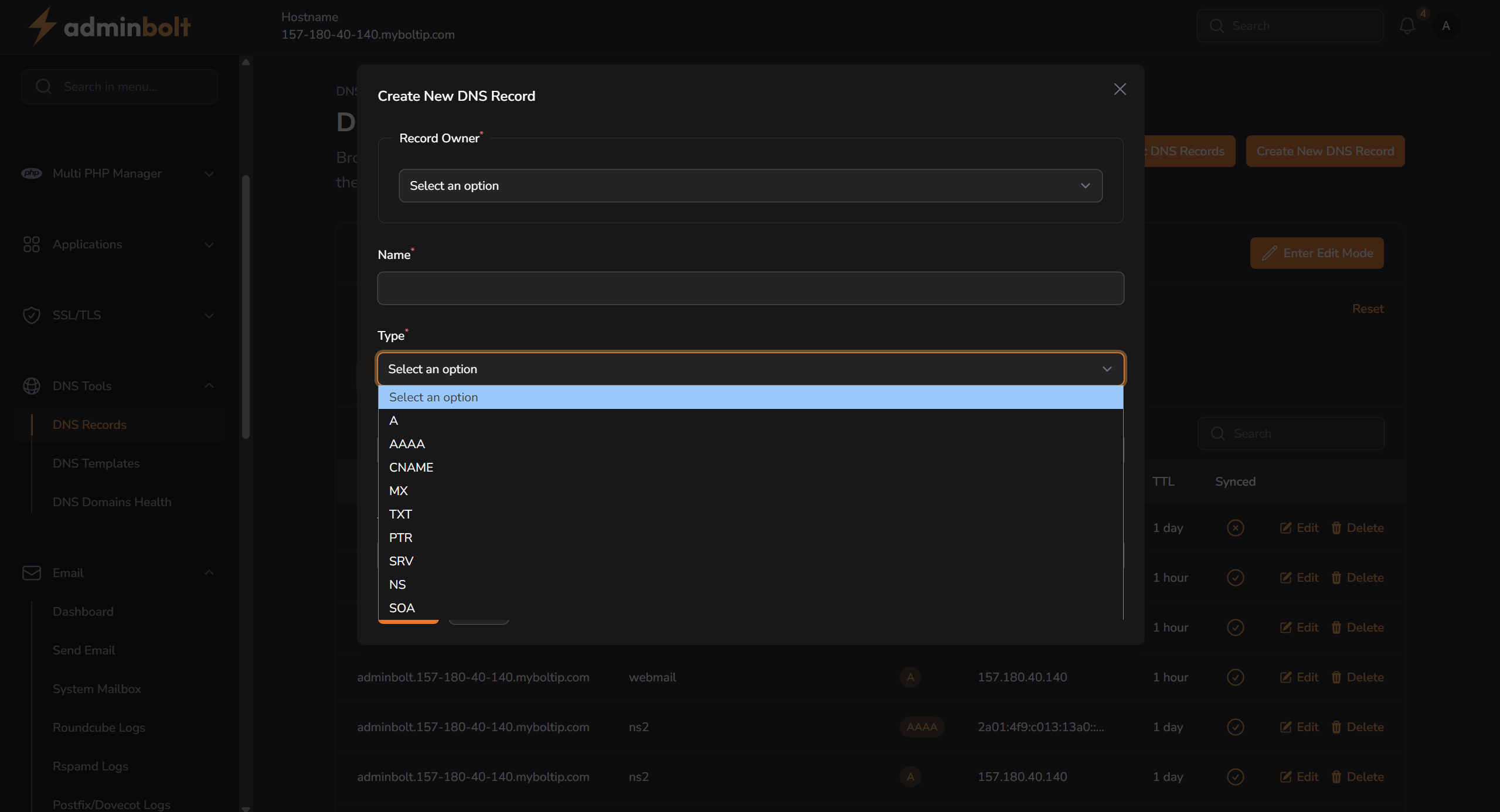
Supported types:
- A
- AAAA
- CNAME
- MX
- TXT
- PTR
- SRV
- NS
- SOA
4. Content
The value of the record - can be an IP address, domain, or string depending on type.
5. TTL
Choose how long the record should be cached by DNS resolvers.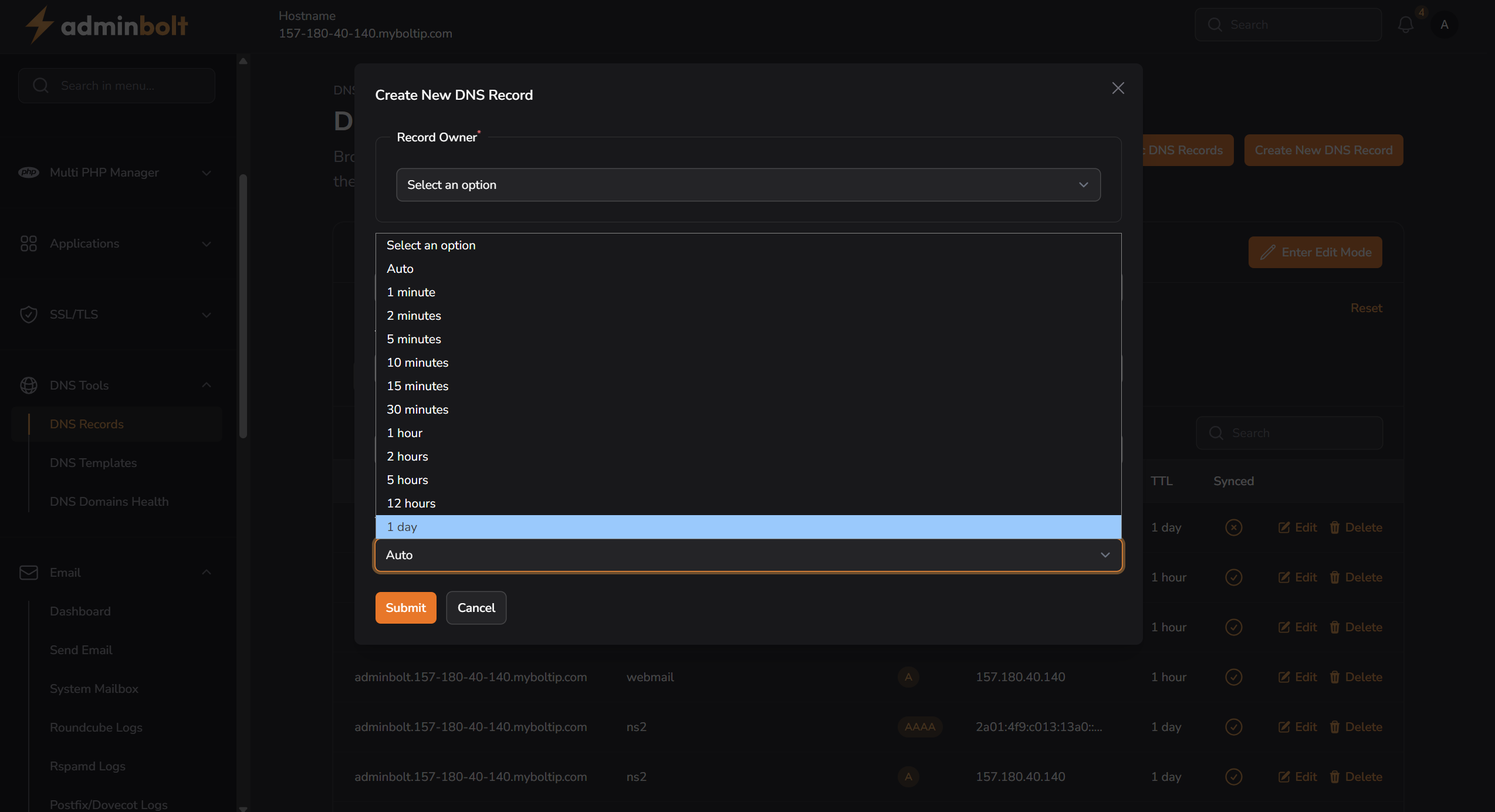
Editing DNS Records
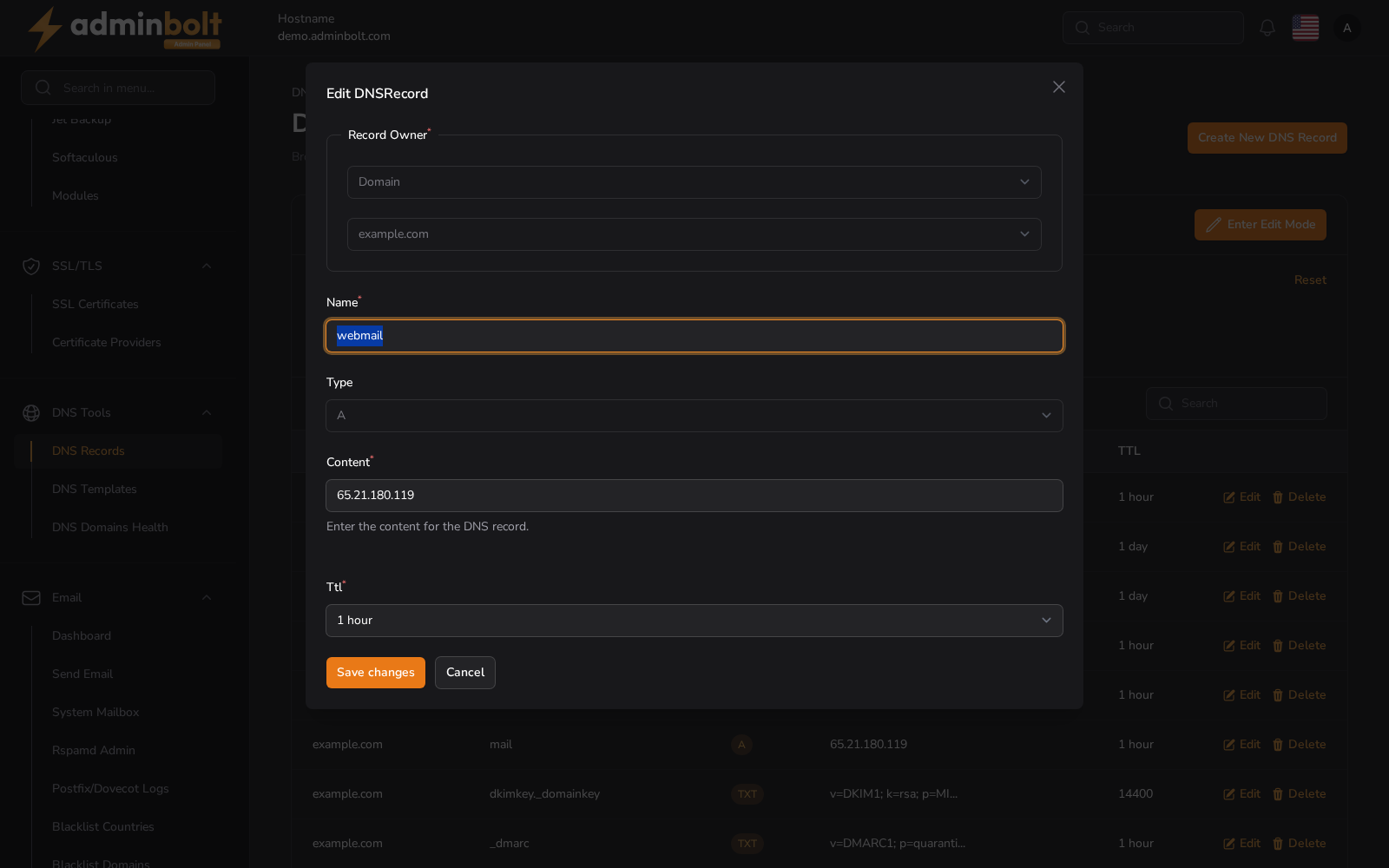
You can click "Enter Edit Mode" at the top-right or the Edit icon beside any record to modify it inline.
Deleting a Record
Click the Delete icon to remove a record. A confirmation prompt will appear before deletion.
Additional Features
- Search bar for quick filtering by Domain, Name/Host, Type, and Content.
- Paginate through large record sets with
Per pagedropdown