

Databases
URL: /client/databases
Manage your databases and database users from a centralized interface. Create new databases, manage users, and assign privileges in one place.
Databases Section
The Databases section displays all your created databases with essential information.
Create Database
Click the "Create Database" button to add a new database. Enter a name for your database and submit to create it.
Create Database Form
The form includes the following field:
- Database Name (text, required) - Enter the name for your database. Your account name is automatically prefixed (e.g. "demo_")
Click "Create" to add the database or "Cancel" to exit the form.
Database Management
Use the search bar to quickly find databases by name. When databases exist, the table displays:
- Name: The database identifier
- Size: Current storage usage
- Privileged Users: Number of users with access
- Actions: Options to manage or delete the database
The Edit action opens a dialog with the privileged users of the database and a Backups section, where you can create, restore, and delete dumps of the database; see Database Backups.
Empty State
If you have no databases, the interface displays "No Databases" with a prompt to create your first database.
Database Users Section
The Database Users section allows you to create and manage accounts for accessing your databases.
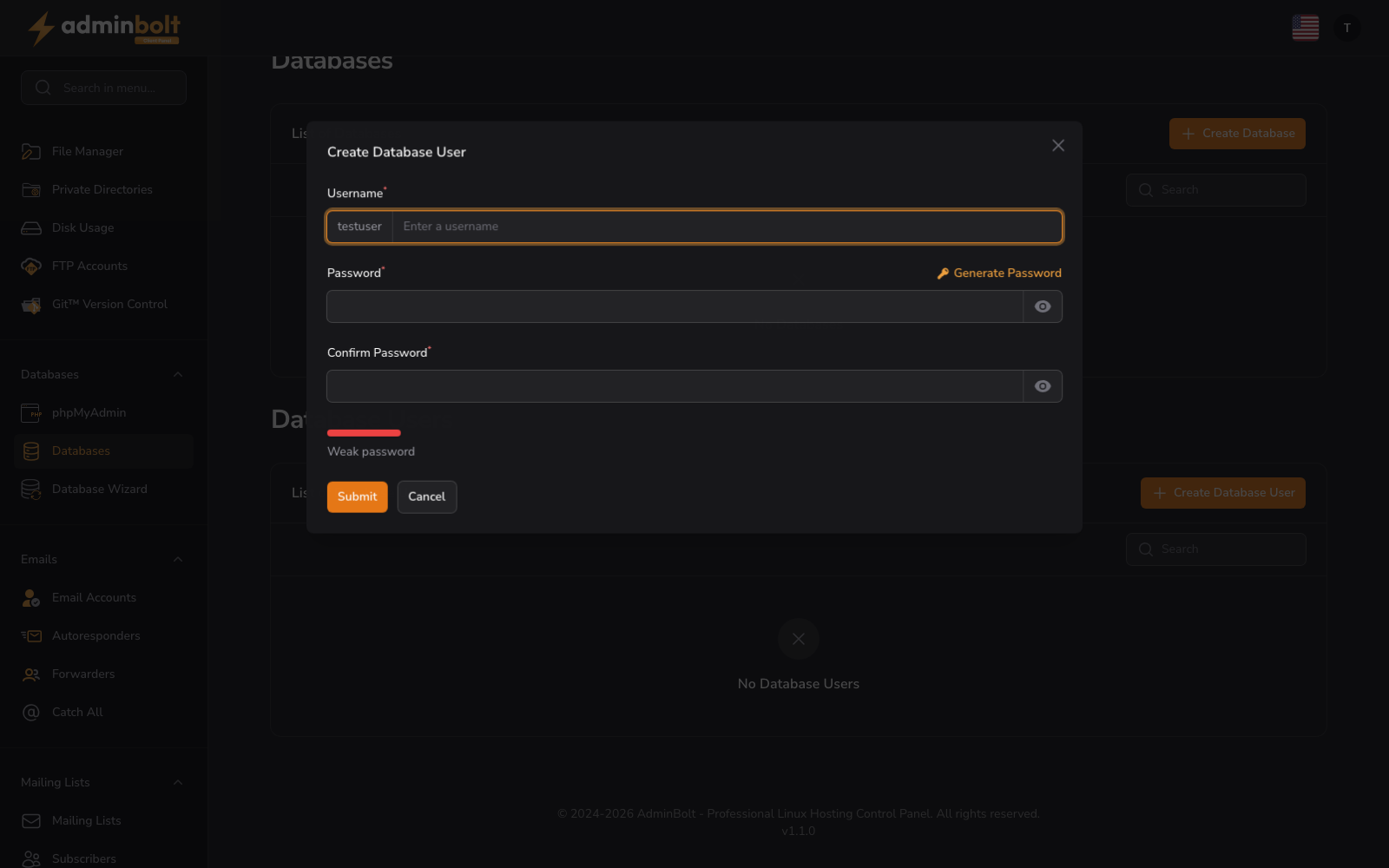
Create Database User
Click the "Create Database User" button to add a new database user account. Specify a username and password for the new user.
Create Database User Form
The form includes the following fields:
- Username (text, required) - Enter the username for the database user. Your account name is automatically prefixed (e.g. "demo_")
- Password (password, required) - Enter a secure password for the database user
- Confirm Password (password, required) - Re-enter your password to confirm
- Password Strength - A visual indicator shows the strength of your chosen password
Click "Create" to add the database user or "Cancel" to exit the form.
User Management
Use the search bar to filter users by username. When users exist, the table displays:
- Username: The user account identifier
- Actions: Options to modify permissions or delete the user
Empty State
If you have no database users, the interface displays "No Database Users" with a prompt to create your first user.
Connecting from outside the server
By default your databases accept connections from this server only. To reach them from a desktop client or an application hosted elsewhere, allow that host on the Remote MySQL page; the database name, user, and password stay the same.
Workflow
To set up database access, first create a database, then create a user, and finally assign the user privileges to that database.