

Security (Reseller Account)
This Security page is where you change your own reseller password and add a second step to your login: an authenticator app, a passkey, or both.
Added in AdminBolt 1.7.0.
Overview
URL: /reseller/security-settings
Open it from the user menu in the top right corner of the panel, under Security.
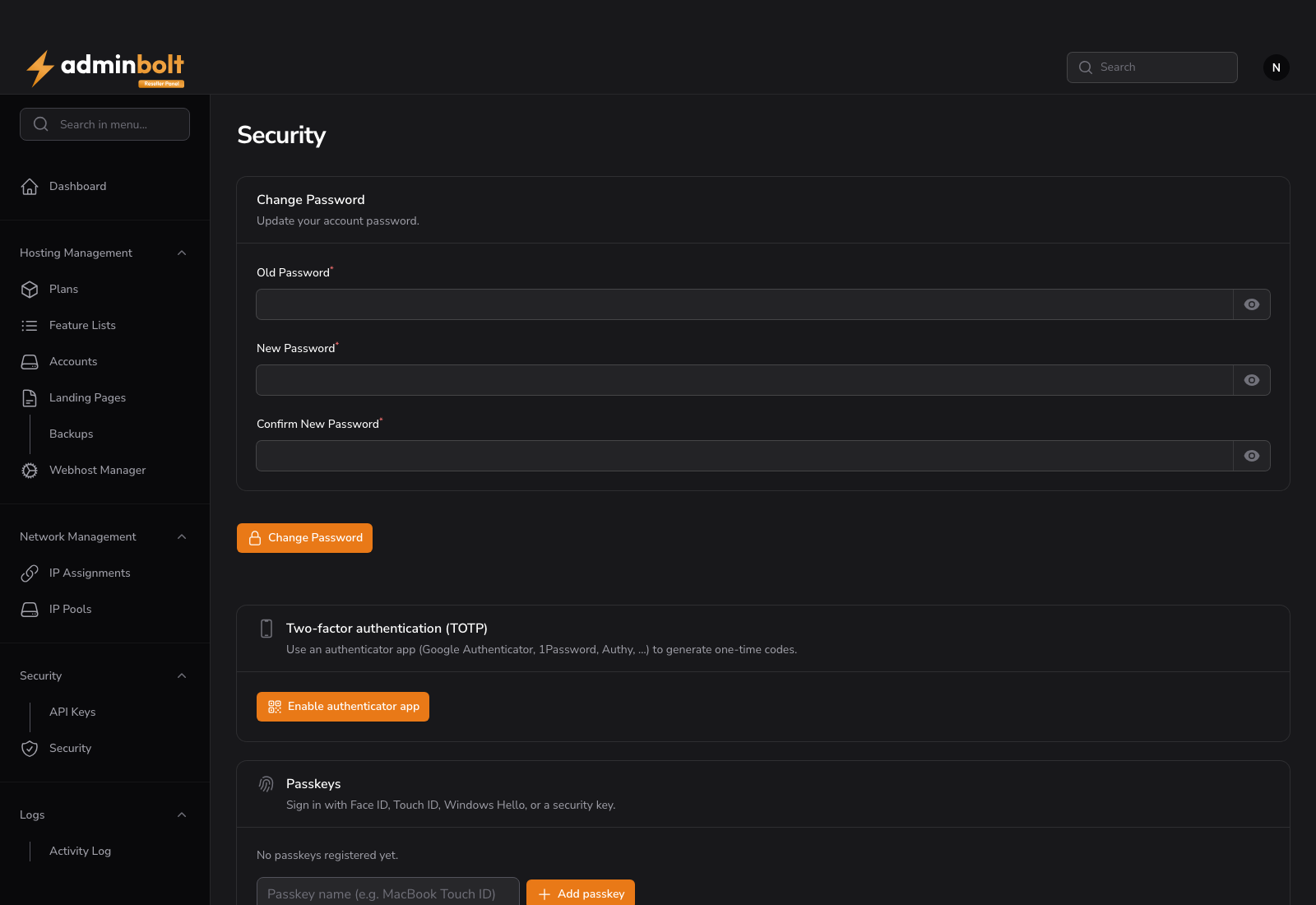
Note: There are two pages named Security in the reseller panel. This one, in the user menu, is about your credentials. The Security page in the sidebar shows your active sessions and your sign-in history. Related, but not the same page.
Change Password
Enter a new password, confirm it, and save.
Two-factor authentication (TOTP)
A second factor means a stolen password is not enough to sign in to your reseller account, and your customers' accounts sit behind it.
Any standard authenticator app works: Google Authenticator, 1Password, Authy, and others.
Turning it on
- Click Enable authenticator app.
- Scan the QR code with your authenticator app, or use Or enter this secret manually.
- Enter the six-digit code and confirm with Confirm & enable.
- Save the recovery codes, then tick I have saved my recovery codes.
Recovery codes
Each recovery code works once and gets you in when the authenticator device is unavailable. They are shown when you enable the second factor and when you regenerate them, never afterwards.
Regenerate recovery codes issues a new set and cancels the old one.
Turning it off
Disable authenticator app removes the second factor.
Note: Disabling the second factor and regenerating recovery codes ask for a current code first, and so does removing a passkey while your authenticator app is enabled, so somebody who finds your session open cannot strip the protection off. With passkeys but no authenticator app there is no code to ask for, and removal relies on the signed-in session.
If you lose access
If you lose both the authenticator and the recovery codes, ask the server administrator. They can clear the second factor from your account so you can set it up again, and the reset is recorded.
Passkeys
A passkey signs you in with Face ID, Touch ID, Windows Hello or a hardware security key instead of a typed code.
- Add passkey registers the device you are using; give it a name you will recognize.
- Passkeys are listed with their name and when they were last used, or Never used.
- Remove deletes one. Remove a lost device's passkey immediately.
You can register several passkeys and use them alongside an authenticator app.
Your customers
Your customers set up their own second factor on their Password & Security page. You cannot enable it for them, and enabling it on your own account does not change anything for them.
Related pages
- Reseller Security - active sessions and sign-in history.
- Client Password & Security - what your customers use.
- Activity Log - the record of changes on your accounts.