

Backups
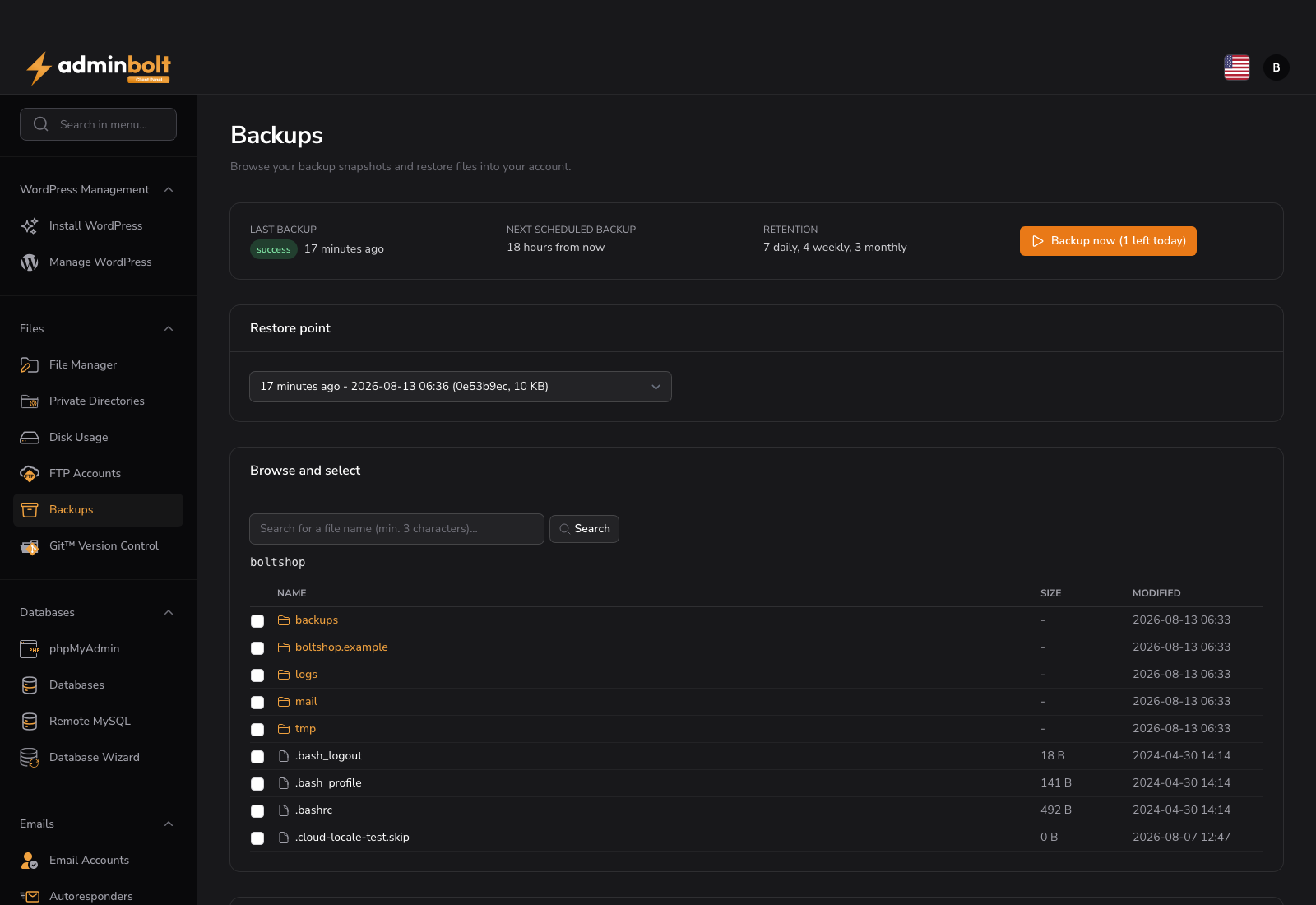
The Backups page shows the backup snapshots of your hosting account, lets you look inside them, and restores files back into your account.
Added in AdminBolt 1.7.0.
Overview
URL: /client/backups
The page sits under Files → Backups. It appears when your hosting plan includes backups and your provider has a backup schedule covering your account. If you do not see it, your provider has not enabled backups for your plan.
Note: This page is about the scheduled backups your provider runs for the whole account. It is separate from Filesystem Backups and Database Backups, which are on-demand archives you create yourself and which are stored in your own home directory.
The status header
The top of the page answers the questions people actually open this page with:
- Last backup - when the most recent backup ran, and whether it succeeded.
- Next scheduled backup - when the next one is due.
- Retention - how many daily, weekly and monthly snapshots are kept.
- Backup now - starts a backup immediately, with the number of manual backups you have left today next to it.
While a backup is running, the page says so and a new snapshot appears when it finishes.
Backup now
Backup now starts a backup of your account outside the schedule. Use it before you upgrade a site, change a theme, or do anything else you might want to undo.
The button is limited to a small number of runs per day; scheduled backups are not affected by that limit and keep running normally. If a backup is already running, wait for it to finish rather than starting another.
Choosing a restore point
Restore point lists the snapshots that exist for your account, newest first, with the date, the time and the size. The newest one is selected when the page opens.
Choosing a different snapshot reloads the file browser to show what your account looked like at that moment.
Browsing a snapshot
The browser starts at your home directory and works like a file manager: folders first, then files, with Name, Size and Modified columns. Click a folder to open it, and use the breadcrumb trail at the top to go back up. Very large folders load in pages, with a Load more button at the end.
Search finds a file by name anywhere in the snapshot, from three characters up. Searching a very common word returns too many matches to be useful, and the page will ask you for something more specific.
Restoring
Select the files and folders you want with the checkboxes, then choose how to put them back:
| Action | What it does |
|---|---|
| Restore selected | Writes the selected items back to their original place. Existing files with the same names are overwritten. |
| Restore as copy | Puts the selected items in a restored-files folder in your home directory. Nothing on your live site changes. |
| Restore entire home directory | Restores everything in the snapshot back to its original place. |
Restores run in the background, so you can leave the page. Recent restores at the bottom lists your last restores and how they ended.
Warning: A restore in place overwrites files that have the same name. When you are not sure which snapshot has the version you want, restore as a copy first and compare the files before overwriting anything.
Copies made with Restore as copy are normally removed automatically after a week, so they do not use up your disk space permanently. Your provider can change or switch off that clean-up.
Database dumps
When your provider includes databases in the backup, Database dumps in this snapshot lists the .sql files the snapshot holds.
Databases are never written back into the database server automatically. Restore copy to home directory places the .sql file in restored-files, and you import it yourself, for example with phpMyAdmin. That way a file recovery cannot silently replace a live database.
When restores are handled by your provider
Some providers keep restores in their own hands. In that case the page still shows your snapshots and still lets you start a backup, but instead of the restore buttons it says that restores are handled by your provider. Contact support and they can restore any of these files for you.
Related pages
- Filesystem Backups - on-demand archives of a single domain's files.
- Database Backups - on-demand exports of a database.
- File Manager - where restored copies land.
- Disk Usage - what is using your quota.