

Password & Security
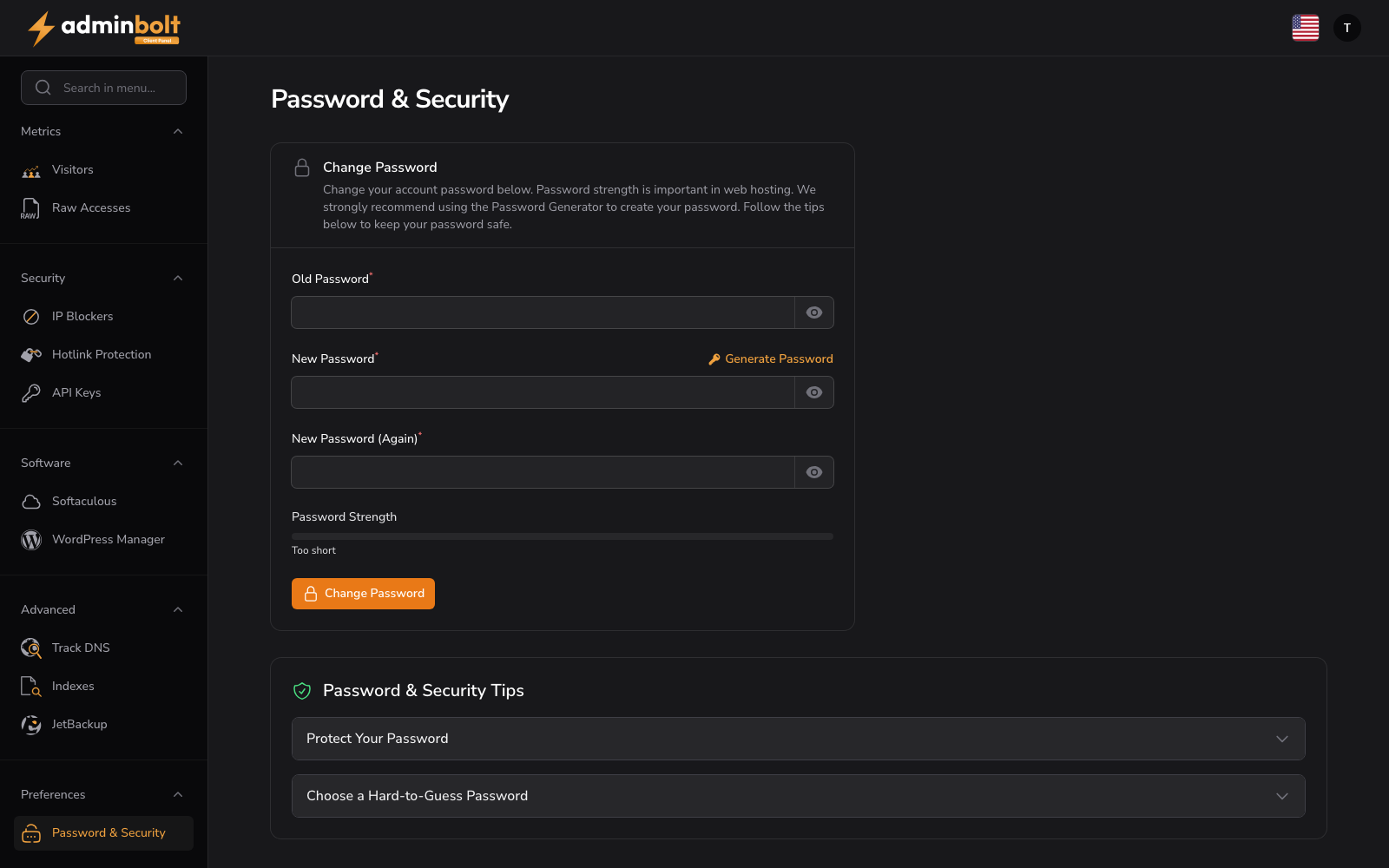
URL: /client/password-and-security
Change your account password and review security best practices.
Change Password
Enter and confirm your new password:
- Old Password (password, required) - Enter your current account password
- New Password (password, required) - Enter your new password. Click the "Generate" button to create a strong password automatically. Use the visibility toggle to show or hide the password
- New Password (Again) (password, required) - Re-enter the new password to confirm
- Password Strength - A visual indicator shows the strength of your chosen password in real time
Form button: Change Password
Password & Security Tips
Expand the collapsible tips for guidance:
- Protect Your Password: Never reuse passwords across platforms, don't share your password, use a password manager
- Choose a Hard-to-Guess Password: Use a mix of letters, numbers, and symbols; avoid personal information like birth dates or names
Password Generator
A Generate Password button creates a strong random password for the new password field.
Two-factor authentication (TOTP)
Added in AdminBolt 1.7.0. A second factor means that somebody who learns your password still cannot sign in to your hosting account.
AdminBolt uses standard one-time codes, so any authenticator app works: Google Authenticator, 1Password, Authy, and others. Turning it on is your own decision.

Turning it on
- Click Enable authenticator app.
- Scan the QR code with your authenticator app, or use Or enter this secret manually if the device cannot scan.
- Type the six-digit code the app shows and confirm with Confirm & enable.
- Write down the recovery codes that appear, then tick I have saved my recovery codes.
From then on, signing in asks for a code after your password.
Recovery codes
Recovery codes get you back in when you lose the device with the authenticator. Each code works once, and they are shown only when you enable the second factor or regenerate them. Keep them somewhere you can reach without the panel, for example printed or in a password manager.
Regenerate recovery codes issues a new set and cancels the old one.
Turning it off
Disable authenticator app removes the second factor.
Note: Disabling the second factor and regenerating recovery codes ask for a current code first, and so does removing a passkey while your authenticator app is enabled. That way somebody who finds your session open cannot quietly take the protection off. If you use passkeys without an authenticator app there is no code to ask for, so removing one relies on your signed-in session.
If you lose access
If you lose both your authenticator and your recovery codes, contact your hosting provider. An administrator can clear the second factor from your account so you can set it up again.
Passkeys
A passkey signs you in with Face ID, Touch ID, Windows Hello or a hardware security key instead of a typed code.
- Add passkey registers the device you are using now. Give it a name you will recognize, for example
MacBook Touch ID. - Registered passkeys are listed with their name and when they were last used, or Never used.
- Remove deletes a passkey. Remove a device's passkey as soon as the device is lost.
You can register more than one passkey, for example a laptop and a phone, and use them alongside an authenticator app. A browser that does not support passkeys says so instead of offering the button.
Active Sessions
Active Sessions lists every device currently signed in to your account, with its IP address, the browser or device it reports, and when it was last active. The session you are using is marked This device.
- Revoke signs out one other device immediately.
- Log out all other sessions ends every session except this one, and invalidates remembered logins on those devices as well. The browser you asked from stays signed in.

Sign other devices out after using a shared computer, and again right after changing your password if you suspect someone else knew it.
Login History
Login History shows the most recent login attempts for your account, newest first:
| Column | Meaning |
|---|---|
| Date | When the attempt happened. |
| IP Address | Where it came from. |
| Device | The browser or client that made the attempt. |
| Result | Success or Failed. |
Failed attempts from unfamiliar addresses are common on any server reachable from the internet. Repeated failures followed by a success are the pattern worth acting on: revoke the sessions, then change your password.
The section shows the 20 most recent attempts. How long attempts are kept at all is configured by the server administrator and defaults to 90 days, so an older attempt can be gone even when fewer than 20 are listed.