

Updating AdminBolt
Keeping your AdminBolt control panel up to date ensures you have access to the latest features, security patches, and improvements. This guide explains how to update your AdminBolt installation.
Updating from the admin panel
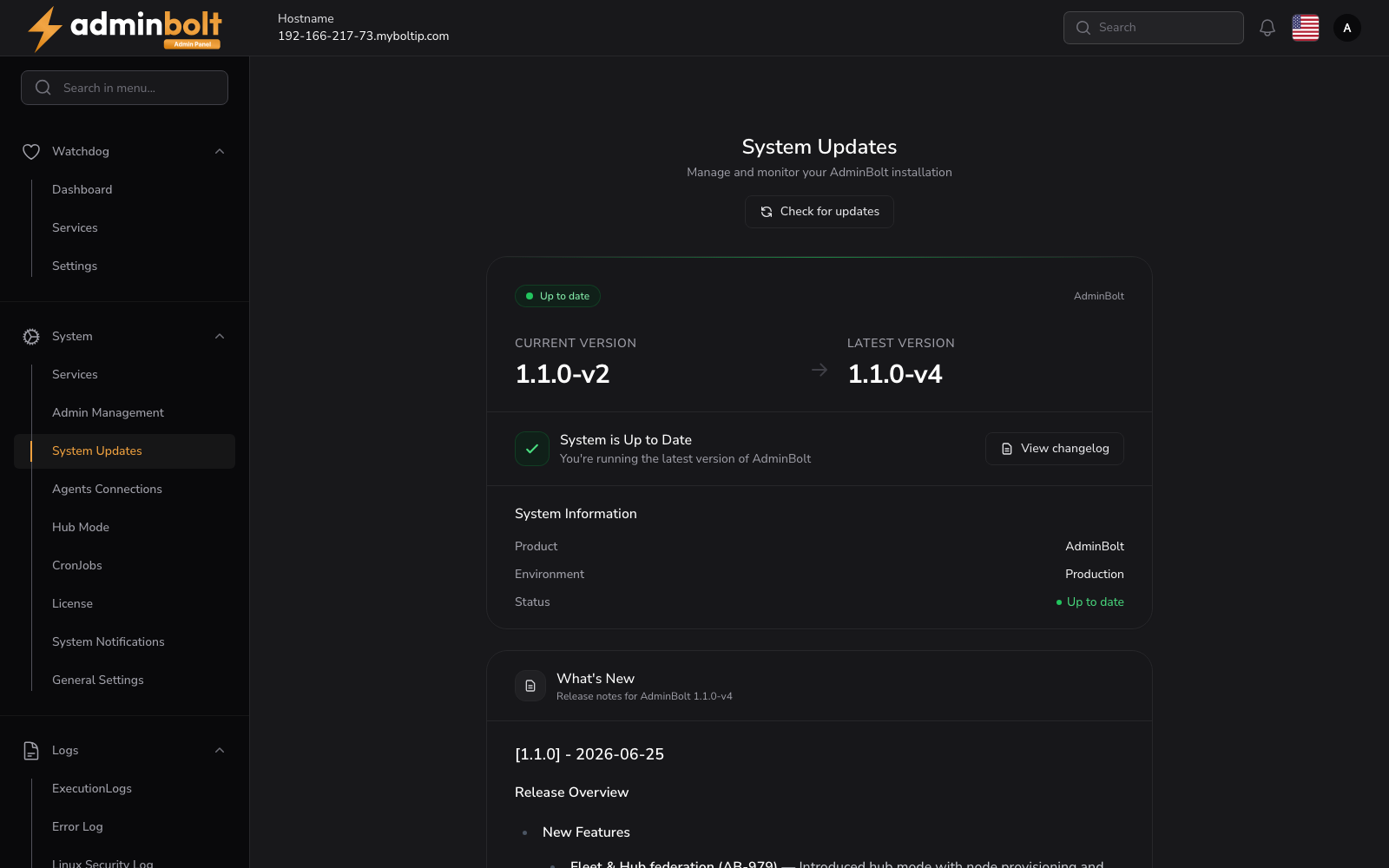
The simplest way to update is the System Updates view (see System Updates for the full reference):
- Log in to the Admin Panel.
- Open System → System Updates (
/admin/system-updates). The page checks for updates automatically and shows your Current Version and the Latest Version. - If a newer version is available, the release notes appear inline under What's New. Click Install update to apply it.
- Use Check for updates at any time to re-run the check.
The update is downloaded and installed, and the necessary services are restarted.
Updating from the command line
Server administrators can update from the shell:
- The AdminBolt panel and agent packages are upgraded with the system package manager (
yum/dnfon RHEL/AlmaLinux). bolt-cli check-for-updates [--force]checks for a new version and notifies administrators.bolt-cli run-upgrade-steps [--retry-failed] [--only <id>] [--list]runs any pending one-shot upgrade steps.
See the CLI Reference for the full command list.
What an update reconciles
Beyond the packages themselves, each upgrade brings parts of the server back in line with what the current release expects:
- Managed cron entries are reconciled on every upgrade, so a server missing one picks it up on the next update rather than only on a fresh install. This covers the sweep that issues and renews certificates for hosting domains.
- JetBackup hooks are installed on hosts that ran JetBackup before AdminBolt shipped its integration, so backups and restores cover every account resource rather than the home directory alone. An hourly check puts them back if a JetBackup update replaces them.
- Webmail and the shipped fail2ban jails, panel login protection among them, come back up after an update that does not include those components itself.
Two things are worth doing by hand after upgrading to 1.6.0:
- Admin sign-in. Admin accounts are now owned by the panel and have their own passwords. Existing installs keep signing in with the password they use today and are asked to set a panel password on the next sign-in. See Admin Management.
- Existing virtual hosts. Run
bolt-cli rebuild-apache-vhostsonce to regenerate the configuration of every non-parked domain from the current templates. New and changed domains do this on their own; the command is for sites created before the upgrade.
After updating
- Clear your browser cache to ensure you are seeing the latest interface.
- Check the dashboard for any migration notices or additional steps.
- Test key features to make sure everything is working as expected.
Troubleshooting
- If an update fails, the panel shows an error state with a View log option; the update log is at
/usr/local/bolt/web/bolt-update.log. - If the system cannot be updated automatically (for example a package conflict), the panel shows the steps to resolve it over SSH.
- On servers where the AdminBolt package repository is not configured, update checks are skipped cleanly rather than failing. Configure the repository to receive panel updates.
- Make sure your server meets the system requirements.
- If problems persist, contact support or check the forums.