

Email Settings
The Default Email Settings page allows you to configure all backend parameters for Dovecot and LMTP services, and the limits on how much mail may leave the server. Settings are grouped into 12 tabs. Each tab contains fields that can be customized to optimize server performance, authentication, storage, and encryption.
URL: /admin/email-settings
1. Sending Limits
Added in AdminBolt 1.7.0. This tab caps how much mail leaves the server, per mailbox and per domain. The rejections the limits produce are listed on the Sending Limits page.
Outbound Sending Limits
| Field | Default | Applies to |
|---|---|---|
| Per mailbox per hour | 100 | Authenticated SMTP: mail clients and webmail |
| Per mailbox per day | 500 | Authenticated SMTP |
| Per domain per hour | 200 | Every sending path, including website scripts |
| Per domain per day | 1000 | Every sending path |
Mailbox limits key on the login, which cannot be spoofed. Domain limits also cover mail sent by website scripts through PHP, which never log in, and that is the limit that catches a compromised website.
Leave a field empty to disable that limit. Zero is not accepted: it would reject all mail rather than lift the limit.
Limits are continuous rates, not quotas that reset on the hour. Capacity returns gradually at the configured rate instead of all at once.
Note: Saving this tab restarts the spam filter. For a few seconds, submission from mail clients is deferred with
try again later; incoming mail on port 25 is unaffected.
Automatic Suspension
- Suspend sending automatically when a mailbox exceeds its limit is off by default. With it on, a mailbox over its limit loses SMTP login until its sending rate drains back under the limit, then gets it back on its own. The mailbox keeps receiving mail and stays readable over IMAP and webmail throughout, and the customer sees when the suspension expires next to the mailbox.
- Keep rejection history (days) controls how long rejections stay on the Sending Limits page. The default is 30 days.
A suspension an administrator applies by hand is never lifted automatically. If you suspect a stolen password, change it and suspend the mailbox manually.
Per-Sender Overrides
Overrides give one mailbox or one domain its own numbers, higher or lower than the defaults:
- Mailbox overrides take a mailbox address with a per-hour and a per-day number.
- Domain overrides take a domain with a per-hour and a per-day number.
An override beats the hosting plan, which beats the server-wide value. Overrides always name existing mailboxes or domains; entries for senders that no longer exist are dropped automatically.
Per-plan limits
A hosting plan can carry its own four numbers, under Outgoing Emails per Mailbox per Hour, per Mailbox per Day, per Domain per Hour and per Domain per Day on the Hosting Plans page. An empty field on the plan inherits the server-wide value.
2. Authentication
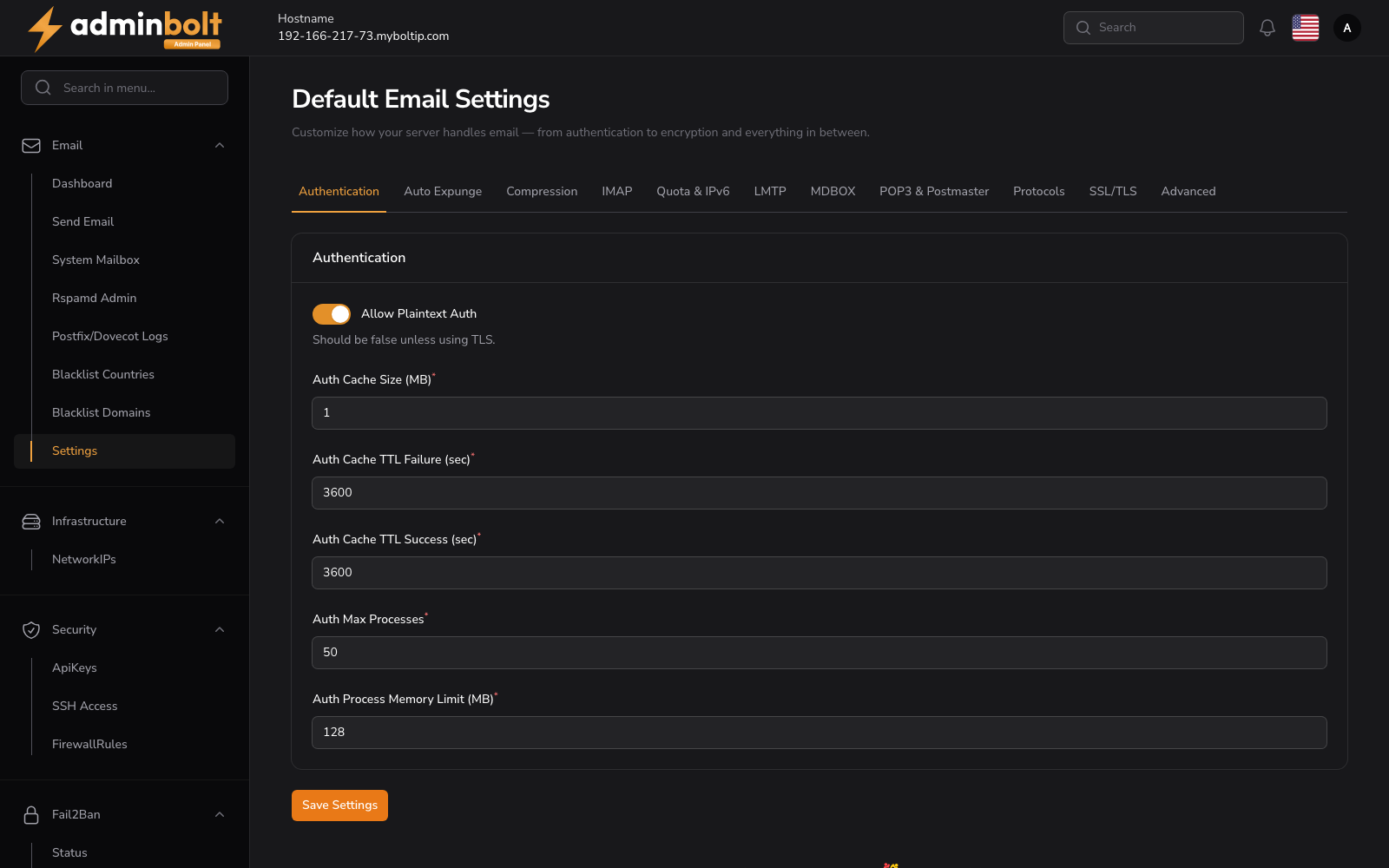
Configure authentication-related settings for secure mail access.
- Allow Plaintext Auth - Should be disabled (
false) unless you're using TLS. Enabling this without TLS is insecure. - Auth Cache Size (MB) - Size of the authentication cache in megabytes. Helps with authentication performance.
- Auth Cache TTL Failure (sec) - How long (in seconds) a failed authentication attempt stays in the cache.
- Auth Cache TTL Success (sec) - How long (in seconds) a successful authentication stays in the cache.
- Auth Max Processes - Maximum number of authentication worker processes.
- Auth Process Memory Limit (MB) - Memory limit per authentication process, in megabytes.
3. Auto Expunge
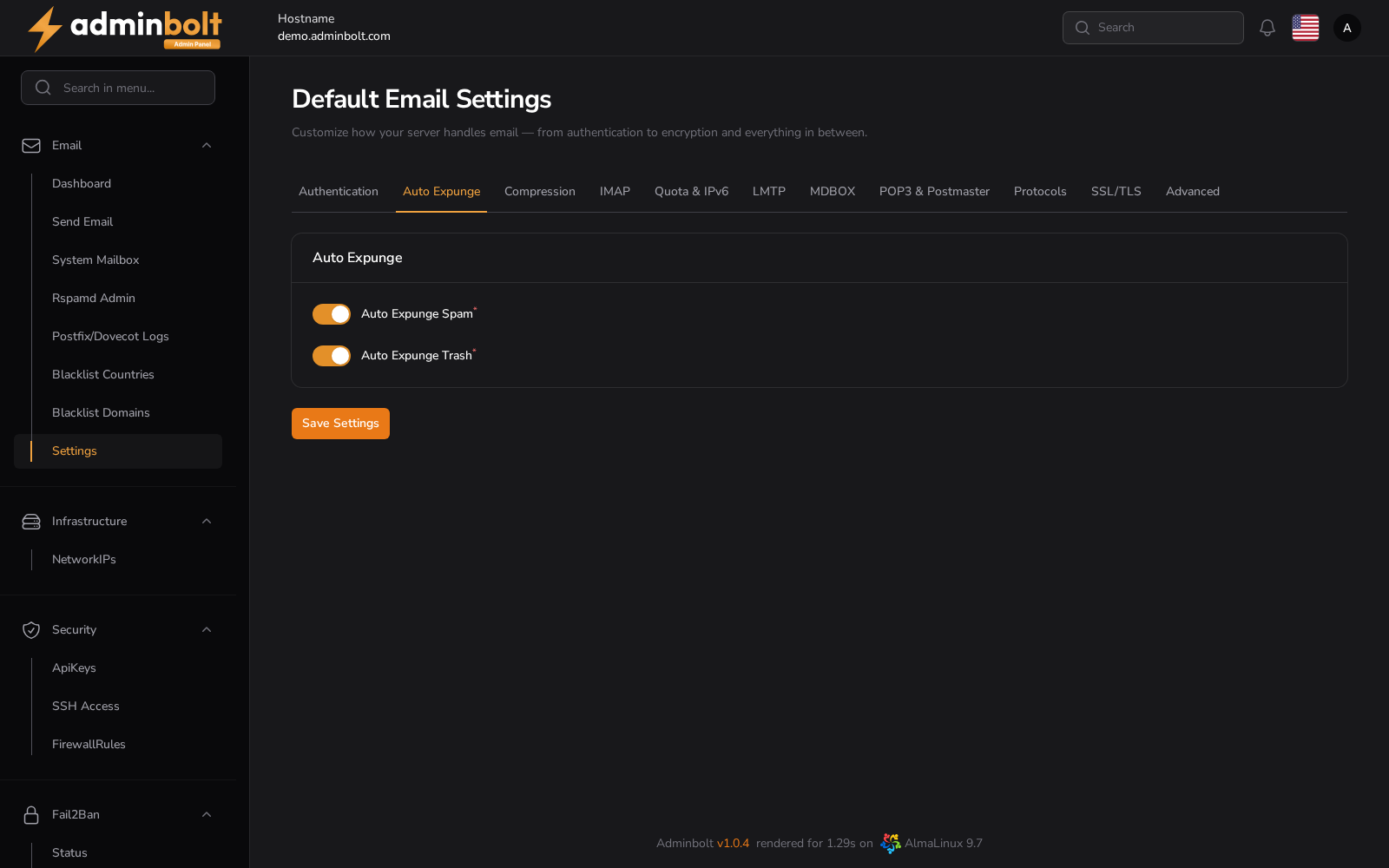
Automatically expunge messages from specific folders.
- Auto Expunge Spam - If enabled, automatically deletes messages from the Spam folder.
- Auto Expunge Trash - If enabled, automatically deletes messages from the Trash folder.
4. Compression
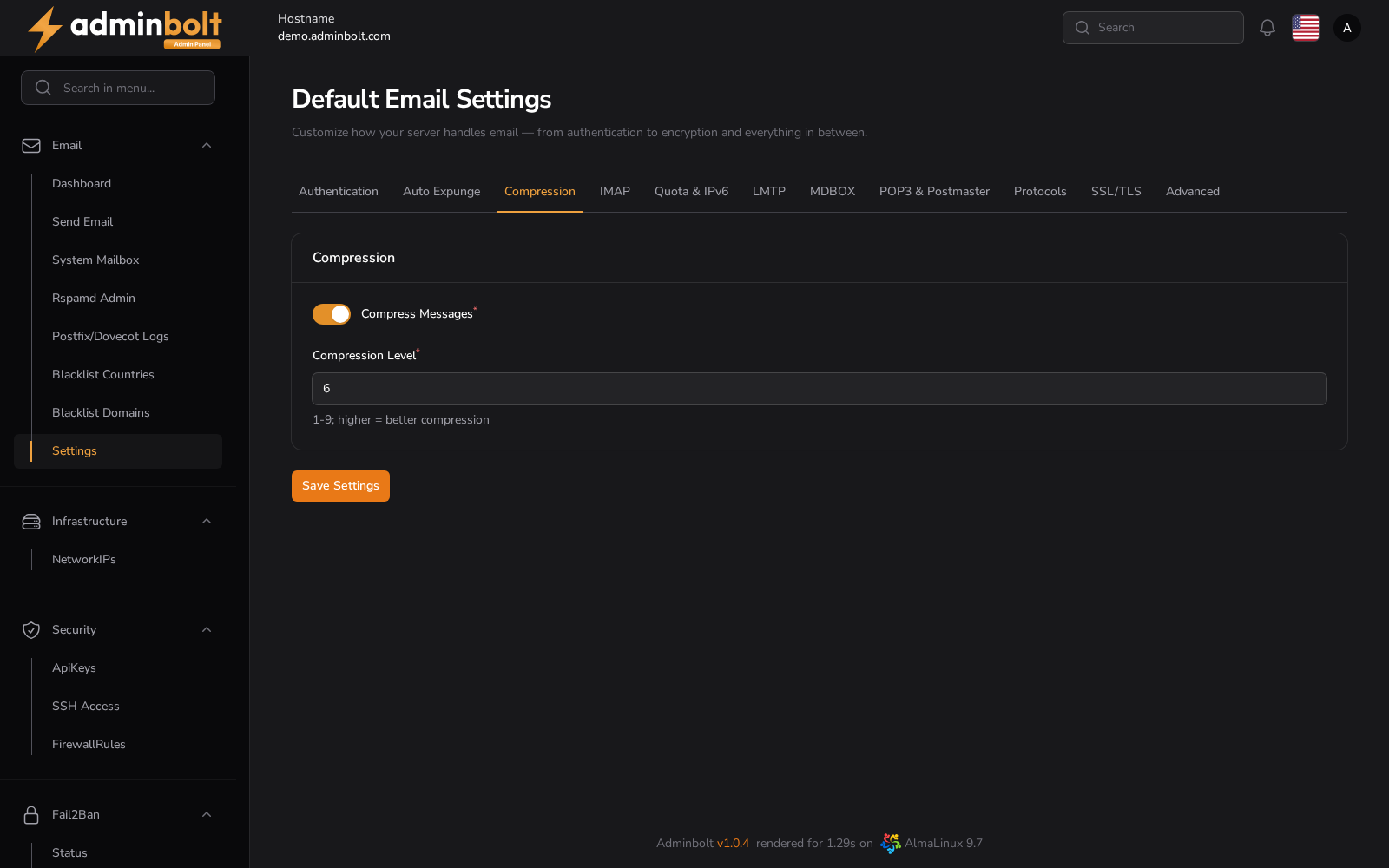
Control message compression options.
- Compress Messages - Enable or disable compression of stored emails.
- Compression Level - Set the compression level from 1 to 9. Higher values provide better compression but may use more CPU. Default is 6.
5. IMAP Settings
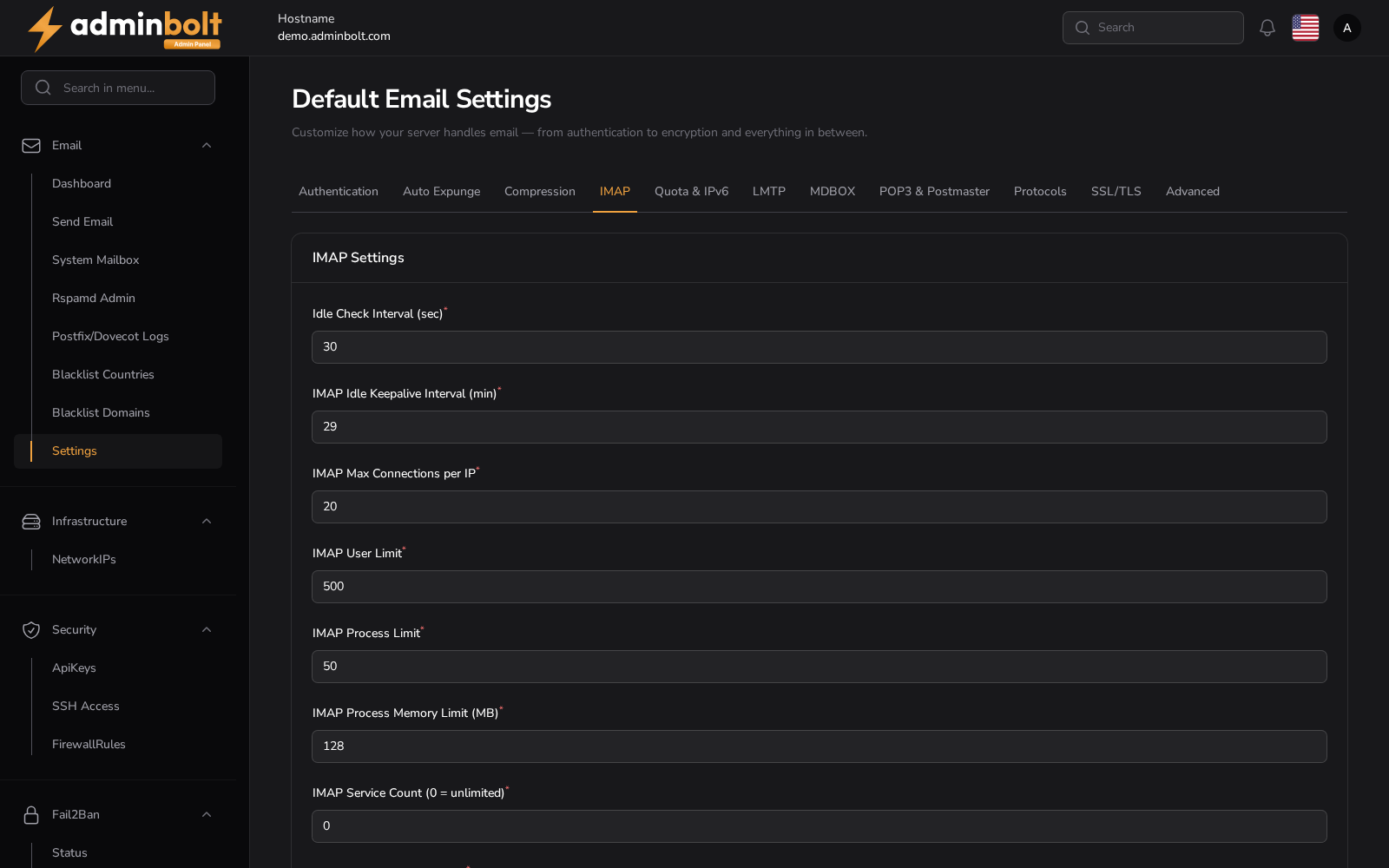
Configure IMAP service behavior.
- Idle Check Interval (sec) - Time in seconds for the server to check for new messages during IDLE.
- IMAP Idle Keepalive Interval (min) - Keepalive interval in minutes for idle connections.
- IMAP Max Connections per IP - Maximum number of IMAP connections allowed per IP address.
- IMAP User Limit - Total number of simultaneous IMAP users.
- IMAP Process Limit - Maximum number of IMAP server processes.
- IMAP Process Memory Limit (MB) - Memory limit per IMAP process in megabytes.
- IMAP Service Count (0 = unlimited) - Number of IMAP services that can run concurrently. 0 means unlimited.
- IMAP Process Min Available - Minimum number of spare IMAP processes to keep available.
6. Quota

Manage storage quota enforcement.
- Include Trash in Quota - Whether deleted items count against a user's quota.
7. LMTP Settings
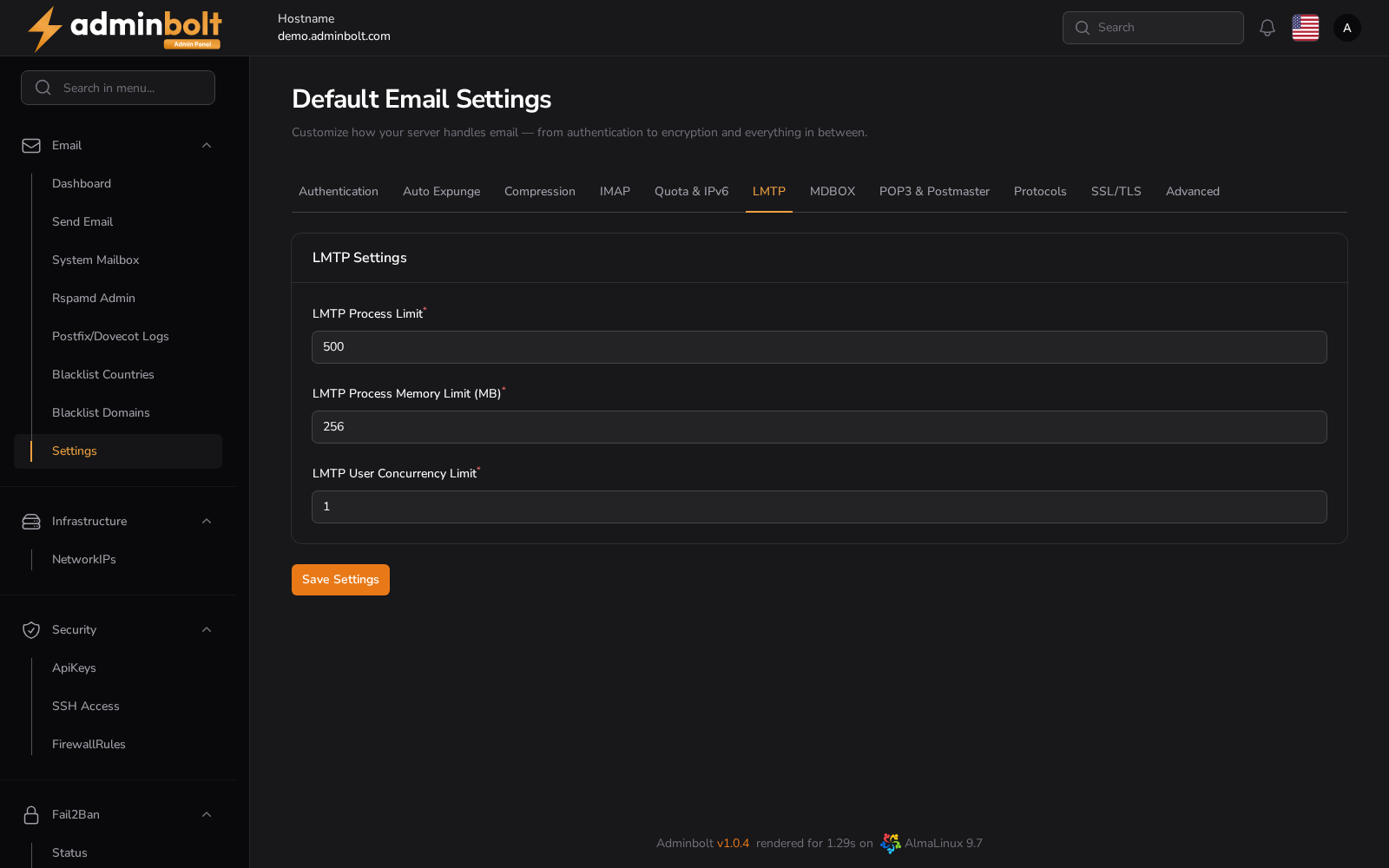
Tune LMTP delivery performance.
- LMTP Process Limit - Maximum number of LMTP processes.
- LMTP Process Memory Limit (MB) - Memory limit per LMTP process in megabytes.
- LMTP User Concurrency Limit - Maximum number of concurrent LMTP deliveries per user.
8. MDBOX Settings
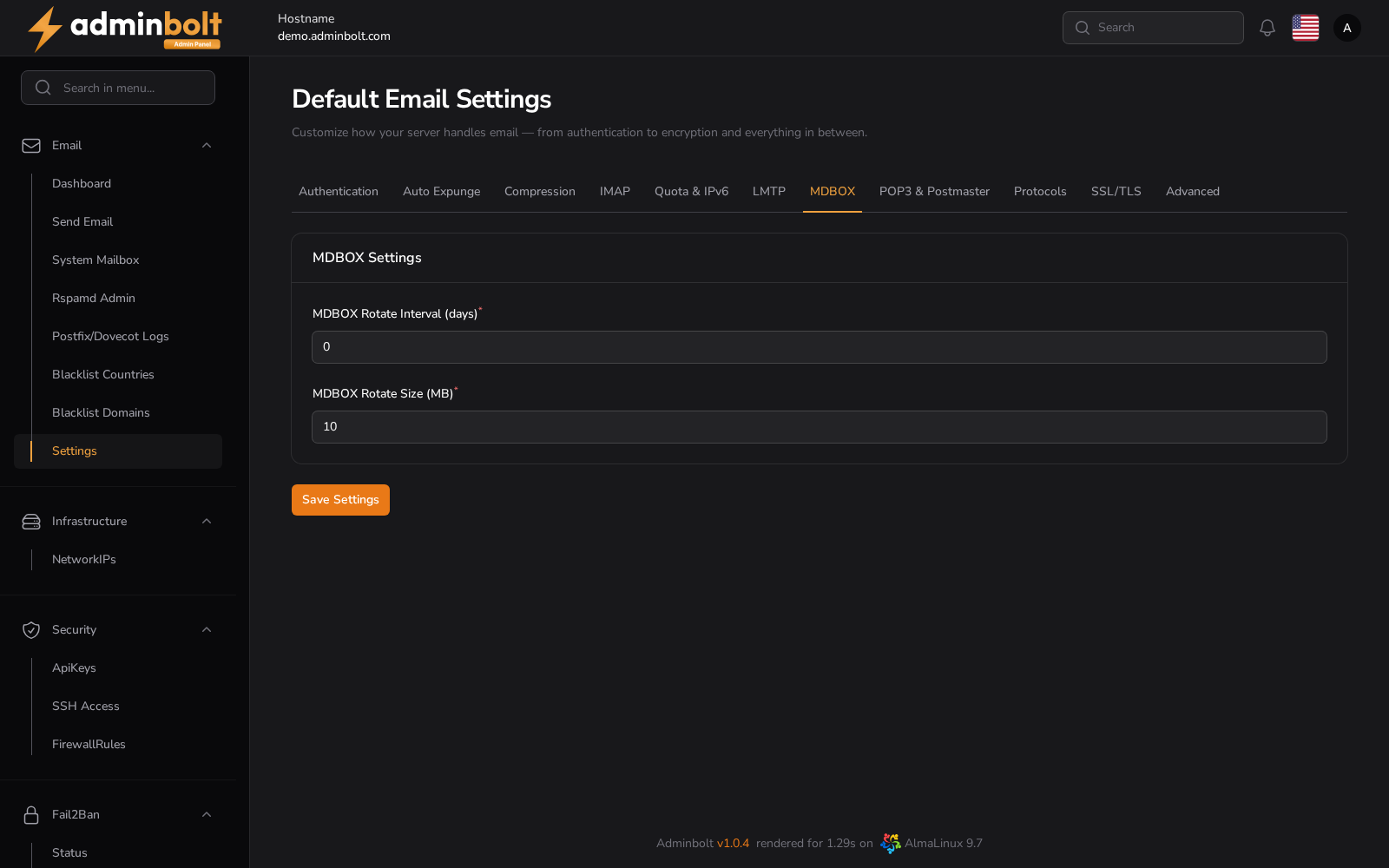
Set up mailbox rotation for MDBOX format.
- MDBOX Rotate Interval (days) - Interval in days to rotate mdbox files. 0 disables rotation.
- MDBOX Rotate Size (MB) - Maximum file size (in MB) before rotation occurs.
9. POP3 & Postmaster
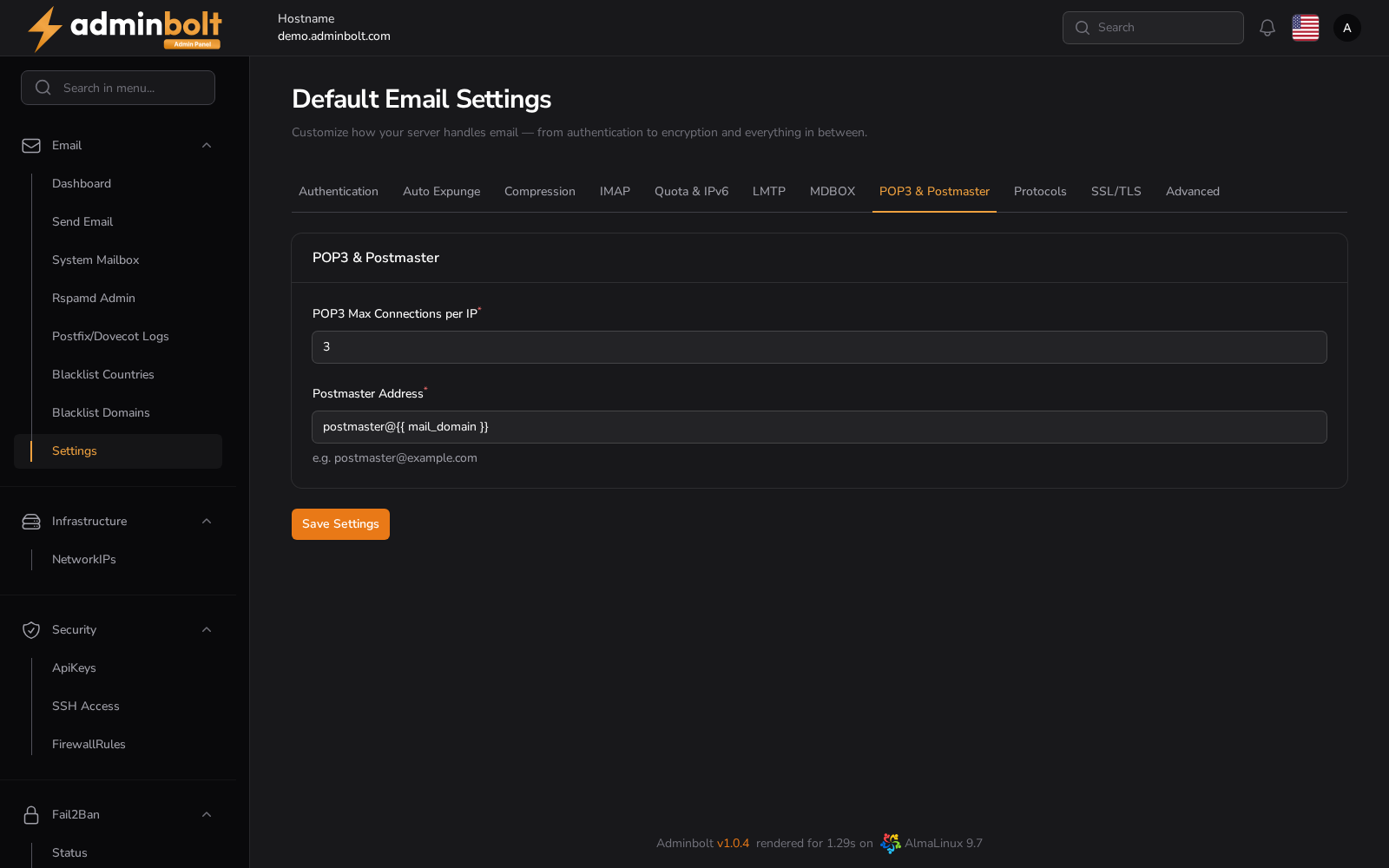
Control POP3 access and designate a postmaster contact.
- POP3 Max Connections per IP - Maximum number of POP3 connections per IP.
- Postmaster Address - Required field. Sets the contact email address for the domain (e.g.,
[email protected]).
10. Protocols
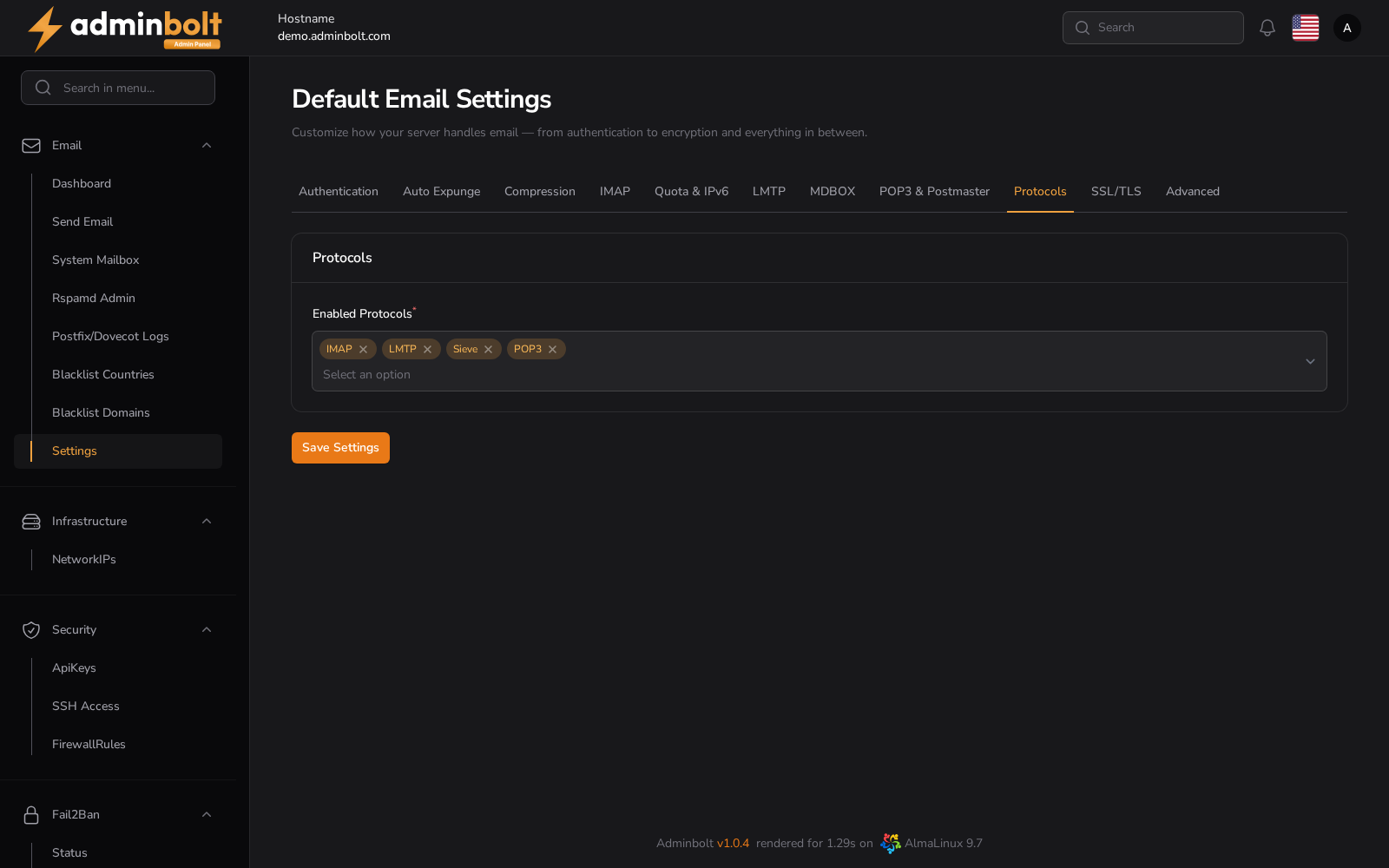
Select which mail protocols are active.
- Enabled Protocols - Multi-select field where you can choose which protocols to enable: IMAP, POP3, LMTP. Corresponding POP3/POP3S firewall ports are opened automatically when enabled.
11. SSL/TLS
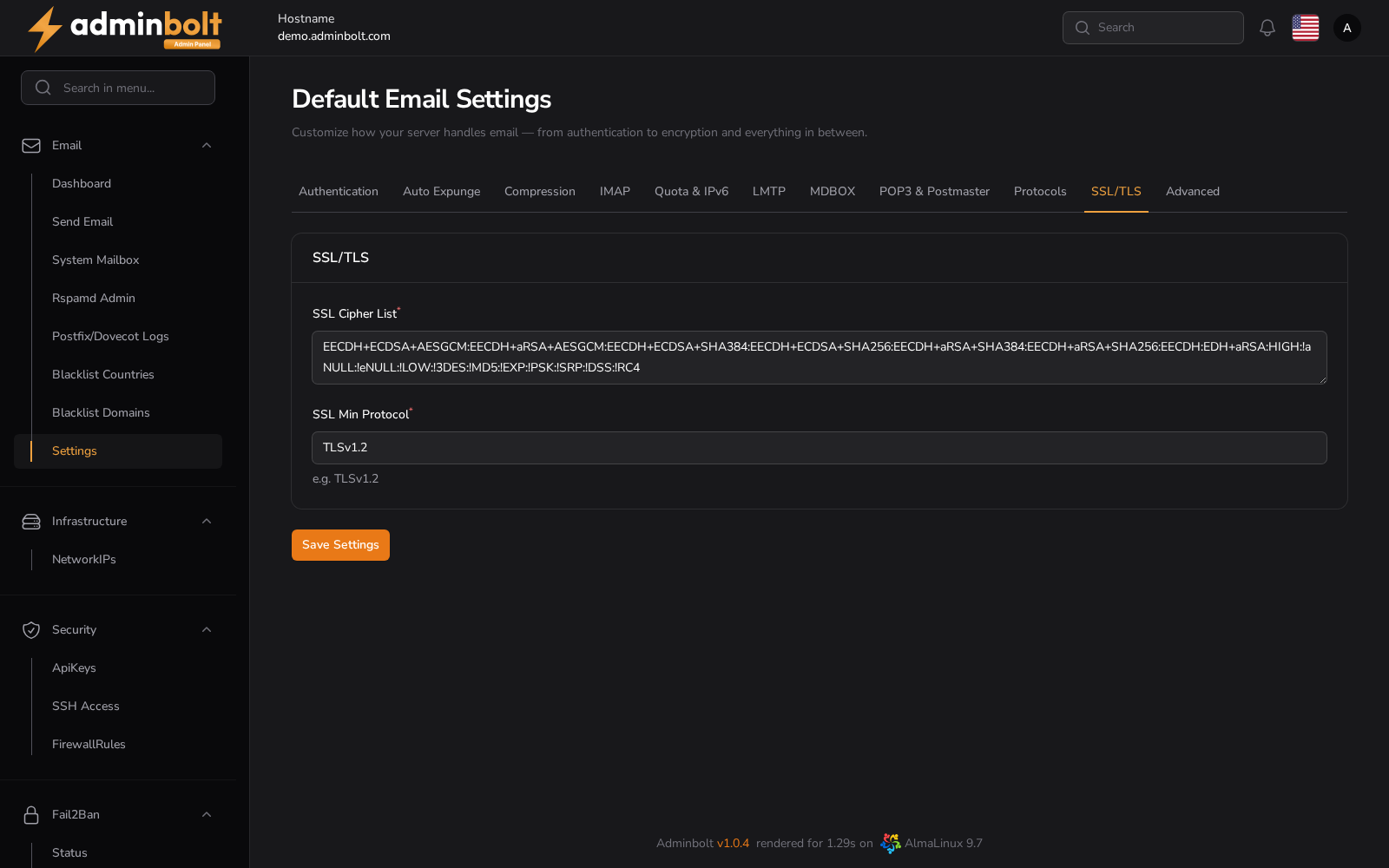
Control secure communication settings.
- SSL Cipher List - Define the list of allowed ciphers for encrypted communication.
- SSL Min Protocol - Minimum allowed protocol (e.g., TLSv1.2). Older versions (e.g., SSLv3) should be avoided for security reasons.
12. Advanced
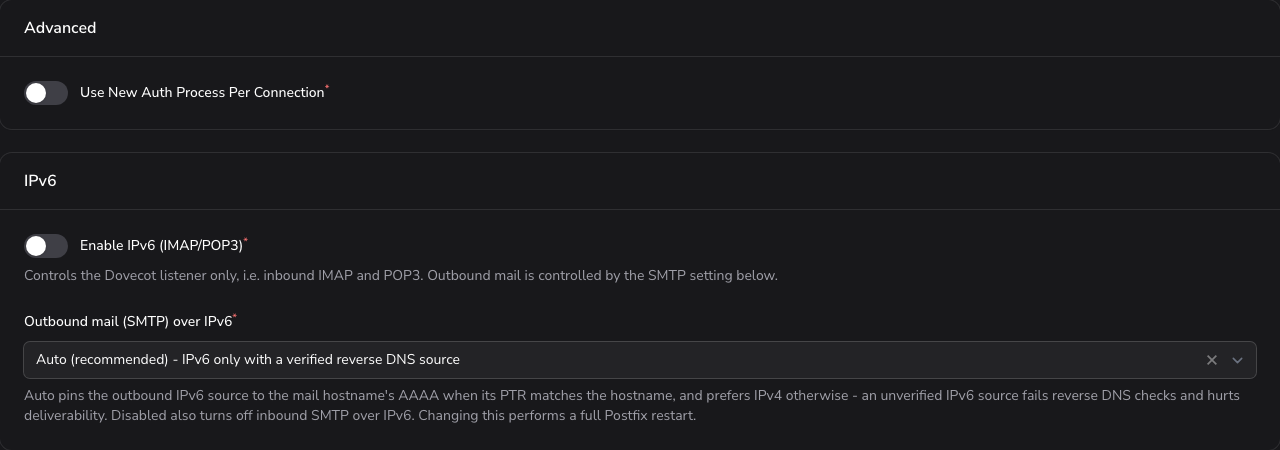
Advanced authentication options and IPv6.
- Use New Auth Process Per Connection - Toggle to start a new authentication process for each connection.
IPv6
Two separate controls, because inbound mailbox access and outbound sending are different problems.
- Enable IPv6 (IMAP/POP3) - Controls the Dovecot listener only, that is inbound IMAP and POP3.
- Outbound mail (SMTP) over IPv6 - How Postfix sends mail over IPv6:
| Value | Behaviour |
|---|---|
| Auto (recommended) | IPv6 is used only with a verified reverse DNS source. AdminBolt pins the outbound IPv6 source address to the mail hostname's AAAA record when that address's PTR matches the hostname, and prefers IPv4 otherwise. |
| Disabled | Postfix does not send over IPv6. This also turns off inbound SMTP over IPv6. |
| Enabled | Unrestricted IPv6, with no reverse DNS condition. |
Warning: Changing Outbound mail (SMTP) over IPv6 performs a full Postfix restart.
Auto is the right value on almost every server. Several large mail providers reject IPv6 mail whose source address fails a reverse DNS check, so an unverified IPv6 source hurts deliverability more than having no IPv6 at all.
Check outbound IPv6
The Check outbound IPv6 action in the page header reads the policy the mail server is actually applying and reports it, so you can confirm that the mode you saved is in effect. AdminBolt also runs this check on a schedule and raises a system notification when outbound IPv6 deliverability degrades.
Saving Changes
Use the Save Settings button to persist changes made in any of the tabs.