

Certificates
The Certificates page in AdminBolt allows you to manage, import, edit, and download SSL/TLS certificates for your domains and services.
Overview
URL: /admin/certificates
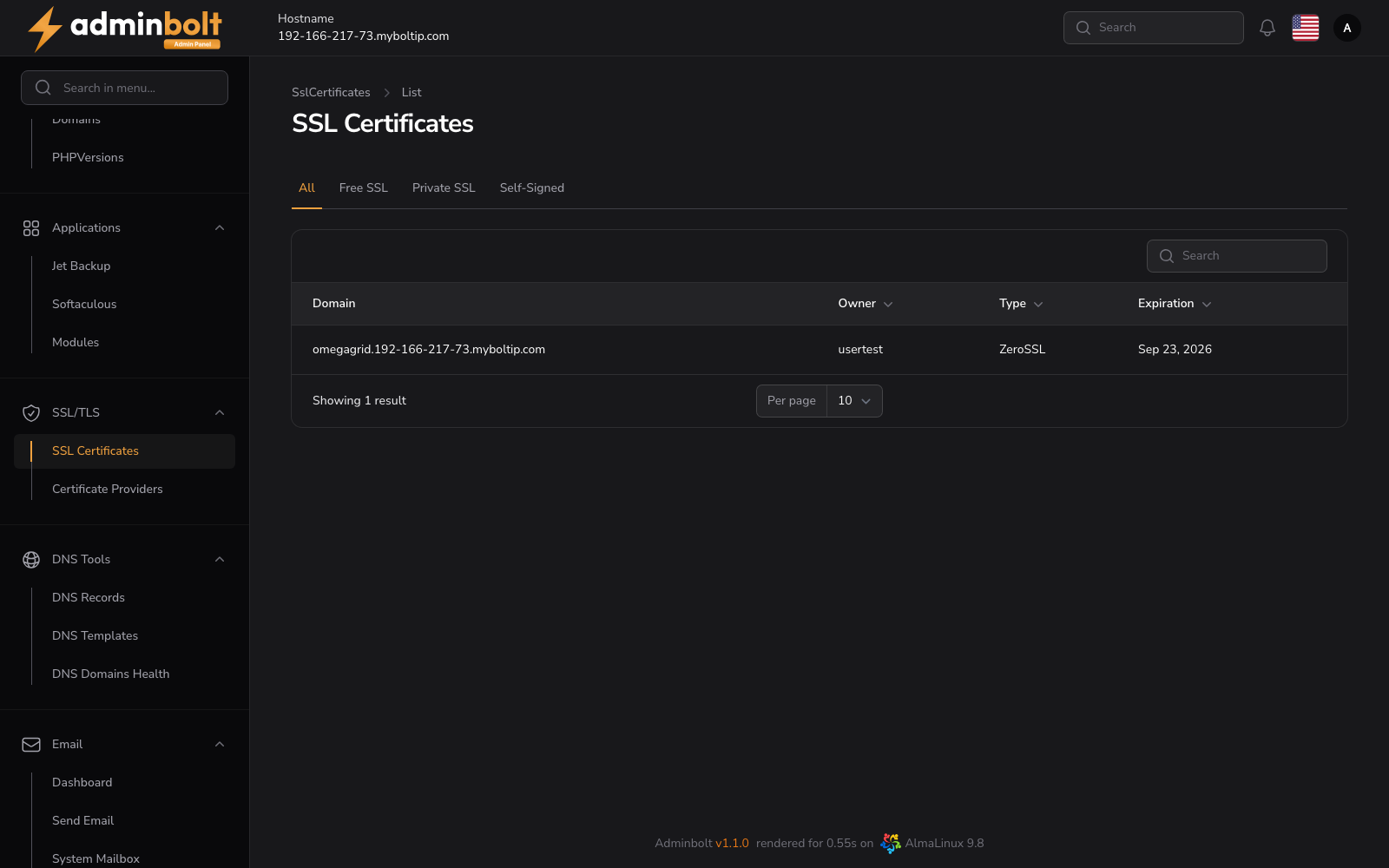
This page provides an overview of all SSL/TLS certificates currently installed on the system. Each certificate entry shows:
- Domain - The main domain the certificate is issued for. Non-ASCII domain names are listed in their readable Unicode form; the certificate itself is issued for the Punycode name. See Internationalised domain names.
- Owner - The hosting account that owns the certificate (sortable).
- Type - The certificate provider (e.g., ZeroSSL, Let's Encrypt) (sortable).
- Expiration - The certificate expiration date (sortable).
Filter Tabs
At the top of the certificate list, you can filter certificates by type using the following tabs:
| Tab | Description |
|---|---|
| All | Shows all certificates regardless of type. |
| Free SSL | Shows only certificates from free providers (e.g. Let's Encrypt, ZeroSSL). |
| Private SSL | Shows only privately purchased/imported certificates. |
| Self-Signed | Shows only self-signed certificates. |
Actions
Import Certificate
Clicking the Import Certificate button opens a modal that allows you to manually paste PEM-formatted certificate data.
The modal includes the following fields:
- Certificate (PEM) - Required
- Private Key (PEM) - Required
- Certificate Chain (PEM) - Optional
Once all required fields are filled in, click Submit to import the certificate into the system.
Edit Certificate
Each certificate can be edited by clicking the Edit icon in its row. This opens a modal where all associated data can be updated.
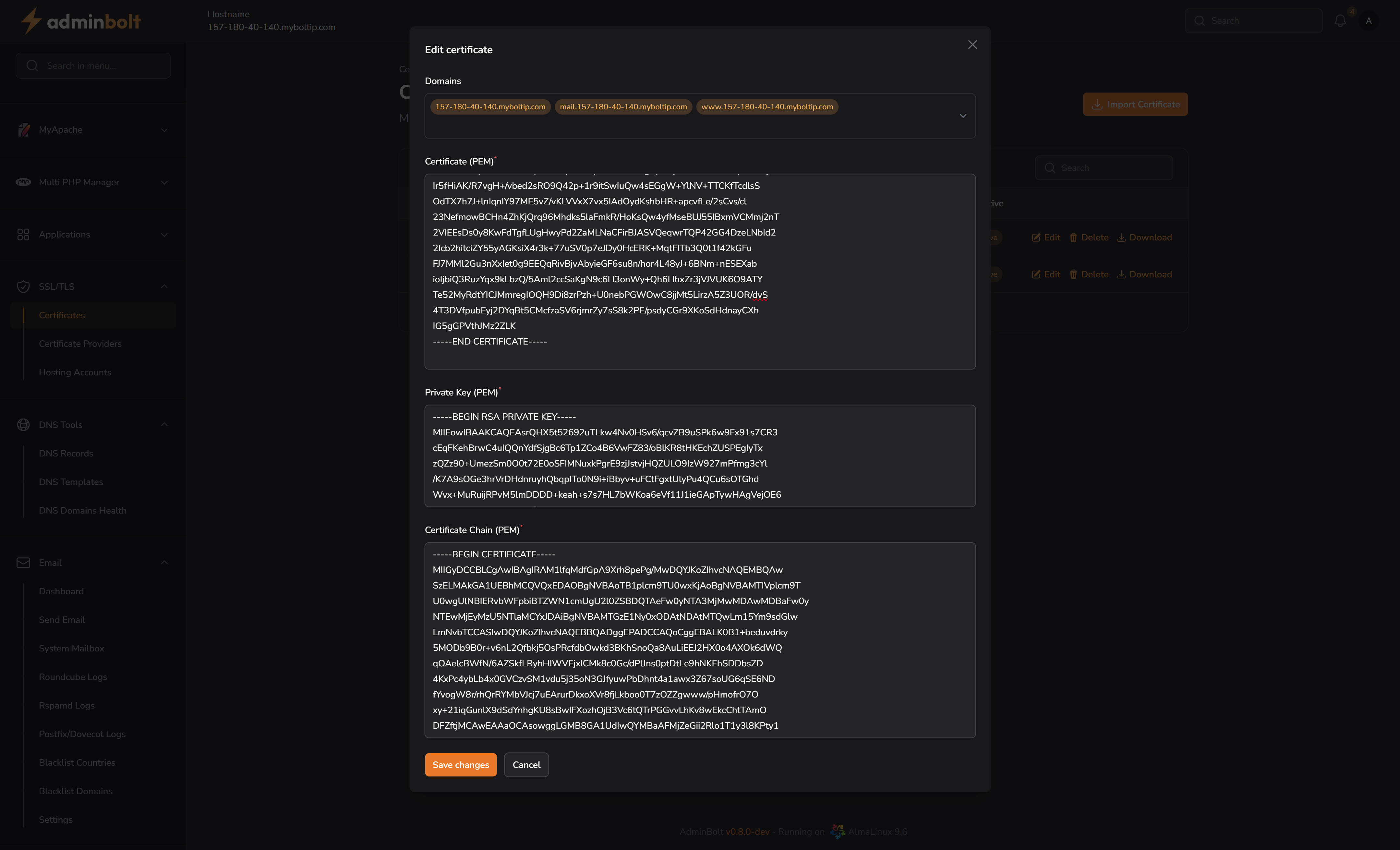
Editable fields:
- Certificate (PEM) - Modify the main certificate content
- Private Key (PEM) - Update the private key
- Certificate Chain (PEM) - Update the certificate chain if needed
Click Save Changes to apply updates.
Additional Actions
- Delete - Permanently removes the certificate from the system.
- Download - Exports the certificate (likely in PEM format) for local backup or use on other systems.
Pagination
Results per page can be set to: 5, 10, 25, 50, or All.
Expiry alerts
Added in AdminBolt 1.7.0. The panel warns you before a certificate expires instead of leaving you to notice a broken site.
| Situation | When you are warned |
|---|---|
| A certificate that does not renew itself | 30, 14, 7 and 1 days before expiry |
| A certificate that renews itself | 7 and 1 days before expiry |
| A renewal that failed | When the failure happens, with the reason the issuer gave |
| A certificate that has already expired | After it expires |
A self-renewing certificate is warned about later because the renewal normally happens on its own; an alert at seven days means the renewal has not run yet, and that is worth looking at.
Alerts go out over email, webhooks and the admin notification bell. All three templates are editable on the System Notifications page, under the SSL triggers.
Related pages
- Certificate Providers - the issuers certificates come from.
- SSL Hosting Accounts - per-account certificate state.
- System Notifications - the alert templates and channels.