

FTP Accounts
URL: /client/ftp-accounts-page
Create and manage FTP accounts to access your hosting files remotely.
Create Account
Click the “Create FTP Account” button to set up a new FTP user account.
Creating an FTP Account
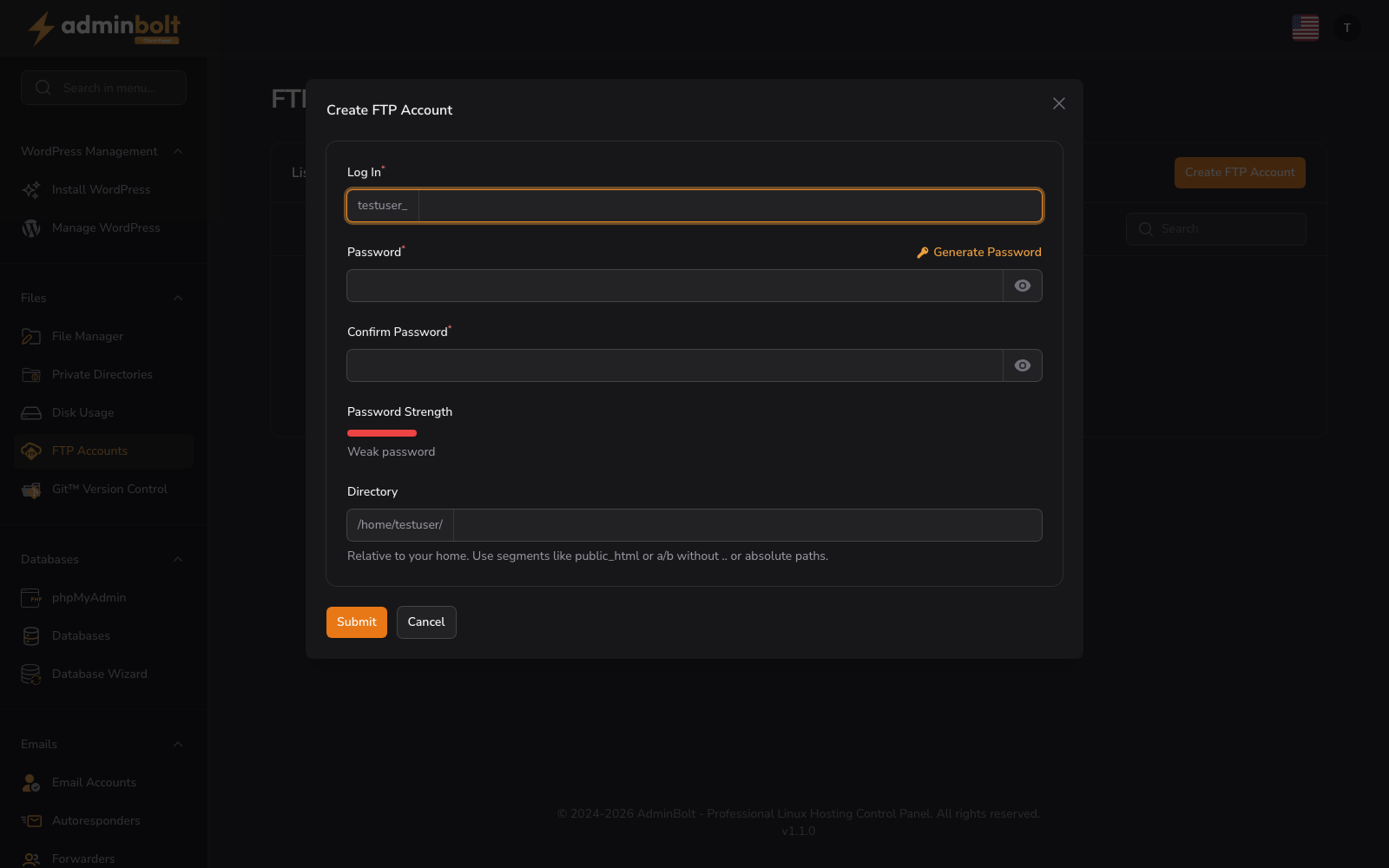
The “Create FTP Account” form allows you to create a new FTP user with access to your hosting files. Complete the following fields:
- Log In (text, required) - Enter the FTP username. Your account name is automatically prefixed (e.g. “demo_”)
- Password (password, required) - Enter a secure password for the FTP account. Click the “Generate” button to create a strong password automatically
- Confirm Password (password, required) - Re-enter your password to confirm
- Password Strength - A visual indicator shows the strength of your chosen password
- Directory (text) - The default directory path where the FTP account can access files. Auto-filled with the home directory prefix (e.g. “/home/demo/”)
After completing the form, click “Create” to set up the FTP account or “Cancel” to exit the form.
Note: FTP passwords are stored as one-way hashes. The password is shown only while you set it or generate a new one, and AdminBolt cannot display or recover it afterwards. If you lose an FTP password, edit the account and set a new one; there is no way to look up the existing value.
Search
Use the search bar to filter existing FTP accounts by username or keyword.
Account List
The interface displays FTP accounts in a table format. When no accounts exist, you see:
No FTP Accounts Create an FTP account to get started.