

Certificates
The Certificates page in adminbolt allows administrators to manage, import, edit, and download SSL/TLS certificates for their domains and services.
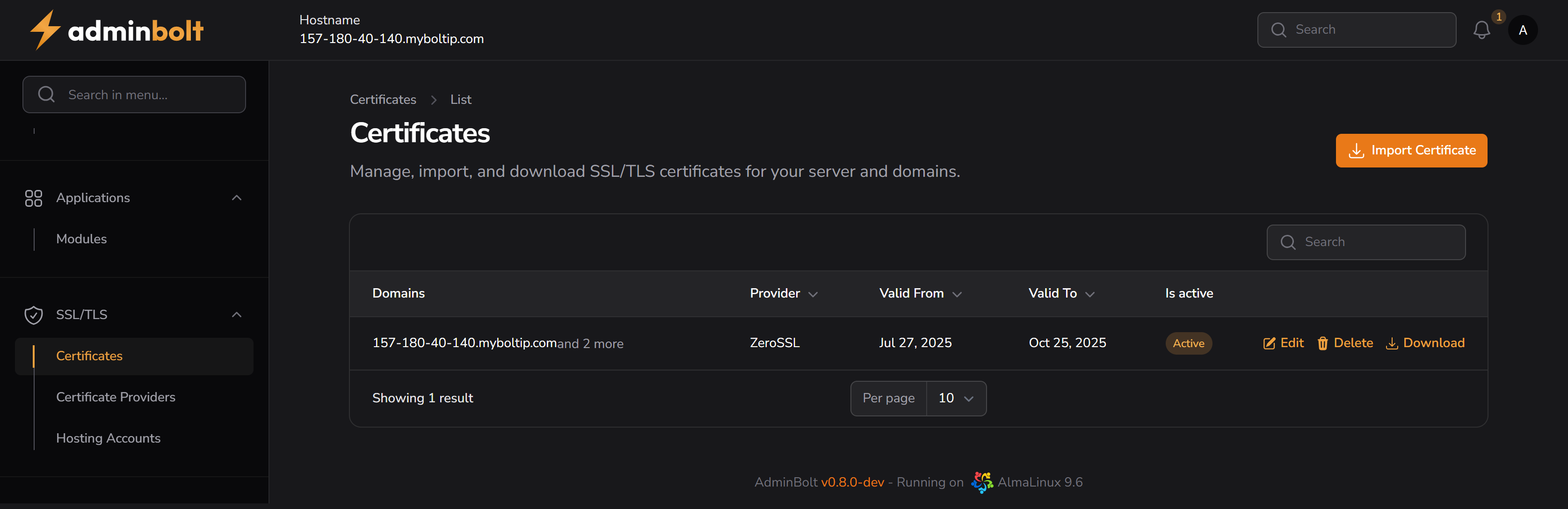
Overview
This page provides an overview of all active SSL/TLS certificates currently installed on the system. Each certificate entry shows:
- Domain — The main domain the certificate is issued for (e.g.
157-180-40-140.myboltip.com) - Provider — The certificate authority (e.g. ZeroSSL)
- Valid From / To — The certificate's validity period
- Is Active — Badge indicating whether the certificate is currently active
URL
/admin/certificates
Actions
Import Certificate
Clicking the Import Certificate button opens a modal that allows you to manually paste PEM-formatted certificate data.
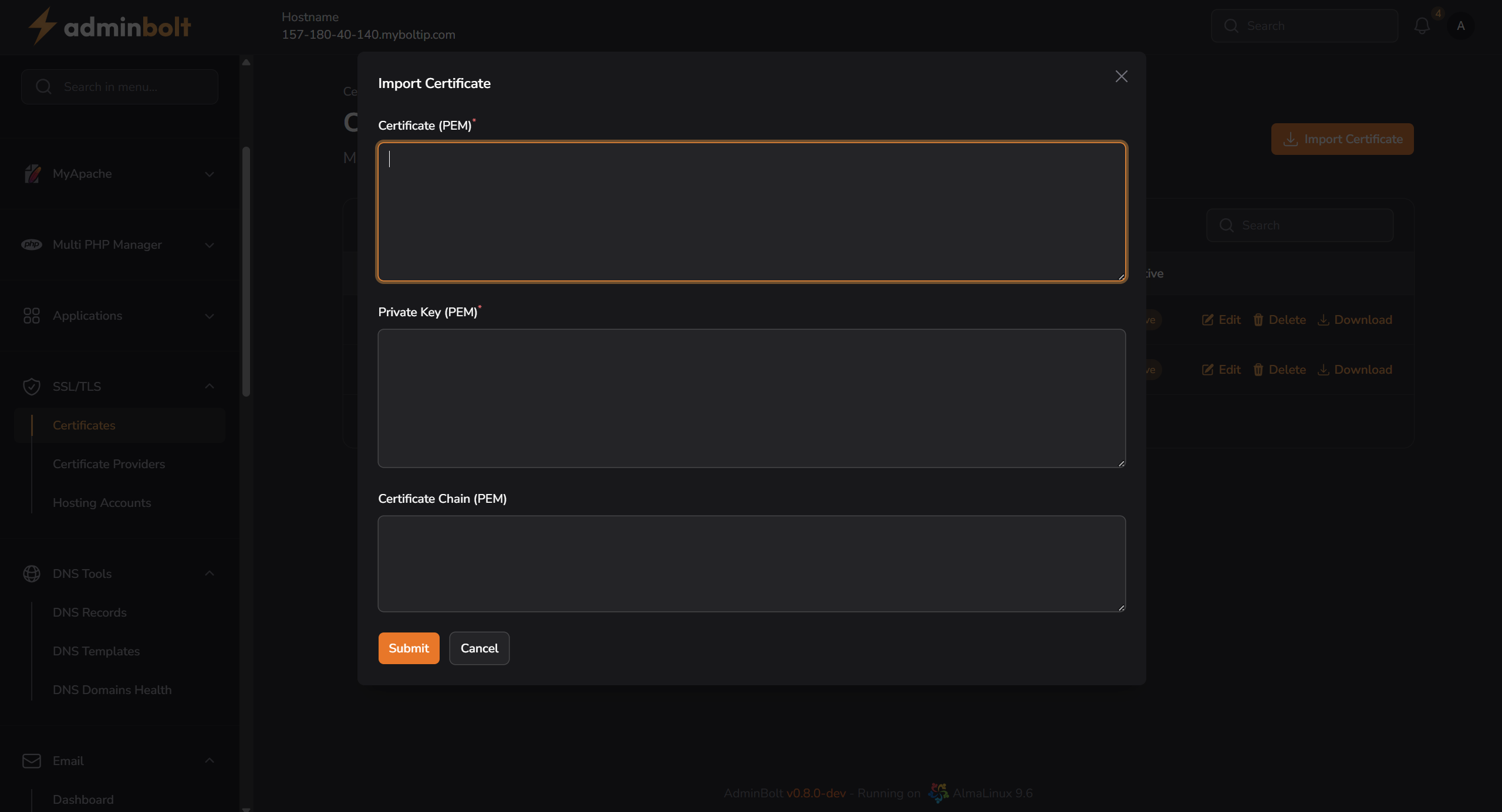
The modal includes the following fields:
- Certificate (PEM) – Required
- Private Key (PEM) – Required
- Certificate Chain (PEM) – Optional
Once all required fields are filled in, click Submit to import the certificate into the system.
Edit Certificate
Each certificate can be edited by clicking the Edit icon in its row. This opens a modal where all associated data can be updated.
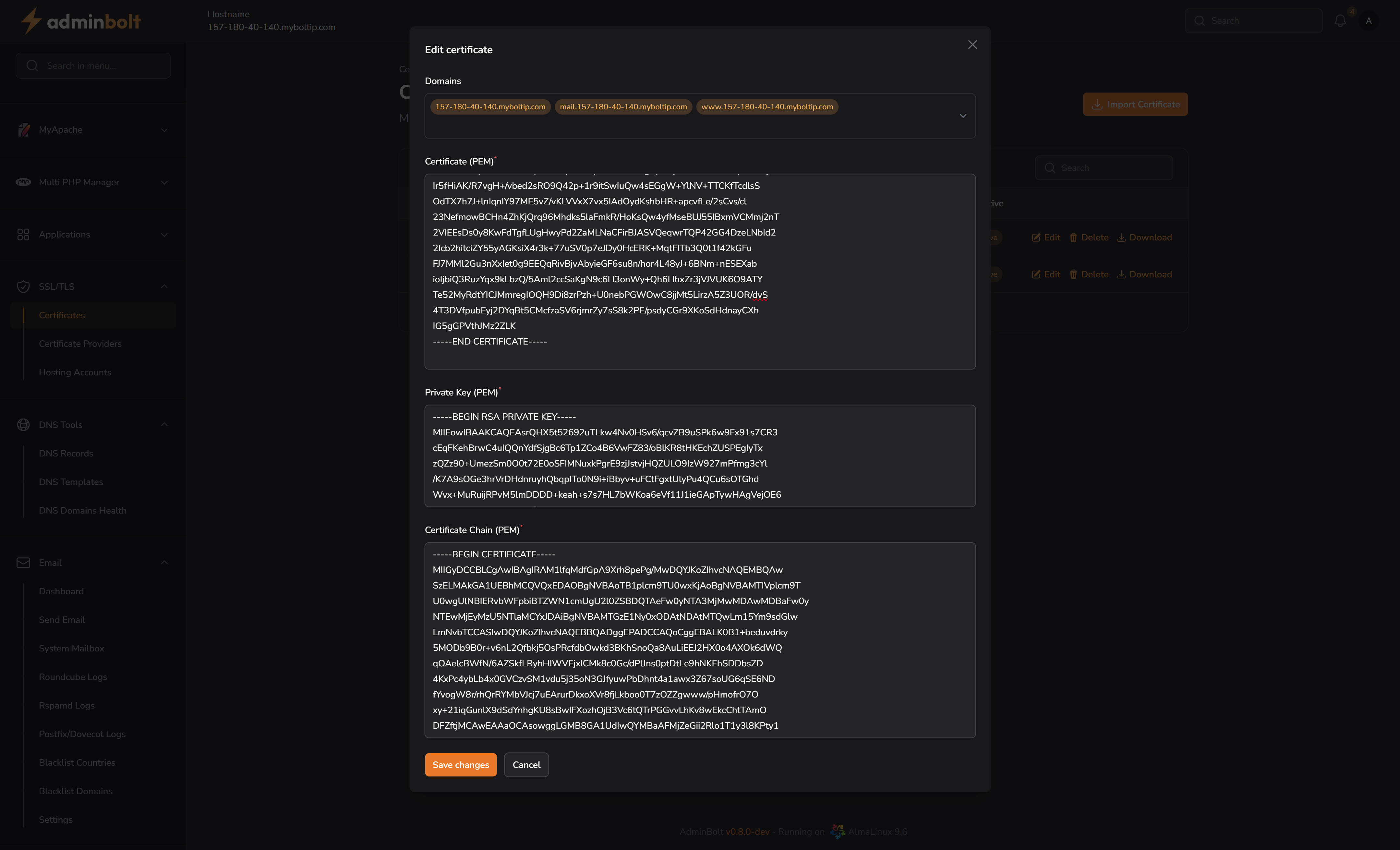
Editable fields:
- Certificate (PEM) – Modify the main certificate content
- Private Key (PEM) – Update the private key
- Certificate Chain (PEM) – Update the certificate chain if needed
Click Save Changes to apply updates.
Additional Actions
- Delete – Permanently removes the certificate from the system.
- Download – Exports the certificate (likely in PEM format) for local backup or use on other systems.
Notes
- The system supports multiple domains (SAN) in a single certificate.