

License Management
The License Management page allows you to enter, validate, and manage your adminbolt license key to unlock premium features.
Overview
URL: /admin/license
This page is divided into several key areas:
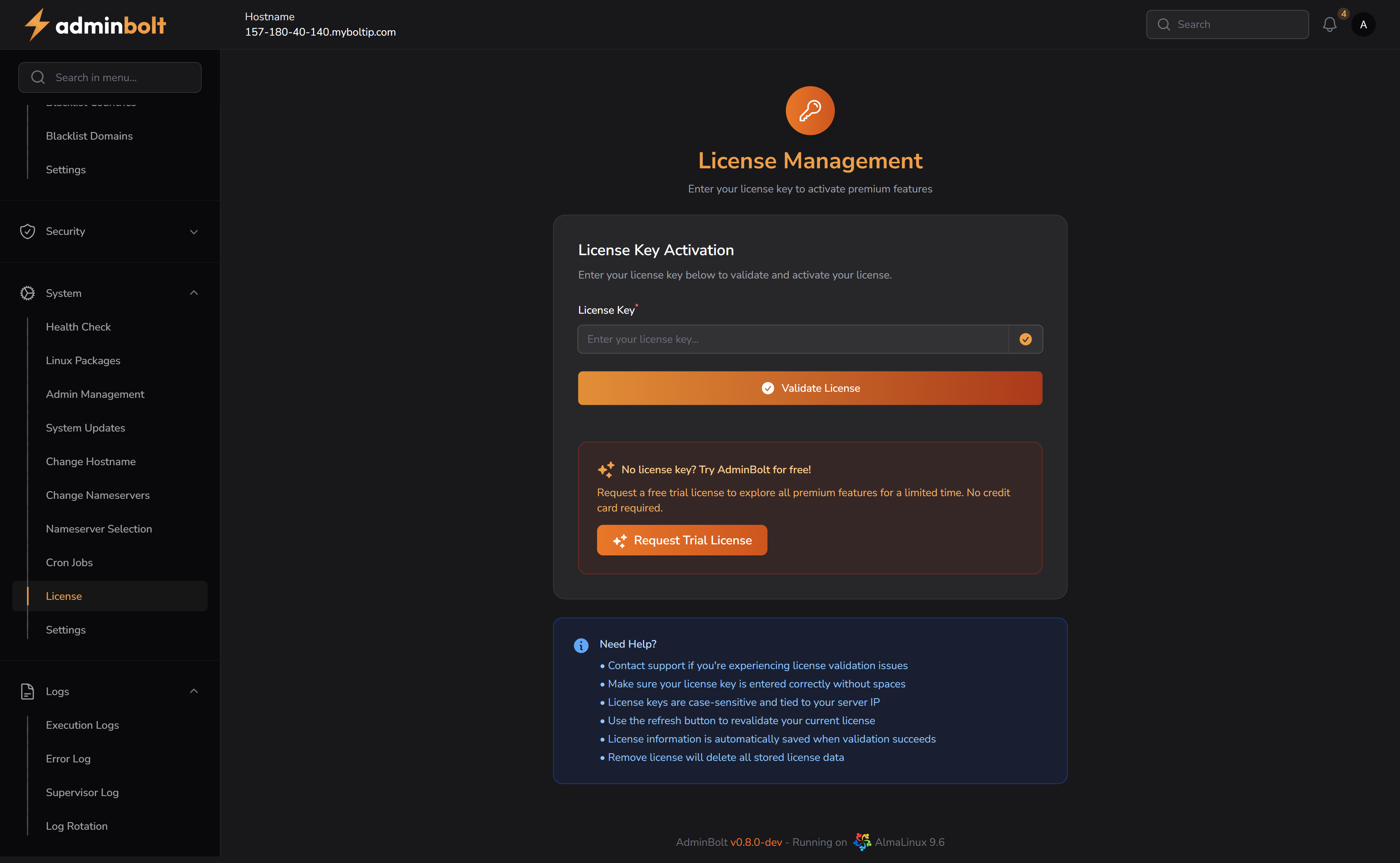
License Key Activation
Users can activate or validate a license key using the License Key field and associated buttons.
- Input Field – Enter your license key (case-sensitive, no spaces).
- Validate License Button – Sends the license key for validation.
- If successful, the message shown is:
Success - License key is valid and has been applied!
Trial License
If no license key is available, you can request a free trial license directly from the interface.
- Click the Request Trial License button to generate a free trial.
- Trial licenses activate immediately and unlock all features temporarily.
License Status
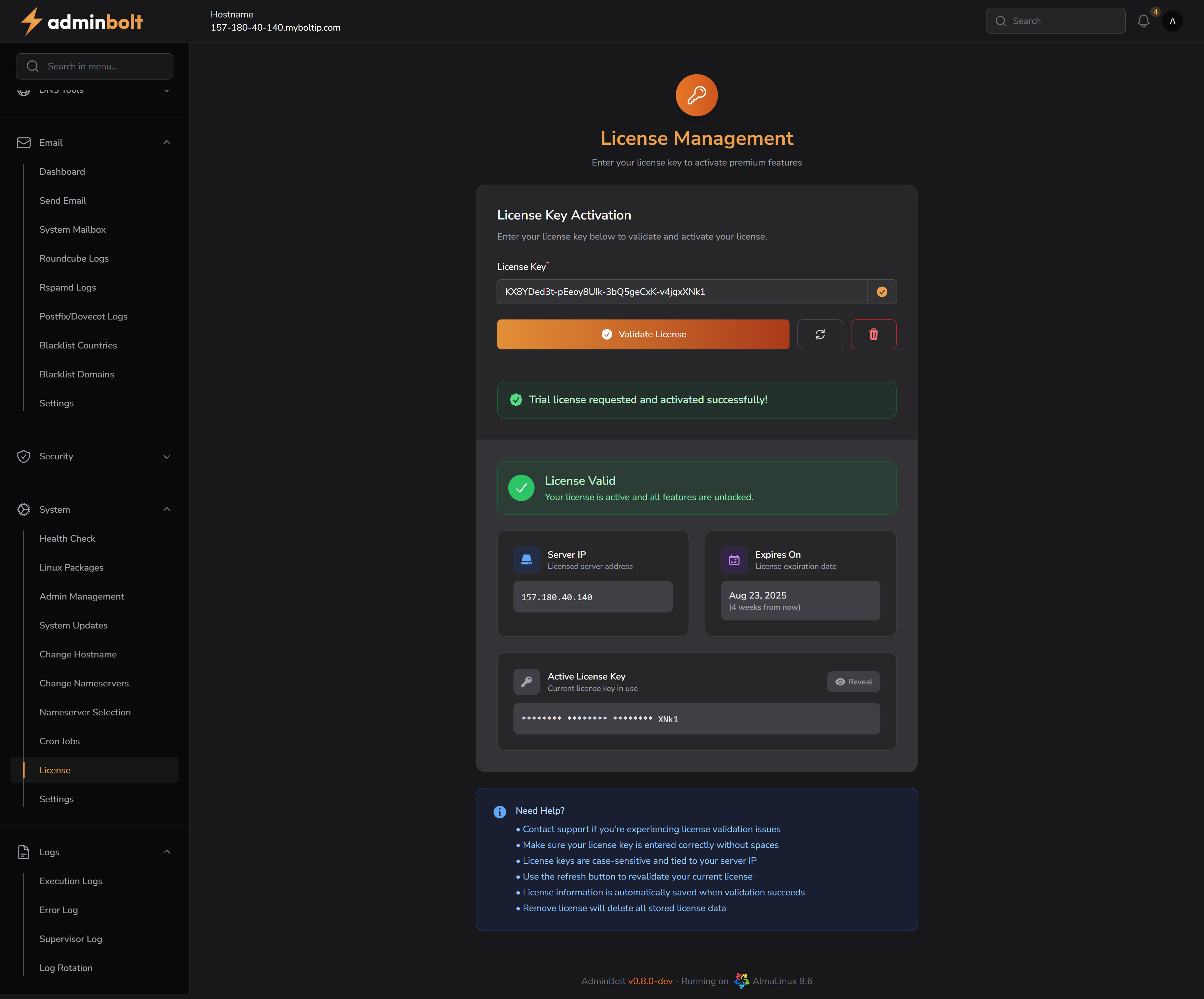
After a license is successfully validated, the current status is shown:
License Valid – Indicates that the license is active and working.
Server IP – Displays the IP address the license is bound to.
Expiration Date – Shows when the license will expire.
Active License Key – Obfuscated display of the current license with optional reveal.
Revalidate Button – Refreshes the validation of the currently active license key.
- If successful, the message shown is:
Success – License revalidated successfully!
- If successful, the message shown is:
Remove Button – Deletes the current license from the system.
Need Help?
A help section is available at the bottom of the page with important tips:
- Contact support if validation fails.
- Ensure no spaces or typos in the key.
- Keys are case-sensitive and tied to your IP.
- Click the refresh icon to revalidate.
- Removing the license deletes all saved license data.
Notes
- Revalidation is useful if your IP changes or you restore a server snapshot.